
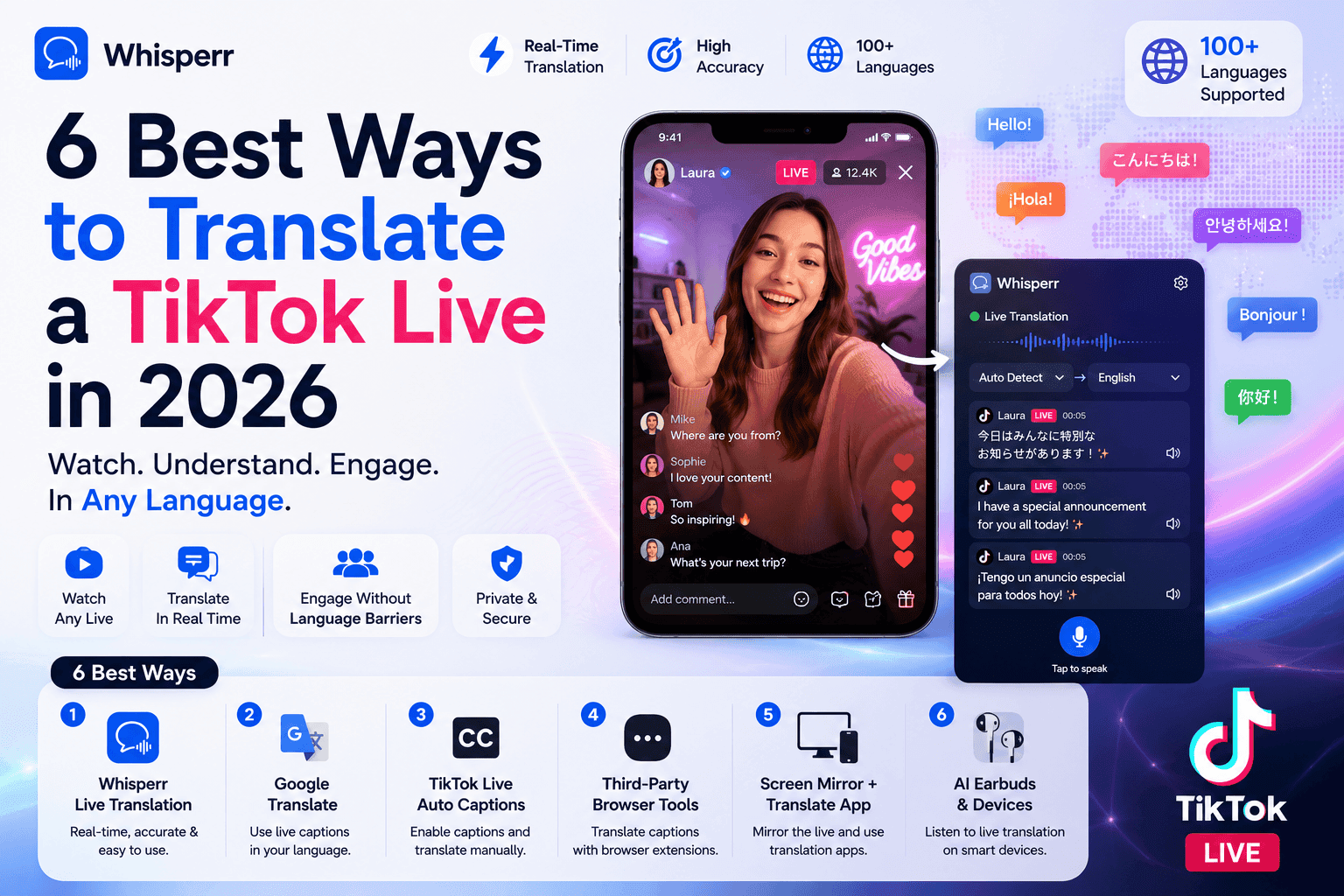
6 Best Ways to Translate a TikTok Live in 2026 (Phone and Desktop)

You found a TikTok Live worth watching, and the creator is speaking a language you do not understand. Maybe it is a live shopping drop in Seoul, a cooking stream from Naples, or a gamer in São Paulo. You tap around looking for a translate button, and there is not one for the audio. This article ranks every realistic way to fix that in 2026, from the methods we would actually use down to the ones that technically work but will test your patience.
One thing up front: Whisperr is our product, so judge our ranking accordingly. We have linked or named the source for every claim about other tools and about TikTok itself, so you can check our work.
Unlike most "best app" searches, this one is not really an app shootout. Nobody has built ten interchangeable TikTok Live translator apps, because the problem is awkward: the audio lives inside the TikTok app, the stream is live, and the streamer cannot help you. What exists is a handful of genuinely different methods. Here they are, ranked.
What TikTok gives you natively (as of July 2026)
Before installing anything, it is worth knowing exactly what TikTok itself can and cannot do, because the built-in features are free and some of them are useful.
Here is what we could confirm as of July 2026:
- Auto-generated captions on regular videos. TikTok generates captions for recorded videos, and viewers can force them on via Settings, then Accessibility, with the option to always show auto-generated captions. This applies to uploaded videos, not reliably to Lives.
- Text translation via "See translation." Press and hold, or tap the translate option on captions, on-screen text stickers, and comments, and TikTok will translate that text into your app language. This works in Live chat too, so you can follow what other viewers are typing.
- Live captions on some Lives. Some creators turn on captions for their Live as an accessibility feature. When they do, the captions appear in the language being spoken. A Spanish streamer with captions on gives you Spanish text, not English.
And here is the honest gap: we could not find any TikTok documentation describing a feature that translates the spoken audio of a Live into another language for viewers. TikTok's own support pages describe caption and text translation, and third-party coverage in 2026 consistently states the same limitation: TikTok translates text, not live speech. Some viewers report seeing a CC toggle on certain Lives in certain regions, but where it appears, it captions in the spoken language rather than translating. If TikTok quietly tests translated Live captions in a region we could not verify, treat that as a bonus, not a plan.
So the native option is worth switching on, and it is not enough on its own. That is where the methods below come in.
The 6 best ways to translate a TikTok Live, ranked
1. Whisperr Floating Subtitles on iPhone or Android (best overall)
What it is. Whisperr is a realtime voice translator app. Its Floating Subtitles feature captures the audio your phone is playing and overlays translated captions on top of any app, including TikTok, while the Live keeps playing. You are not switching apps or pointing a microphone at anything; the captions float over the stream itself.
Standout strengths:
- Works on top of the actual TikTok app, on both iPhone and Android, so you watch the Live exactly as normal.
- 100+ languages. You pick two languages and Whisperr translates between them by default; for a Live you only need the one direction, listening, and that just works without any source or target setup.
- Whisperr's spec sheet puts latency around 0.2 seconds, which matters on a Live where the moment moves fast.
- Optional Auto-speak: instead of only reading captions, Whisperr can read the live voice translation into your earbuds while you watch.
- Free tier to try it on a real Live; 4.8 rating on the App Store from a base of roughly 200k users. Honest note: Whisperr's G2 listing is new and has no reviews yet.

Limitations:
- It needs a connection; there is no offline mode.
- Like any speech tool, it is only as good as the audio. A streamer with loud background music or three people talking over each other will produce rougher captions.
- The overlay takes a slice of screen space. You can drag it, but it is on your screen.
Pricing: free tier; Pro is $9.99 per week or $84.99 per year with a free trial, and Pro is unlimited transcription and translation on any device, as of July 2026.
Best for: anyone who watches TikTok Lives on their phone, which is nearly everyone.
2. Whisperr web app with tab capture (best on desktop)
What it is. TikTok Lives also play in a normal browser at tiktok.com. Open the Live in one tab, open the Whisperr web app in another, and have Whisperr capture the TikTok tab. It hears the stream's audio directly, no microphone involved, and streams a live audio translate feed as captions on your screen.
Standout strengths:
- No install at all; it runs in your browser, and your browser can be anything modern, not just Chrome.
- Tab capture gives the engine a clean digital audio signal, which usually beats anything a microphone can hear.
- Big-screen layout: Live on one side, transcript and translation on the other, and you can scroll back through everything that was said.
- Same 100+ languages and the same roughly 0.2 second latency per Whisperr's spec sheet.

Limitations:
- Desktop only by definition. On your phone, use method 1 instead.
- A few TikTok Lives are app-exclusive or region-restricted on the web; if the Live will not play at tiktok.com, this method cannot reach it.
Pricing: same as above; the free tier covers a real test session.
Best for: watching longer Lives at a desk, or anyone who wants a scrollable transcript of what was said.
3. TikTok's native captions and text translation (best free baseline)
What it is. The built-in features described above: auto captions where available, and "See translation" on captions, text, and chat comments.
Standout strengths:
- Free, already installed, zero setup.
- Chat translation is genuinely useful mid-Live, since half the context of a Live is in the comments.
- When a creator has captions on and you speak the streamer's language a little, same-language captions help you keep up.
Limitations:
- Does not translate spoken Live audio at all, as of July 2026. This is the deal breaker for the actual "translate this Live" problem.
- Live captions depend on the creator turning them on, and they stay in the spoken language.
- Caption availability varies by region and language, and TikTok does not publish a clear list for Lives.
Pricing: free.
Best for: following the chat, and Lives where you have partial knowledge of the language.
4. Android Live Caption plus Live Translate (best free option on a Pixel)
What it is. Android's system-level Live Caption transcribes any media audio playing on the phone, including a TikTok Live. On Pixel 6 and newer phones, the Live Translate feature can additionally translate those media captions.
Standout strengths:
- Free and built into the operating system, nothing to install.
- Runs on-device, so it works with spotty connectivity.
- Caption quality for supported languages is solid, since it is Google's own speech recognition.
Limitations:
- Caption is not translate. Live Caption itself supports roughly 15 languages for captioning per Google's accessibility documentation, but captions come out in the spoken language.
- The translation layer is narrow: per Google's Pixel documentation, Live Translate for media covers six languages (English, German, Spanish, French, Italian, and Japanese) and requires a Pixel 6 or newer. A Korean, Thai, or Arabic Live is out of scope.
- iPhone users are out entirely; iOS has no equivalent that translates app audio system-wide.
Pricing: free, bundled with supported Android phones.
Best for: Pixel owners watching a Live in one of those six languages.
5. JotMe and other meeting-centric capture tools (workable, not built for this)
What it is. JotMe is a live translation tool aimed at online meetings, with a Chrome extension and desktop apps that translate audio from your browser. In principle, the same capture trick that translates a Google Meet call can point at a TikTok Live playing in a tab.
Standout strengths:
- Real live translation with a working free tier to test.
- If you already use it for meetings, there is nothing new to learn.
Limitations:
- It is built around meetings, so the interface and features (notes, meeting summaries) assume a call, not a stream, which makes it awkward for TikTok.
- Desktop-centric. There is no overlay that sits on top of the TikTok mobile app, which is where Lives are actually watched.
- JotMe's own articles state latency of 3 to 4 seconds, as of July 2026, which on a fast-moving Live means you are consistently a beat behind. Its language count also varies across its own blog, from 45+ to 200+ depending on the page, so check the plan you would actually use. No third-party review scores are published that we could find.
Pricing: as of July 2026, per JotMe's site: free tier with 20 translation minutes per month, Pro around $9 to $10 per month for 200 minutes, Premium $15 per month for 500 minutes. A 20 minute monthly allowance disappears fast against a single Live.
Best for: someone who already pays for JotMe for meetings and occasionally wants to point it at a stream on desktop.
6. A second device running a conversation translator (last resort)
What it is. The duct-tape method: play the Live on one device, and point another phone running a conversation translator (Google Translate's conversation mode, Apple Translate, or any voice translation app in microphone mode) at the speaker.
Standout strengths:
- Works with whatever you already have; Google Translate is free and covers 70+ languages in conversation mode.
- Requires no capture permissions or setup beyond opening two apps.
Limitations:
- Audio quality collapses. The second phone hears your speaker, your room, and your echo, so accuracy drops well below any direct-capture method.
- Conversation modes are designed for two people taking turns, not a continuous stream, so they chop and miss constantly.
- You need two devices on hand, and it is genuinely clumsy to juggle.
Pricing: free with Google Translate or Apple Translate.
Best for: a one-off emergency when you cannot install anything.
For creators: translating your own TikTok Live for viewers
Everything above is for viewers. If you are the streamer, the problem flips: your audience is multilingual and you want them to follow you.
Whisperr's Broadcast mode covers this. You run Whisperr while you stream, and it generates a link you can drop in your Live description or pin in chat. Viewers who open the link see a live translated caption feed of what you are saying, in their language, on their own device, while they watch your Live. You keep streaming exactly as before; there is no overlay on your outgoing video and nothing for TikTok to flag. For a seller doing live shopping across borders, or any creator whose comments keep filling up with "English please," it turns a one-language Live into something a global audience can actually follow. There is more on this workflow on the Whisperr entertainment use case page.

Comparison table: every method at a glance
All numbers are as stated by each vendor's own documentation as of July 2026, sources noted in the sections above.
Method | Works on phone | Works on desktop | Languages | Latency (vendor-stated) | Free tier | Setup effort |
|---|---|---|---|---|---|---|
| Yes, iOS and Android, overlays TikTok app | No (see method 2) | 100+ | ~0.2s per Whisperr's spec sheet | Yes | ~1 minute first time |
| No | Yes, any browser | 100+ | ~0.2s per Whisperr's spec sheet | Yes | Under a minute |
| Yes | Partially | Text only; spoken audio not translated | n/a | Yes, free | None |
| Pixel 6+ only | No | ~15 caption languages; 6 translated (per Google docs) | Not published; on-device | Yes, free | A settings toggle |
| No mobile overlay | Yes, Chrome extension / desktop | 45+ to 200+ (varies across JotMe's own pages) | 3 to 4s, self-stated | 20 min/month | Moderate, meeting-oriented UI |
| Yes, needs 2 devices | Awkward | 70+ (Google Translate conversation mode) | Not published | Yes, free | Low, but clumsy in use |
How to translate a TikTok Live on your phone, step by step
This is method 1 in practice. It takes about a minute the first time and seconds after that. There is a longer walkthrough with more screenshots in our full TikTok Live captions guide.
Step 1: Install Whisperr
Get the iPhone app or the Android app and create a free account. The free tier is enough for a real Live.
Step 2: Pick your two languages
Choose the language the streamer speaks and the language you read, for example Korean and English. There is no source or target to configure; Whisperr does two-way voice translation by default, and for a Live you are simply using the listening direction.

Step 3: Turn on Floating Subtitles and grant the overlay permission
Start a session and enable Floating Subtitles. On Android, allow the "display over other apps" permission when prompted; on iPhone, allow the screen broadcast, which is how Whisperr hears the phone's audio directly, with no microphone or echo in the loop.
Step 4: Open TikTok and watch
Switch to the TikTok app and open the Live. The translated captions float on top of the stream and update as the creator talks. Drag the caption window wherever it blocks the least. If you would rather listen than read, turn on Auto-speak and the live voice translate feed is read quietly into your earbuds.
Step 5: Stop when the Live ends
Go back to Whisperr and tap Stop. The overlay disappears, and your session transcript is saved if you want to reread anything.
The desktop version, step by step
Step 1: Open the Live in your browser
Go to tiktok.com, find the creator, and start the Live in one tab. Any modern browser works.
Step 2: Open the Whisperr web app and capture the tab
In a second tab, open the web app, pick your two languages, start a session, and choose the TikTok tab when your browser asks what to share, with audio enabled.
Step 3: Arrange and watch
Put the two tabs side by side. The Live plays on one side while the transcription and translation stream on the other, and you can scroll back at any point. More on how the capture works on the live translate page.
When Whisperr is not the right choice
A short honest list, because no tool fits every case:
- You only need the occasional phrase. If a Live is mostly visual and you just want one sentence translated now and then, TikTok's free text translation plus context may be all you need. Do not pay for a stream you barely need words for.
- You want to reply in the chat in another language. Live chat is text, and text translation is a different job. Type your reply into any text translator and paste it in; Whisperr is built for live speech, not chat messages.
- You need fully offline translation. Whisperr requires a connection. On a plane or truly off-grid, Android's on-device Live Caption (method 4) is the only option on this list that keeps working, within its six translated languages.
Frequently Asked Questions
Can TikTok translate a live stream?
Not the audio. As of July 2026, TikTok can translate on-screen text, video captions, and chat comments through its "See translation" feature, but it does not translate the spoken audio of a Live for viewers. To translate what a streamer is actually saying, you need a separate realtime voice translator such as Whisperr running alongside TikTok.
How do I get captions on a TikTok Live?
Some creators enable captions on their Lives, and you can force auto-generated captions on in TikTok under Settings, then Accessibility, though coverage of Lives varies by region. Those captions appear in the language being spoken. For captions in your own language, use a translation overlay like Whisperr's Floating Subtitles, which puts translated captions on top of the Live.
Can I translate a TikTok Live to English?
Yes. Run Whisperr on your phone with Floating Subtitles, pick English and the streamer's language, and English captions overlay the Live as it plays. On a laptop, open the Live at tiktok.com and capture the tab with the Whisperr web app. Both work with 100+ languages, so nearly any Live can be translated to English in real time.
Does TikTok have auto-translate for Lives?
TikTok auto-translates text, including Live chat comments, into your app language. There is no auto-translate for the spoken audio of a Live as of July 2026, and TikTok's support documentation describes no such feature. Reports of a CC button on some Lives refer to same-language captions, not translation.
How do streamers translate their TikTok Live for viewers?
The practical route is a broadcast caption link. With Whisperr's Broadcast mode, the streamer runs Whisperr while streaming and shares a link in the Live description or pinned chat. Viewers open the link and read a live translated caption feed in their language on their own device, while the Live itself is untouched.
Can I translate TikTok Live chat?
Yes, natively. Press and hold a comment, or tap the translate option, and TikTok translates it into your app language. Chat is text, so TikTok's built-in text translation handles it well; it is only the spoken audio that needs an outside tool.
Does this work on both iPhone and Android?
Yes. Whisperr's Floating Subtitles work on both: on Android as a floating overlay with the "display over other apps" permission, and on iPhone via the screen broadcast feature with a floating caption window. Android's built-in Live Caption route, by contrast, translates media on Pixel 6 and newer phones only, and only across six languages per Google's documentation.
Is there a free way to translate a TikTok Live?
Partially. Whisperr's free tier lets you run a real translated session on a Live at no cost, which is the simplest free test. On a Pixel 6 or newer, Live Caption plus Live Translate is free for six languages. Google Translate's conversation mode pointed at your speaker from a second device is free but rough. TikTok itself translates text for free, just not speech.
The bottom line
As of July 2026, TikTok will translate the words on your screen but not the words in your ears. For the spoken audio of a Live, the methods that genuinely work are a translation layer running on top of the stream: Whisperr's Floating Subtitles on your phone, or a tab capture in the Whisperr web app on your laptop, both with 100+ languages and captions fast enough to keep up with a live moment. The free built-ins, TikTok's text translation and Android's Live Caption, are worth switching on and worth knowing the limits of. The honest test costs nothing: open a Live in a language you do not speak, start a free Whisperr session on the iPhone app, Android app, or web app, and see whether you can follow the stream.