Best Real-Time Voice Translator for Android (Beyond Google Translate)

You're meeting a Spanish-speaking client at a café. Your partner's grandmother is on a video call from Seoul. You're standing in a hospital lobby in Bangkok trying to explain a symptom. You have an Android phone, you've probably already tried Google Translate's Conversation mode, and you've probably already hit its ceiling. This guide is about what to do instead: how to get continuous, hands-free live voice translate on any Android phone, with the translation read out loud so you don't have to keep glancing at the screen.
Why Google Translate isn't a real-time translator on Android

Google Translate is a great app for typing, for camera mode, for offline phrasebook scenarios. It just isn't a real-time voice translator, and the gap shows up the second you try to use it for a flowing conversation:
- Conversation mode is turn-based, not continuous. You tap, they talk, you wait. The app does not stream translation in parallel with the speaker. It batches.
- It can't speak the translation aloud continuously. You can tap to hear a translated sentence, but it won't run as a constant audio stream the way a real interpreter would.
- It needs the app in the foreground. Switch to WhatsApp, Telegram, Zoom, Meet, or LINE and Conversation mode pauses or quits.
- The long tail of languages degrades fast. Top 20 languages are fine. Vietnamese ↔ Korean, Polish ↔ Tagalog, Georgian ↔ English: accuracy drops noticeably.
Samsung's Galaxy AI Live Translate and Pixel Live Translate are closer to real-time, but both are tied to specific hardware, specific apps, and a smaller language set. If you don't own a Pixel 8/9/10 or a Galaxy S24/S25, you can't use them. If you own one and need to translate audio inside Discord, WhatsApp voice notes, or a YouTube livestream, you still can't use them. They're scoped to the phone app and a handful of system surfaces.
What's left is the category most people Google for: an actual realtime voice translator Android app that runs continuously, supports the long tail of languages, and speaks the translation back out loud the way a human interpreter would.
When Google Translate Conversation Mode doesn't work
Even within its intended use case (two people taking turns at a table) Conversation mode has a few specific failure modes worth knowing before you bet a real conversation on it:
- Long sentences get cut off. If either speaker talks for more than about ten seconds at conversational speed, the app stops listening mid-thought.
- Background noise breaks speaker detection. Cafés, hospital lobbies, train stations: anywhere above quiet-living-room levels, the auto-detect struggles to tell who is speaking which language.
- Overlapping speech is a dealbreaker. Two people talking at once, someone laughing mid-sentence, a third person chiming in. Conversation mode is built for strict one-at-a-time turn-taking and stalls the moment a conversation feels natural.
- Code-switching gets mangled. Bilingual speakers who mix English words into their non-English sentences (which most bilingual speakers do constantly) confuse the language detector. It picks one language or the other and butchers the rest.
Step-by-step: real-time speech translation on Android with Whisperr

This is the setup for a flowing, hands-free conversation where the other person speaks in their language and you hear the translation spoken aloud in yours (or the reverse). Total setup time: about 45 seconds. The example uses English and Spanish, but the same flow works for any of the 100+ supported pairs.
1. Install Whisperr from the Google Play Store
Search "Whisperr" on the Google Play Store and install it. Sign in or create an account on first launch. The app is free to try; longer or higher-volume sessions move to paid plans.

2. Pick two languages

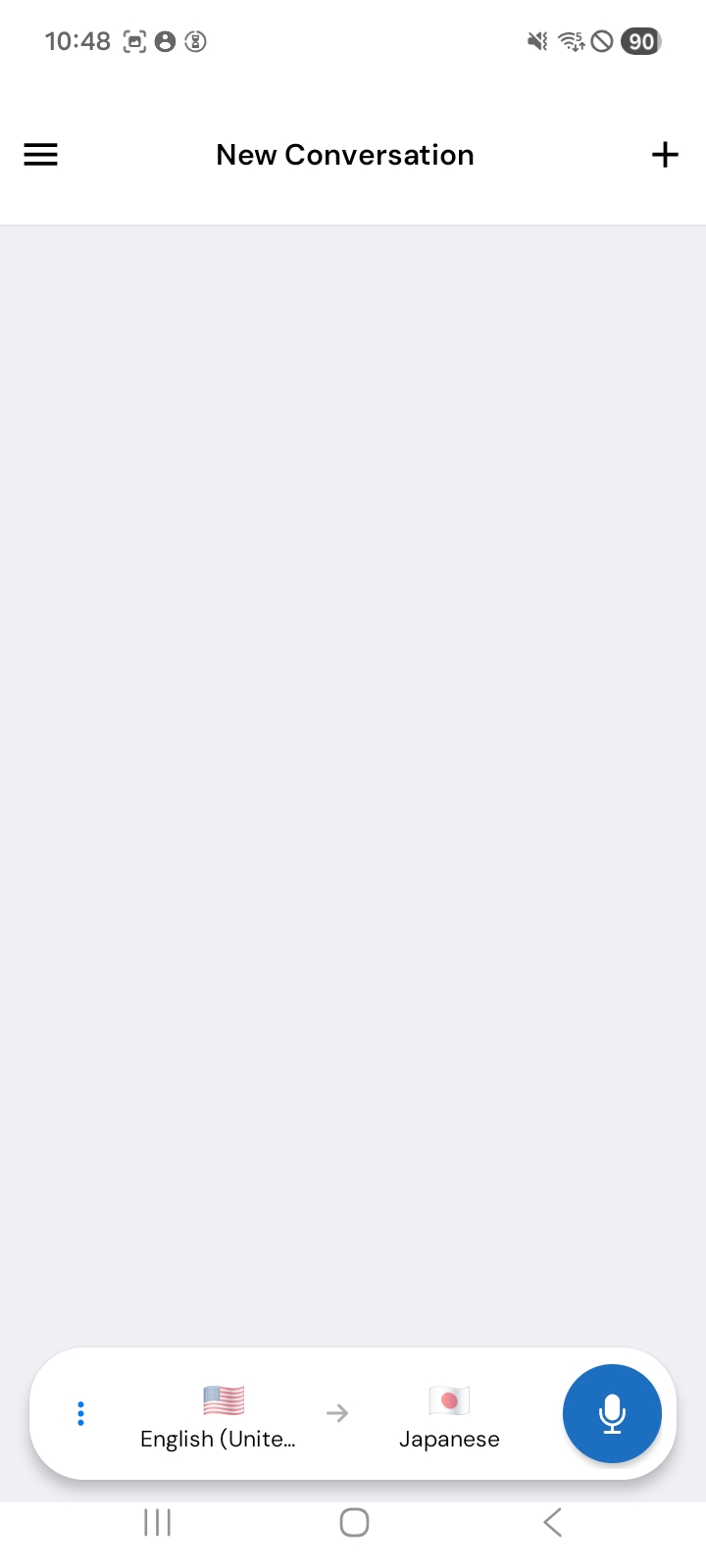
In the recording bar at the bottom of the screen, tap the language selectors and pick the two languages involved in the conversation, for example English and Spanish, or Japanese and English. The order doesn't matter and you don't need to label one as the source. Whisperr handles two-way translation by default, so either person can speak in their language and the other side hears their own. This is what makes the app usable as an accurate Spanish translator for actual conversations rather than tap-to-translate phrasebook lookups.
100+ language pairs are supported, including East Asian, Southeast Asian, South Asian, Middle Eastern, European, and major regional dialects: the ones where "supported" on other apps usually means "supported, badly."
3. (Optional) Tap the arrow to lock direction one-way

If you don't need two-way automatic translation, for example you're listening to a Korean broadcaster and only need Korean → English (never the reverse), tap the arrow icon between the two language selectors. This switches the mode from two-way auto-detect to one strict direction. Whisperr will no longer try to detect which language is being spoken and will treat all incoming audio as the source language only.
When to leave it on two-way: a real conversation with another human. When to flip it to one-way: a lecture, a livestream, a news broadcast, an audio-only podcast, an interview where only one side speaks the foreign language.
4. Open settings (bottom left)

Tap the settings icon at the bottom left of the recording screen. This is where the modes that change how Whisperr behaves live (speech output, font size, transcription-only display, face-to-face flip) all live.
5. Enable "Real-time speech"

In settings, find the toggle labeled Enable real-time speech and switch it on. This is the toggle that turns Whisperr from a captions-only translator into a live audio translate tool. It will now read every translated line aloud in the target language's voice as it comes through, line by line, with sub-second latency.
This is the mode that does what most people actually mean when they say "I want a real-time voice translator." You don't have to look at the screen. You can keep eye contact with the person you're talking to. The phone speaks for you, like a quiet interpreter sitting at your elbow.
6. Put your earphones in (this matters)
Plug in wired earphones or pair Bluetooth earbuds (AirPods, Pixel Buds, Galaxy Buds, anything). This step looks optional but isn't.
Here's why: when Whisperr speaks the translation aloud through the phone's speaker, the phone's microphone hears that translated speech and tries to translate it too. The result is a feedback loop where the app translates its own output back into the source language and re-translates that, on repeat, until the whole session is garbled.
Earphones break the loop. The translated audio plays into your ears only; the mic only hears the human speaker. Clean input, clean output, no echo. If you're translating for someone else (so they're the one who needs to hear the translated audio out loud), give them the earphones instead, or use Whisperr's Broadcast mode and let them read captions on their own phone.
7. Tap the recording button

Tap the red mic button at the bottom of the screen. Grant microphone permission on first launch. That's it. Whisperr is now listening continuously, transcribing the source language live, translating in parallel, and speaking the result into your earphones in real time.
Lay the phone flat on the table between you and the other speaker, screen up. The bottom mic on Android phones picks up conversational speech across a small table cleanly. The closer the phone is to the speaker, the cleaner the capture.
When you're done, tap the stop button. Your bilingual transcript saves to your account automatically, useful for follow-up, note-taking, or sharing with the other person after the fact.
Why Whisperr beats the other Android options
%20Hero-300x200.png)
A quick honest map of what's actually available on Android and where each falls short:
Tool | Real-time continuous? | Spoken translation? | Works across apps? | Languages |
|---|---|---|---|---|
Google Translate (Conversation) | No, turn-based | Tap-to-play only | App must be foreground | 100+, top 20 strong |
Pixel Live Translate | Partial | Yes, limited | Phone, Messages, Recorder only | ~40 |
Samsung Galaxy AI Interpreter | Partial | Yes | Galaxy S24/25 only | ~20 |
Whisperr | Yes, line by line | Yes, toggle on/off | Mic + in-app audio capture (YouTube, IG, TikTok) | 100+ including long tail |
A few specifics worth calling out:
True streaming, not turn-taking. Whisperr translates as the speaker is still talking, not after they stop. There's no "press to swap" rhythm; the conversation flows the way it would with a human interpreter standing next to you. This is what makes the difference between a phrasebook tool and a real voice translation experience.
Spoken output is a toggle, not a separate app. Other apps either always speak (which becomes annoying in quiet rooms) or never speak (which defeats the point for hands-free use). Whisperr lets you switch between captions-only, speech-only, or both, depending on whether the screen is convenient.
100+ languages including the long tail. Vietnamese, Indonesian, Hindi, Tagalog, Polish, Ukrainian, Georgian, Arabic, Cantonese. Pairs where most translation apps either don't ship or ship badly. The same engine that delivers continuous english to spanish translation voice output also handles these less-supported pairs without falling back to broken word-by-word translation.
No accessibility-service permission grab. Some "live translator" Android apps ask for Accessibility Service permission, which lets them read every word on every screen of every app. Whisperr uses sanctioned Android APIs (microphone, system audio, MediaProjection) and never asks for that level of access.
GDPR compliant. Audio is processed in real time and isn't permanently stored on Whisperr's servers. The bilingual transcript saved to your account is yours to keep, export, or delete.
FAQ
Does Whisperr work offline?
No. Live voice translation needs the cloud (speech recognition and translation models run server-side). You need Wi-Fi or LTE/5G. For purely offline tourist-phrasebook use, Google Translate's downloaded language packs are still the right tool. For real conversations, online is what gives usable accuracy.
Will it drain my battery or overheat my phone?
A continuous translation session uses the mic and the network the way a voice call does. Expect battery use comparable to a Zoom call: noticeable but not extreme. For sessions over about 30 minutes, plug into a charger.
Can I translate a phone call on my Android phone?
Android doesn't let third-party apps capture in-call audio directly, the same way iOS doesn't. The workaround that actually works: put the call on speakerphone on one device, run Whisperr on a second device (a tablet, an old phone, a laptop) and let it listen through its mic. Earphones go in the second device only, to avoid the feedback loop on the speakerphone.
Does it work with WhatsApp voice notes, Telegram voice messages, or Discord voice chat?
For in-room voice (someone speaking next to you on speakerphone): yes, the mic catches it. For audio playing through the phone's own speakers while a chat app is foregrounded: yes, with earphones to prevent feedback. For direct in-app audio capture from WhatsApp/Telegram/Discord without speakerphone: not in this release. Those apps don't expose their audio to the system MediaProjection API the way YouTube, Instagram, and TikTok do.
Is real-time speech translation different from regular voice translation?
Yes, and the difference matters. Regular voice translation usually means you record, then translate, then play back. Live audio translate means transcription and translation happen in parallel with the speaker, line by line, with sub-second latency, and the spoken output plays continuously while they're still talking. That's the experience Whisperr's real-time speech toggle enables.
How well does it handle translate English Spanish specifically?
Strongest pair Whisperr supports, both directions. The english to spanish translation voice output sounds natural with regional accent options included, Spanish input handles fast conversational speech well, and code-switched sentences (the kind any bilingual speaker uses) get translated as intended rather than treated as a single-language input. If you've been looking for an accurate Spanish translator for actual meetings, calls, or in-person conversations rather than tourist phrasebook lookups, this is the setup.
Can two people use it face-to-face without earphones?
Yes. Turn the real-time speech toggle off and use captions-only mode, with the screen flipped so each person reads their side right-side up. Whisperr has a face-to-face display mode built for this case (one half of the screen rotates 180°). Real-time speech mode is the better pick when one person can't read or is looking away; face-to-face caption mode is the better pick when both people are seated across a table and prefer reading to listening.
Can I use it in a browser instead of the Android app?
Yes. Whisperr's web app at app.whisperr.co works in Chrome or Edge. The browser path is the cleaner option when the audio you want translated is playing on a laptop, for example a Zoom call, a webinar, or a YouTube video in a browser tab. On the phone, the Android app is the better experience for in-person conversations.
Try it on your next conversation
If Google Translate's turn-taking Conversation mode keeps breaking the rhythm of your real conversations, Whisperr was built for exactly that gap. Install the Android app, pick two languages, flip Enable real-time speech on, plug your earphones in, and tap record.
%2520Which%2520Realtime%2520Voice%2520Translator%2520Wins%2520in%25202026.png&w=3840&q=75&dpl=dpl_8G78LDZT9j2DLbnxUKjKcBVHaK6S)
Whisperr vs Google Translate Conversation Mode: features, languages, pricing, and all you need to know to choose the right live voice translator