
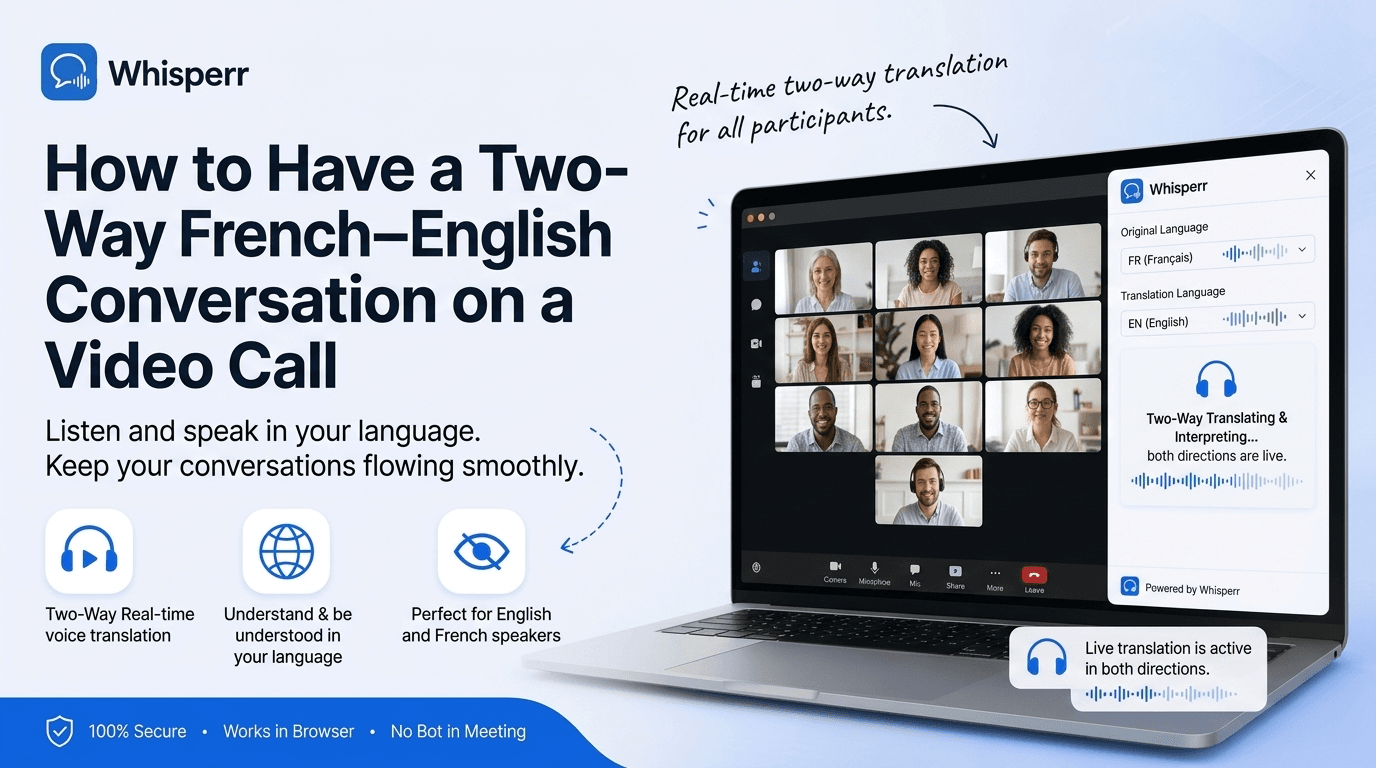
How to Have a Two-Way French–English Conversation on a Video Call

You're on a video call with a team in Paris, a client in Lyon, or a relative in Montreal, and the conversation keeps slipping ahead of you. You can follow slow, careful French, but not a full meeting agenda at conversational speed, and you certainly don't want to keep asking everyone to repeat themselves. You want to understand the French side live, and you want your own English to land on their end without anyone breaking flow.
Most people reach for Google Translate conversation mode first, then discover it was built for two phones on a café table, not for a Zoom, Teams, Meet, or Webex call where the audio lives inside the app. The meeting platforms themselves are not much help either: their built-in captions transcribe what's said, but they rarely translate French into English in real time, and almost never both ways.
This guide fixes that. It walks through the exact setup for a two-way French and English conversation on a video call, on a computer or a phone, end to end. You'll pick two languages once and get live voice translation running on your side of the screen, with the option to let the other person read you back in their language too.
Why a video call is different (and what two-way really means)
Real-time translation on a call depends on two things: where the audio is, and which direction you need.
The audio on a video call comes out of the app, not a person in the room. That changes how Whisperr should capture it. The most accurate path is to grab the call's audio straight from a browser tab, which is far cleaner than pointing a microphone at your laptop speaker. Cleaner audio in means more accurate voice translation out.
Two-way means both directions, automatically. You don't set a "source" and a "target." You pick French and English, and Whisperr auto-detects who is speaking which language and shows the other side. The same session covers the French speaker's words and your English replies without any switching. If you also want the other person to read your English in French on their own screen, that's Broadcast mode, covered near the end.
So there are really two questions: are you on a computer or a phone, and do you also need the other side to understand you? The setups below answer both.
What you need
- A Whisperr account. The free tier is enough to try it on a call.
- For the recommended setup: a laptop or desktop with Chrome or Edge — tab-audio capture needs a Chromium browser, so Safari and Firefox won't work here. Any Chromium browser works — Chrome or Edge.
- For the phone setup: the Whisperr app on your iPhone or Android phone, plus headphones or earbuds.
- The video call link (Zoom, Teams, Google Meet, Webex, or similar).
Pick the setup that matches your device below. In both of them you choose two languages, for example French and English, and Whisperr does two-way translation by default. The order never matters.
Setup 1: Capture the call tab in your browser (recommended)
This is the cleanest path for any video call on a computer. You join the call in a browser tab and let the Whisperr web app capture that tab's audio directly. No microphone, no room noise, and it works even when you're wearing headphones. Everything runs on your side, so nobody else on the call sees anything.
Step 1: Join the video call in a browser tab
Click your meeting invite link. When the platform prompts you, choose to join from your browser instead of opening its desktop app, so the call plays inside a tab. This is the one non-obvious detail of the whole setup. Whisperr captures audio from a browser tab, so the call needs to be playing in a tab. Any modern browser works here.

Step 2: Open the Whisperr web app in a second tab
In a new tab, open the Whisperr web app and sign in. Don't close the call tab. Whisperr needs it open and playing to capture the audio.

Step 3: Pick French and English
Use the two language dropdowns at the top of the Whisperr interface and pick French and English. You don't label one as the source and one as the target. Whisperr does two-way translation by default, so it handles voice translation in both directions and the order doesn't matter. If you'd rather see only one direction, that's the next step.
Step 4: Keep it two-way, or set one direction
By default Whisperr translates both ways, which is handy on a real conversation where both sides talk. If you'd rather keep the screen clean and only read the French speaker, tap the arrow button between the two language selectors to switch to one direction, French into English. That gives you a single, tidy stream that reads like a private interpreter. The same toggle works for any pair, so on a Spanish call it becomes an accurate Spanish translator feed, an english to spanish translation voice on tap.
Step 5: (Optional) Turn on Auto-speak translations
To hear the live audio translate read out loud instead of reading it, turn on Auto-speak translations and, if you like, set the Speaking speed to whatever suits your ears. Pop in one earbud and hear the English whispered while the French speaker talks, hands-free. Use headphones so the spoken output stays private and doesn't get picked up by the call, which can cause a feedback loop.

Step 6: Start a New Recording and choose Screen Capture
Click New Recording, then click the recording icon and choose Screen Capture. A picker pops up.

Step 7: Pick the call tab and share its audio
In the picker, choose Tabs, select your video call tab, make sure Share tab audio is ticked, and click Share. Whisperr immediately starts capturing the call audio.

Step 8: Split the screen so you can read and watch
You can split the call tab side by side with Whisperr by clicking New Split View with Current Tab, so you see the other person's video and the translated captions at the same time.

Step 9: Listen and read along
That's it. The French speaker talks normally, the live voice translation comes through your speakers or headphones, and the translated captions stream onto your screen in English. When you reply in English, two-way translation picks that up as well, so the conversation flows without anyone stopping to interpret.

Setup 2: Join the call from your phone

If you only have a phone, you can still get live voice translation on the call. The trick is the same one as on a computer: join the meeting in your phone's browser, not the platform's standalone app, so the audio plays in a tab Whisperr can work alongside. Then let the Whisperr app listen.
Step 1: Install Whisperr and join the call in your browser
Install the Whisperr iPhone app from the App Store or the Android app from the Google Play Store. Open your meeting link and choose to join from the browser, then put the call on speaker so the audio plays out loud.

Step 2: Pick French and English
In the language selector, pick French and English. As always, you don't designate a source or a target. Whisperr translates both ways by default and auto-detects who is speaking which language.
Step 3: Start the recording and let the phone listen
Tap New Recording and allow microphone access the first time. Whisperr listens to the call audio coming out of your speaker, transcribes the French, and shows live English captions. Turn on Auto-speak translations if you'd rather hear it, and use earbuds so the spoken English stays private and doesn't loop back into the call.
One caveat with this approach: the audio has to be audible out loud for the mic to hear it. If you're on a single phone with the call in your ear on headphones, there's nothing for the mic to pick up, so use the computer tab-capture setup above instead, or put the call on a second device on speaker and point your phone at it.
Make the other person understand you too (Broadcast mode)
Everything above gets the French into your English. To close the loop so the other person reads your English in their language, live, on their own screen, use Broadcast mode. Whisperr generates a public room URL. You speak, anyone who opens the link reads your live translated captions in their browser. They don't need an account, an install, or any permission.
Step 1: Turn on Broadcast before you record
Tick the Broadcast checkbox in the Whisperr web app (or the iPhone and Android app) before you start recording. Pick your spoken language and the language you're broadcasting to, for example English into French.

Step 2: Start recording and share the room link
Start the recording and Whisperr generates a sharable link. Drop it in the meeting chat so the French speaker can open it in any browser. From that moment, everything you say streams onto their screen in French, line by line.

Step 3: Speak and let them read you in French
Talk normally. Your English is translated and pushed to every viewer in the room in real time. For a fully two-way call where you also need to follow them, run your own listening setup (Setup 1 or 2) at the same time, so you read their French while they read your French.
Which setup should you use?
It comes down to your device and whether you also need to be understood.
- On a computer, capturing the call tab in a browser is the cleanest and most accurate path. Use Setup 1.
- On a phone only, join the call in your browser, put it on speaker, and let the app listen. Use Setup 2.
- To make the other person read your English in French, turn on Broadcast and share the room link, on top of either setup above.
In every case you pick two languages once, French and English, and Whisperr handles the rest as a two-way realtime voice translator.
Frequently Asked Questions
Does Zoom, Teams, Google Meet, or Webex have built-in French–English translation?
Not in a way that reliably helps. Most platforms offer same-language captions, and translated captions are often limited, gated behind a paid or enterprise plan, or one direction only. Whisperr runs entirely on your side of the call, captures the audio from the browser tab, and does two-way French and English voice translation regardless of which meeting platform you're on or what plan you have.
Is this really two-way, or just one direction?
It's genuinely two-way. Translation runs in both directions by default. Whisperr auto-detects whether French or English is being spoken and shows the other language, so the same session covers the other person's French and your English replies. If you prefer, you can switch it to a single direction with the arrow toggle.
Do I have to set a source and a target language?
No. You only ever pick two languages. There is no source or target to configure. Whichever language is being spoken gets translated into the other one automatically.
Can I hear the English instead of reading it?
Yes. Turn on Auto-speak translations and Whisperr reads each translated line aloud through your speaker or earbuds, hands-free. It works on iOS, Android, and the web app. Read on screen, listen through headphones, or both.
What if I'm joining the call from my phone only?
Join the meeting in your phone's browser, put it on speaker, and let the Whisperr app listen, as in Setup 2. If you're listening on headphones with nothing playing out loud, the mic has nothing to capture, so move to a computer and use tab capture, or put the call on a second device on speaker.
Does the other person need to install anything?
Only if you use Broadcast mode and share a link, and even then they just open the URL in a browser. No account, no install, no permission needed. If you're only listening to them, they don't have to do anything at all.
Which browser do I need?
Any modern browser works: Chrome, Edge, Firefox, Safari, Brave, Arc, or anything Chromium-based. There's also a Chrome extension if you'd rather capture a tab without the separate web app tab.
Does it work for languages other than French?
Yes. Whisperr supports 100+ language pairs. The exact same setup gives you live audio translate for a Spanish call (an accurate Spanish translator with english to spanish translation voice read aloud), German, Japanese, Arabic, Hindi, and many more. You just pick the two languages you need.
Is it free?
Sign up and try it free. The free tier covers casual use, which is enough to test it on a real call. Broadcast viewers who only open a shared link pay nothing and need no account.
Does it work offline?
No. Live voice translation runs server-side for accuracy, so you need Wi-Fi or a mobile data connection on the device running Whisperr.
Try it on your next French call
A two-way French and English video call doesn't need a human interpreter or a meeting platform's paywalled add-on. On a computer, join the call in a browser tab and capture it with the web app. On a phone, join in the browser and let the iPhone or Android app listen. Turn on Broadcast if you want the other side to read you in French. Pick your two languages, and Whisperr keeps the live voice translation going for as long as the call lasts, on the devices you already have.