
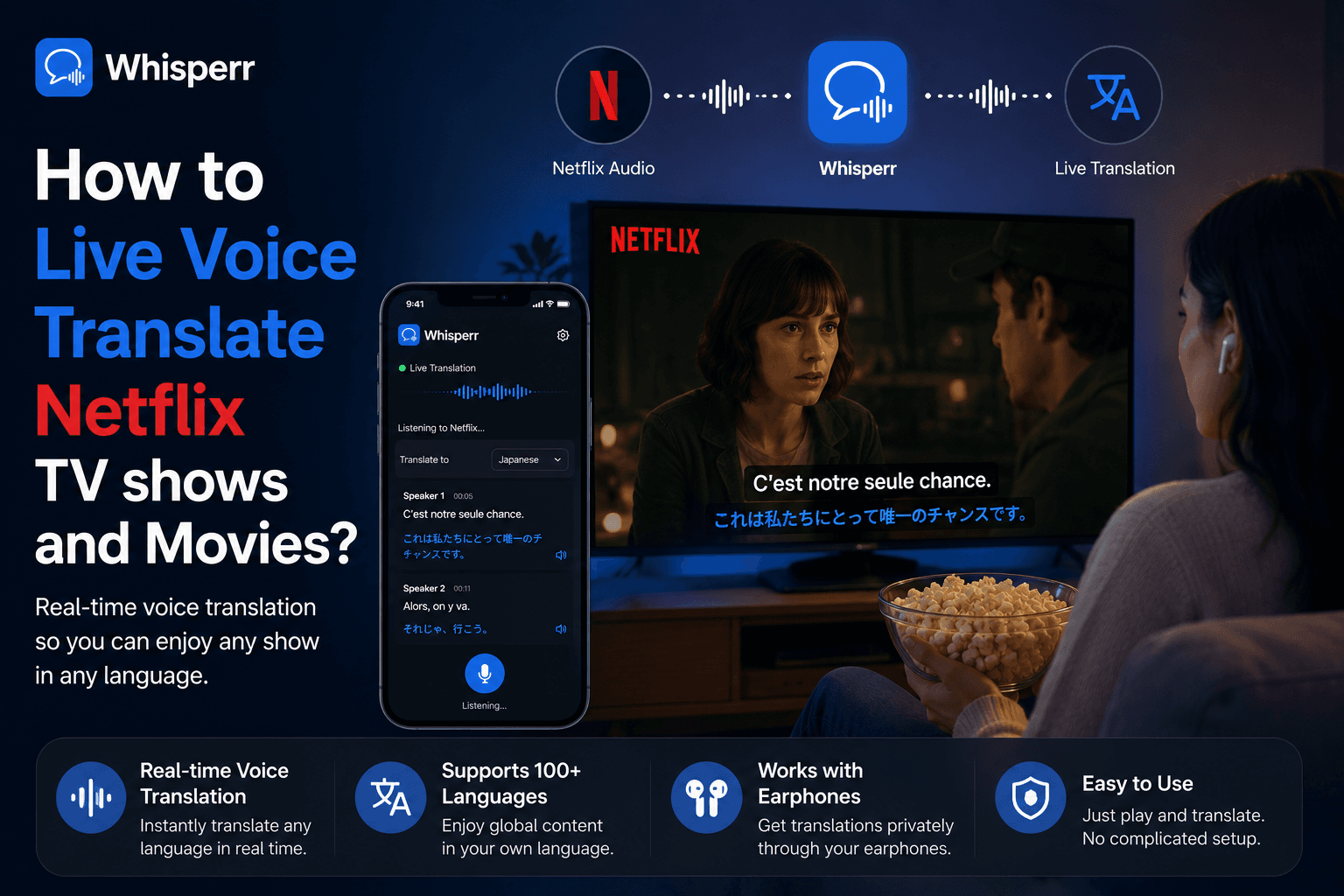
How to Live Voice Translate Netflix TV shows and Movies?

You found a Korean thriller, a Spanish series, or a Japanese anime that everyone's talking about, and the only audio is in a language you can almost follow but not at full speed. Maybe there's no dub in your language. Maybe the subtitles are machine-rough or just aren't there for your language at all. Or maybe you'd simply rather hear the dialogue in your language than race to read fast subtitles across the bottom of the frame.
What you want is a private speech translator that runs on your side of the screen and turns whatever's being said into the language you understand best. A live voice translate setup that you control, pointed at any title, in any language pair. That's exactly what a browser-tab capture gives you, and this guide walks through the one reliable way to do it, end to end.
Why Netflix Doesn't Hand You a Voice Translation
Netflix only translates what its catalog team has already prepared. A title gets a dub or a subtitle track only for the languages Netflix licensed for your region, which means plenty of shows arrive with no audio and no captions in the language you actually read. There's no setting that says "translate this dialogue into my language, out loud, right now."
Even when a subtitle track exists, it's not always the experience you want. Dubs rewrite lines to fit lip movements and lose nuance. Subtitles ask you to read instead of watch. And neither helps with the long tail of foreign films, regional series, and imports that consumer tools under-serve.
The workaround is to treat the show's audio like any other audio source and pipe it into a translation layer that runs alongside playback. Whisperr is built for exactly that: it captures whatever audio is playing in a browser tab and gives you live audio translate captions in 100+ language pairs. Point it at your Netflix tab, pick your languages, and you've got a realtime voice translator working just for you. It's the same browser-tab capture pattern used for Zoom calls, Microsoft Teams meetings, and Twitch streams. Netflix is just one more audio source it works with.
What You Need Before You Start
- A Whisperr account. The free tier is enough for short sessions.
- A laptop or desktop with Chrome or Edge — tab-audio capture needs a Chromium browser, so Safari and Firefox won't work here.
- Netflix open in your browser at netflix.com, not the standalone TV or mobile app.
The One Way That Works: Capture Netflix in a Browser Tab
This is the cleanest setup. You play Netflix in a browser tab and let Whisperr capture that tab's audio directly. No microphone, no speaker pointed at a screen, no second device. The audio goes from Netflix's web player straight into Whisperr. It works with headphones or AirPods too, because the capture happens digitally, which is handy for late nights or a shared room.
Step 1: Open Netflix in a Browser Tab

Go to netflix.com in your browser, sign in, and open the title you want to watch. The one non-obvious detail of the whole setup is that the show needs to be playing in a browser tab. Whisperr captures audio from a tab, not from the standalone Netflix app on a smart TV or phone. Any modern browser works here, so use whichever one you already have open.
Step 2: Open the Whisperr Web App in a Second Tab

In a new tab, open the Whisperr web app and sign in. Don't close the Netflix tab, because Whisperr needs it open and playing to capture the audio.
Step 3: Pick the Two Languages

Use the two language dropdowns at the top of the Whisperr interface and pick the two languages involved, for example Korean and English. You don't have to label one as source and one as target, because Whisperr handles voice translation both ways by default. Since Netflix is one-way listening, the next step trims it to a single clean feed.
Step 4: Set One Direction (the Show Into Your Language)


Because you're watching rather than talking, you only need one direction. Tap the arrow button between the two language selectors to switch from two-way to one direction, so Whisperr only translates the show's language into yours. You get a single, tidy stream that reads like a private interpreter, with no clutter from a direction you'll never use.
Step 5: Turn On Auto-Speak for Live Voice

To get spoken translation rather than just captions, enable "Auto-speak translations." Whisperr will read each translated line aloud as it's confirmed, so you can live voice translate the dialogue straight into your ears. Set the Speaking speed to whatever suits you, and use headphones so the spoken translation doesn't bleed back into the capture.
Step 6: Start a New Recording and Choose Screen Capture

Click New Recording, then click the recording icon and choose Screen Capture. A picker pops up.
Step 7: Pick the Netflix Tab and Share Its Audio

In the picker, choose Tabs, select your Netflix tab, make sure Share tab audio is ticked, and click Share. Whisperr immediately starts capturing the audio.
Heads up: Netflix protects its video, so the share preview may show the picture as black. That's expected, and it doesn't matter. You watch the actual show in your Netflix tab as normal, and Whisperr only needs the audio. The one thing to double-check is that Share tab audio is on, since a muted capture is the single most common mistake on this flow.
Step 8: Split the Screen So You Can Watch and Read

You can split the Netflix tab alongside Whisperr by clicking "New Split View with Current Tab," which lets you keep the show on one side and the live translations on the other. Prefer captions on top of the video? Turn on the floating subtitles overlay so the translated lines sit over the player and you don't shuffle windows at all.
Step 9: Press Play, Listen, and Read Along

That's it. Press play on Netflix and the dialogue comes out of your speakers or headphones in your language, while the translated captions stream onto your screen in real time. You watch the show in its own tab as usual. Whisperr runs entirely on your side, and nobody else is involved.
Why This Beats Subtitles and Dubbing
It's genuinely free for short sessions, it's private (nobody else installs or sees anything), and you decide the direction. Here's where a realtime voice translator wins over what Netflix gives you:
- No subtitle or dub in your language? You get voice translation in 100+ pairs, including the long tail Netflix never licenses for your region.
- You'd rather listen than read? Auto-speak reads the dialogue aloud in your language, a true speech translator rather than a subtitle crawl.
- The dub changed the meaning? You translate the original audio directly, so you hear what was actually said.
- Late night or shared space? Tab capture grabs audio digitally, so headphones and AirPods work fine.
- You watch on other platforms too? The same flow works on Disney+, Prime Video, YouTube, and anything playing in a browser tab. One workflow, every platform.
It's the same tab-capture pattern that makes Whisperr a live audio translate tool for any foreign television, podcast, or video on your screen.
Frequently Asked Questions
Does Netflix have a built-in realtime voice translator?
No. Netflix only offers the dubs and subtitle tracks its catalog team prepared for your region, and there's no setting to translate dialogue live into a language you choose. Running Whisperr alongside playback is what gives you voice translation on the free tier.
Why is the share preview black?
That's Netflix's content protection blanking the video frames in the capture. It doesn't affect anything. You watch the show in your Netflix tab normally, and Whisperr only needs the tab's audio. Just confirm Share tab audio was ticked.
Can I hear the translation, not just read it?
Yes. Turn on "Auto-speak translations" and Whisperr reads each translated line aloud in your language as the show plays, so you can live voice translate without taking your eyes off the screen. Adjust Speaking speed to match the pace, and use headphones so the spoken audio doesn't feed back into the capture.
Does it work for movies and TV shows, not just trailers?
Yes. Tab capture works on anything playing in the browser tab, including full movies, full series, documentaries, and foreign films. It's effectively a live audio translate layer for whatever you press play on.
Do I need a loud speaker for this?
No. Tab capture pulls the audio digitally before it reaches your output device, so headphones and AirPods work fine.
Does the same setup work on other streaming sites?
Yes. The tab-capture flow works the same on Disney+, Prime Video, YouTube, Hulu, and any audio playing in a browser tab. One subscription, one workflow, every platform you watch on.
Try It on Your Next Netflix Night
The whole flow, top to bottom:
- Open netflix.com in your browser and start the title.
- Open the Whisperr web app in a second tab and sign in.
- Pick the two languages, then tap the arrow to set one direction (the show into your language).
- Turn on Auto-speak so the dialogue is read aloud in your language.
- New Recording, then Screen Capture, then Tabs, pick the Netflix tab (Share tab audio ticked), and click Share.
- Press play, then listen and read along. Your own speech translator, just for you.
Start a free session at the Whisperr web app.