
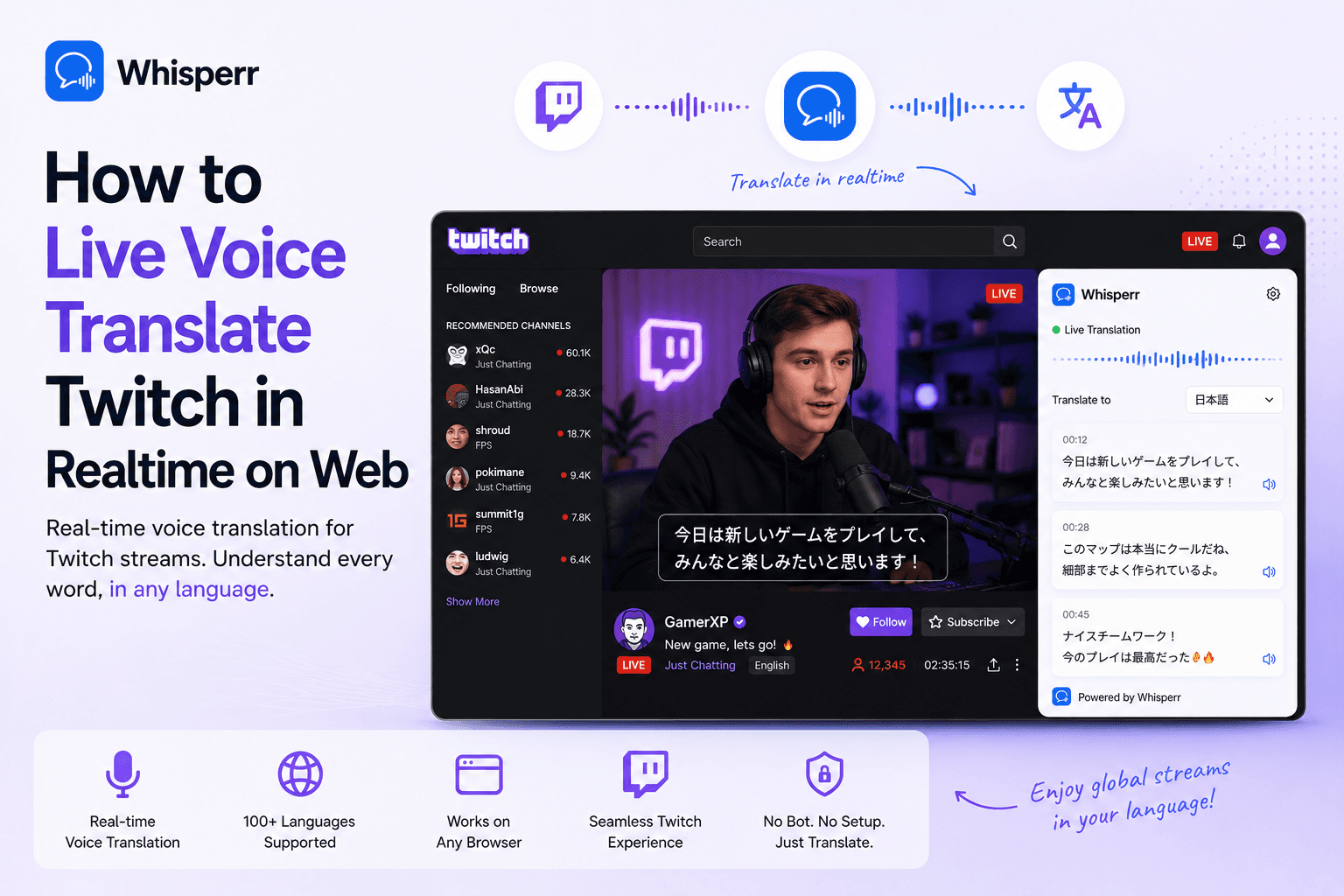
How to Live Voice Translate Twitch in Realtime

You're watching a stream where the caster speaks a language you can sort of follow, but not at full speed. It could be a Korean LoL game, a Brazilian variety stream, a Japanese speedrun, or a Russian CS broadcast. You don't want to wait for a clip to get subtitled later. You want a private speech translator that runs on your side of the screen and turns what they say into the language you understand best, live.
That's exactly what a browser-tab capture setup gives you. It turns any Twitch stream into a free personal interpreter, one nobody else can see, that you control entirely, and that you can point at any language pair. This guide walks through the one reliable way to do it, end to end.
Why Twitch won't translate the stream for you
Twitch has no built-in voice translation. There's no auto-translate toggle in the player, no closed-caption track baked into streams, and no first-party way to live voice translate a broadcast. The closest thing is community-run translation overlays, and those only exist if the streamer sets them up, which puts the whole thing outside your control as a viewer.
The workaround is to treat the Twitch audio like any other audio source and pipe it into a translation layer that runs alongside the stream. Whisperr is built exactly for that. It captures whatever audio is playing in a browser tab and lets you live audio translate the stream into 100+ language pairs. Point it at your Twitch tab, pick your languages, and you've got a realtime voice translator working just for you.
This is the same browser tab-capture pattern used for Zoom calls and Microsoft Teams meetings. Twitch is just one more audio source it works with.
What you need before you start
- A Whisperr web app account. The free tier is enough for short sessions.
- A laptop or desktop with Chrome or Edge — tab-audio capture needs a Chromium browser, so Safari and Firefox won't work here. Chrome and Edge both work.
- The Twitch stream you want to watch, open at twitch.tv.
The one way that works: capture Twitch in a browser tab
This is the cleanest setup. You watch the Twitch stream in a browser tab and let Whisperr capture the tab audio directly. No microphone, no speaker, no second device. The audio goes from Twitch's web player straight into Whisperr, before it ever reaches your ears. It works with headphones or AirPods too, because the capture happens digitally.
Step 1: Open the Twitch stream in a browser tab

Go to twitch.tv in any modern browser and start playing the stream you want to translate. Whisperr captures audio from a browser tab, so the stream needs to be playing in a tab, not the Twitch desktop app, a console, or a smart TV. Any modern browser works here, not just Chrome.
Step 2: Open the Whisperr web app in a second tab

In a new tab, open the Whisperr web app and sign in. Don't close the Twitch tab. Whisperr needs it open and playing to capture the audio.
Step 3: Pick the two languages

Use the two language dropdowns at the top of the Whisperr interface and pick the two languages on the stream, for example Korean and English. You don't have to label one as the source and one as the target. Whisperr does two-way voice translation by default, so it handles both directions and the order doesn't matter. If you only want one direction, see the next step.
Step 4: Keep it two-way, or set one direction (your choice)

By default Whisperr translates both ways, which is fine for most streams. If you'd rather keep it clean and have it translated one way, then tap the arrow button between the two language selectors to switch to one direction. That way it only translates from the streamer's language into yours, and you won't see translations you don't need. For a single caster talking continuously into a mic, one-direction gives you a tidy stream that reads like a private interpreter.
Step 5: Enable Live Speech

To hear the translation spoken aloud, enable "Auto-speak translations" and, if you like, set the Speaking speed to whatever suits your ears. Use headphones so the spoken translation doesn't feed back into anything else you're capturing.
Step 6: Start a New Recording and choose Screen Capture

Click New Recording, then click the recording icon and choose Screen Capture (tab audio only). A picker pops up.
Step 7: Pick the Twitch tab and share its audio

In the picker, choose Tabs, select your Twitch tab, make sure Share tab audio is ticked, and click Share. Whisperr immediately starts capturing the stream audio. This is the single most common mistake on this flow. If you forget to tick "Share tab audio," Whisperr gets video frames but no sound, and there's nothing to translate. Double-check the box before you hit Share.
Step 8: Split screen for readability

You can also split the Twitch tab with Whisperr by clicking "New Split View with Current Tab," which lets you watch the stream and read the translations side by side.
Step 9: Listen and read along

That's it. The caster speaks normally, the live voice translation comes out of your speakers or headphones, and the translated captions stream onto your screen in your language. Nobody else on the stream or in chat sees anything. Whisperr runs entirely on your side.
Why this beats the alternatives
- It's genuinely free for short sessions. The Whisperr free tier covers quick watch sessions, so you're not paying for anything just to follow one caster.
- It's private and viewer-only. Whisperr runs in a separate tab on your machine. The streamer doesn't install anything, change any settings, or even know it's there.
- You decide the direction. Two-way voice translation is on by default, or you can switch to one direction so you only read the caster, with no extra clutter.
- It works without a loud speaker. Tab capture grabs the audio digitally, so headphones or AirPods are fine. That's handy late at night, in a dorm, or an open office.
- It's platform-agnostic. The same tab-capture flow lets you live audio translate Zoom, Google Meet, Microsoft Teams, Webex, YouTube, Kick, and Discord. One workflow, every platform.
- 100+ language pairs, including the ones Twitch communities actually use: Korean to English for Twitch Korea and esports, Portuguese to English for the Brazilian scene, Spanish to English for LatAm, Russian to English for CIS, Japanese to English for fighting-game and speedrun streams, plus Mandarin, Vietnamese, Polish, Thai, and the rest of the long tail.
Frequently Asked Questions
Does Twitch have a built-in voice translator for viewers?
No. Twitch has no auto-translate caption toggle and no native speech translator. Running Whisperr alongside the stream is what gives you a personal interpreter, and it works on the free tier for short sessions.
Will the streamer or chat know I'm using it?
No. Whisperr runs in a separate browser tab on your screen, not inside the Twitch player. Nothing appears on the stream or in chat.
Can I read only the caster and not anything else?
Yes. Whisperr is two-way by default, but you can tap the arrow button to set one direction. Then it only translates the streamer into your language.
Do I need to set a source and target language?
No. You just pick the two languages, for example Korean and English, and Whisperr handles voice translation both ways automatically. Setting a direction is optional.
Do I need a loud speaker for this?
No. Tab capture pulls the audio digitally before it reaches your output device, so headphones and AirPods work fine.
What if I'm watching on a console, smart TV, or the Twitch desktop app?
Tab capture only works on audio playing in a browser tab. If the stream is on a console, TV, or the desktop app, switch to watching at twitch.tv in a browser so Whisperr can capture the tab.
Try it on your next stream
The whole flow, top to bottom:
- Open the stream at twitch.tv in a browser tab.
- Open the Whisperr web app in a second tab and sign in.
- Pick the two languages, for example Korean and English. Two-way is on by default, or tap the arrow for one direction.
- Enable Auto-speak translations and set your speaking speed.
- New Recording, then Screen Capture, then Tabs, pick the Twitch tab (with Share tab audio ticked), and click Share.
- Listen and read along. Your own realtime voice translator, just for you.
Start a free session at the Whisperr web app.
Copyright © 2026 Whisperr. All Rights Reserved.
.png&w=3840&q=75&dpl=dpl_8G78LDZT9j2DLbnxUKjKcBVHaK6S)
Two ways to live voice translate with high accuracy Twitch streams; browser tab capture (web app or Chrome extension) or phone app. 100+ languages+