
How to Real-Time Translate Any Audio Using a Browser Extension: A Step-by-Step Guide

You're on a browser, watching or listening to something in a language you don't speak — a Zoom call your client joined in Spanish, a YouTube product launch in Japanese, a Brazilian Portuguese podcast on Spotify Web, a German webinar, a French news livestream. You want a realtime voice translator that lives right next to the tab playing the audio. No second device. No speakerphone hack. No installer to push through IT.
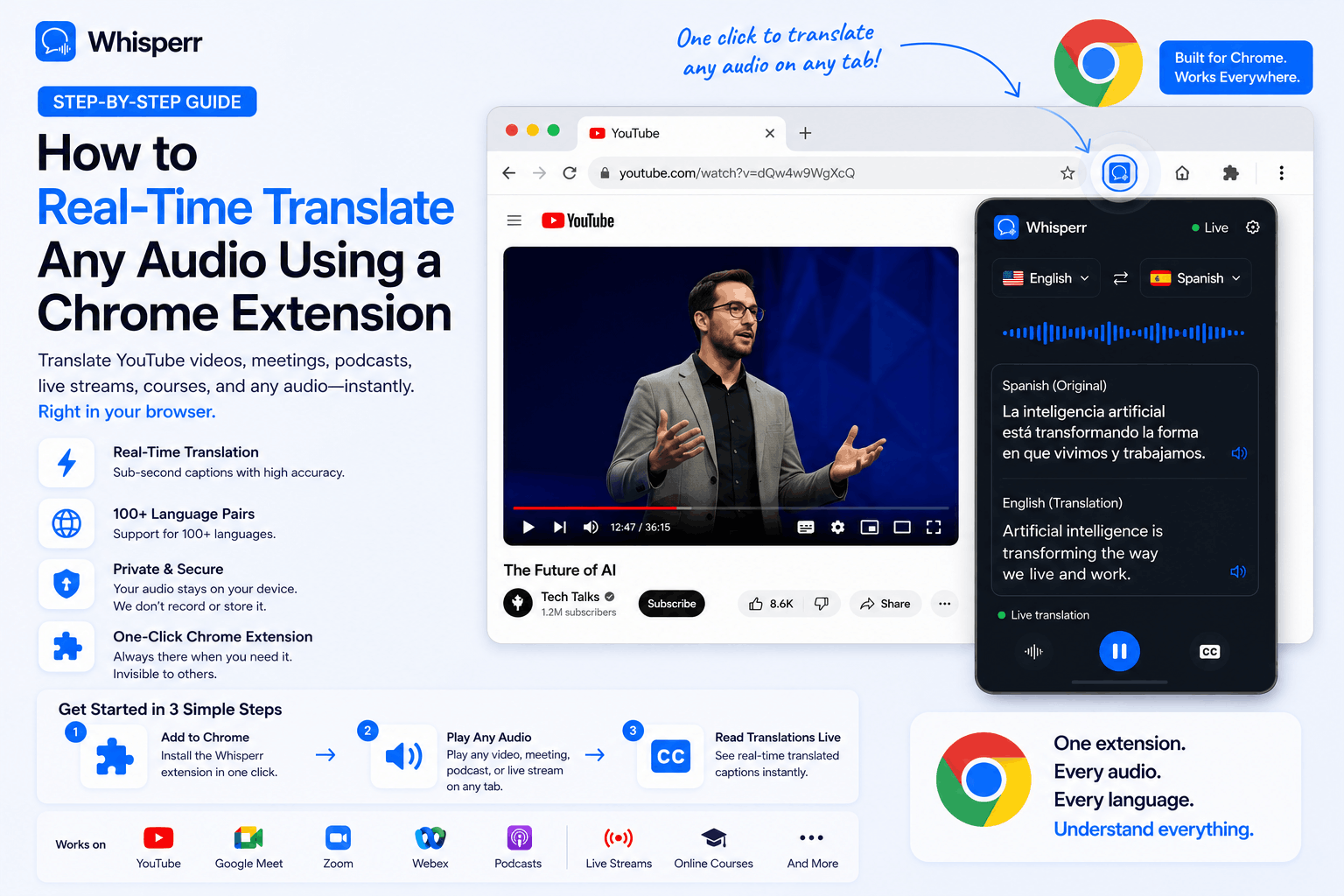
That's exactly what a browser extension does. The Whisperr extension docks into your browser's toolbar, captures audio directly from any tab you point it at, and streams live audio translate captions back into a side panel — sub-second latency, line by line.
This guide walks through the full flow. There's only one path, and it's quick.
What you can translate this way
The extension captures any browser tab's audio, which covers most of what people actually need translated:
- Video calls — Zoom, Microsoft Teams, Google Meet, Webex, Discord, Whereby (the web versions)
- Streaming video — YouTube live streams, Twitch, foreign news livestreams, Vimeo, Dailymotion
- Audio — Spotify Web, Apple Music web player, podcast players, SoundCloud, foreign radio
- Webinars and conferences — Hopin, Zoom Webinars, On24, GoTo, Whova, Bevy
- E-learning — Coursera, Udemy, edX, university lecture portals
- Anything else that plays audio in a browser tab
If it plays in a tab, the extension can translate it.
Step by step: real-time audio translation with the browser extension
1. Install the Whisperr browser extension
Grab the Whisperr browser extension and add it to your browser by clicking "Add to Chrome".

Then you will see another popup and you click "Add extension." The installation is immediate.

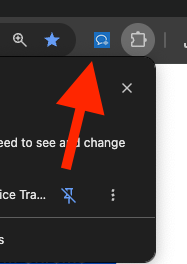
Now on the top right of the browser, you should see the install complete popup, and a puzzle icon. Click on the puzzle icon.

And tap the pin icon to pin it on the browser. This makes it easy to access when you need it.

You should see the Whisperr icon next to the URL bar.
2. Open the extension from the top-right of your browser
Click the Whisperr extension icon in the top-right of your browser.

The extension panel opens with the recording controls at the top: two language dropdowns, and a play button on the right.
Keep this panel open. The translated captions will appear here as soon as audio starts flowing.
3. Pick your two languages (Audio + Translation)
Tap the two dropdowns and pick:
- Audio Language → the language spoken in the audio you want to translate (e.g., Spanish, Japanese, German)
- Translation Language → the language you want to read (e.g., English, French, Korean)

Translation is two-way by default. You don't have to think about which one is "source" and which is "target" — if speakers switch between the two languages mid-call, voice translation flows in both directions automatically. This matters for bilingual meetings, sales calls, and conversations where the speaker code-switches.
If you're translating a Spanish customer call, set one dropdown to Spanish and the other to English. That's it — you've now got an accurate Spanish translator running for english to spanish translation voice flows and Spanish-to-English in the same session. The same pattern works for translate english spanish in any direction, plus 100+ other language pairs including East Asian, Southeast Asian, South Asian, Middle Eastern, European, and major regional dialects.
4. Press Play
Click the Play button below. This kicks off the audio capture flow. Your browser will pop up its standard screen-share dialog with three tabs across the top: Chrome Tab, Window, Entire Screen.

5. Choose 'Chrome Tab' in the share dialog
The share dialog pops up and pick the "Chrome Tab" option — not Window, not Entire Screen as they are protected due to privacy restrictions. Then pick on the audio tab that you want to capture, enable the audio and tap "Share."

Then pick on the audio tab that you want to capture.
6. Split the tabs to view both at the same time
It would be ideal to see both the translations and the video tab at the same time. You can stay on Whisperr extension tab and then right click the tab that you just shared. Then tap "New Split View with Current Tab."

This splits the window into two two tabs.
7. Read the live translation in the extension panel
Switch back to the Whisperr extension panel. Live transcription in the audio language and live translation in your chosen language appear side by side, timestamped, line by line. Latency is sub-second — captions land roughly as fast as you'd hear the speaker.

You can keep listening to the original audio in the source tab at the same time; capturing audio doesn't mute it. Read the translation while you listen, or just read if you don't want any audio at all.
When you're done, click Stop in the extension panel or close the shared tab. Nothing is stored on the page or in your browser — the session ends cleanly.
Why a browser extension beats the alternatives
A few reasons the extension flow holds up against installing a desktop translator, running Whisper.cpp locally, or trying to bolt translation onto a phone:
Tab audio capture is source-agnostic. Zoom in the browser, YouTube, Spotify Web, a webinar platform, a streaming news site — they're all just tabs to the extension. One workflow covers everything. You don't need a separate "Zoom translator" and "YouTube translator" and "podcast translator."
No installer, no admin rights, no IT ticket. Browser extensions install through the standard browser flow that's whitelisted at virtually every company. If you can install any other extension, you can install Whisperr. No EXE allowlist fight, no Group Policy review.
Works on any Chromium browser, on any OS. Chrome, Edge, Brave, Arc, Opera, Vivaldi — same flow. macOS, Windows, Linux, ChromeOS — same flow. If you switch laptops or hot-desk to a different machine, the workflow doesn't change.
Two-way translation by default. Most translator tools force you to declare a source and target. This one doesn't. If the speaker code-switches between English and Spanish mid-sentence, captions flow both ways. Critical for bilingual meetings and any conversation where Spanish-English (or any other pair) gets mixed.
Accurate Spanish translator across 100+ language pairs. Long-tail languages — Vietnamese, Indonesian, Tagalog, Bengali, Persian, Ukrainian, Hindi, Arabic — get the same treatment as the popular pairs. Whisperr was built for the languages other services skip.
Nothing stored locally. Audio is captured, streamed for transcription and translation, and dropped. The captions live in the extension panel for the session and disappear when you close it. No local recordings unless you explicitly save them.
FAQ
Does this work in Edge, Brave, or Opera?
Yes. The extension runs in any Chromium-based browser, which includes Microsoft Edge, Brave, Arc, Opera, and Vivaldi. The flow is identical — install from your browser's extension store, click the icon in the top-right toolbar, and proceed from step 2.
Why can't I choose 'Window' or 'Entire Screen'?
Browser security policy. Chromium-based browsers only allow audio capture from the Chrome Tab option in the share dialog. Window and Entire Screen capture only video. This isn't a Whisperr limitation — it's how the browser's screen-share API was designed. The fix is always the same: re-open the share dialog, pick Chrome Tab, and make sure "Share tab audio" is ticked.
Can I translate Zoom, Teams, or Google Meet calls with the extension?
Yes — as long as you join the call in your browser rather than the desktop app. Zoom, Teams, Meet, and Webex all have working web versions. Open the call in a tab, then run the extension on that tab. For Teams specifically, we have a dedicated guide covering the broadcaster-and-viewers flow if you want everyone on the call to read translated captions, not just you.
Can I translate audio from a desktop app like the installed Zoom client or Spotify desktop?
The extension only captures browser tab audio, so the cleanest workaround is to switch to the browser version of the service. Zoom, Teams, Meet, Webex, YouTube, Twitch, Spotify, Apple Music, and most major streaming sites all run perfectly in a tab. For desktop-only services with no web version, you'd need to route system audio through a virtual audio cable — but 95% of the time, opening the same content in a browser is faster.
How accurate is the Spanish-English translation?
Whisperr runs a live voice translate pipeline tuned specifically for conversational and presentation audio, which is where most translator apps stumble. For Spanish-English specifically — one of the highest-volume pairs we handle — the accuracy holds up across regional accents (Mexican, Castilian, Argentinian, Caribbean), business jargon, and code-switching. The two-way default means it works equally well for translate english spanish flows and Spanish-to-English flows in the same session without any setting changes.
What if I want to translate audio outside a browser?
The browser extension is the right tool when the audio is in a tab. If you need to translate someone speaking next to you in person, or audio from a non-browser source, Whisperr also runs as a web app, an iPhone app, and an Android app. The web app covers microphone input and tab capture from a single page. The iPhone and Android apps cover in-person conversations and audio from supported apps like YouTube, Instagram Live, and TikTok Live.
Try it on your next foreign-language audio
The full flow, top to bottom:
- Install the Whisperr browser extension → click the icon in the top-right toolbar → pick two languages → press Play → choose Chrome Tab → pick the tab → click Share.
- Read the captions.
No installer. No admin rights. No driver. Works in any Chromium browser on any OS, for any tab playing audio in any language.
If you want voice translation off-browser too, grab the iPhone app, the Android app, or open the web app directly.