
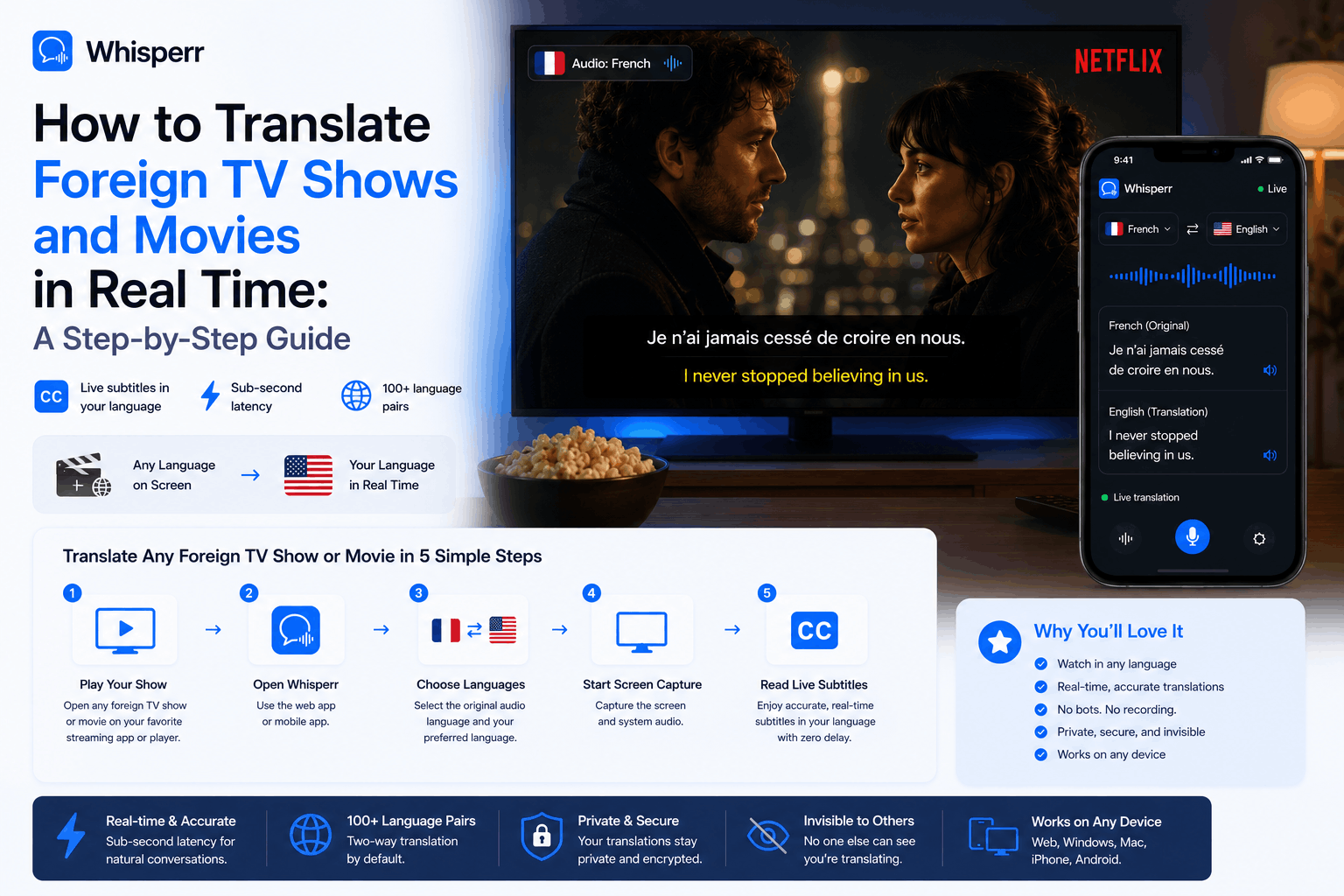
How to Real-Time Translate Foreign TV Shows & Movies

Why translating foreign TV needs its own setup
Most translation tools were built for two people talking to each other — phrasebook apps, conversation modes that pause every eight seconds, tourist translators that expect short turns. They fall apart on television audio: continuous speech, music underneath, sound effects, multiple speakers, accents, fast dialogue, and zero pauses for the app to "catch up."
A proper live voice translator for TV needs three things:
- Clean audio capture — pulling the original audio stream beats pointing a microphone at a TV speaker, every time.
- Continuous streaming — no eight-second cutoff. The translation has to keep flowing as long as the show is playing.
- Realtime captions in a place you can actually read — floating subtitles on top of the video, or live captions on a second screen next to it.
Whisperr handles all three. The rest of this guide walks through both capture paths.
Scenario 1 vs Scenario 2: which one is right for you
| Scenario 1: Browser tab capture | Scenario 2: Speech mode |
|---|---|---|
Where you watch | Netflix, YouTube, Crunchyroll, Viki, Disney+, Hulu, Prime Video, foreign news sites, embedded TV-series players — anything in a browser tab | Smart TV, projector, Apple TV, Chromecast, Fire Stick, game console, DVD/Blu-ray, anything not in a browser |
Whisperr runs on | Web App in any modern browser (Chrome, Edge, Firefox, Brave, Arc, Opera, Vivaldi) | |
Audio path | Direct from the browser tab (high quality, no mic involved) | Phone microphone listens to TV speakers |
Captions appear | Side-by-side with the video, in the Whisperr tab | Floating subtitles overlay on your phone screen |
Latency | Sub-second | Sub-second, with a small extra delay for the air-gap |
Best for | Streaming services, web players, anything you can open in a tab | Cable TV, Apple TV apps, console-only streaming, friend's TV |
Scenario 1 is the recommended default — capturing audio directly from the browser tab is always cleaner than catching it through a microphone. Use Scenario 2 when there's no browser in the path.
Scenario 1: Capture the browser tab (recommended)
You're watching a Korean drama on Netflix, a Japanese anime on Crunchyroll, a French film on a streaming service, a Spanish news segment on YouTube, or a Russian-dubbed series on a foreign portal. The video plays in a tab in your browser. Whisperr captures that tab's audio directly, runs it through the speech translator, and shows you live captions in the language you want to read.
This works on any modern browser — Chrome, Edge, Firefox, Brave, Safari — as long as the browser supports tab audio capture.
Step 1. Open the Whisperr Web App
Go to the Whisperr Web App in a new tab and sign in.

You'll get to this page

Step 2. Pick your two languages
Click the language dropdowns at the top of the recording bar. Pick the language being spoken in the show and the language you want to read in. The order doesn't matter — Whisperr translates two-way by default, so you can keep the same setup if you switch from a Korean show to an English one mid-evening.

Whisperr supports 100+ language pairs as a full language translator, including the long-tail combinations most tools skip — Thai ↔ English, Indonesian ↔ English, Vietnamese ↔ English, Polish ↔ English, Turkish ↔ English, Hindi ↔ English, plus every major European and East Asian pair.
Step 3. Open the show in a separate tab
In a different tab, go to Netflix, YouTube, Crunchyroll, Viki, Disney+, Prime Video, or whatever streaming service has the show you want. Find the episode or movie.
Step 4. Click New Recording → Screen Capture
Back in the Whisperr tab, click New Recording. You'll see three capture options:
- Microphone Audio — your laptop's mic (for Scenario 2, in-person)
- Screen Capture — captures audio from a browser tab (this one)
Click Screen Capture.

Step 5. Pick the tab playing the show
Your browser will pop up a screen-share dialog with three options: Chrome Tab (or Firefox Tab, etc.), Window, and Entire Screen.
Pick Tab, then select the specific tab playing your foreign show — the Netflix tab, the YouTube tab, the Crunchyroll tab, whichever it is. Make sure "Share tab audio" is ticked at the bottom of the dialog — that's the checkbox that actually pipes the audio into Whisperr. Click Share.

Step 6. Play the show and read the realtime captions
Switch back to the streaming tab and press play. As soon as audio starts, Whisperr begins generating realtime captions in the language you picked. Switch back to the Whisperr tab — or arrange the two tabs side by side — and you'll see:
- The original dialogue, transcribed line by line in the source language
- The live translation in your reading language, right next to it
You can split the tab by right clicking on the tab and click "New Split View with Current Tab."


Scenario 2: Speech mode (watching on a TV or non-browser device)
You're watching the show on a smart TV, a projector, an Apple TV, a Chromecast or Fire Stick, a game console, or a cable box. There's no browser in the chain — the audio is just coming out of speakers in the room. The fix is to let the Whisperr app on your phone listen to the speakers and translate what it hears.
Enabling Speech mode in the Whisperr iPhone and Android allows it to speak the translations for you in realtime.
Step 1. Install the Whisperr app
Install Whisperr on your phone from the App Store or Google Play and sign in. Same account works across both platforms and the web app.

Step 2. Pick your two languages
In the app, tap the language pills at the bottom of the screen and pick the language being spoken in the show and the language you want to read in. As with Scenario 1, the order doesn't matter — Whisperr translates two-way by default. Pick once and watch as many episodes as you want.

(Optional) Step 3. Enable Speech mode and Floating Subtitles
Speech Mode enables the app to speak the translation in realtime. To achieve this, on iOS and Android, tap the vertical "..." menu (bottom-left in the iPhone app, top-right in Android) and:
- Enable Enable Real-Time Speech — this tunes Whisperr for continuous ambient audio (TV speakers, room audio) instead of close-mic conversation


Additionally, you can set the speaking speed in case you are watching the video at a faster speed than 1.0x.
Step 4. Start the recording
Tap the mic icon and tap "In-App Microphone". Grant microphone permission the first time. The Whisperr app is now listening for audio.

You can lock your phone or switch to another app — the floating subtitles stay visible on top, and the recording keeps running in the background.
Step 5. Place the phone near the TV speakers
Set the phone down screen-up on the coffee table, the arm of the sofa, or somewhere within roughly two meters of the TV speaker. Closer is better, but anywhere in normal living-room range works fine.
A few tips that actually matter:
- Reduce ambient noise. A quiet room produces near-perfect captions. People talking over the TV, a noisy AC unit, or a dishwasher running in the background will lose words.
- Don't max out the TV volume. Distorted, blown-out speaker audio is harder to transcribe than clean audio at a comfortable level.
- External soundbars and Bluetooth speakers help. Better speakers = cleaner audio = better translation. Built-in TV speakers work, but a soundbar makes a noticeable difference.
Step 6. Watch the show and read the floating subtitles
Press play on the TV. Within a second, subtitles appear on your phone screen in the language you picked. Glance down at the phone, glance back up at the TV — your eyes barely move. If you have enabled real-time speech, then it speaks for you so that you don't have to read it throughout the speech.

Why Whisperr is the best real time voice translator for watching foreign television
A handful of reasons this setup holds up against streaming-service auto-subtitles, browser extensions, and microphone-only translator apps:
- Tab audio capture is source-agnostic. Scenario 1 works for Netflix, YouTube, Crunchyroll, Viki, Disney+, Hulu, Prime Video, Apple TV+ in the browser, regional streaming services in Korea/China/Japan/Russia/Brazil, foreign news livestreams, embedded players on torrent or fan-sub sites, anything that plays in a tab. One mechanism, every source.
- 100+ languages as a full language translator. Streaming services dub or subtitle a fixed list of "supported" languages and skip the long tail. Whisperr's speech translator covers Korean, Japanese, Chinese (Mandarin and Cantonese), Thai, Vietnamese, Indonesian, Tagalog, Hindi, Bengali, Turkish, Polish, Czech, Greek, Hebrew, Arabic, Persian, Swahili, and 80+ more — translated into whatever language you want to read.
- Floating subtitles that follow you. Scenario 2's floating subtitles work on top of any app on your phone. You can be on the sofa scrolling Instagram with one eye and reading the show's captions with the other.
- Continuous streaming, no "tap to continue." Phrasebook-style translators time out after a few seconds and demand you tap again. Whisperr runs continuously for a full episode, a full movie, or a marathon — no interruptions.
- No reliance on the streaming service's auto-translate. Netflix and YouTube sometimes provide auto-translated subtitles, but quality varies wildly, coverage is patchy, and many regional services offer nothing at all. Whisperr works the same way regardless of what the platform supports.
- Nothing stored unless you save it. Audio is processed in real time. Nothing lingers on disk unless you explicitly save the bilingual transcript.
Common questions
Does this work with subtitles already burned into the video?
Yes. Whisperr is translating the audio, not the on-screen text, so it's completely independent of whatever subtitles the video itself has — burned-in, soft-subbed, or none at all. You can have native subtitles on, off, or in a third language, and Whisperr will keep generating realtime captions from the spoken audio either way.
Can I translate Netflix or Disney+ if I'm using the desktop app instead of the browser?
Switch to the browser version. Netflix, Disney+, Prime Video, Hulu, Apple TV+, Crunchyroll, and most major streaming services all run in the browser with the same content library. The desktop apps don't expose their audio to tab capture, but the web versions do. Open netflix.com (or whichever service) in Chrome/Edge/Firefox/Brave, and follow Scenario 1.
If the service genuinely has no web version, fall back to Scenario 2 — play the video on the device you have, and let the Whisperr app on your phone listen through the speakers.
What about anime sites, fan-sub portals, and regional streaming services?
Anything that plays in a browser tab works. Crunchyroll, Funimation, Viki, iQIYI, WeTV, Youku, Tencent Video, Niconico, AbemaTV, Rakuten Viki, Wavve, Coupang Play, regional broadcaster sites (NHK, KBS, CCTV, TVE, France TV, ZDF, RAI), and fan-sub portals all work with Scenario 1. Tab capture is source-agnostic.
Can I broadcast the captions to other people watching with me?
Yes. In the Web App, tick the Broadcast checkbox before you start the recording. Whisperr generates a public room URL — anyone you share it with opens the link in their phone or laptop browser and reads the captions in real time, no signup or install needed. Useful for movie nights where each person wants captions in a different language.
Does this work on iPad?
You can download the iPad app here.
Will running this drain my phone battery during a long movie?
Although Whisperr has been optimized for a long conversation, the battery drain will be noticeable on a two-hour movie, fine on a 45-minute episode. If you're settling in for a full season binge, keep the phone on a charger.
Try it on your next foreign show
The decision tree, one more time:
- Show plays in a browser tab? → app.whisperr.co → New Recording → Screen Capture → pick the tab. Best audio, best captions.
- Show plays on a TV or any non-browser device? → Whisperr iPhone app or Whisperr Android app → Speech mode + Floating Subtitles → point the phone at the speakers.
Same realtime voice translator, same 100+ languages, same subscription. Pick the path that matches where the audio is coming from, and the next Korean drama, Japanese anime, French thriller, Spanish telenovela, or Turkish series on your watchlist becomes watchable tonight — no waiting for an official dub, no relying on auto-subtitles, no second device.