
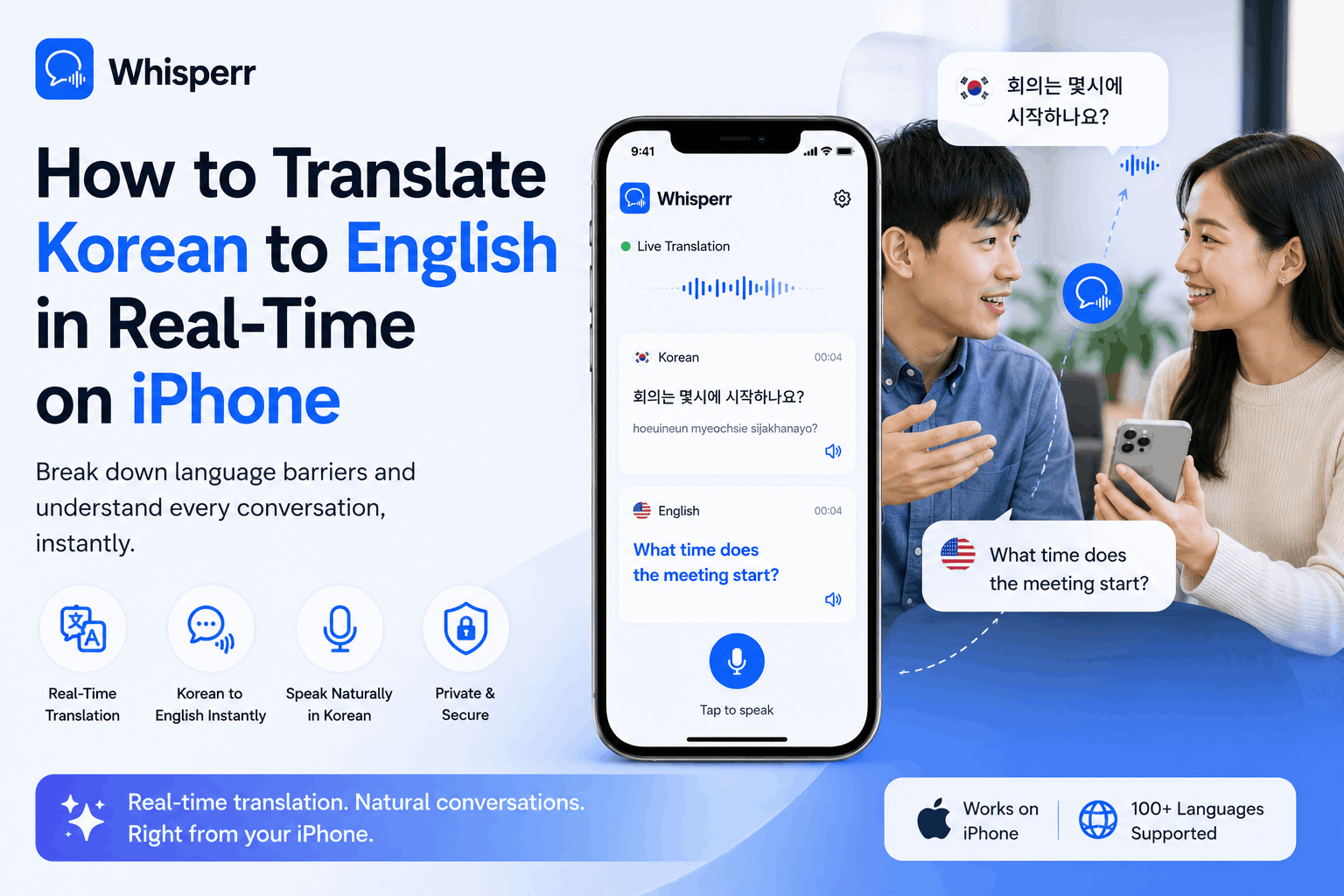
How to Translate Korean to English in Real-Time on iPhone

You're sitting across from a Korean-speaking colleague, watching a KBS news segment, on a video call with a team in Seoul, or about to land at Incheon. You want to actually understand what's being said live, in English, on the phone you already have in your hand.
Apple's built-in translation handles tourist phrases. Google Translate works for short utterances. Papago is great for typed text. None of them keep up when a Korean speaker talks at normal conversational speed for more than ten seconds, switches between 존댓말 and 반말, or runs through a meeting agenda without pausing.
This guide walks through the two ways to translate korean english live on your iPhone using a realtime voice translator, and which one to use depending on where the Korean audio is actually coming from.
Two scenarios, two setups
Korean-to-English live voice translate on iPhone isn't a single workflow. It depends entirely on where the Korean audio is coming from, and most real-world cases fall into one of two buckets.
Method 1, a Korean speaker is talking to you in person. The audio is in the room. You're the only one who needs the English. Solved by the Whisperr iPhone app listening through the mic. We covered the full step-by-step for in-person mic capture in our previous blog, and the setup is identical, just with a different language pair.
Method 2, Korean audio is playing in a remote meeting. The audio is in a Zoom, Teams, Webex, or Meet tab on a computer. Solved by the Whisperr Web App on a desktop browser, capturing the meeting tab audio directly with Web Screen Capture.
Each section below is self-contained.
Method 1: A Korean speaker is talking to you in person
This is the cleanest, most common case. A Korean-speaking colleague, in-law, taxi driver, customer, or stranger is talking to you live, and you want to follow along in English without making them slow down or repeat themselves.
The setup: the Whisperr iPhone app listens to the conversation through your iPhone's microphone, transcribes the Korean, and shows you live English captions on the screen. (If you're on Android, the same flow works in the Android app.) This is the same mic-capture method covered in detail in our previous step-by-step guide. Here's the Korean-specific version.
Step 1: Install Whisperr on your phone

Install the Whisperr iPhone app from the App Store, or grab the Android version on the Google Play Store. Sign in. The free tier covers casual one-off conversations.
Step 2: Pick Korean and English as your two languages

In the language selector at the bottom of the app, pick Korean (한국어) and English. That's it. You don't have to designate a "source" or a "target". Whisperr does two-way voice translation by default, so it auto-detects who's speaking what and shows the other side automatically.
Step 3: Tap New Recording

Open a new session from the home screen. The first time you do this, iOS will ask for microphone permission. Allow it. Whisperr only uses the mic while a session is active.
Step 4: Tap the mic icon to start listening

Tap the microphone icon. The app immediately enters live audio translate mode and begins streaming captions the moment any voice is detected within range.
Step 5: Place your iPhone between you and the speaker

Lay it face-up on the table, screen up, within about a meter and a half of the Korean speaker. Read the English captions as they talk. If you want to respond in English and have them read it in Korean, just speak. Since two-way is on by default, the english to korean translation voice direction flips automatically.
Tips that actually matter

Flat on the table beats holding it in your hand. The bottom mic on iPhones picks up cross-table conversation surprisingly well, much better than people expect, especially in a 1-on-1 setting.
Quiet rooms equal much better accuracy. A quiet café in Hongdae is near-perfect. A noisy galbi restaurant or the Seoul subway during rush hour will drop some particles and slurred sentence endings, since casual Korean compresses heavily.
Honorifics and casual speech both work. Whisperr is an accurate Korean translator that handles 존댓말 (formal), 반말 (casual), and mixed registers without any configuration. Sentence endings like 습니다, 요, 야, and 어 all translate cleanly.
Same setup, both directions. You don't have to swap languages mid-conversation. The app figures out who's speaking Korean and who's speaking English on its own.
This is the scenario the iPhone app was built for. No web browser, no second device, no link-sharing. Just your phone and the conversation in front of you.
Method 2: Korean audio is playing in a remote meeting
You're in a Zoom, Microsoft Teams, Google Meet, or Webex call. Someone is speaking Korean: a colleague in Seoul, a vendor in Busan, a customer on a sales call, a guest in a podcast recording. You want live English captions of what they're saying, without asking them to switch languages or paste lines into Papago in a side window.
The setup: this scenario uses the Whisperr Web App on a desktop browser (Mac or Windows). The web app captures the meeting tab's audio directly via Web Screen Capture, which is dramatically cleaner than pointing your iPhone mic at a laptop speaker. Safari and Chrome on iPhone don't support browser tab audio capture (that's an iOS-side restriction, not a Whisperr one), so for remote-meeting use, you want to be on a computer.
Step 1: Join the meeting in a desktop browser tab

Open Zoom, Microsoft Teams, Webex, or Google Meet in a desktop browser. Any modern browser works: Chrome, Edge, Brave, Arc, Firefox, Opera, or Safari on Mac. For Teams or Meet, click "Continue on this browser" instead of opening the desktop app, since Web Screen Capture only works on the in-browser version of the meeting.
Step 2: Open the Whisperr Web App in a second tab

In a new tab, open the Whisperr Web App and sign in. This is the realtime voice translator running entirely in the browser, with no install required. If you'd prefer a one-click flow that lives in your browser toolbar, you can also install the Whisperr Chrome extension instead and skip the second-tab step.
Step 3: Pick Korean and English as your language pair

In the recording bar at the top, pick Korean and English. As with the mobile app, you don't have to designate a source or target. Two-way translation is on by default, so it handles speakers going in both directions within a single session.
Step 4: Click the mic icon and choose Screen Capture, then Tabs

Click the microphone icon, choose Screen Capture, then Tabs (not "Window" or "Entire Screen"), pick your meeting tab from the list, and click Share. Critically: make sure the "Share tab audio" checkbox is ticked at the bottom of the dialog. Without it, you'll capture the video stream but no sound, and Whisperr will have nothing to translate.
Step 5: Read live English captions as the meeting plays

Switch back to the Whisperr tab. English captions stream in line by line as the Korean speaker talks. Drag the Whisperr window into a corner of your screen, or move it to a second monitor, so you can see both the meeting faces and the captions at once.
If you want others in the meeting to read the captions too

Turn on Broadcast in the Whisperr Web App before you start recording. Whisperr generates a public room URL. Paste it into the meeting chat. Anyone, on any device including iPhone, including people who've never heard of Whisperr, can open the link in their browser and read the live English captions instantly. No signup, no install, no mic permission needed for them.
This is the same broadcast pattern covered in our Microsoft Teams two-way translation guide.
What if you only have your iPhone right now?
If you're stuck on iPhone-only and a Korean meeting is starting, the workaround is mic capture. Put the meeting on speakerphone on a second device (iPad, MacBook, or a friend's phone), and run the Whisperr iPhone app pointed at it. Not as clean as desktop tab capture, but it works in a pinch. You get the same translate korean english quality, just with a slightly noisier audio path.
Frequently Asked Questions
Does Whisperr have a real iPhone app?
Yes. The iPhone app is what powers Method 1 above (mic capture). It's available on the App Store. For Method 2 (remote meeting capture), you'll use the Whisperr Web App on a desktop browser, since iOS doesn't allow apps or browsers to capture another tab's audio.
Can I translate a Korean phone call or KakaoTalk voice call on my iPhone?
Yes, with a second device. Put the call on speakerphone, run the Whisperr app on your iPad, MacBook, or a friend's phone, and let it listen through its mic to your iPhone's speaker. iOS prevents apps from tapping into in-call audio directly, so this two-device workaround is the way that actually works without jailbreaking.
Can I translate a Korean YouTube, Naver TV, or K-drama clip playing on my iPhone?
Yes you can get realtime translations for YouTube, Naver TV, and K-drama clips on your iPhone.
However, if you are using Zoom, Teams, or Meet, it blocks apps from accessing other apps' audio. Either play the video on a separate device and run Whisperr on your iPhone, or play it on your iPhone and run Whisperr on an iPad or laptop next to it. If you're watching from a desktop browser, the Whisperr Web App (or the Chrome extension) captures the tab audio directly, no second device needed.
Does it support both 존댓말 and 반말?
Yes. Whisperr's Korean voice translation handles formal (존댓말), casual (반말), and mixed registers natively. Dialects (Gyeongsang, Jeolla, Jeju) get reasonable accuracy, though Seoul standard is the most accurate. Heavy slang from variety shows is the only category where you'll see occasional misreads.
Does it work offline?
No. Live voice translate needs the cloud, since speech recognition and translation models run server-side. You need Wi-Fi or LTE/5G. For tourist-phrasebook offline use, Apple Translate's offline language pack is fine. For real conversations and meetings, online is what gives you usable accuracy.
Is Korean-to-English better than English-to-Korean?
Roughly the same in our experience. If you're running a bilingual conversation, just let it auto-detect both directions in a single session. For broadcasting to a mixed audience (some need Korean, some need English), run two parallel broadcast rooms (KO to EN and EN to KO) on the same subscription. The english to korean translation voice direction is symmetrical to the Korean side, so you don't lose accuracy by going either way.
Will my iPhone get hot or drain the battery quickly?
The app is lightweight. Battery drain is comparable to a video call, noticeable on long sessions, fine for a 30-minute conversation. If you're translating a multi-hour news broadcast, a full-day meeting, or running an extended broadcast, keep the iPhone plugged in.
Is it free?
You can sign up and try it for free. The free tier covers casual use. Longer or higher-volume sessions move to paid plans. Viewers who only open a shared broadcast URL, never the broadcaster, pay nothing and don't even need an account.
Try it on your next Korean conversation
Two setups, one decision.
- Korean speaker in front of you? Whisperr iPhone app or Android app on mic capture. See our previous blog for the full step-by-step.
- Korean audio in a remote meeting? Whisperr Web App on desktop, Web Screen Capture on the meeting tab. Or use the Chrome extension if you'd rather stay in your browser toolbar.
If you regularly have Korean speakers in your life (colleagues, in-laws, customers, news, K-content), there's no reason to keep relying on Apple Translate's stops-after-two-sentences behavior or copy-pasting lines into Papago. Whisperr keeps going for hours, on the device you already carry.
.png&w=3840&q=75&dpl=dpl_EWJKLNau86JyZDoHzAGD44dx4hmg)
Translate YouTube live streams on iPhone with floating captions on top of your YouTube app. Real time, 100+ languages, no second device.