
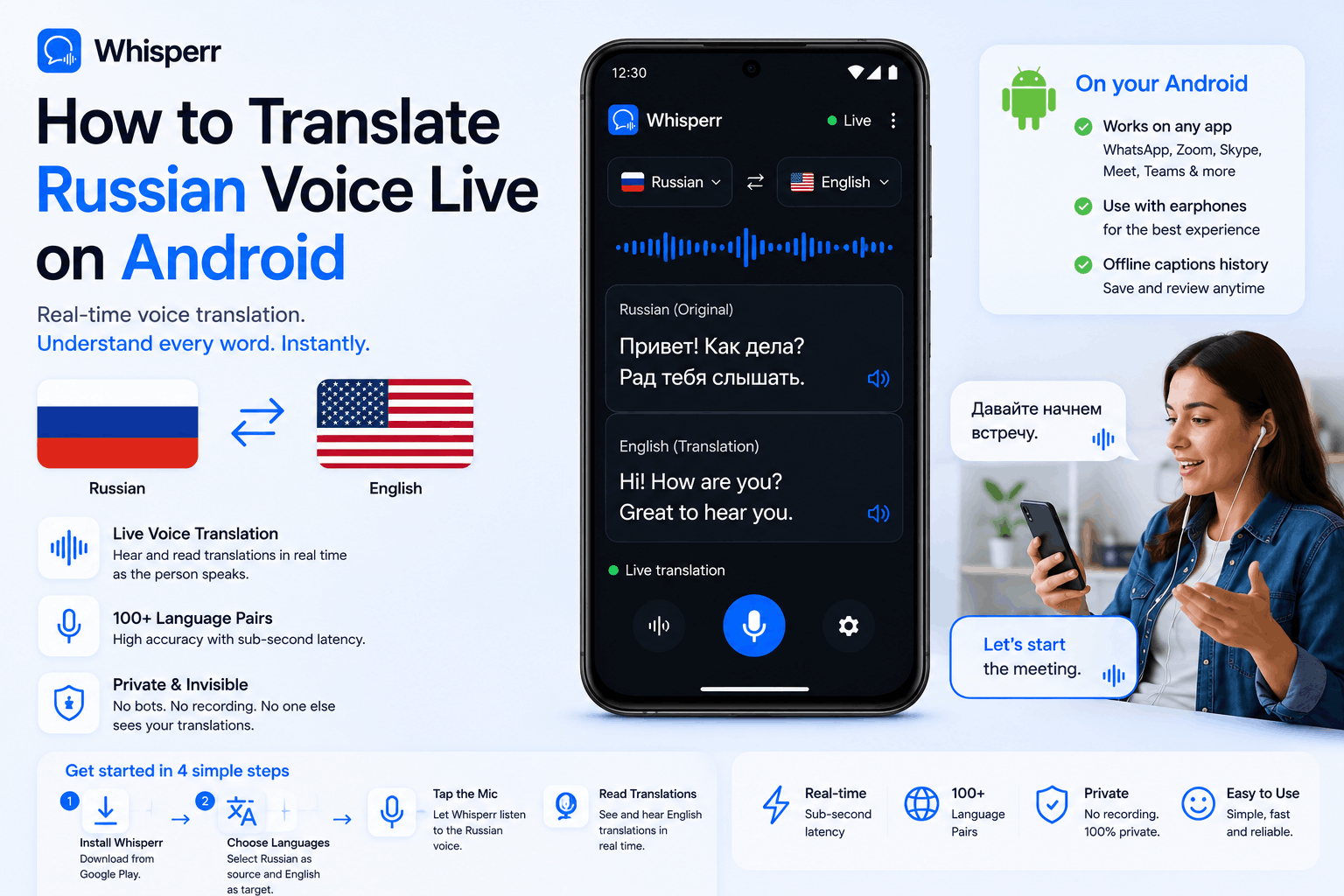
How to Translate Russian Voice Live on Android

You're scrolling through a Russian YouTube livestream on your phone. A Russian-speaking family member is talking across the kitchen table. A Russia-1 news clip is playing inside the Telegram app. A Kinopoisk movie just started in Russian. You're on your Android phone, you don't want to dig out a laptop, and you want the audio in English — right now, as it plays.
This guide covers the two ways to do that on Android, when to use each one, and the one limitation that catches everyone the first time.
Two scenarios, two modes
Russian audio on Android comes from two very different places, and the right Whisperr mode is different for each.
| Scenario 1 — Mic capture | Scenario 2 — Floating Subtitles |
|---|---|---|
Audio source | Someone speaking in the room, a TV, a Bluetooth speaker, anything you can hear out loud | Russian audio coming from another app on the same Android phone (YouTube, TikTok, Telegram, Spotify, Russian streaming TV apps, a browser) |
Whisperr mode | Default microphone mode | Floating Subtitles mode |
What you see | Captions on the Whisperr screen | A Picture-in-Picture window floating over the source app |
Best for | In-person conversations, watching a Russian movie on a TV, listening to a podcast on a separate speaker | Russian YouTube livestreams, Russian TikToks/Reels, Russian podcasts in podcast apps, Russian TV via streaming apps, anything playing inside an app on the same phone |
Doesn't work for | n/a — if you can hear it, the mic can hear it | Native Phone app calls, audio inside the Zoom app (blocked by Android/Zoom) |
Both modes run on the same single Whisperr account, support 100+ languages, and translate both directions by default. Pick the one that matches your audio source.
Scenario 1: Russian audio in the room (microphone capture)
This is the simplest case. A Russian-speaking parent is at the dinner table. A Russian movie is playing on the TV across the room. A Russian podcast is playing through a Bluetooth speaker on the counter. The audio is out loud, in the air, and you want English captions on your phone screen as it happens.
The setup: the Whisperr Android app in default microphone mode. Your phone's mic listens to whatever's in the room, the live voice translator handles transcription + translation, and you read realtime captions on screen.
Step 1 — Install Whisperr from the Play Store
Grab the Whisperr Android app and sign in (or sign up — the free tier is enough to try this end-to-end).

Step 2 — Pick Russian and English in the language bar
In the recording bar at the bottom of the home screen, tap the language dropdowns and pick Russian and English. You don't need to think about which is the source and which is the target — translation is two-way by default. If your Russian-speaking relative says something in Russian, you see English. If you respond in English, they see Russian. The speech translator handles direction switching automatically.

Step 3 — Tap New Conversation
Tap Recording icon at the bottom right to start a session.

Step 4 — Tap the mic icon
The first time you do this, Android will ask for microphone permission. Allow it. The mic icon starts pulsing — Whisperr is now listening.

Step 5 — Place the phone where it can hear cleanly
Lay it flat on the table screen-up, or hold it within about a meter of the source. The bottom-edge microphone on Android phones picks up speech across a small table much better than people expect — usually better than holding the phone in your hand.
Clean audio = dramatically better translation accuracy. A quiet living room is near-perfect. A noisy café in central Moscow or a Tbilisi marshrutka will lose some quiet syllables and slurred endings.
Step 6 — Read realtime captions as people talk
Russian appears on one side, English on the other, line by line. The language translator updates the captions as the speaker keeps going — you don't have to wait for them to finish a sentence.

Step 7 — Stop when you're done
Tap the stop button. The transcript is saved to your conversation history if you're signed in.
This mode works for:
- A Russian-speaking family member at the kitchen table
- A Russian movie playing on the living-room TV — point the phone toward the TV speakers
- A Russian podcast on a Bluetooth speaker
- A Russian YouTube video playing on a different device (a laptop, a second phone) where you don't want to install anything
- A Russian-speaking taxi driver, market vendor, or tour guide
- A foreign-language radio broadcast playing in a rental car
Scenario 2: Russian audio inside another app on your phone (Floating Subtitles)
This is the scenario where Whisperr does something most realtime voice translator apps can't. The Russian audio is coming from inside another app on the same Android phone — a livestream playing in the YouTube app, a TikTok in Russian, a video message in Telegram, a podcast in Spotify, a Russian news stream in a third-party TV app, a clip in your browser.
Microphone mode would force you to play the audio out loud through the phone speaker and have the same phone listen to itself — which works but is messy, noisy, and bad for accuracy. Floating Subtitles is built exactly for this: Whisperr captures the audio stream coming out of the other app directly, no speakerphone, no second device, no headphone tricks.
The result is a small Picture-in-Picture window that floats over the source app with translated captions, line by line, in real time. It's the closest thing on Android to native subtitles for any app that plays Russian audio — and it makes Whisperr one of the best real time voice translator for watching foreign television options on the platform, whether you're watching Russia-1 in a streaming app, an RT clip in Chrome, or a Russian-language match in a sports app.
Step 1 — Open Whisperr and pick languages
Open the Whisperr Android app and pick Russian and English in the language bar. Two-way is on by default — same as Scenario 1.
Step 2 — Open Settings
Tap the icon with three dots at the bottom left of the home screen.

Step 3 — Switch the mode to Floating Subtitles
At the top of Settings, tap Floating Subtitles. This switches the app out of microphone mode and into in-app audio capture — Whisperr will now read the audio playing through the system instead of listening through the mic.

Step 4 — Tap Start Recording
Go back to the main screen and tap Start Recording. Android will pop up a system permission dialog asking you to confirm that Whisperr can capture audio playing on your device. Tap Start now.
Step 5 — Switch to the app with Russian audio
Swipe home or jump into your app drawer and open the source — YouTube, TikTok, Instagram, Telegram, Spotify, a Russian TV streaming app, your browser (any browser — Chrome, Firefox, Samsung Internet, Edge, Brave), or whatever. Start playing the Russian audio.
A small Picture-in-Picture window with realtime captions appears on top of that app. You can drag it to any corner so it doesn't block the content underneath.
Step 6 — Watch and read at the same time
You'll still hear the Russian audio normally through your speaker or headphones — Whisperr capturing it doesn't mute it. Translated captions flow line by line in the floating window. If you prefer larger captions, drag the PiP window to expand it (long-press, drag a corner).
Step 7 — Stop the floating subtitles
Tap the × on the top right of the floating subtitle window, or jump back into Whisperr and tap Stop. The session ends and the transcript is saved if you're signed in.
What floating subtitles can't do — and the workaround
Two situations come up enough to mention up front. Both look like floating subtitles "should" handle them, and on Android, both are blocked at the system level.
Native phone calls (the Phone app). Android does not let third-party apps capture in-call audio. This isn't a Whisperr setting you can flip — it's the operating system protecting calls from being recorded by random apps. So if a Russian-speaking colleague phones you on your normal cell number, floating subtitles will not pick up that call's audio.
Zoom audio inside the Zoom Android app. Zoom blocks system audio capture from other apps as an anti-recording / privacy measure. Same story — not a Whisperr-side fix.
The workaround for both is the same: use a second device. Put the call on speakerphone, then run Whisperr on a second device's mic. That second device can be:
- Another Android phone with the Whisperr Android app
- An iPhone or iPad with the Whisperr iPhone app
- A laptop running the Whisperr Web App — any browser works (Chrome, Safari, Firefox, Edge, Brave)
Drop the second device near the speaker. Open Whisperr on it, microphone mode, Russian + English, tap mic. It listens to your phone's speaker output and shows realtime captions on its own screen. For Zoom specifically, the cleanest path is the Web App on a desktop, which can capture the Zoom browser tab directly with no second device — but only if you join Zoom from the browser instead of the Zoom app.
Why Whisperr on Android beats the alternatives
A few reasons this beats Google's Live Caption, the various "translator overlay" apps in the Play Store, and the mic-only Russian translator apps.
Real two-way translation, not just transcription. Google's Live Caption is great for accessibility but only transcribes — Russian audio in becomes Russian text out. It does not turn Russian speech into English text. Whisperr is a real language translator — Russian → English, English → Russian, and 100+ other language pairs running on the same flat subscription.
True floating captions over any source app. The PiP window stays on top of the source app the whole time. You don't switch apps, you don't split-screen, you don't read in a separate browser tab. Some "translation overlay" apps in the Play Store try to do this with Accessibility Service permission — which lets them read every word on every screen of every app on your phone. That's a heavy ask for a translation tool. Whisperr uses Android's sanctioned Picture-in-Picture system feature instead. No Accessibility Service, no APK from a forum, no risk.
Captures app audio directly. Floating subtitles tap the audio stream coming out of the source app via Android's MediaProjection API. Cleaner input means cleaner output — especially for streams with music underneath the dialogue, fast speech, or strong regional accents.
Best real time voice translator for watching foreign television. Most live translation apps were built for tourist-phrasebook moments. Whisperr is built for sessions — a 90-minute Russian movie, a 3-hour livestream of a Russian gaming creator, a Russian football match. Long-form captions stay in sync and stay readable. Pair it with Russia-1, NTV, Match TV, RT, or any Russian-language streaming TV app you've sideloaded.
Realtime captions in 100+ languages. Not just Russian → English. Russian → Korean, Russian → Spanish, Russian → Japanese, Russian → Arabic — pick whichever pair you need in the language bar. Same flow.
One subscription, every device. Same account works on the Whisperr Android app, the Whisperr iPhone app, and the Web App. Watch a stream on Android in the morning, jump on a laptop for a Zoom meeting in the afternoon, no extra cost.
GDPR-compliant. Audio isn't stored unless you save the transcript yourself.
Common Questions
Can I use this for Russian Telegram voice messages and video messages?
Yes — play the voice/video message inside Telegram with Floating Subtitles running, and the captions appear in the PiP window. Same flow works for any media Telegram plays inline.
Does it work for Russian YouTube and Russian TikTok?
Yes, both. Open YouTube or TikTok after starting floating subtitles in Whisperr, play the Russian video, and the captions float on top. Instagram Reels, Shorts, and full-length YouTube videos all work the same way.
Does it work for Russian streaming TV apps (Russia-1, NTV, Match TV, RT, etc.)?
Yes, as long as the app plays audio through the standard Android audio stream (which the vast majority do). This is the use case where realtime captions over foreign television really earns its place — a multi-hour Russian-language broadcast suddenly has live English subtitles without you fiddling with anything.
Does it work for Russian phone calls on the same Android?
No, not on the same device — Android blocks third-party apps from capturing in-call audio. Put the call on speakerphone and run Whisperr on a second device (another phone, a tablet, or a laptop with the Web App) listening through its mic.
Why can't I capture Zoom audio inside the Zoom Android app?
Zoom blocks system audio capture as a privacy/anti-recording feature. Use the Whisperr Web App on a desktop browser to capture Zoom directly, or run Whisperr on a second phone listening to the call audio out loud.
Does Whisperr work offline?
No. Realtime voice translation needs cloud-based speech recognition and translation models — you need Wi-Fi or LTE/5G.
Is Russian → English better than English → Russian?
Roughly the same in practice. The two-way default handles whichever direction someone speaks in — no manual swap mid-conversation.
Does it support Ukrainian, Belarusian, or Kazakh?
Yes. 100+ languages including Ukrainian, Belarusian, Kazakh, Georgian, Armenian, and most other post-Soviet languages. Set them in the language bar the same way you'd pick Russian.
Will my phone get hot or burn through battery?
Mic mode is light. Floating Subtitles mode uses more (audio capture + a PiP overlay), but a normal 2–3 hour session is comfortable on most modern Android phones. For very long sessions — a 4+ hour foreign-television marathon keep the phone plugged in.
Will it work with Bluetooth earbuds or a headset?
Yes. Audio capture happens at the system level before audio routes to your output device, so AirPods, Pixel Buds, Galaxy Buds, Sony WH-series, and any other Bluetooth headset all work normally. You hear the Russian audio in your earbuds and read English captions in the PiP window at the same time.
Is there a speech mode?
Yes. You can enable speech mode by going into settings -> enable Real-Time Speech and then set the speaking speed if needed.
Can I use it on iPhone too?
Yes — the Whisperr iPhone app covers the same scenarios on iOS (with a different audio model — iOS doesn't allow MediaProjection-style in-app capture, so for cross-app audio there you use mic mode or a second device). The Web App works in any modern browser on desktop or mobile. One account covers all three.
Try it on your next Russian stream, show, or conversation
If a Russian-speaking colleague is calling later, a Russian YouTuber you follow is going live tonight, or you've been meaning to actually understand that Russian movie everyone is talking about — install the app and run through Scenario 1 or Scenario 2 above. The whole setup takes under a minute, and you'll know within the first few captions whether this is the live voice translator you've been looking for.
Get the Android app — Whisperr on the Play Store