
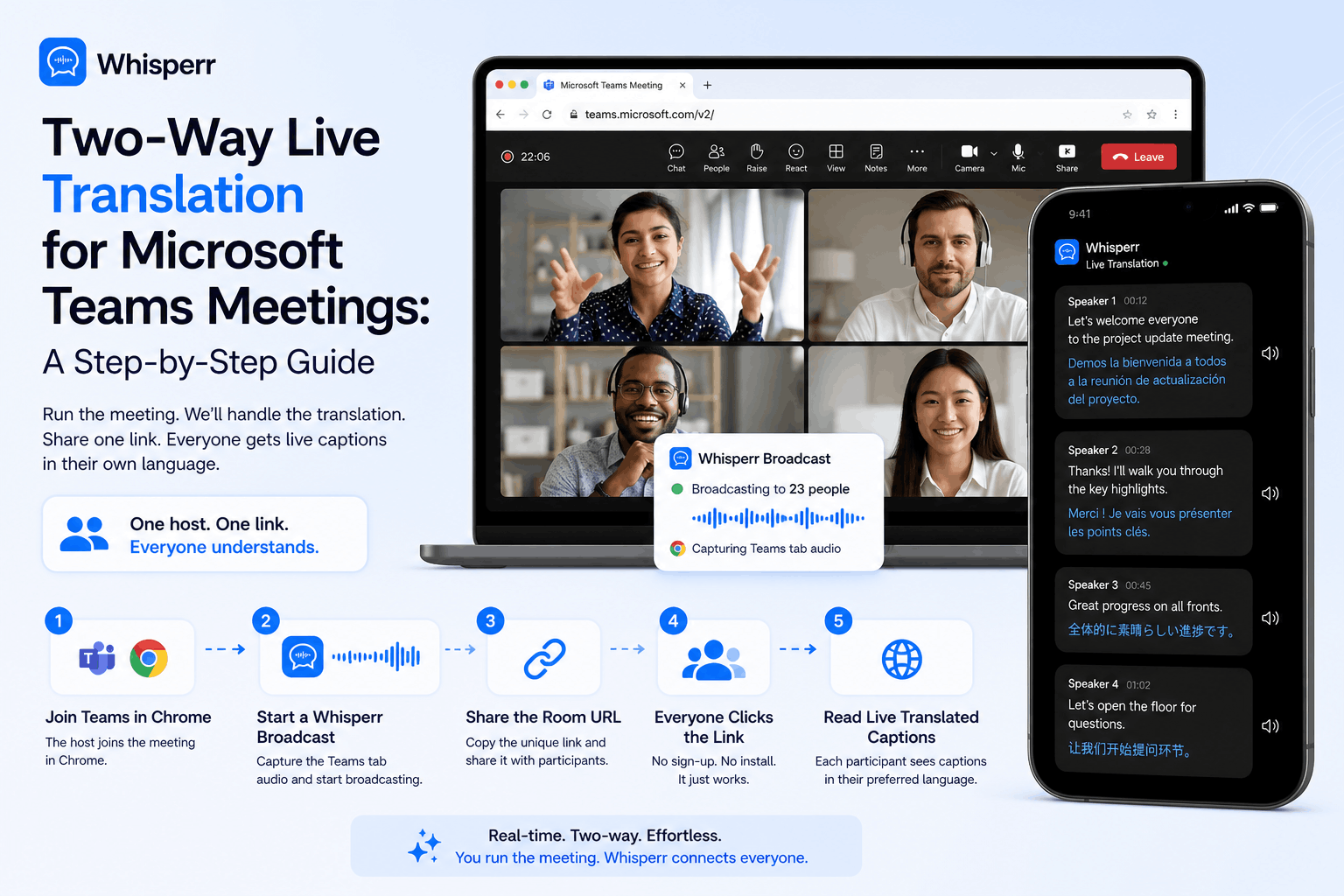
Get Live Translated Subtitles in Microsoft Teams (Both Directions)

You're running a Teams meeting where half the room speaks one language and half the room speaks another. You want both sides to actually follow along — live, not "we'll send the transcript later" — without making every participant install something, sign up for something, or buy a license.
The setup that works: one person — we'll call them the broadcaster — runs a Whisperr Broadcast room and pastes a single URL into the Teams chat. Everyone else clicks the link and reads live translated captions in their own language. The broadcaster doesn't have to be the Teams meeting host or organizer — it's just whoever volunteers to set up Whisperr. Only the broadcaster runs Whisperr. Everyone else just reads.
This guide walks through the whole flow end-to-end, then breaks down the part most teams care about: who pays, and how much.
Who does what: host vs. joiners
This is the part to read carefully — it's the difference between a meeting where translation Just Works and a meeting where everyone is fumbling with settings.
Broadcaster | Viewers (everyone else) | |
|---|---|---|
Must be the host of Teams meeting? | No | No |
How to join Teams meeting | In Chrome ("Continue on this browser") | Wherever they normally join — Teams desktop app, mobile app, or browser. Doesn't matter. |
Whisperr account needed | Yes | No |
Whisperr software install needed | No (web app — just | No |
What they do at the start | Open Whisperr → Broadcast Mode → pick languages → start recording → paste the room URL into Teams chat | Click the link in Teams chat. That's it. |
What they see | Two tabs side by side: the Teams meeting and the Whisperr capture tab | A clean web page with live translated captions in their language |
What they pay | One Whisperr subscription | Nothing |
The single sentence to remember:
Only you starts Teams in the browser and runs Whisperr. Everyone else just opens the link that you provide. It just works!
What you need to do (step by step)
1. One person (i.e. the broadcaster) signs up for Whisperr account.
One person (i.e. the broadcaster) goes onto https://app.whisperr.co and signs up for Whisperr account. That person — the broadcaster — is the only one in the meeting who needs an account. Everyone else will join for free, with no signup of their own. Sign up takes under a minute. The broadcaster should use a desktop browser (Chrome or any Chromium-based browser like Edge or Brave on Mac or Windows), since the screen-capture flow in step 3 is a desktop-browser feature.

2. Broadcaster join the Teams meeting from a browser
The broadcaster joins the meeting by picking "Continue on this browser" — not the Teams app. This is the one non-obvious detail of the whole setup: Whisperr captures audio from a browser tab, so the meeting needs to be playing in a browser tab on the broadcaster's machine.

3. Broadcaster starts Whisperr recording
Click 'New Recording' -> Check 'Broadcast' in the recording bar. Then click the recording icon and then click 'Screen Capture'. Choose 'Tabs' -> and choose the Teams meeting tab and click 'Share'.


4. Broadcaster shares the recording URL to everyone else
The moment the recording starts, Whisperr generates a public room URL. The broadcaster copies it and shares with the viewers by pasting it straight into the Teams meeting chat. This cannot be done automatically.

5. Everybody else opens the Shared URL Link
Every participant who clicks the link gets the live transcription in the source language and the live translation in the target language, side by side, in their browser. No app to install. No account to create. No microphone to share. They just read.

Why Whisperr
A handful of reasons this approach beats the alternatives (Teams Premium captions, Copilot, dedicated interpreter, manual transcript-after-the-fact):
One subscription covers everyone
Only the broadcaster pays. Viewers — whether 3 of them or 300 — pay nothing and need no account. Most "live captions" tools either require a per-seat license across all participants, or limit the audience tier. Whisperr's Broadcast room flips that: the broadcaster runs the session, the audience just reads.
Realtime Two-way translation, not just one direction
If your meeting has people speaking both languages, run two Broadcast rooms in parallel with the source/target swapped — one English → Japanese, one Japanese → English. Paste both links in the Teams chat labeled by language. Each viewer clicks the room for the language they want to read. Both rooms run on the same Teams tab audio with no extra setup. Same single subscription.
GDPR Compliant
Audio captured from the meeting is processed in real time and isn't permanently stored on Whisperr's servers. Anything that is retained — like the bilingual transcript saved to the broadcaster's account — stays under the broadcaster's control and can be deleted by them at any time. No participant data lingers on a third-party server beyond what the broadcaster chooses to keep.
Works regardless of how guests joined
Joiners can be on the Teams desktop app, mobile app, or browser. They can be on Mac, Windows, iOS, or Android. The room URL works in any modern browser, so guests with locked-down corporate machines, BYOD phones, or no Teams account at all can still read along.
100+ languages, including the long tail
100+ source/target language pairs covering major languages, East Asian, Southeast Asian, South Asian, Middle Eastern, European, and major regional dialects.
Does Microsoft Teams have built-in two-way live translation?
Not really. As of May 2026, Microsoft Teams offers live captions in some plans, but they display only in a single language and require either a Teams Premium license ($10/user/month) or Microsoft 365 Copilot ($30/user/month). Neither supports true two-way translation — where an English speaker and a Japanese speaker can each read the conversation in their own language simultaneously. For that, you need a third-party tool like Whisperr running alongside Teams.
How does two-way translation work in a Teams meeting?
Two-way translation means both language groups can read the live conversation in their own language at the same time. With Whisperr, you achieve this by running two Broadcast rooms in parallel on the same Teams audio feed:
- Room 1: Source language English → Target language Japanese (for Japanese speakers)
- Room 2: Source language Japanese → Target language English (for English speakers)
Both rooms run off the same Teams tab. The broadcaster pastes both URLs into the Teams chat, labeled by language. Each viewer clicks whichever room shows their language. Both directions work simultaneously, on a single Whisperr subscription.
Try it on your next bilingual meeting
The flow, top to bottom:
- Broadcaster: Sign up at
app.whisperr.co→ join Teams in the browser → New Recording → check Broadcast → Screen Capture → Tabs → pick the Teams tab (with "Share tab audio" ticked) → paste the room URL into Teams chat. - Everyone else: Click the link. Read.
One subscription on the broadcaster. Free for every viewer. Same flat rate whether your meeting has 3 people or 300.