
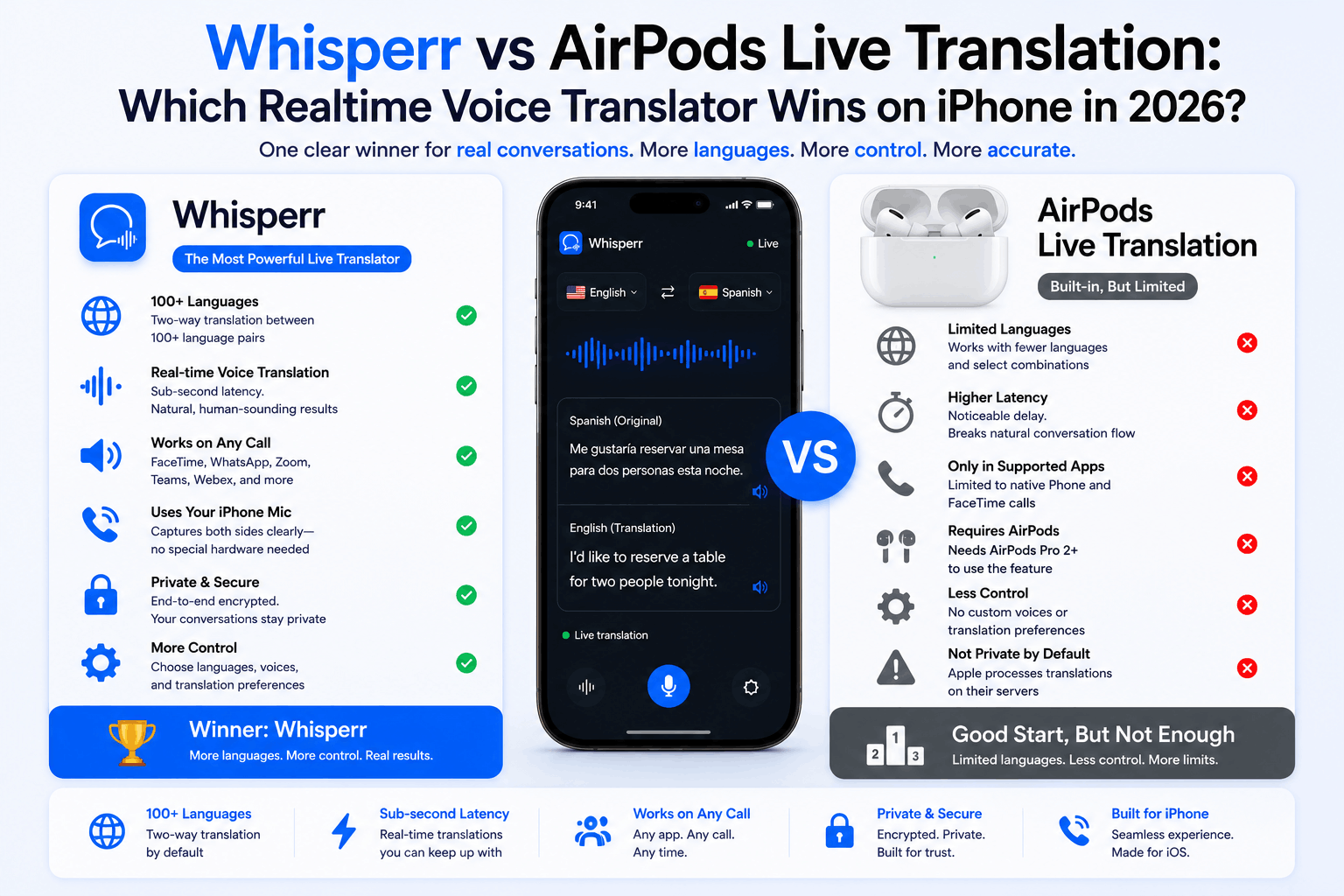
Whisperr vs AirPods Live Translation: Which Realtime Voice Translator Wins on iPhone in 2026?

AirPods Live Translation is Apple's hands-free, on-device translation feature. Best for FaceTime calls, Phone calls, and in-person travel conversations inside the Apple ecosystem. Works fully offline once language packs are downloaded. Requires AirPods Pro 2 / Pro 3 / 4 ANC / Max 2 plus an iPhone 15 Pro or later with Apple Intelligence, supports 9 languages, available in most Western markets but not Mainland China, Russia or other regions outside Apple Intelligence's footprint.
Whisperr is a realtime voice translator for everything airpods live translate wasn't built for — Zoom, Teams, Meet, Webex, YouTube, podcasts, interviews, group presentations, and microphone-based use across more languages on any device. Broadcast mode, transcription-only or translation-only views, floating subtitles, 100+ language pairs. Works on any device through the web app, iPhone, Android or Chrome extension, available globally with no country restrictions.
At-a-glance comparison
| Whisperr | AirPods Live Translation (iOS 26) |
|---|---|---|
Price | Free tier + paid software. Works with any headphones. | Free software + paid hardware (AirPods Pro) |
Platforms | Web, iOS, Android, Chrome extension — works on Windows, Mac, Linux, Chromebook | iOS only |
Hardware required | Any device | AirPods Pro 2, AirPods Pro 3, AirPods 4 (ANC), or AirPods Max 2 + iPhone 15 Pro or later with Apple Intelligence |
Supported Languages — live voice translation | 100+ pairs | 9 (5 at launch + 4 added) |
Speech Mode | ✅ Yes | ✅ Yes |
Translates Zoom / Teams / Meet / Webex | ✅ Yes, directly | ❌ No |
Translates YouTube, webinars, podcasts | ✅ Yes, via Floating Subtitles or tab audio capture | ❌ No |
FaceTime / Phone calls | ❌ Not supported due to privacy restrictions | ✅ Native integration |
Works offline (no internet) | ❌ Internet required | ✅ Yes, once language packs are downloaded |
Broadcast mode (one speaker → many listeners) | ✅ Yes | ❌ No (one-to-one only) |
Transcription-only view | ✅ Yes | ❌ Always paired with audio |
Translation-only view | ✅ Yes | ❌ Always paired with audio |
Floating subtitles over any app | ✅ Yes | ❌ No |
Face-to-face mode (screen flipped 180°) | ✅ Yes | ⚠️ Horizontal transcript, not flipped |
Group / mixed-language conversations | ✅ Yes | ❌ Designed for two people |
Built for | Meetings, calls, video content, interviews, presentations, in-person | Two-person face-to-face, Phone, FaceTime, Messages |
The most important row in that table is the one about audio sources. AirPods Live Translation translates what the AirPods microphones hear — a human voice in the room — plus what comes through the iPhone's native Phone, FaceTime and Messages apps. Anything else (Zoom in a browser, a YouTube video, a Spanish-language podcast, a desktop Slack huddle) is outside what the feature was built to do.
What is AirPods Live Translation (iOS 26)?
AirPods Live Translation is Apple's hands-free voice translation feature for AirPods. Wearing supported AirPods, you hold both stems and the iPhone translates the other person's speech into your ears in near real time — fully on-device — while showing a transcript on your iPhone screen as a visual backup. It's a beautifully integrated piece of iPhone live translation for face-to-face conversations. What it isn't built for is everything else.

What is Whisperr?
Whisperr is a realtime voice translator that captures your microphone, a browser tab or your screen and translates speech in real time across 100+ language pairs. Available as a web app, iPhone app, Android app and Chrome extension. Use it for meetings, calls, video content, presentations or in-person — on any device, anywhere in the world.

Can AirPods Live Translation translate Zoom, Teams, Meet, or YouTube?
Short answer: not really.
AirPods Live Translation is built around two specific audio sources. The first is the AirPods' own microphones picking up someone speaking near you in the physical world. The second is the iPhone's first-party communication apps — Phone, FaceTime and Messages — where Apple has wired translation directly into the call audio pipe. That's it.
A Zoom call running in Safari on your iPhone? AirPods Live Translation can't tap into that audio stream. A Microsoft Teams meeting from the Teams iOS app? Same. A YouTube video playing in another tab, a Spanish-language podcast in Apple Podcasts, a Twitch stream, a recorded webinar — none of these are accessible to the Live Translation pipeline. Macworld's review hit exactly this wall: trying to use AirPods Live Translation on a video call ran into issues with AirPods auto-pairing to the wrong audio device and the live audio translate flow breaking down.
For Whisperr's tab-audio-capture and screen-capture features were built specifically for this. You open the Whisperr web app, click New Recording → Screen Capture → Chrome Tab, pick your Zoom, Teams, Meet or YouTube tab, and the live captions appear. We covered the full setup in our guides for Microsoft Teams, Windows in the browser and YouTube live streams.

This is the single biggest functional gap between the two tools. If your translation needs involve a screen — meeting, call, video, webinar, stream, recording — AirPods Live Translation is not the realtime voice translator that was built for that job.
What do you need to use each one?
This is where the gap is widest. AirPods Live Translation is a hardware-gated feature; Whisperr is just an app.
To use AirPods Live Translation, you need:
- Specific AirPods — AirPods Pro 2 (with latest firmware), AirPods Pro 3, AirPods 4 with Active Noise Cancellation, or AirPods Max 2. AirPods 4 without ANC, AirPods 3, AirPods 2, AirPods Pro 1st gen, AirPods Max 1st gen and EarPods do not work.
- An Apple Intelligence iPhone — iPhone 15 Pro, iPhone 15 Pro Max, the entire iPhone 16 line, iPhone 17 line and iPhone Air. Any older iPhone is unsupported.
- iOS 26 or later with Apple Intelligence turned on.
- An Apple Account in a supported region (see the next section).
- Downloaded language packs for the languages you want to translate. Once downloaded, the feature runs fully on-device and offline — no internet required.
Minimum cost of entry if you don't already have the hardware: roughly $1,250 — AirPods Pro 3 ($249) plus an iPhone 15 Pro ($999+). That's the price tag on a "free" feature.
To use Whisperr, you need:
- Any mobile device or a laptop with a modern browser — iPhone app, Android app, web app.
- An internet connection — Whisperr processes audio in the cloud.
That's it. No specific phone model, no specific OS version, no AI-capable chipset, no AirPods or any other hardware required. The web app runs in Chrome, Edge, Safari and Firefox on any computer. The iPhone app, Android app and Chrome extension cover whatever device you already own. Any earbuds you already own — AirPods, Pixel Buds, Sony, Bose, wired or none — work as the audio in/out.
Where does each one work?
AirPods Live Translation availability is shaped by both Apple Intelligence's regional rollout and country-specific regulations. Whisperr has none of those constraints — if you can access the internet, you can use it.
Where AirPods Live Translation works
- United States, Canada, United Kingdom, Ireland, Australia, New Zealand, South Africa, Singapore, India — the English-language regions where Apple Intelligence launched first.
- France, Germany, Italy, Spain, Portugal, Belgium, Switzerland, Austria — EU and adjacent markets, enabled with iOS 26.2 in December 2025 after initial regulatory delays.
- Japan and South Korea — added with the iOS 26.1 language expansion.
- Mexico, Chile, Brazil — Latin American Apple Intelligence regions.
Where AirPods Live Translation does not work
- Mainland China — Live Translation is disabled by default per local regulatory requirements. Attempting to bypass this via region change violates Apple's Terms of Service.
- Russia, Iran and other US-sanctioned regions — Apple Intelligence is not available, so the feature does not function.
- Most of the Middle East and Africa — outside Apple Intelligence's current rollout footprint.
- Many Southeast Asian and Central Asian markets — Vietnam, Indonesia, Thailand, the Philippines and most neighbors where Apple Intelligence has not launched the feature or where the local language isn't supported.
- Anywhere your spoken language isn't on Apple's list — Polish, Czech, Hungarian, Greek, Arabic, Hebrew, Hindi, Vietnamese, Indonesian, Thai, Swahili, Filipino and dozens of others.
Where Whisperr works
Everywhere. Whisperr is a global cloud service with no regional restrictions. If you can reach the internet, you can use the web app, and the iPhone, Android and Chrome extension versions are downloadable from any region's app store. Whisperr's 100+ language pairs cover the long tail Apple hasn't reached — Vietnamese, Indonesian, Hindi, Polish, Russian, Arabic, Turkish, Thai, Hebrew, Swahili and dozens more.
For travelers crossing into restricted regions, expatriates living outside Apple's supported countries, multilingual families speaking unsupported languages, and anyone whose work or life involves the long-tail languages Apple hasn't reached, Whisperr is often the only realtime voice translator that actually runs.
How many languages do each support?
AirPods Live Translation launched supporting five language pairs and has expanded to nine: English (UK and US), French (France), German (Germany), Portuguese (Brazil), Spanish (Spain), Italian, Japanese, Korean, and Chinese (Mandarin, Simplified and Traditional). Apple plans to add more.
Whisperr supports 100+ live voice translate pairs, including the long-tail languages most users in our search data ask about: Vietnamese ↔ English, Indonesian ↔ English, Hindi ↔ English, Polish ↔ English, Russian ↔ English, Arabic ↔ English, Turkish ↔ English, Dutch ↔ English, Thai ↔ English, plus all the major European, Slavic, South Asian and East Asian pairs.
For the languages where both products work, AirPods is competitive. For everything else — and that's a lot of the world — Whisperr is the only one that runs.
How accurate is the English to Spanish translation?
Spanish is where both tools get tested most often, and both handle it competently. AirPods Live Translation launched with Spanish as one of its five flagship languages, and reviewers have generally found the english to spanish translation voice quality to be good for conversational topics — restaurant orders, asking for directions, casual chat.
Two important nuances on the Spanish coverage, though.
First, Apple's Spanish is officially Spanish (Spain). Latin American Spanish — the Spanish most users in the US, Mexico and Central/South America actually need — uses different vocabulary, pronouns, intonation and idioms. Boostlingo's professional interpreters tested the feature with mixed scripted dialogues (retail returns, medical visits, banking) and found it stumbled on regional vocabulary and dropped key information like "account number" from a longer phrase. For travel to Madrid, fine. For a translate english spanish workflow with a Spanish-speaking client in Miami or Mexico City, the accuracy gap matters.
Second, the way you use accurate spanish translator capabilities is different per product:
- In-person travel chat in Spain — AirPods is the right tool. Hands-free, on-device, ANC integration. Whisperr can do this too but you'd be holding a phone.
- Spanish-language Zoom call with a client — Whisperr only. AirPods Live Translation has no way to translate the Zoom audio.
- Spanish YouTube videos, telenovelas, podcasts — Whisperr only.
- Job interview in Spanish — Whisperr's floating subtitles let you read while making eye contact. AirPods plays audio in your ears, which can interfere with your own speech (the "two voices competing" problem reviewers have noted).
- Spanish-language webinar or conference — Whisperr with broadcast mode can share translated captions with everyone in the room. AirPods Live Translation is one set of earbuds, one listener.
- Customer support call in Spanish — Whisperr Chrome extension overlays captions on whatever browser app the call lives in.
Both are decent realtime voice translators for english to spanish translation voice. The right pick depends entirely on the audio source.
Does Whisperr have a Speech mode?
Yes and in Whisperr this can be enabled quickly on the mobile apps.

Also, it allows you to set the speaking speed so that you can set how fast the translation is spoken.
Does Whisperr have a broadcast mode?
Yes — and this is one of the biggest differences between the two tools.

Broadcast mode in Whisperr lets one speaker's voice translation be shared with multiple listeners at once. The host starts a session, picks the source and target languages, and broadcasts a link that anyone — on any device, any platform — can open to follow the translated captions in real time. Use cases:
- A conference speaker presenting in English with attendees following Spanish, Japanese and Korean captions on their own phones.
- A teacher in a multilingual classroom letting students read along in their native language.
- A church service, town hall or community meeting with attendees from different language backgrounds.
- A YouTube live stream with built-in translation overlays for international viewers.
- A multilingual team standup where the speaker uses their natural language and the listeners each get their own translation.

AirPods Live Translation has no equivalent. It's architected around two people having a conversation — one wearer of AirPods, one speaker (or two if both have AirPods). Broadcasting translated audio to a room is outside what the feature does. There's no group mode, no shared session, no way to pipe a translated stream to multiple listeners.
If you ever need to translate one voice for more than one listener, Whisperr's broadcast mode is the only one that does it.
Can you show transcription only or translation only?
AirPods Live Translation pairs audio (in your ears) with a horizontal transcription on your iPhone screen as a visual backup. There's no way to hide one and keep the other independently — if you don't want audio in your ears (because you're in a quiet meeting room and earbuds would be rude, say), there's no captions-only mode. If you don't want the transcription on screen (because you're handing your phone to the other person and don't want them reading along), there's no audio-only mode.
Whisperr lets you toggle three reading modes:
- Both columns (default) — transcription and translation side by side, useful for language learning, side-by-side review or correcting an iffy translation
- Translation only — clean and minimal, for when you just want to follow along
- Transcription only — useful when you're learning the source language and want to read the original
You can switch between them mid-session, set them per source, and combine with floating subtitles or face-to-face mode. Three reading layouts for three different jobs.
What if you're not in the Apple ecosystem?
Then AirPods Live Translation isn't an option at all. The feature requires AirPods (Pro 2 / Pro 3 / 4 ANC / Max 2) and an Apple Intelligence-capable iPhone (15 Pro or later). No Android. No Windows. No Mac (the Mac doesn't run the AirPods Live Translation pipeline even though it can pair the same AirPods for music). No Chromebook. No Linux. No older iPhones.
Whisperr runs on all of them. Same account, same languages, same captions:
- Web app for laptops and desktops
- iPhone app for iOS users (no Apple Intelligence requirement)
- Android app for Android users
- Chrome extension for any Chromium browser
If your household, team or classroom has mixed devices — and most do — Whisperr is the realtime voice translator that meets everyone where they are.
Privacy: on-device vs cloud
AirPods Live Translation processes audio entirely on the iPhone using Apple's on-device models. Nothing is sent to Apple's servers, nothing is stored beyond the session unless you save it explicitly. This is the strongest privacy posture in the live voice translation market, and it's a real advantage for sensitive conversations.
Whisperr processes audio in the cloud but with a single-purpose data policy: audio is processed for translation and discarded, not used to train a general-purpose model. It is also GDPR compliant.
Pricing: what's actually free?
AirPods Live Translation is free at the point of use, assuming you already have the hardware. If you don't, the baseline cost is roughly $1,250 — $999+ for an Apple Intelligence iPhone plus $249+ for compatible AirPods. Apple bundles the feature in, but the gating hardware is decidedly not free.
Whisperr has a free tier for getting started — works on any device you already own, no purchase required — and paid plans for serious use (longer sessions, more languages, broadcast mode, advanced features). The total cost of entry is whatever device you already have plus the free tier. For most users that's $0.
When AirPods Live Translation wins
- FaceTime and Phone calls — native iOS integration translates the call audio directly, plays it in your ears and shows the transcript on screen. Whisperr can capture FaceTime audio via screen capture but it's a workaround; AirPods Live Translation is the natural fit for FaceTime translation.
- In-person travel in one of its nine supported languages, hands-free with no phone to hold or screen to read.
- Offline use — once you download language packs, the feature runs fully on-device with no internet connection. This is a genuine advantage on planes, in dead zones, on spotty hotel Wi-Fi or anywhere data isn't available. Whisperr is cloud-based and needs internet.
- Maximum privacy — on-device processing means nothing ever leaves your iPhone. The strongest privacy posture in the consumer voice translation market.
- Hands-free gesture activation — hold both stems, no taps, no screen interaction. The fastest way to start a translation session that exists today.
- Active Noise Cancellation integration — ANC automatically lowers the other speaker's volume so the translated audio in your ears is easier to follow.
- You're already on a current Apple Intelligence iPhone with compatible AirPods — the feature is genuinely free for you at the point of use, with no app to install.
When Whisperr wins
- Any video call — Zoom, Microsoft Teams, Google Meet, Webex, Discord. See our Microsoft Teams guide.
- Translating content — YouTube, podcasts, webinars, recorded lectures, foreign-language streams. See our YouTube on iPhone guide.
- Working from a laptop — Windows, Mac, Linux, Chromebook, all through the web app or Chrome extension.
- Group settings and presentations — broadcast mode shares translated captions with a whole room.
- Languages outside Apple's nine locales — Vietnamese, Indonesian, Hindi, Polish, Russian, Arabic, Turkish, Thai and dozens more.
- Job interviews and high-stakes conversations — floating subtitles let you read translation while keeping eye contact. See our interview guide.
- Latin American Spanish and other regional variants beyond Apple's launch dialects.
- Mixed-device households and teams — Android users included, older iPhones included, Windows laptops included.
- Anyone without compatible AirPods or an Apple Intelligence iPhone.
How to start live voice translation with Whisperr
Switching tools is the part that always sounds harder than it is. Here's the full setup, end to end.
1. Pick your platform
If you're on a laptop or desktop, open the Whisperr web app in Chrome, Edge or Safari. If you live in your browser tabs, install the Whisperr Chrome extension for floating subtitles over any tab. On mobile, grab the Whisperr iPhone app or the Whisperr Android app. All four use the same account.
2. Sign up and pick your languages
Sign-up takes under a minute. Once you're in, set your source language (what you'll be hearing) and your target language (what you want it translated into). The whole 100+ language pair catalog is available from the dropdown — including english to spanish translation voice, Russian, Mandarin, Japanese, Korean, Hindi, Vietnamese, Polish, Arabic and the rest.
3. Choose your audio source
Click New Recording and pick one of three:
- Microphone Audio — for translating the human in front of you (or for being translated yourself). Pair your AirPods here if you want hands-free in-person use, no Apple Intelligence iPhone required.
- Screen Capture → Chrome Tab — for translating audio playing on your computer: a Zoom call, a YouTube video, a webinar, a foreign-language podcast.
- Screen Capture → Entire Screen — for translating a desktop app like the installed Zoom client, Spotify or a video player.
4. Pick your view
Decide what you want to see: both transcription and translation, translation only, transcription only, or floating subtitles over your other apps. Adjust font size if you're projecting or sharing the screen.
5. Switch on broadcast mode if you have an audience
If you're presenting, teaching or running an event for multiple listeners in different languages, toggle broadcast mode. Share the session link — anyone on any device can open it and follow translated captions in their own language. No software install for the listeners.
6. Click record and read along
That's the whole setup. Live captions appear in real time. You can pause, switch the source mid-session, or flip the screen 180° for face-to-face conversation across a table.
How to capture Zoom, YouTube, Teams or Webex calls on the Whisperr web app
The single most common Whisperr use case is capturing audio from a call or video playing on your computer and translating it in real time. The flow is the same across Zoom, Microsoft Teams, Webex, Google Meet, YouTube, podcasts and any other browser-based audio — Chrome's tab-audio capture is what powers it, and it works in any Chromium browser (Chrome, Edge, Brave, Arc) on Windows, Mac, Linux or Chromebook.
1. Open the call or video in a browser tab
The critical detail: the audio you want to translate has to play in a browser tab, not in a native desktop app. So instead of opening the Zoom desktop client, Teams desktop client or Webex desktop client, join the meeting in your browser.
- Zoom: go to the meeting link → click "Join from Your Browser" (or visit
zoom.us/join). - Microsoft Teams: click the meeting link → choose "Continue on this browser" instead of "Open Teams app".
- Webex: click the meeting link → choose "Join from your browser".
- Google Meet: already web-native, just open
meet.google.com. - YouTube, Twitch, podcasts, webinars: just open the regular browser tab.

If your meeting host requires the desktop app, you can still use Screen Capture → Entire Screen instead of tab capture, but tab capture is cleaner and lower-latency.
2. Open the Whisperr web app in another tab
Sign in to the Whisperr web app. If you don't have an account yet, sign-up takes under a minute. Use a desktop or laptop browser — the screen-capture flow is a desktop-browser feature and isn't available on mobile.
3. Pick source and target languages
Set the source language (what's being spoken on the call) and the target language (what you want it translated into). 100+ pairs available — including english to spanish translation voice, Russian, Mandarin, Japanese, Korean, Hindi, Vietnamese, Polish, Arabic and the rest.

4. Click "New Recording" → "Screen Capture" → "Tabs"
In Whisperr, click New Recording, then click the screen-capture icon and choose Screen Capture → Tabs. Your browser will pop up a tab picker showing every open tab on your machine.

5. Select your call or video tab and tick "Also share tab audio"
Pick the Zoom, Teams, Webex, Meet, YouTube or podcast tab from the list. Before you click Share, look for the "Also share tab audio" checkbox at the bottom of the dialog and turn it on. This is the single most common point of failure — Chrome lets you share a tab's visuals without its audio, which means Whisperr will see the tab but hear nothing. Tick the audio checkbox, then click Share.

6. Pick your view
Side-by-side transcription and translation, translation only, transcription only or floating subtitles over the call tab. For meeting use, most people prefer translation-only with floating subtitles enabled, so the captions sit over the Zoom or Teams window directly.

7. (Optional) Switch on broadcast mode for the rest of the group
If others in the meeting need translated captions too — colleagues, students, family members, a multilingual team — tick Broadcast before starting the recording. Whisperr generates a public room URL the moment recording starts. Paste that link into the meeting chat and anyone who clicks it (on any device, no signup, no install) reads the live captions in their browser.
8. Start recording
Click record. Live captions appear within a second or two. You can pause, switch the source mid-session, change languages, or end the session whenever you're done. For longer meetings, the bilingual transcript is saved to your Whisperr account so you can review it afterward.
Platform notes worth knowing
- Zoom and Webex sometimes default to the desktop client when you click a meeting link. Right-click the link and pick "Copy link," then paste it into a new browser tab and look for the "Join from browser" option on the page.
- Teams has the most reliable "Continue on this browser" option and is the smoothest of the four for tab capture.
- Google Meet is the easiest — no app prompts, just web.
- YouTube live streams capture as cleanly as recorded videos; we have a dedicated YouTube guide for the mobile flow as well.
- Discord voice channels in the desktop app aren't tab audio — use Screen Capture → Entire Screen for those, and pick the Discord window when prompted.
The verdict
These two tools have different sweet spots and most people who translate regularly will end up using both.
Reach for AirPods Live Translation when: you're on a FaceTime or Phone call, you're traveling in person and want hands-free translation in one of the nine supported languages, you need offline use without internet, or you want the strongest possible privacy posture with everything processed on-device. Inside that envelope, Apple's iPhone live translation is excellent — and the offline capability is a real, durable advantage that no cloud-based translator can match.
Reach for Whisperr when: you're translating Zoom, Microsoft Teams, Google Meet, Webex, YouTube, a podcast, a webinar or any audio coming from a screen; you need broader language coverage (100+ pairs vs Apple's 9); you want a microphone-based realtime voice translator on Android, Windows, Mac or a Chromebook; you need broadcast mode for a group; you want transcription-only or translation-only views; or you're outside the regions and languages where AirPods Live Translation works.
For FaceTime and Phone calls, AirPods Live Translation is the better fit. For Zoom, YouTube and the broader surface area of meetings, content and presentations, Whisperr is the better fit. Most translators in the wild end up keeping both for the jobs each does best. Try the Whisperr web app free on your next call.
FAQ
Is Whisperr free?
Yes — there's a free tier you can use without a credit card. Paid plans add longer sessions, more languages and broadcast mode.
Does Whisperr work on iPhone?
Yes, as a native Whisperr iOS app and through the web app in Safari. Unlike AirPods Live Translation, Whisperr doesn't require Apple Intelligence or an iPhone 15 Pro — it runs on any current iPhone.
Does Whisperr have an Android app?
Yes. The Whisperr Android app is on Google Play. AirPods Live Translation has no Android version.
Can I use AirPods with Whisperr?
Absolutely. Pair your AirPods with whichever device is running Whisperr — iPhone, Android, Mac, Windows laptop, Chromebook — and use them as your microphone or audio output. You get the AirPods hands-free experience without the Apple Intelligence iPhone requirement.
Can AirPods Live Translation translate a Zoom or Teams meeting?
Not directly. It only translates the AirPods microphones' input (in-person speech) plus the iPhone's native Phone, FaceTime and Messages apps. Zoom, Teams, Meet, Webex and any other video conferencing platform are outside its supported audio sources. Whisperr's tab-audio-capture handles them all.
Which has more languages?
Whisperr supports 100+ live voice translation pairs. AirPods Live Translation supports nine (English UK/US, French France, German Germany, Portuguese Brazil, Spanish Spain, Italian, Japanese, Korean, Chinese Mandarin Simplified and Traditional) and is gradually adding more.
Is AirPods Live Translation available in the EU?
Yes, since iOS 26.2 in December 2025. It was blocked at the initial September 2025 launch over Digital Markets Act and AI Act compliance reviews.
Which countries does AirPods Live Translation not work in?
Mainland China (disabled per local regulatory requirements), Russia, Iran and other US-sanctioned regions, plus most of the Middle East, Africa, and Southeast Asia outside the Apple Intelligence footprint. It also won't work anywhere if your spoken language isn't on Apple's list — Polish, Czech, Hungarian, Arabic, Hebrew, Hindi, Vietnamese, Indonesian, Thai, Swahili and most others. Whisperr has no country restrictions and supports the long-tail languages globally.
Does AirPods Live Translation work offline?
Yes. Once you download the language packs you want to use (Settings → AirPods → Translation → Languages), the feature runs fully on-device with no internet connection required. This is one of AirPods Live Translation's genuine advantages — useful on planes, in dead zones, or anywhere data isn't reliable. Whisperr is a cloud-based service and requires an internet connection.
Does AirPods Live Translation work with Latin American Spanish?
Apple's supported Spanish is officially Spanish (Spain). The system still translates Latin American Spanish in many cases, but reviewers have found accuracy drops with regional vocabulary, accents and idioms — particularly Mexican, Caribbean and Andean variants. For US-based translate english spanish use cases with Latin American speakers, Whisperr's broader Spanish coverage is more forgiving.
Which is the more accurate spanish translator?
For Whisperr, it's extremely accurate. For AirPods Live Translation, it's somewhat accurate. It's kind of like if you have used voice to text feature in your language, the results are not 100% accurate, and the same technology is used for transcribing Spanish into words initially for AirPods Pro.
Can I broadcast translation to multiple listeners?
With Whisperr, yes — broadcast mode lets one speaker share translated captions with any number of listeners on any device, each picking their own target language. AirPods Live Translation has no equivalent; it's architected for one-to-one conversations.
Does Whisperr replace AirPods Live Translation entirely?
No, and it's not meant to. Keep AirPods Live Translation for hands-free in-person travel conversations in its supported languages. Reach for Whisperr for meetings, content, calls in other tools, presentations, group settings, broader languages and anyone not on a current Apple Intelligence iPhone with compatible AirPods.
What 9 languages does AirPods Live Translation support?
At launch in September 2025, AirPods Live Translation supported five languages: English (UK and US), French (France), German (Germany), Portuguese (Brazil) and Spanish (Spain). Apple added four more with iOS 26.1: Italian, Japanese, Korean and Chinese (Mandarin — available as both Simplified and Traditional written variants for the on-screen transcript, though the spoken translation is the same underneath).
That gives nine supported languages today:
- English (UK and US)
- French (France)
- German (Germany)
- Italian
- Spanish (Spain)
- Portuguese (Brazil)
- Japanese
- Korean
- Chinese (Mandarin)
Notable gaps in Apple's list: Latin American Spanish (Mexican, Colombian, Argentine and other regional variants), Canadian French, Swiss German, European Portuguese, Hindi, Arabic, Vietnamese, Indonesian, Thai, Polish, Russian, Turkish, Hebrew, Dutch, Greek and most of the world's long tail. For any of those, Whisperr's 100+ language pairs are the more practical option.
How many languages are supported by Whisperr?
Over a 100 languages and each can handle many dialects and accents almost perfectly.
Live voice transcription and translation. Realtime voice to text with the highest quality. Start now on web · iPhone · Android · Chrome
%2520Which%2520Realtime%2520Voice%2520Translator%2520Wins%2520in%25202026.png&w=3840&q=75&dpl=dpl_EWJKLNau86JyZDoHzAGD44dx4hmg)
Whisperr vs Google Translate Conversation Mode: features, languages, pricing, and all you need to know to choose the right live voice translator