Multi-Platform Login
Link your subscription to your account once, then sign in with the same account on your other devices and your subscription unlocks everywhere:
- iPhone & iPad
- Android
- Mac & Windows
- Web Browser (Chrome, Edge, Firefox)
How it works
If you purchased a subscription on iOS or Android, you can link it to a login account by signing in with that account — and then use it on the Web, Windows, or Mac. If you purchased via Stripe on the Web, you can log in with that account on iOS, Android, Windows, or Mac and use the subscription you purchased on Stripe.
Requirements
You need an active Whisperr subscription purchased through one of the following:
- Apple App Store — subscribed in the Whisperr app on iPhone or iPad
- Google Play Store — subscribed in the Whisperr app on Android
- Stripe — subscribed from the Billing page in the Whisperr Web app (the Upgrade button in the Mac & Windows app also takes you to this page)
Step 1 — Link your subscription to your account
iPhone, iPad & Android (App Store / Google Play purchases)
On the device where you purchased your subscription, sign in — or create an account — from the Account section in the side menu. Your subscription is automatically tied to the account you're signed in with.
The account you sign in with is the one you create on Whisperr — it is not the same as your Apple ID (iCloud) or your Google Play Store account.
If your subscription is already tied to a different account, signing in with another account on the purchase device deactivates the previous link — the subscription becomes tied to the account that is now signed in.
Web (Stripe purchases)
There's nothing to do. You purchase from the Billing page while signed in, so your subscription is already tied to your account.
Step 2 — Sign in on your other devices
Sign in with the same account on any other platform, and Whisperr unlocks premium features automatically. Here's where to find the sign-in screen:
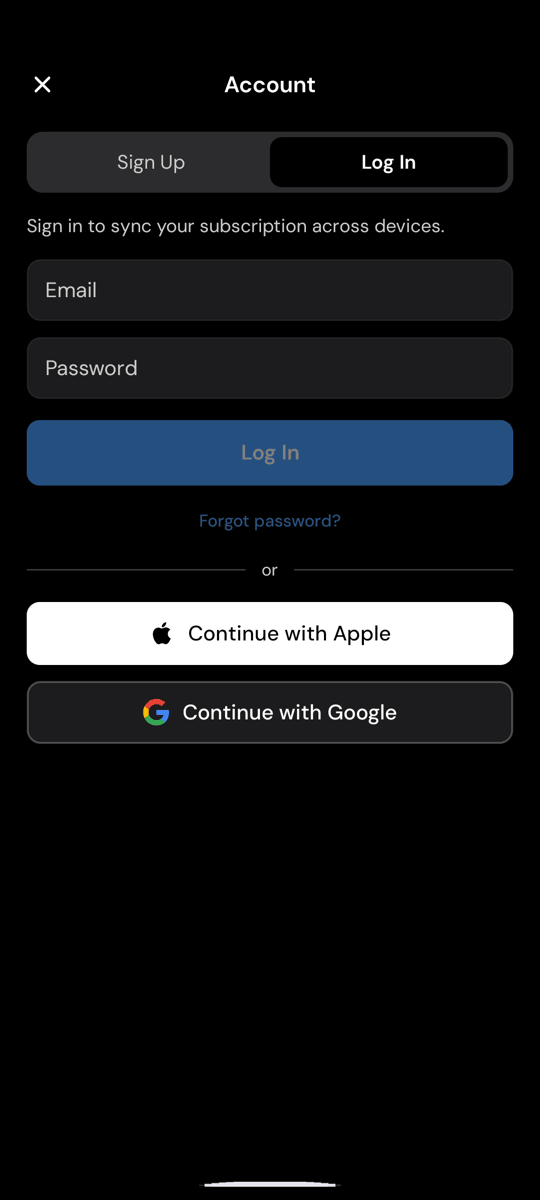
- iPhone & iPad — Open the side menu and tap Account, then log in with Apple, Google, or your email and password.
- Android — Open the side navigation and tap Account, then log in with Google, Apple, or your email and password.
- Mac & Windows — Click Log in in the menu, or open Settings and use the Account section. You can sign in with Google or your email and password.
- Web — Open the Whisperr Web app and sign in with Apple, Google, or your email and password.
For example, here's the sign-in screen on Android:
If premium doesn't unlock right away:
- Make sure you're signed in with the same account your subscription is linked to.
- On iPhone, iPad, or Android, tap Restore Purchases on the subscription screen.
- Log out and log back in to refresh your subscription status.
Good to know
- One subscription is enough. You don't need to buy again on each platform — and Whisperr prevents a second subscription while one is already active on your account.
- Manage and cancel where you bought. An App Store subscription is managed through Apple, a Google Play subscription through Google, and a Web subscription from the Billing page. See Cancellations for the exact steps.
- Transferring subscriptions between accounts isn't supported. A Web (Stripe) subscription always stays with the account that purchased it. The only exception is a subscription purchased on iPhone, iPad, or Android: signing in with a different account on the device where you purchased moves the subscription to that account (see the warning above).
Need help?
If your subscription doesn't appear on another device, reach out to our support team via the live chat and we'll be happy to assist.