Password Reset
Forgot your password? You can send yourself a reset link from any Whisperr app — they all use the same account, so it doesn't matter which one you use:
- iPhone & iPad
- Android
- Mac & Windows (desktop app)
- Web
The link arrives by email, and the new password works everywhere you sign in.
If you always sign in with the Continue with Apple or Continue with Google button, you don't have a Whisperr password to reset — keep using the same button. Password reset only applies to accounts created with an email address and password.
Your subscription is unaffected by a password reset. To stop billing, see Cancellations.
iPhone & iPad
- Open the side menu and tap Account.
- Make sure you're on the Log In tab.
- Type your email address in the Email field.
- Tap Forgot password? below the Log In button.
The reset email is sent straight away — there's no separate screen. You'll see Password reset email sent. once it's on its way.
Forgot password? stays disabled while the Email field is empty, because that's the address the link is sent to.
Android
- Open the side navigation and tap Account.
- Make sure you're on the Log In tab.
- Type your email address in the Email field.
- Tap Forgot password? below the Log In button.
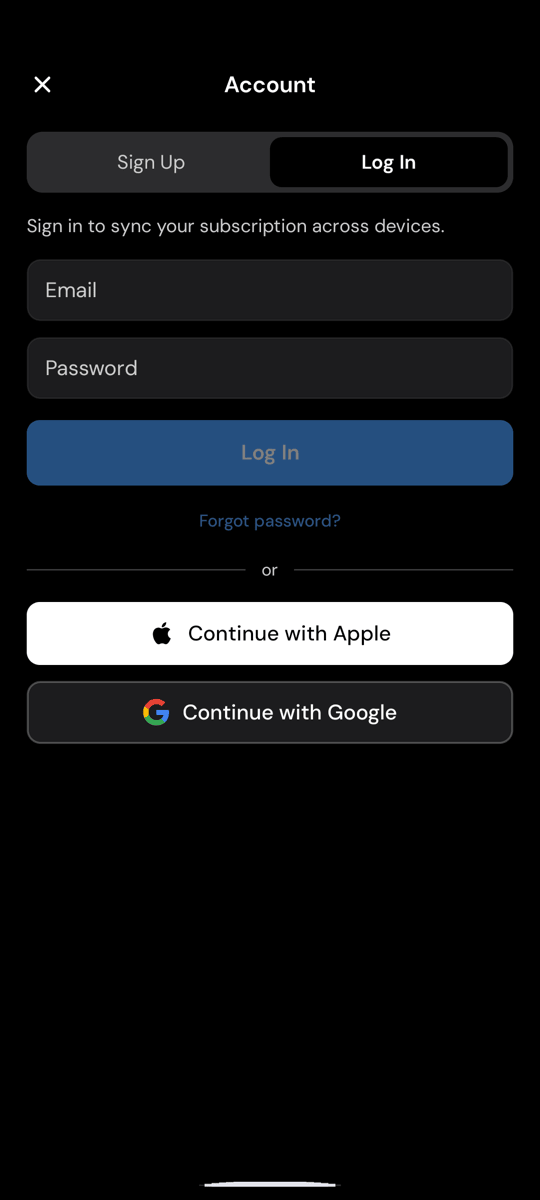
As on iPhone and iPad, the email is sent immediately and a confirmation appears on the same screen.
Mac & Windows
The desktop app has a dedicated reset screen.
- Click Log in in the menu, or open Settings and go to the Account section.
- Click Forgot password? below the Sign in button.
- Enter your email address.
- Click Send reset link.
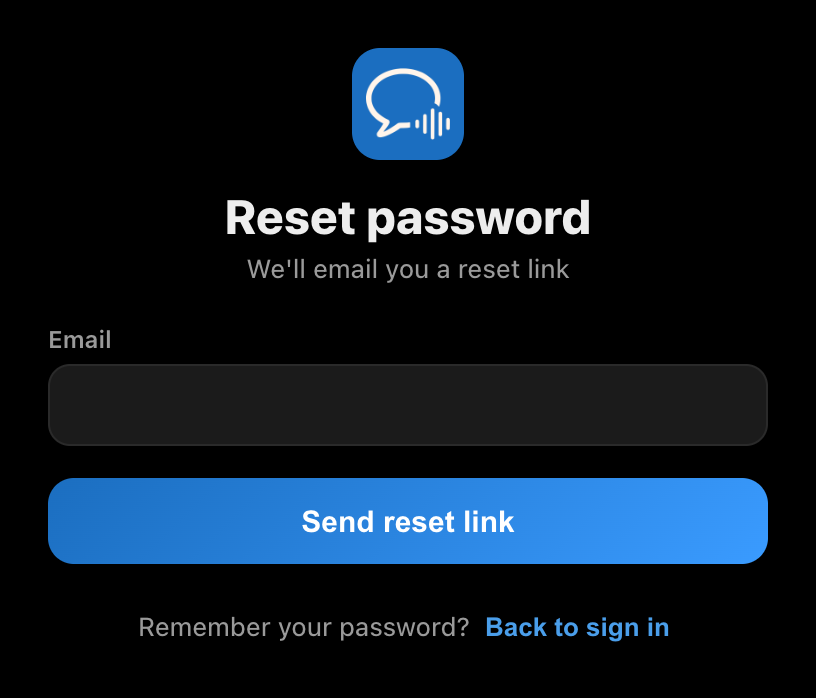
To go back without resetting, click Back to sign in.
Web
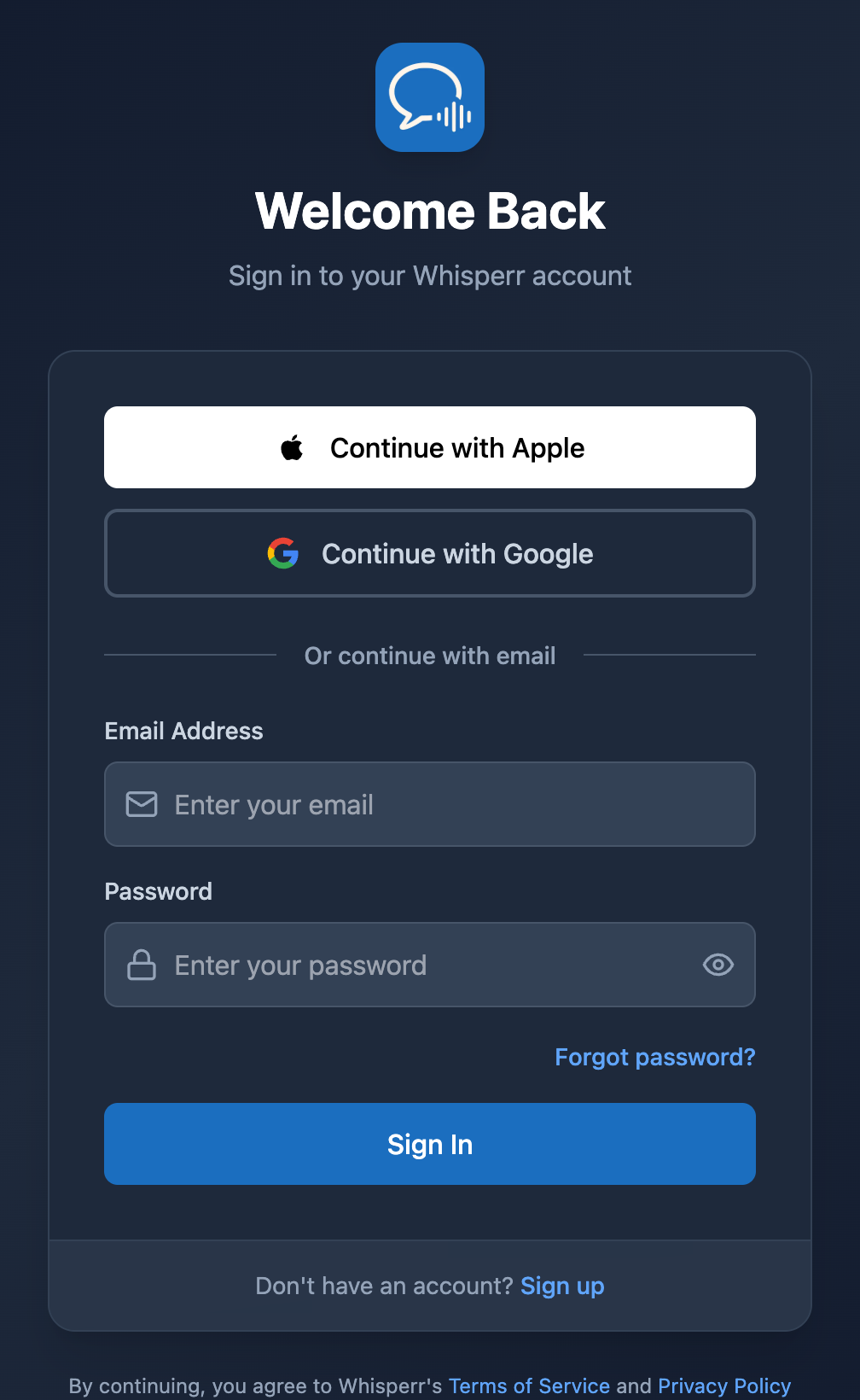
- Open the Whisperr Web app at whisperr.co/app and sign out if you're already signed in.
- Click Forgot password? below the Password field.
- Enter your email address on the Reset Password screen.
- Click Send Reset Link.
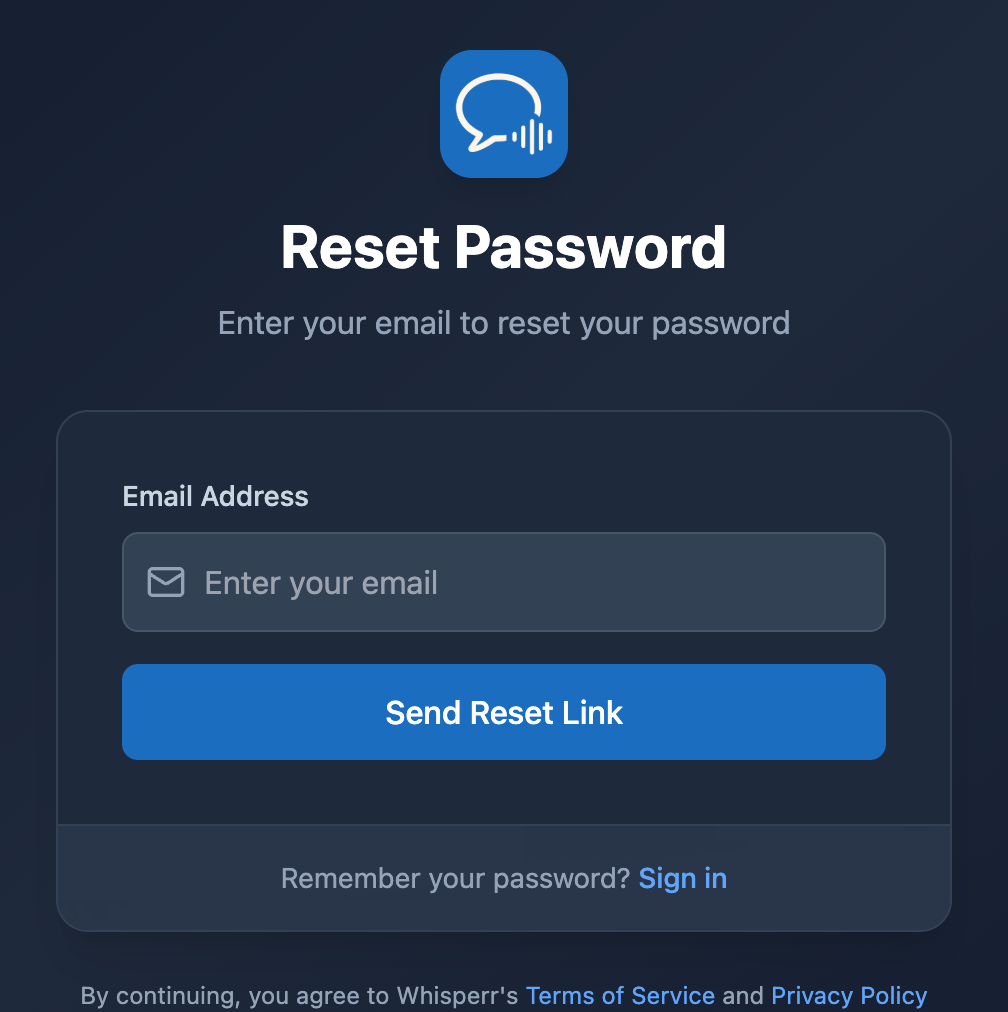
To go back without resetting, click Sign in next to Remember your password?.
Setting your new password
- Open the email titled Reset your password for Whisperr. It's sent from
noreply@whisperr-prod-ae0f4.firebaseapp.com. - Click the link in the email.
- Enter your new password and confirm it.
- Go back to Whisperr and sign in with your email and the new password.
Your new password works on every platform — iPhone, iPad, Android, Mac, Windows, and the Web — as soon as it's set.
Email didn't arrive?
- Check your spam or junk folder. The message comes from
noreply@whisperr-prod-ae0f4.firebaseapp.com, which some mail providers filter. - Check the spelling of your email address. For security, Whisperr shows the same confirmation whether or not an account exists for the address you typed, so a typo looks exactly like a successful send.
- Make sure you have a password account. Accounts created with Continue with Apple or Continue with Google have no password — sign in with the same button instead.
- Request a new link. Reset links are single-use and expire, so an old email may no longer work. Just repeat the steps above.
Need help?
If you still can't get back into your account, reach out to our support team via the live chat and we'll be happy to assist.