Broadcast Mode on Mac and Windows
This page covers running a broadcast as a speaker from the Whisperr desktop app. The Mac and Windows builds share the same interface, so the steps below are the same on both. For how Broadcast Mode works and the viewer experience, see the Broadcast Mode overview.
Broadcast as a Speaker
-
Download and launch Whisperr if you haven't already — Whisperr for Mac · Whisperr for Windows
-
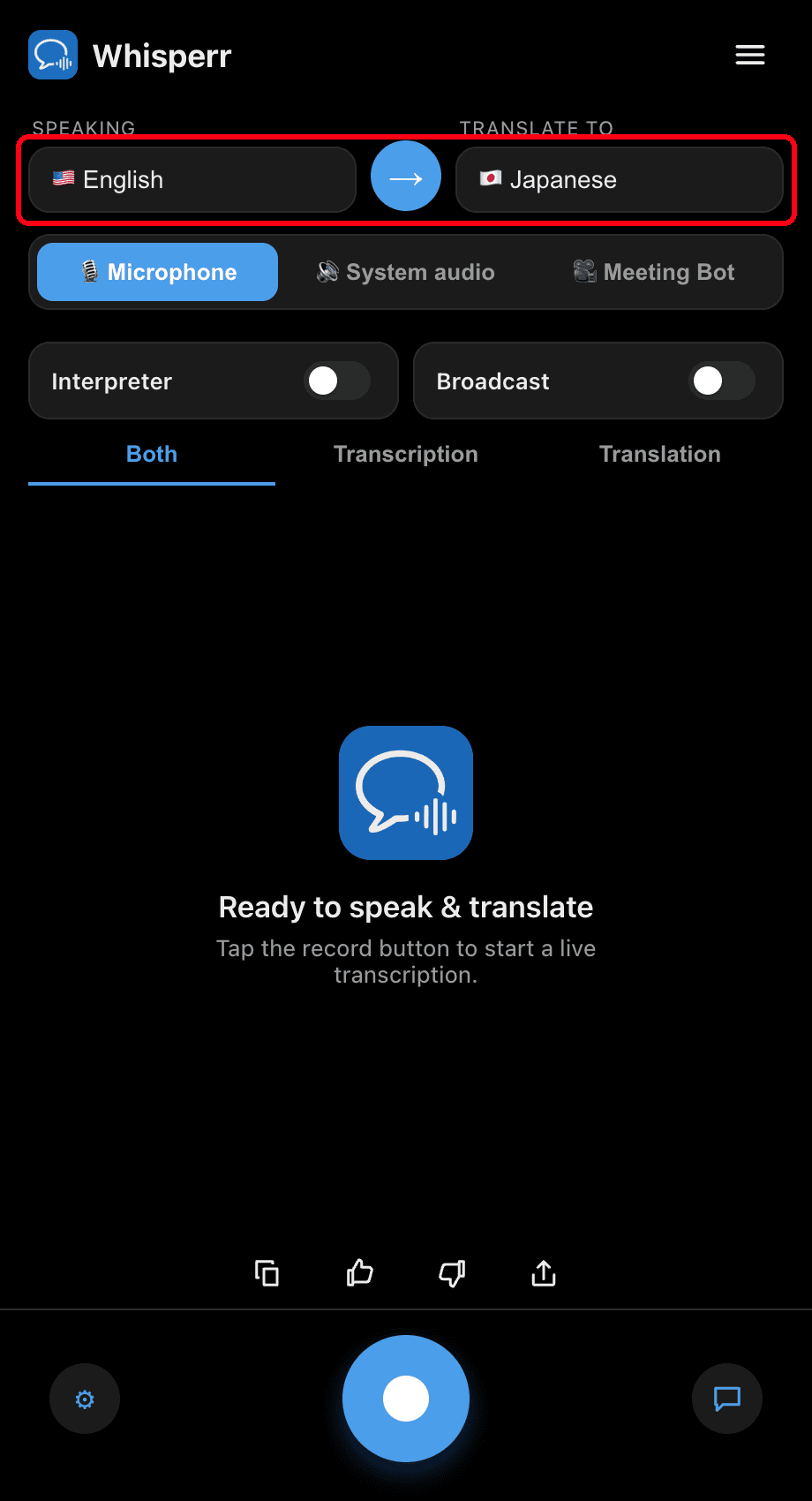
Set your Speaking (source) and Translate to (target) languages — the target is the language your viewers land on
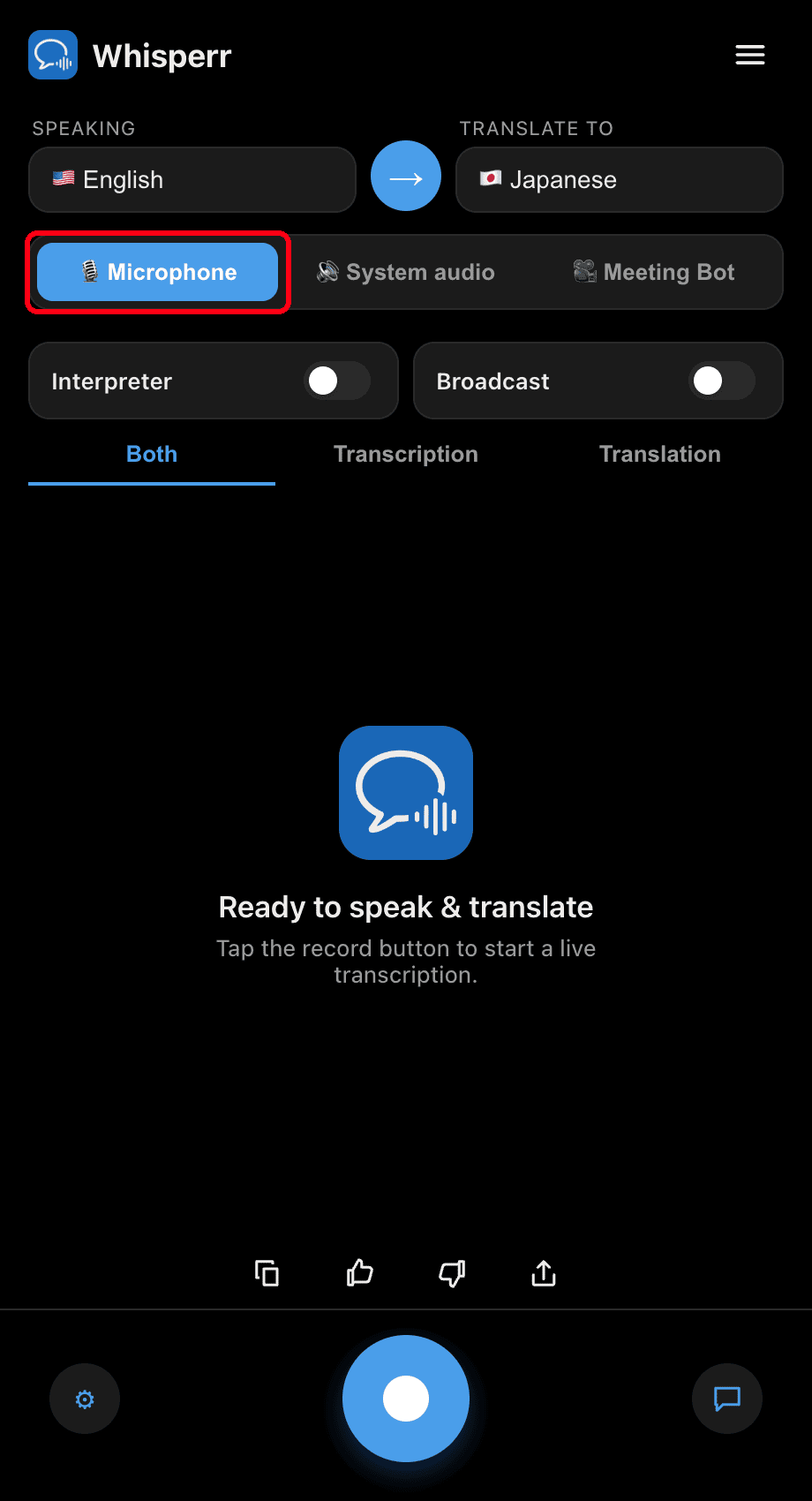
- Keep Microphone selected as the audio source so Whisperr captures your voice
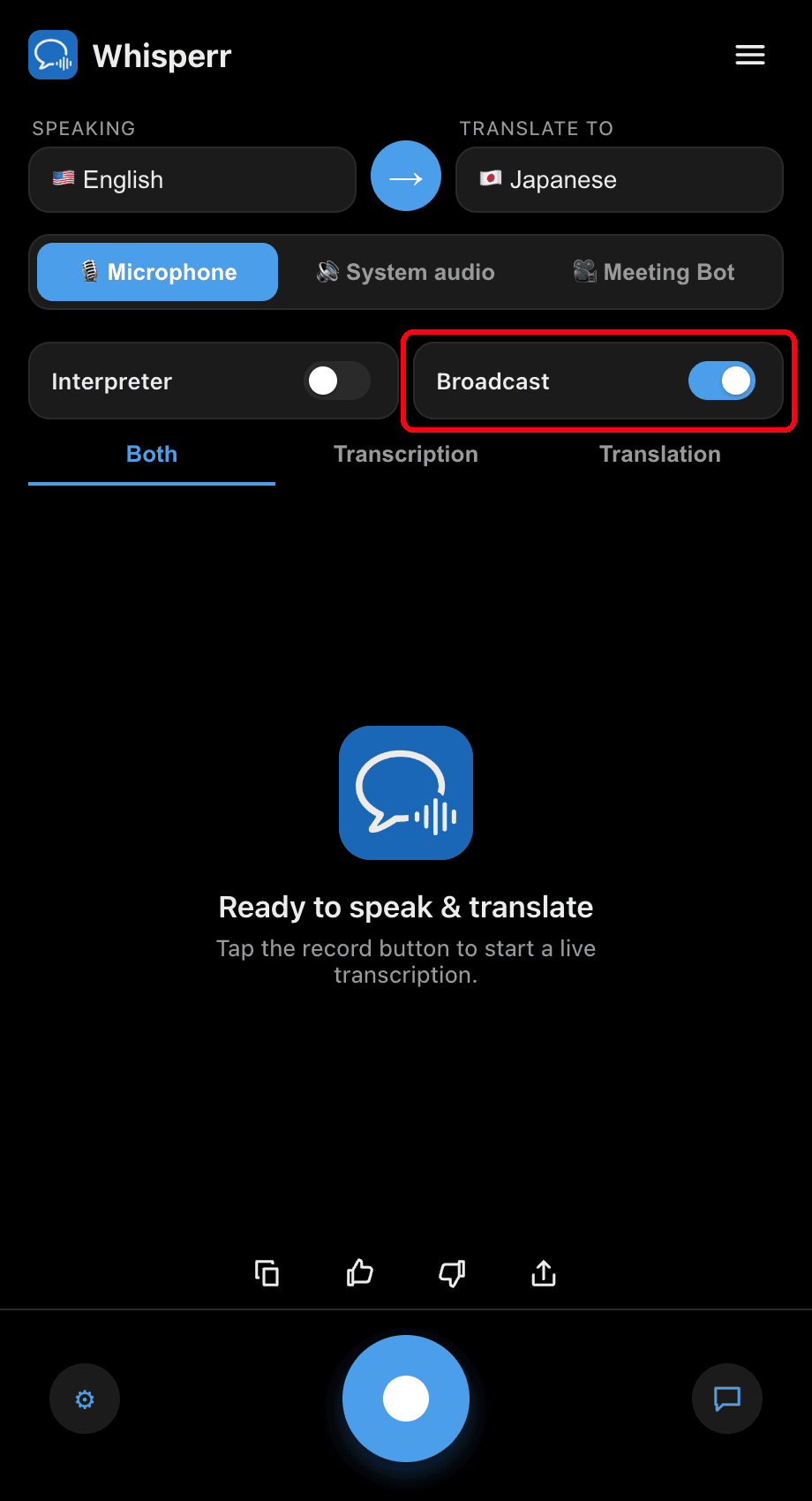
- Turn on the Broadcast toggle in the quick-mode toggles (you don't need to open Settings)
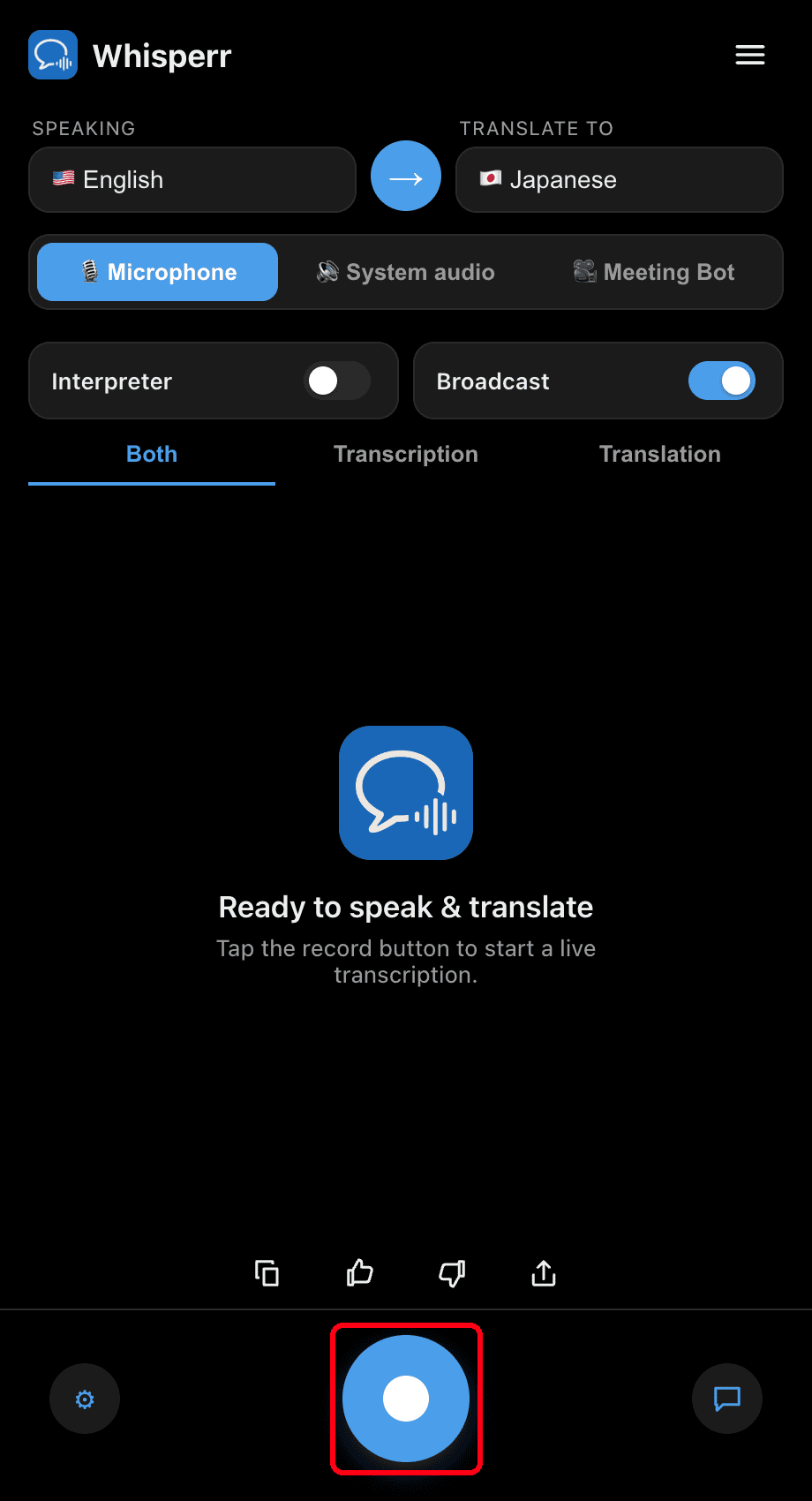
- Click the record button — Whisperr starts capturing audio and a Live share link banner appears
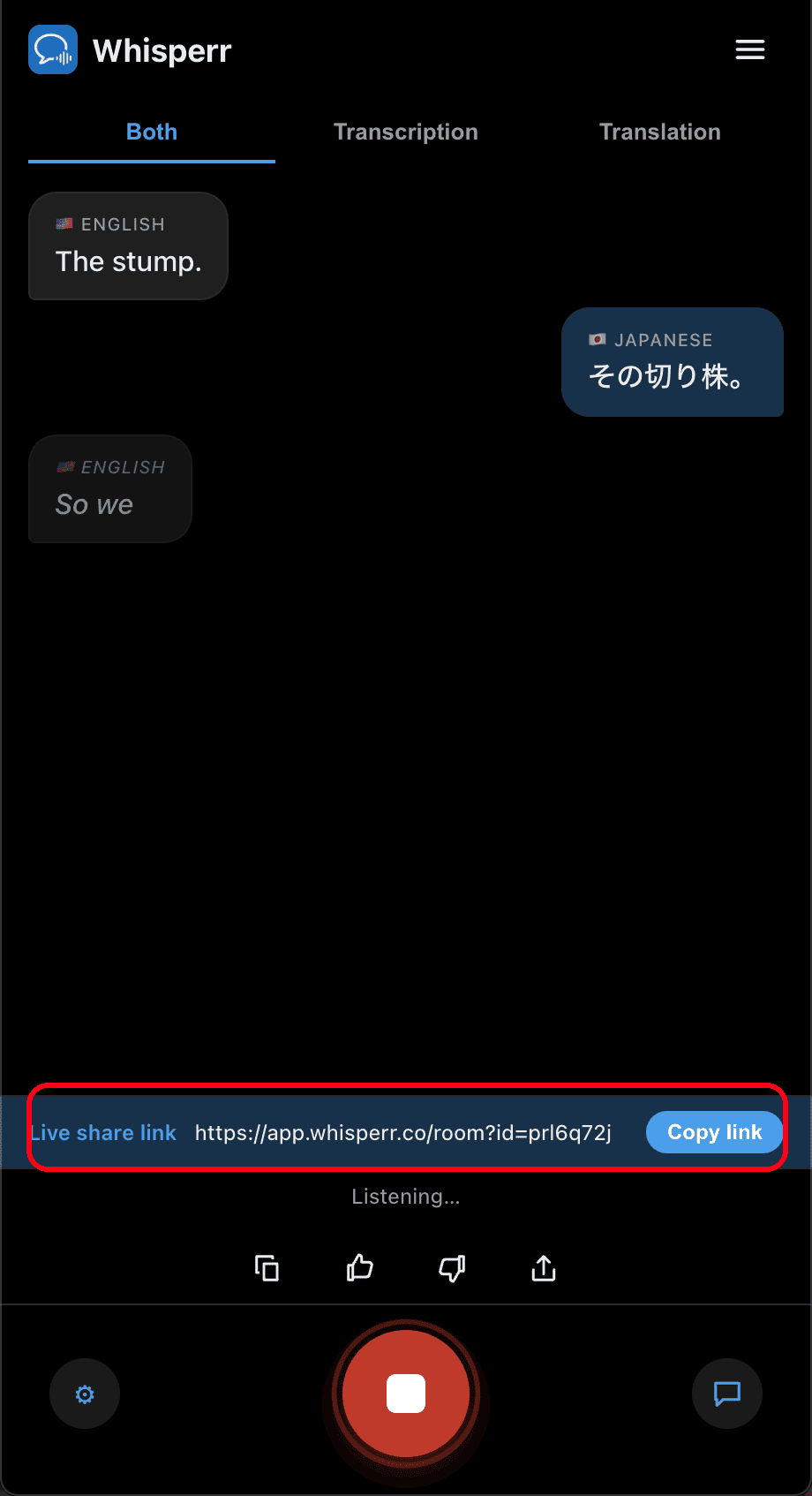
- Click Copy link and share it with your viewers — they open it in any browser to follow your live transcription and translation
The room stays active as long as you're recording. Click the record button again to stop.
What Your Viewers See
Anyone who opens the room link gets this page in their browser — no app, no account, no sign-up. Each line of transcription and translation appears as you speak.
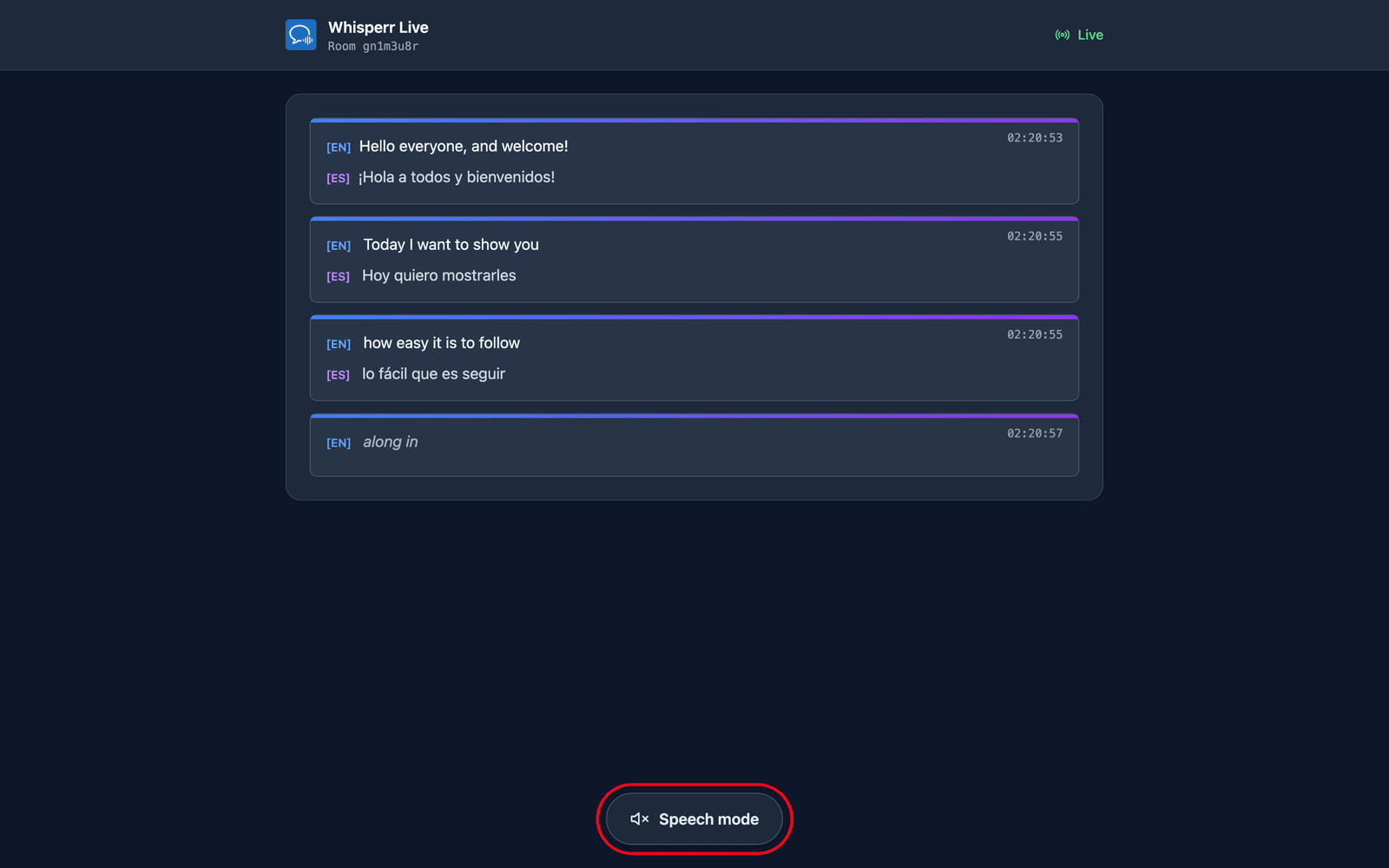
They pick their own language. You set a default target language when you create the room, and can add up to 5 more for viewers to switch between (6 languages total per room) via the Translation language menu at the top of the page. The ones your room is already broadcasting are listed first with a green dot and switch over on your next line; a new language (if the room hasn't reached its limit) is produced on request, so they'll briefly see Preparing your language… first. One room and one link therefore cover an audience across up to 6 languages — create a separate room only if you need more than 6, or a completely separate audience/link.
They can listen instead of reading. Tapping Speech mode at the bottom of the page turns the button blue and reveals the speech controls at the top, and Whisperr reads each translation aloud on their own device as soon as it's finalized — in whichever language they selected.
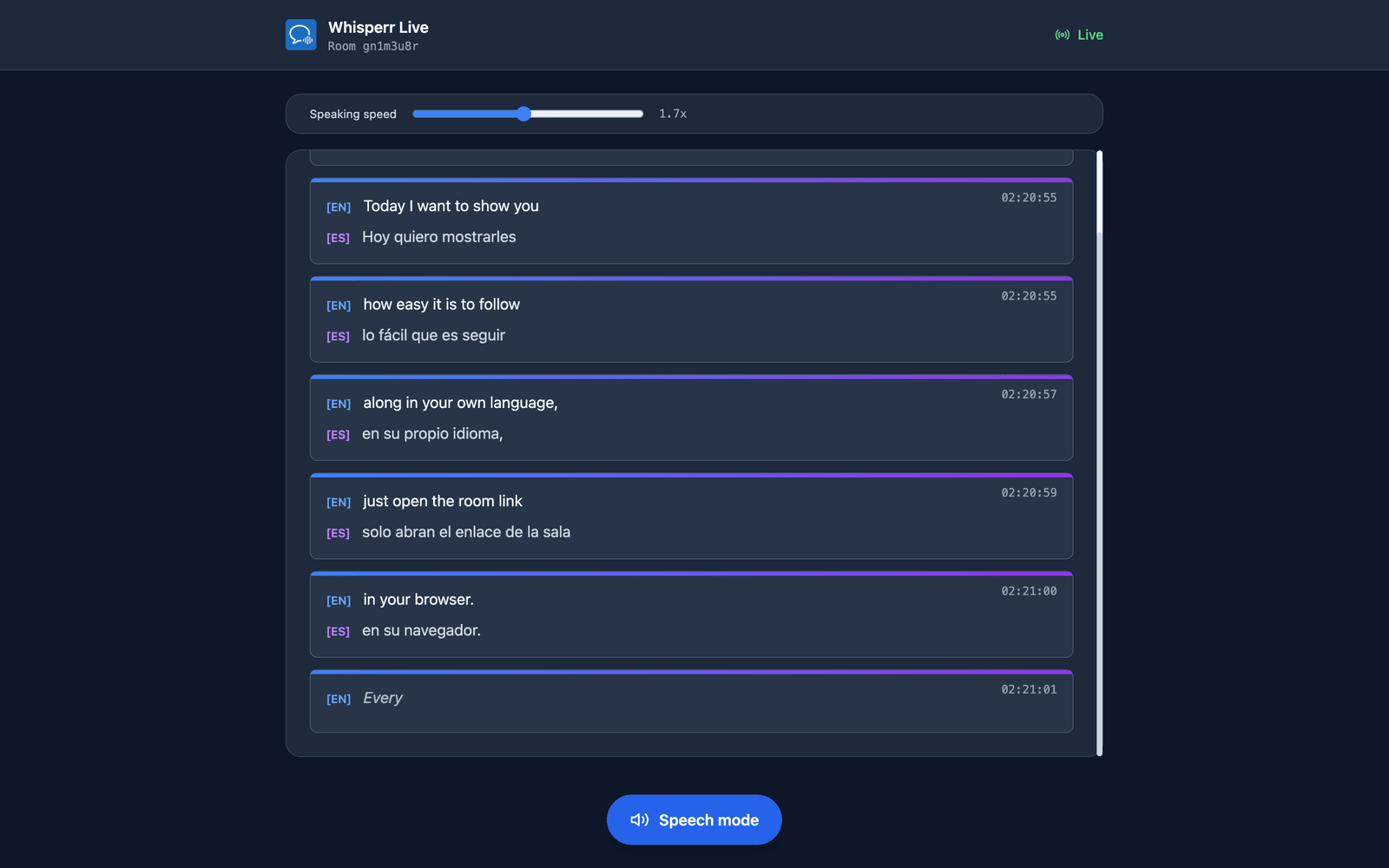
They choose the voice and the pace. Voice defaults to Auto, which matches the reading voice to whoever is actually talking — useful when you take questions from the floor. Male and Female pin one fixed narrator instead. Speaking speed runs from 0.5x to 3.0x and defaults to 1.7x, fast enough to keep the audio near real time.
Speech mode starts off for everyone — that first tap doubles as the gesture browsers require before they'll play audio. Every one of these settings is per-viewer, so part of your audience can listen in Spanish while the rest read in Hindi. More detail in the viewer experience.
Common Issues
No share link banner appears
The Live share link banner shows only while recording with the Broadcast toggle on. Turn Broadcast on before you start recording.
Viewers don't hear or see updates
Make sure you're still recording — the room is live only during an active recording. Your microphone audio isn't streamed to viewers: they follow the text (transcription + translation), and if they want to hear it, they tap Speech mode on the room page and their own browser reads the translation aloud.
Capturing the wrong audio
For presenting your own voice, keep the Microphone source selected. If you switch to System audio, Whisperr broadcasts what your computer is playing instead.
Wrong translation language for viewers
The Translate to language you picked is only the default. Viewers can open the Translation language menu at the top of the room page and switch for themselves, so there's no need to restart a talk to accommodate one person.
Still not working? Contact Support
Related
- Broadcast Mode (overview) — how it works, supported platforms, and the viewer experience
- On iPhone, iPad and Android — present a broadcast from your phone or tablet
- On the Web App — the only place that can show a QR code for your room
- Broadcast Mode FAQ — common questions about rooms, links, and viewers