Calls in the Web App
This page covers starting and running a translated call from the Whisperr Web App. For what the feature does, see the Calls overview.
How to Start a Call
- Go to whisperr.co/app and sign in
- Click Start a call in the sidebar
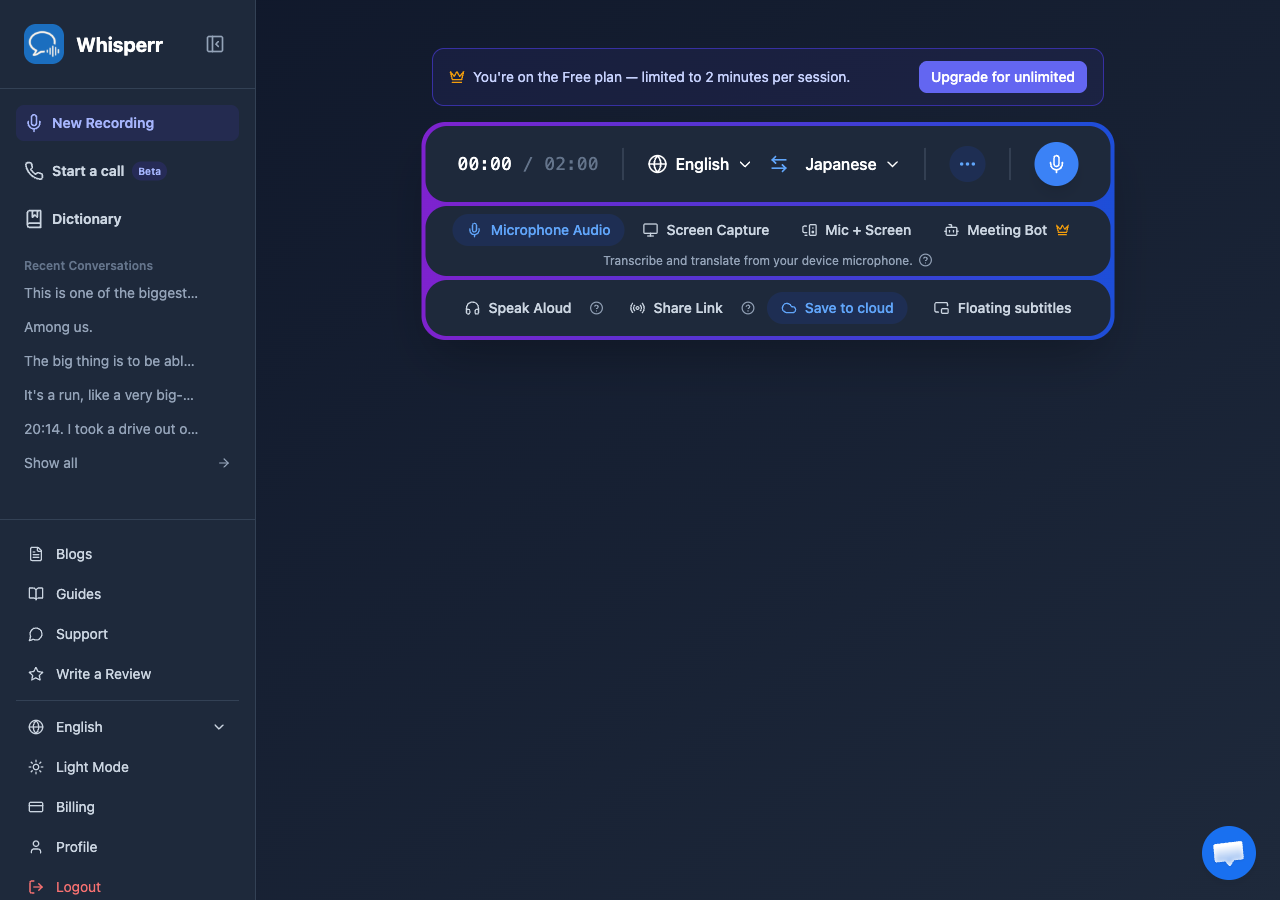
- Enter Your name and the Language you speak — everyone else's speech will be translated into this language for you
- Click Start call — you're connected immediately and get a shareable link
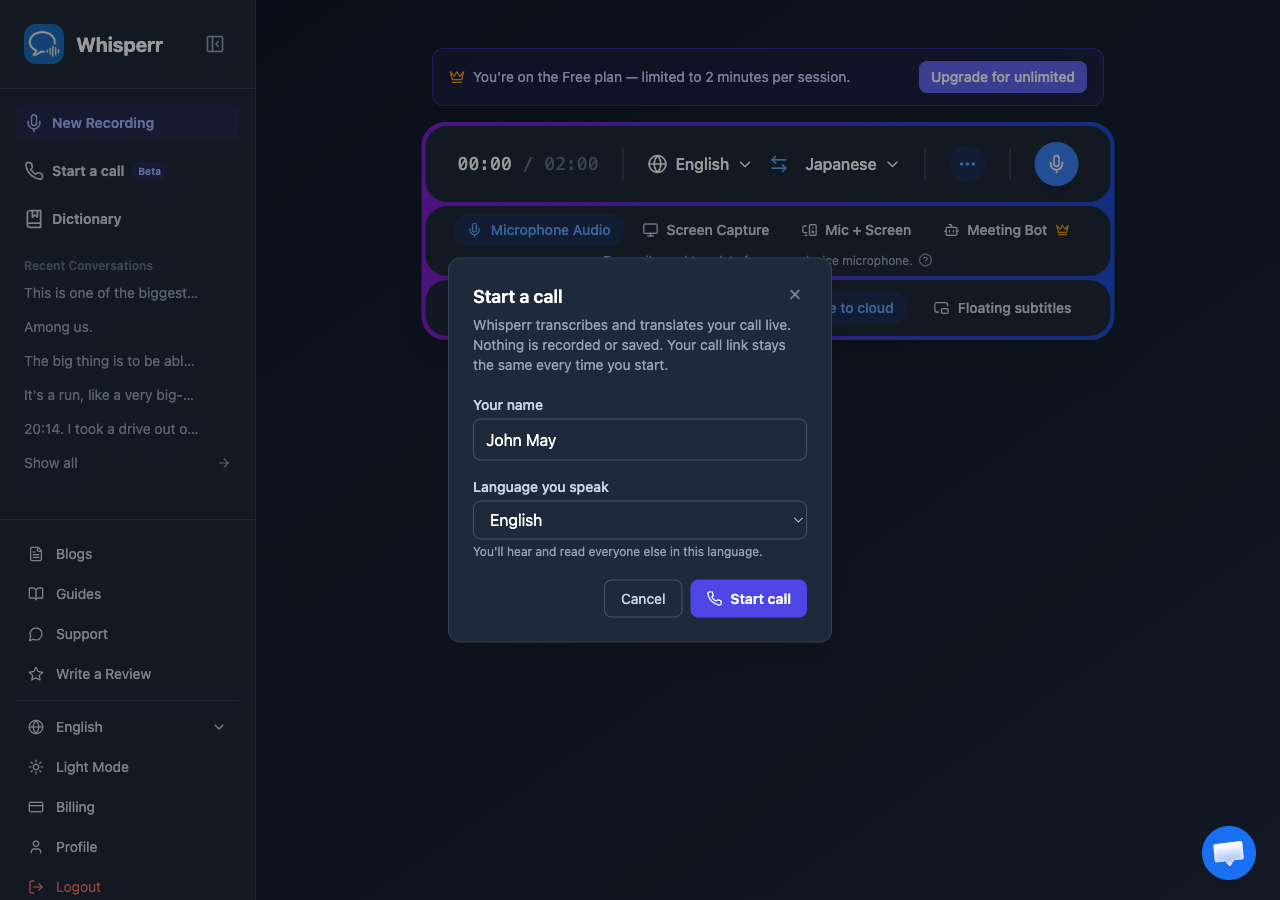
- Share the link, or click the QR code icon to show one guests can scan. Anyone who opens the link enters their own name and language, then joins directly in their browser — no Whisperr account or app install needed
- Talk. As people speak, the live transcript appears translated into each participant's own language. Guests who don't understand a speaker's language can also turn on spoken translation instead of reading subtitles
While You're on the Call
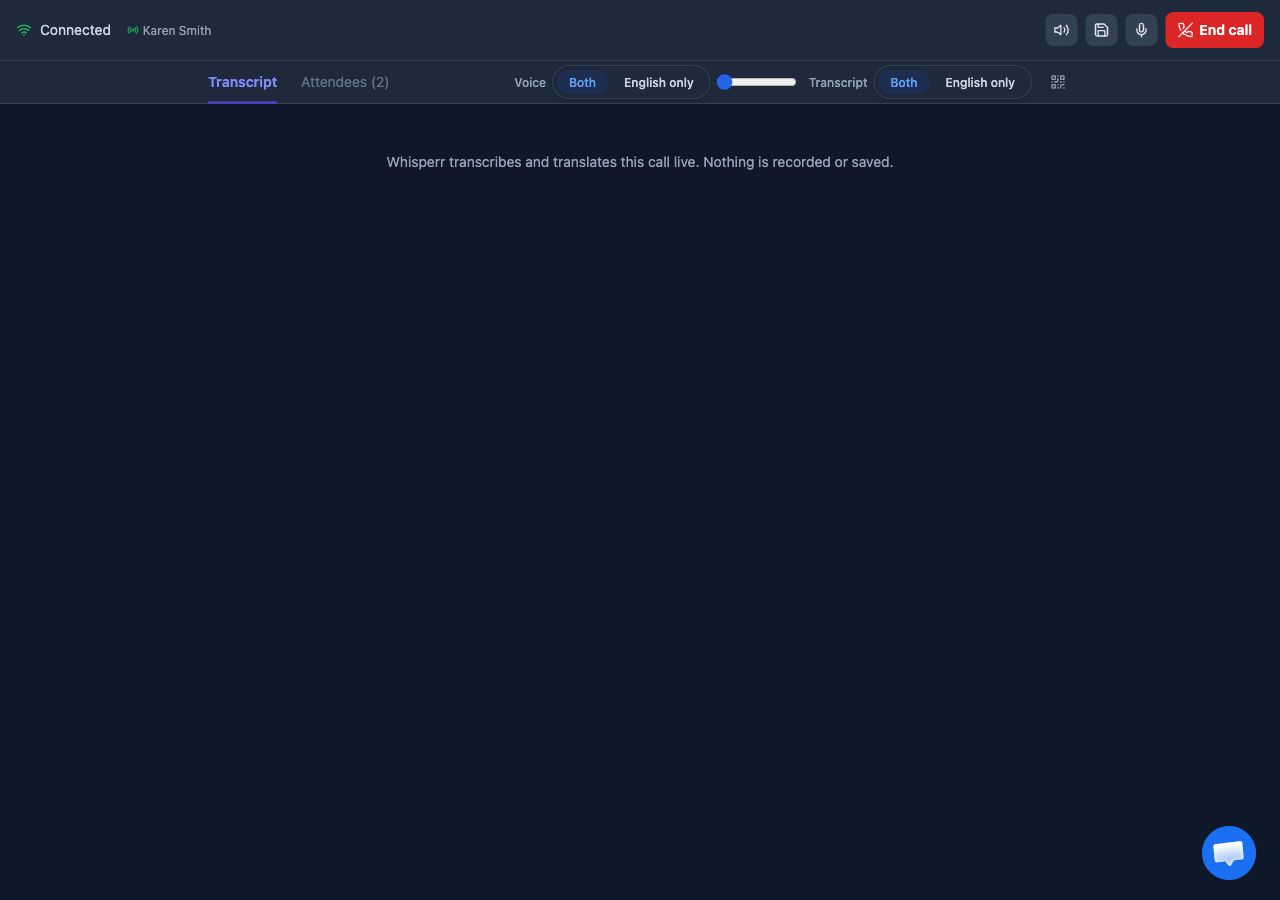
- Voice: toggle between Both (hear the original voice plus a spoken translation for languages you don't understand) and your own language only
- Transcript: toggle between Both (every language spoken on the call) and your own language only
- Mute / Unmute your microphone
- Save this call: off the first time you use Calls, but your browser remembers your last choice for the next call — turn it on to keep a saved transcript in your Recent Conversations, the same idea as Store on the Cloud
- End call (host) ends it for everyone; guests can Leave without ending it for the rest of the call
Common Issues (Web App)
The call ended after 2 minutes
Free calls are capped at 2 minutes. The host can upgrade their Whisperr plan to remove the limit — the cap applies to the whole call based on the host's plan, not per guest.
A guest's link stopped working
A call link stays valid for 24 hours after the host last started it, and starting the call again resets that window — so a host's own link keeps working indefinitely as long as it gets used at least once every 24 hours. If it's been longer than that since the host last started the call, ask them to start it again from their dashboard; the link stays the same.
I don't want this call saved anywhere
Audio is never saved. The transcript is only saved to the host's account if Save this call is on. Your browser remembers your last choice, so if you've used it before, check the toggle before you start — don't assume it's off.
How many people can join
Up to 8 people, including the host.
Still not working? Contact Support
Related
- Calls (overview) — what the feature does and supported platforms
- Online Meeting — every way to translate a meeting, including Calls
- Store on the Cloud on the Web App — the same off-by-default saving, for recordings