Dictionary in the Web App
This page covers setting up and using the Dictionary from the Whisperr Web App. For what each section does, see the Dictionary overview.
How to Set Up Your Dictionary
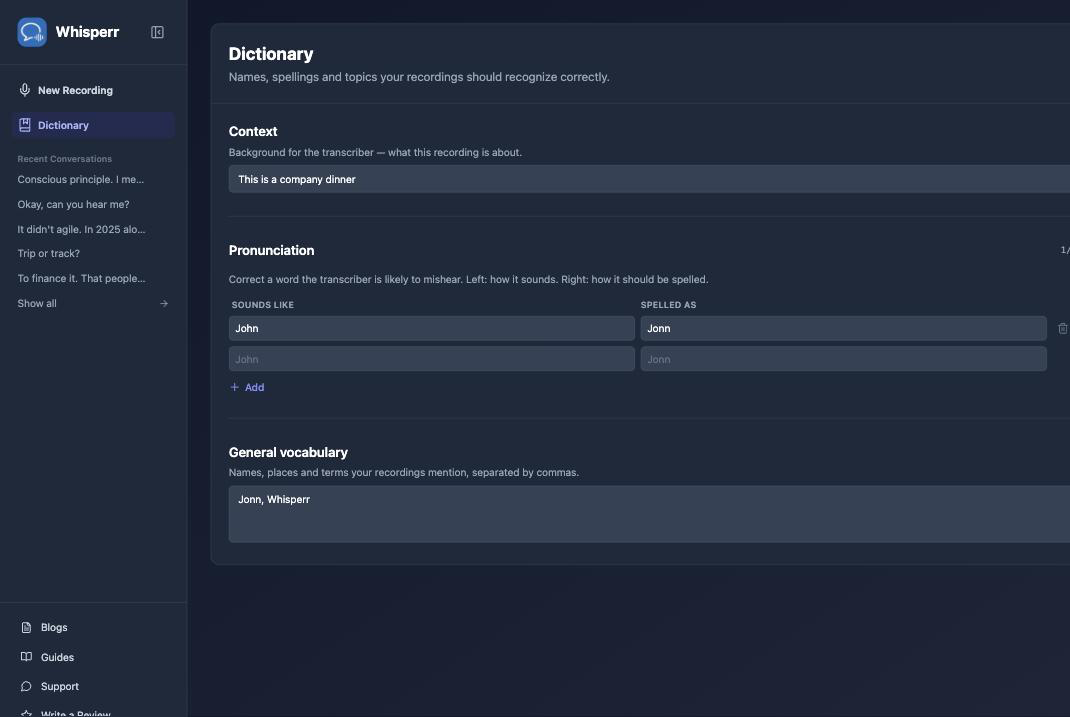
- Go to app.whisperr.co and sign in, then click Dictionary in the left sidebar
-
Under Context, describe what the recording is about, for example:
This is a company dinner -
Under Pronunciation, click Add and fill in a row for a word Whisperr is likely to mishear — Sounds like on the left, Spelled as on the right. For example, if "John" should actually come through as "Jonn": type
Johnon the left andJonnon the right -
Under General vocabulary, add a comma-separated list of names, places, and terms your recordings mention, for example:
Jonn, Whisperr
Everything on this page saves automatically as you type — there's no separate save button.
Applying Your Dictionary to a Recording
Your dictionary is applied automatically to every recording — you don't need to do anything else. If you want to turn it off for a specific recording, open the "…" options menu in the recording bar and uncheck Apply dictionary:
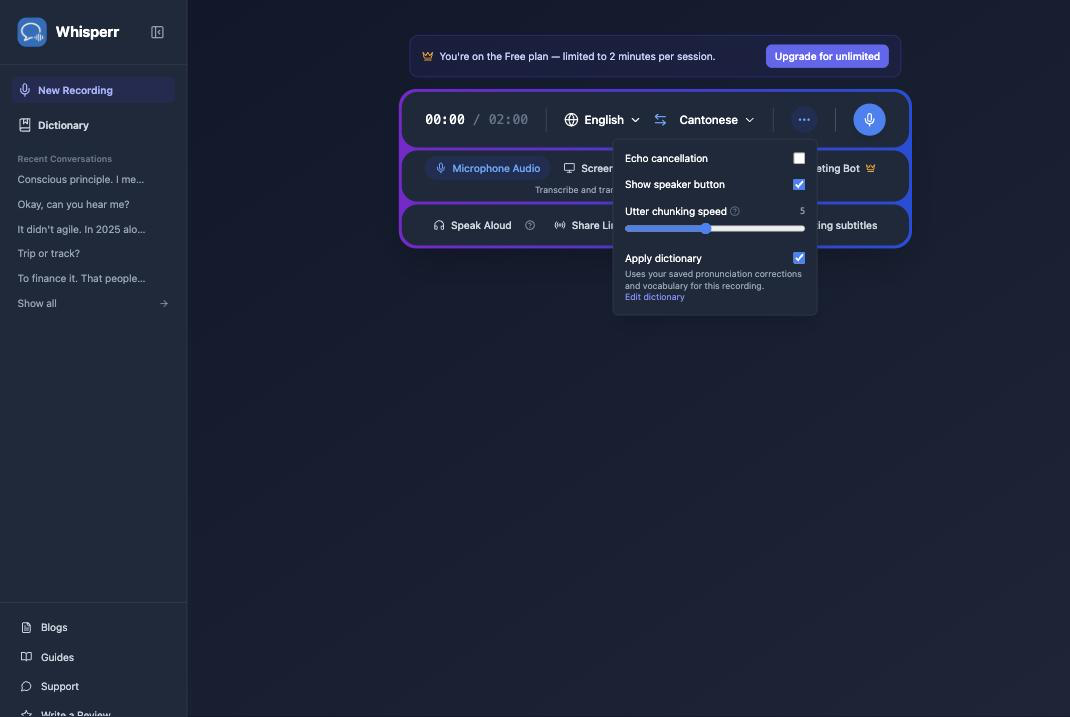
The toggle is remembered for future recordings: while it's off, new recordings won't use your dictionary at all. Turn it back on and they'll go back to using whatever your dictionary currently contains.
Editing the Dictionary During a Recording
You don't need to stop a recording to fix your dictionary. From the same "…" options menu, click Edit dictionary to open a popup with the same Context, Pronunciation, and General vocabulary fields:
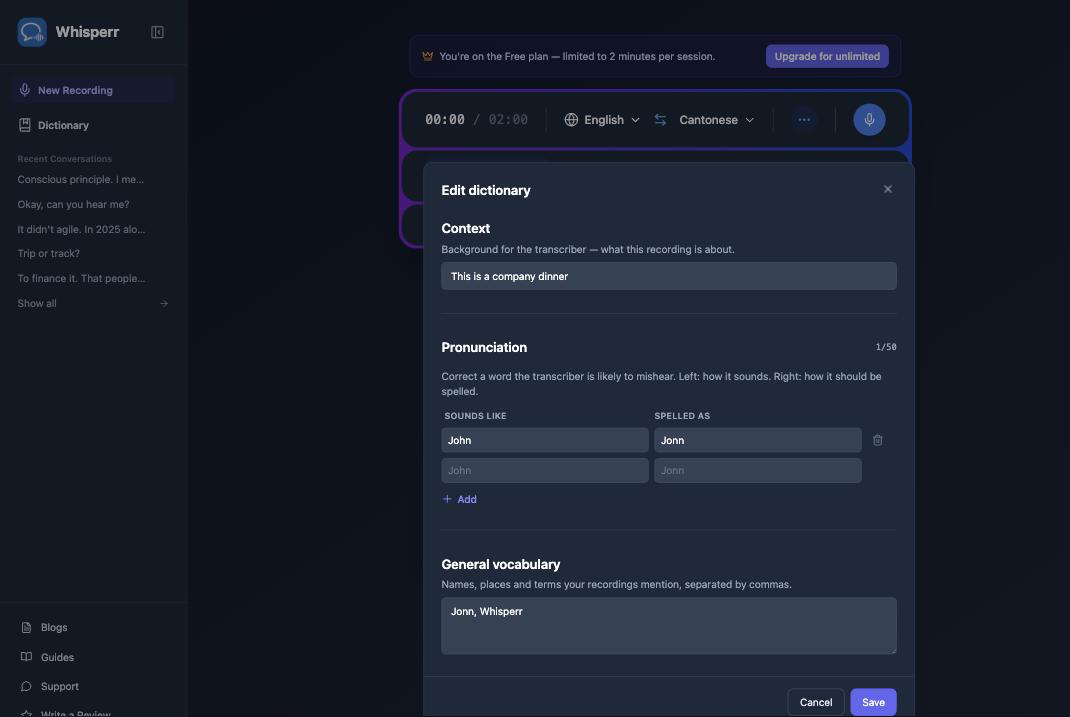
Make your changes and click Save — they're applied to the recording that's currently in progress, no restart needed. Click Cancel instead to close the popup without changing anything.
Common Issues (Web App)
My correction isn't showing up in the transcript
Pronunciation corrections are a strong hint to the transcriber, not a guaranteed find-and-replace — a word that already has a common, unambiguous meaning (like a real English word) can still win out over your correction. It works best for names and made-up spellings, which have less competition. Adding the same term to General vocabulary as well can help reinforce it.
I don't want my dictionary applied to a recording
Uncheck Apply dictionary in the "…" options menu before or during the recording — the change while recording takes effect immediately.
Where is my dictionary stored?
Your dictionary is saved in your browser, tied to this device and browser profile. It isn't synced to your account or to other devices yet.
Still not working? Contact Support
Related
- Dictionary (overview) — what each section does and supported platforms
- Microphone Audio Capture on the Web App — record from your device microphone
- Meeting Bot on the Web App — transcribe Zoom, Teams, and Google Meet calls