Floating Subtitles on iPhone and iPad
This page covers the iPhone/iPad setup for floating subtitles. For how it works and supported platforms, see the Floating Subtitles overview.
How to Use Floating Subtitles on iPhone and iPad
- Open the Whisperr app (iOS)
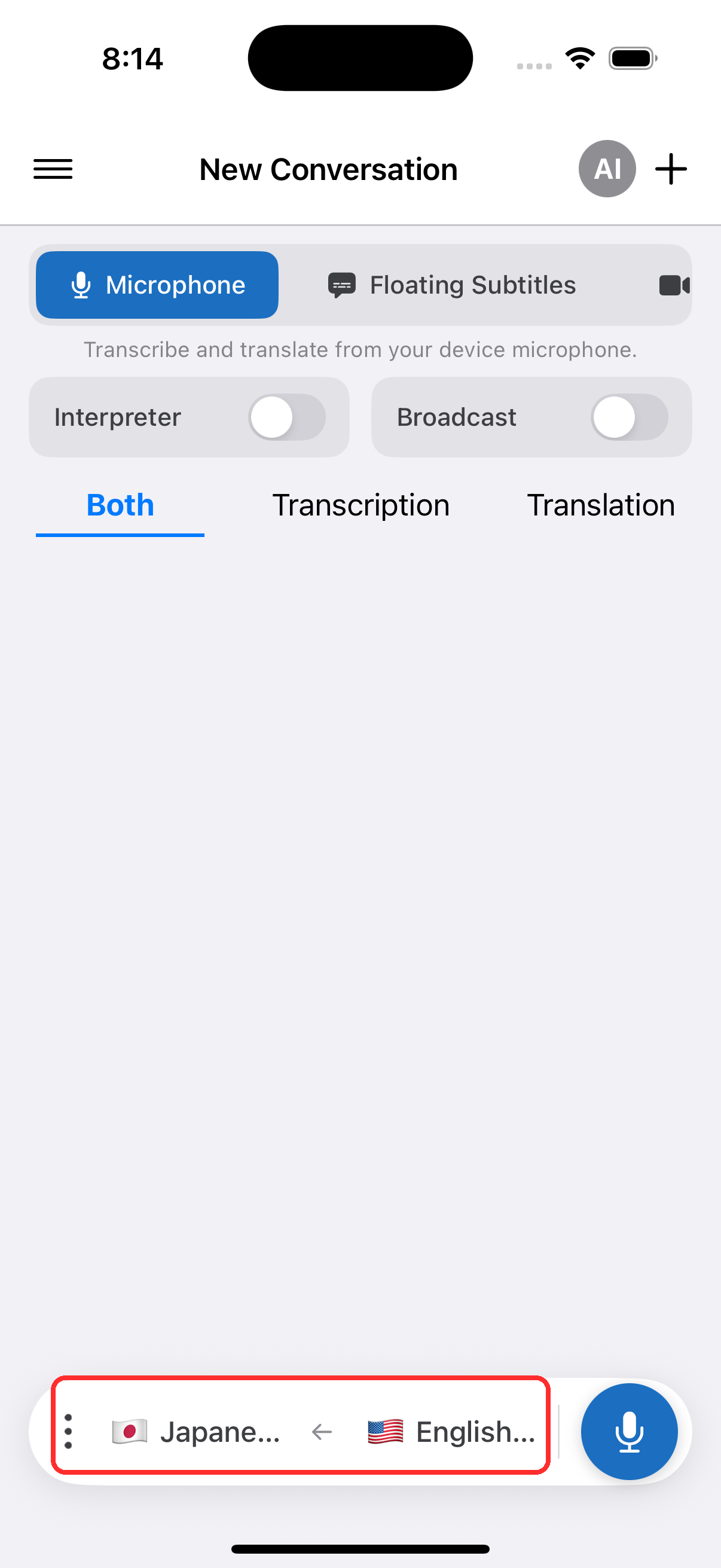
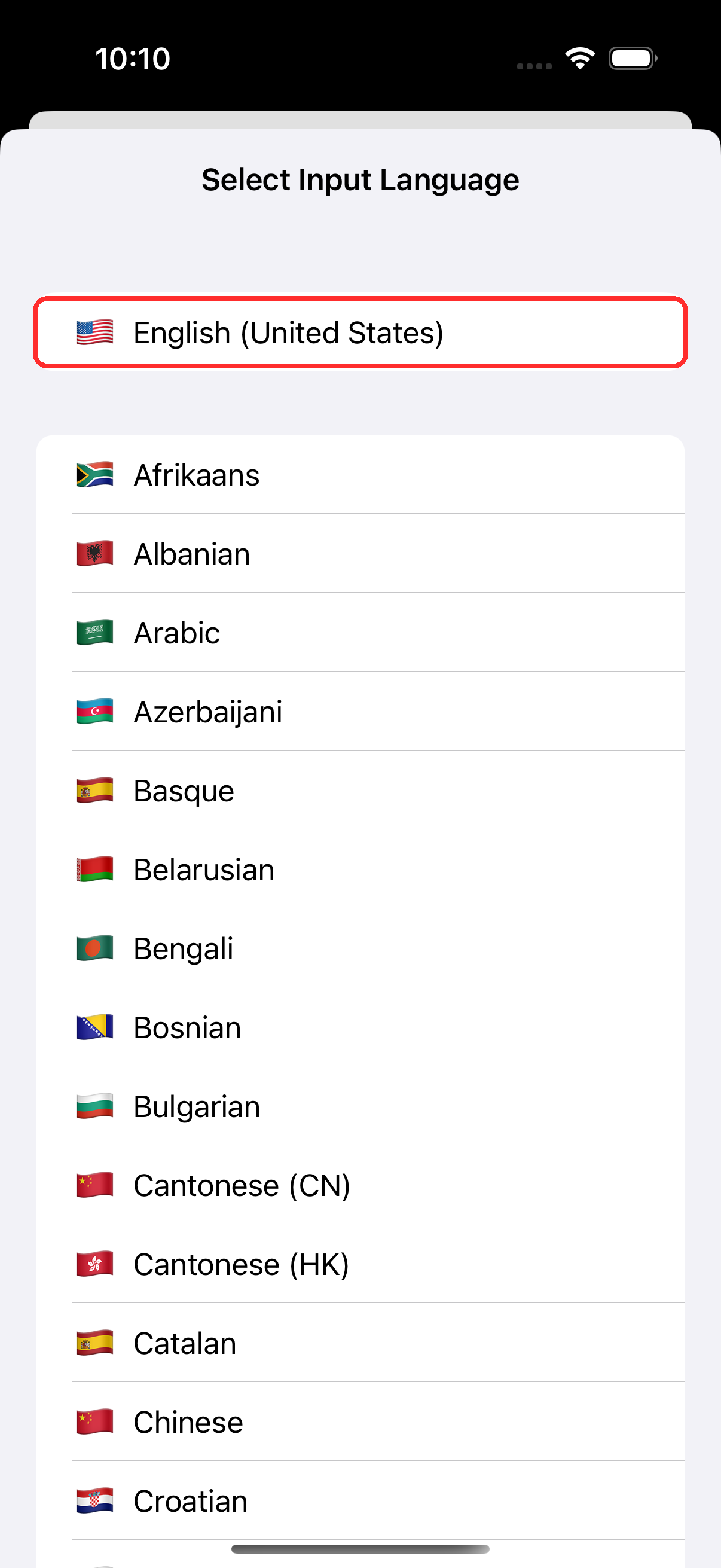
- Select your source and target languages in the bar at the bottom
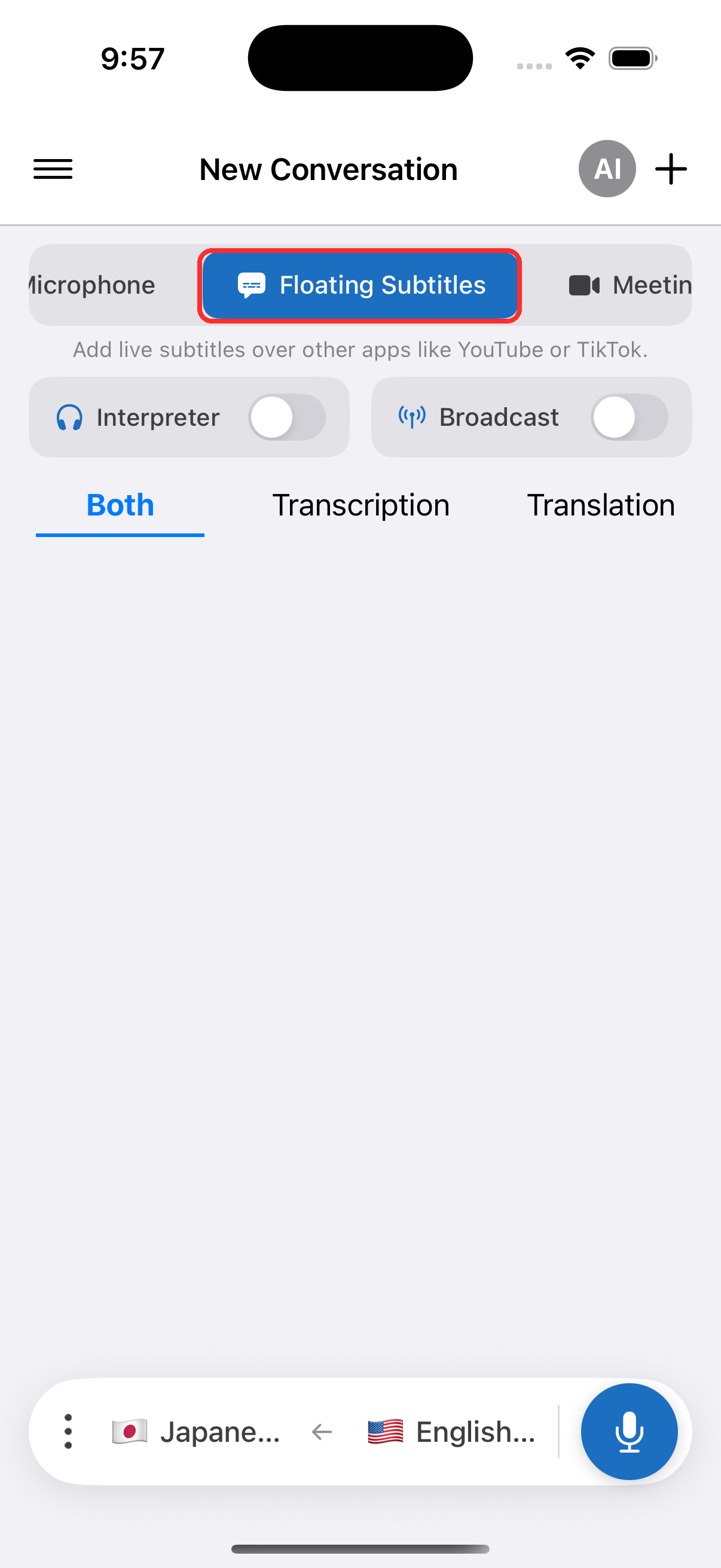
- In the top menu, tap Floating Subtitles
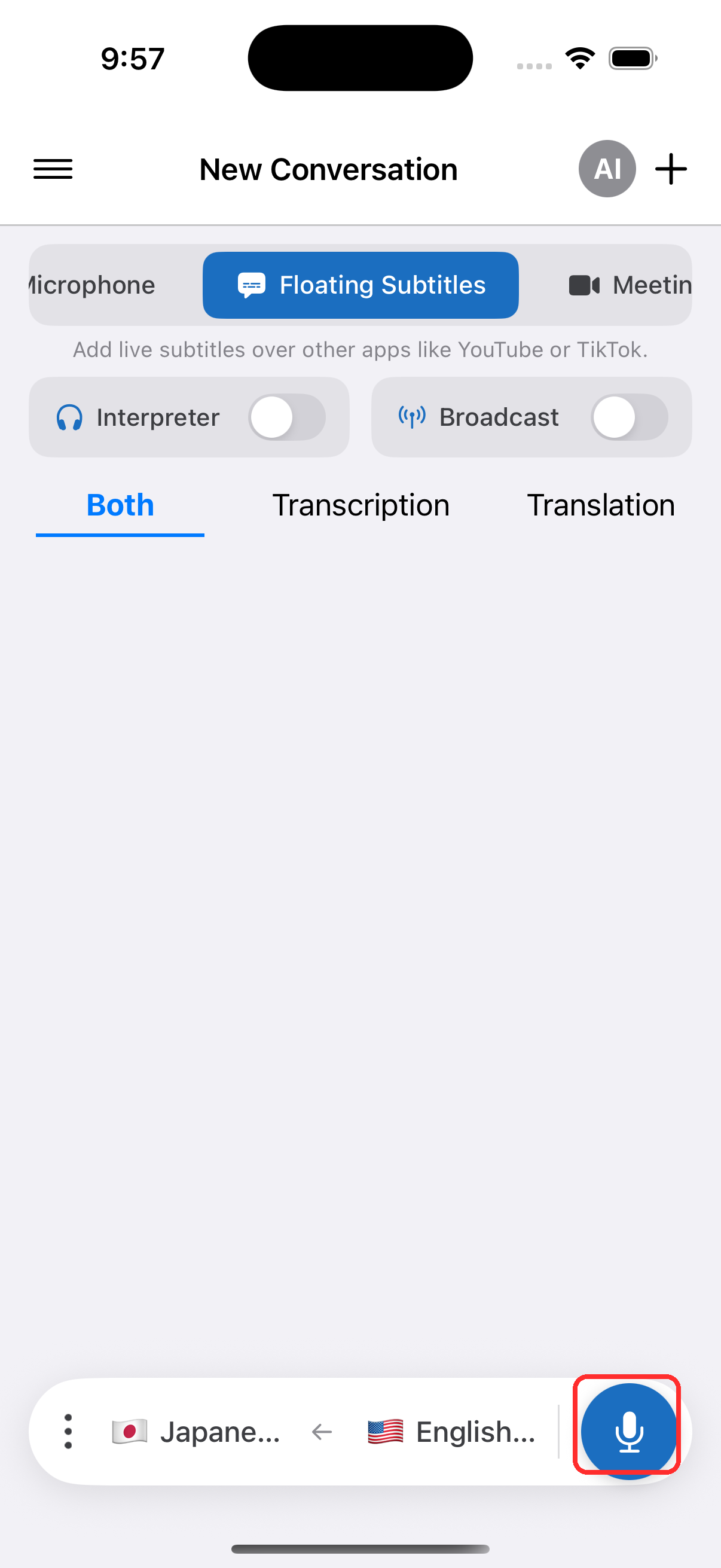
- Tap the record button and allow microphone access when prompted
- Switch to any other app — the subtitles overlay stays visible on screen
Common Issues (iPhone/iPad)
Floating subtitles not appearing
- Check Picture in Picture is enabled (iOS) — go to Settings > General > Picture in Picture and make sure it's turned on
- Check the floating subtitles toggle — make sure it's enabled in the Whisperr app
- Restart the app and try enabling floating subtitles again
No audio from Teams, Meet, or Zoom on iOS
iOS apps cannot access audio from Teams, Meet, or Zoom directly due to privacy restrictions. You can join the call using a browser instead and capture the translation using the Web App or Chrome Extension. Alternatively, use Microphone Audio Capture to capture the audio through your device's speaker or an external microphone.
Still not working? Contact Support
Related
- Floating Subtitles (overview) — how it works, supported platforms, and general tips
- On Android · On the Chrome Extension · On the Web App · On Mac · On Windows
- Microphone Audio Capture — how Whisperr captures and transcribes audio
- Online Meetings — use floating subtitles during video calls