Floating Subtitles on the Web App
This page covers the Web App setup for floating subtitles. For how it works and supported platforms, see the Floating Subtitles overview.
How to Use Floating Subtitles on the Web App
- Go to whisperr.co/app
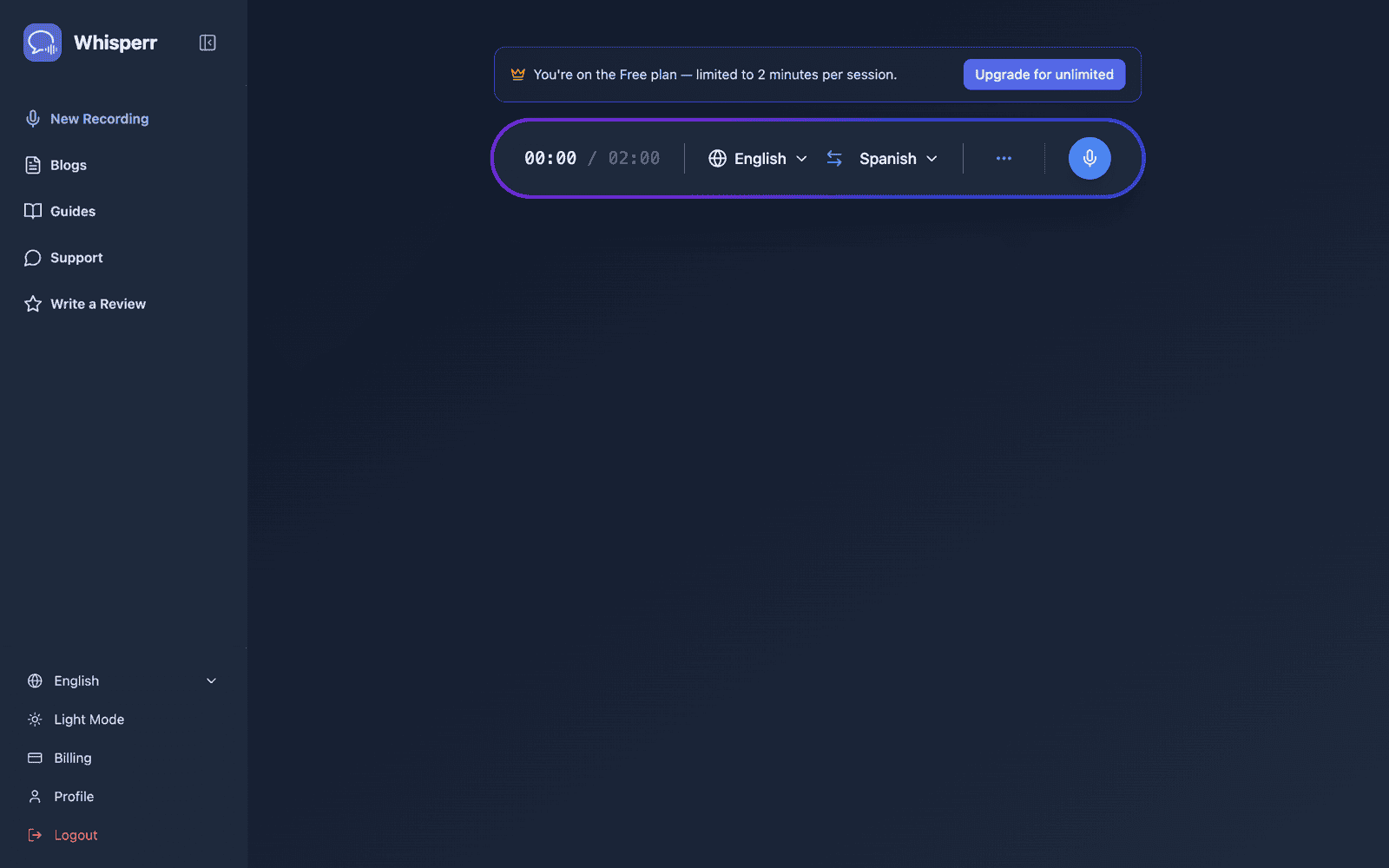
- Select your source and target languages
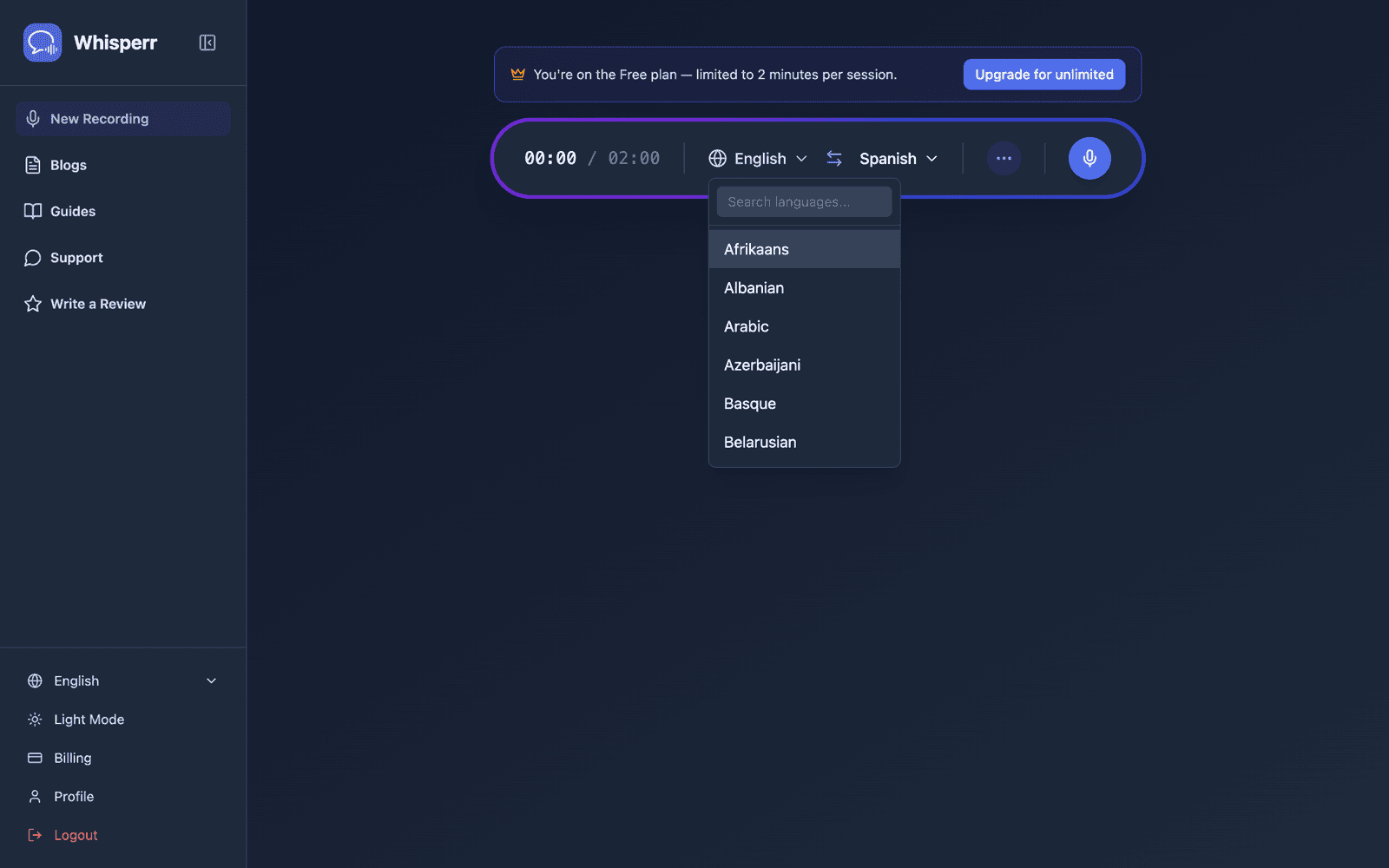
- Click the recording button and select Screen Capture
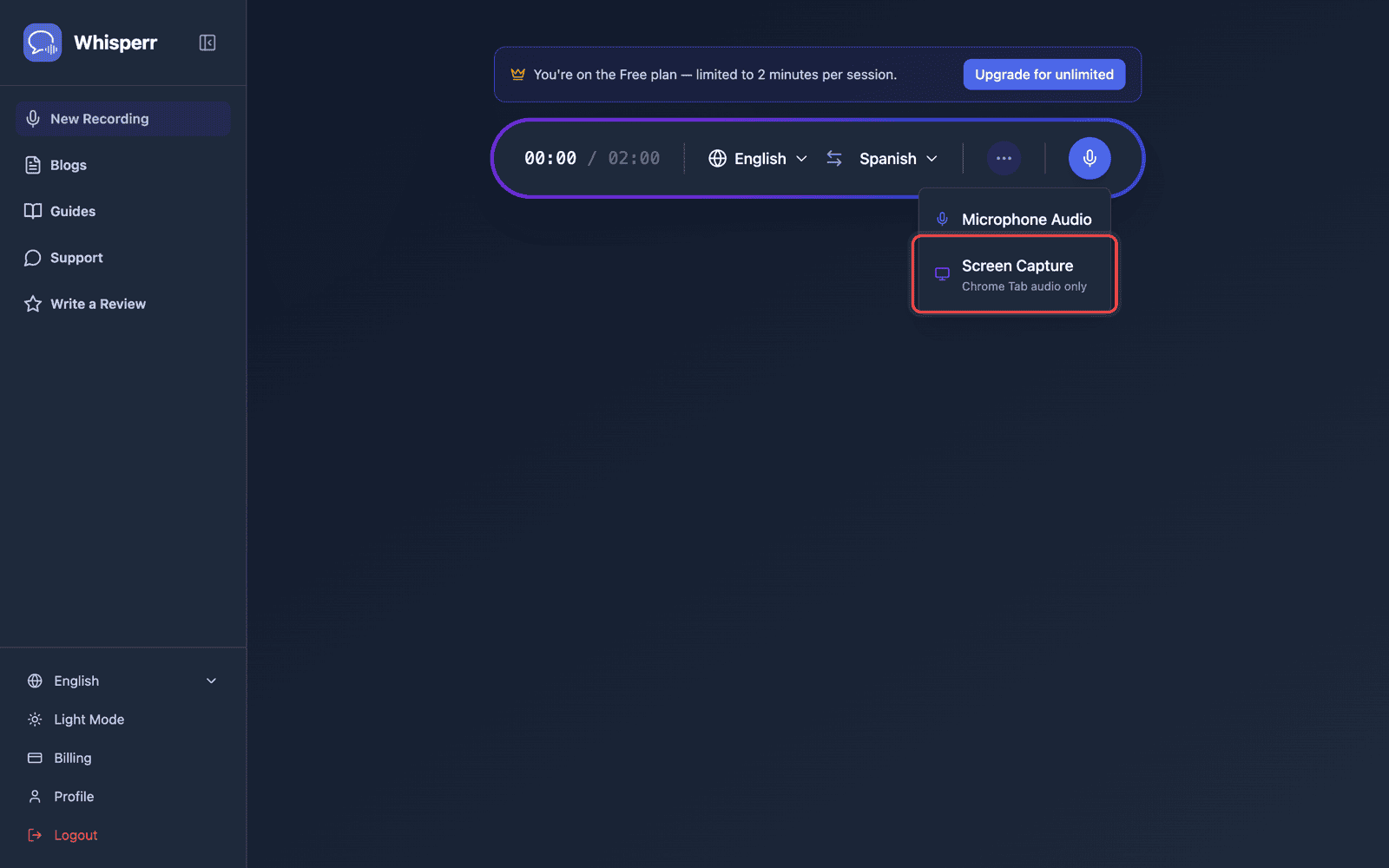
- Choose the tab you want to capture audio from — it must be a browser tab, not a window or entire screen, as audio cannot be captured from those
- Play audio in the tab you selected in step 4, then switch back to the Whisperr tab — subtitles appear in real time
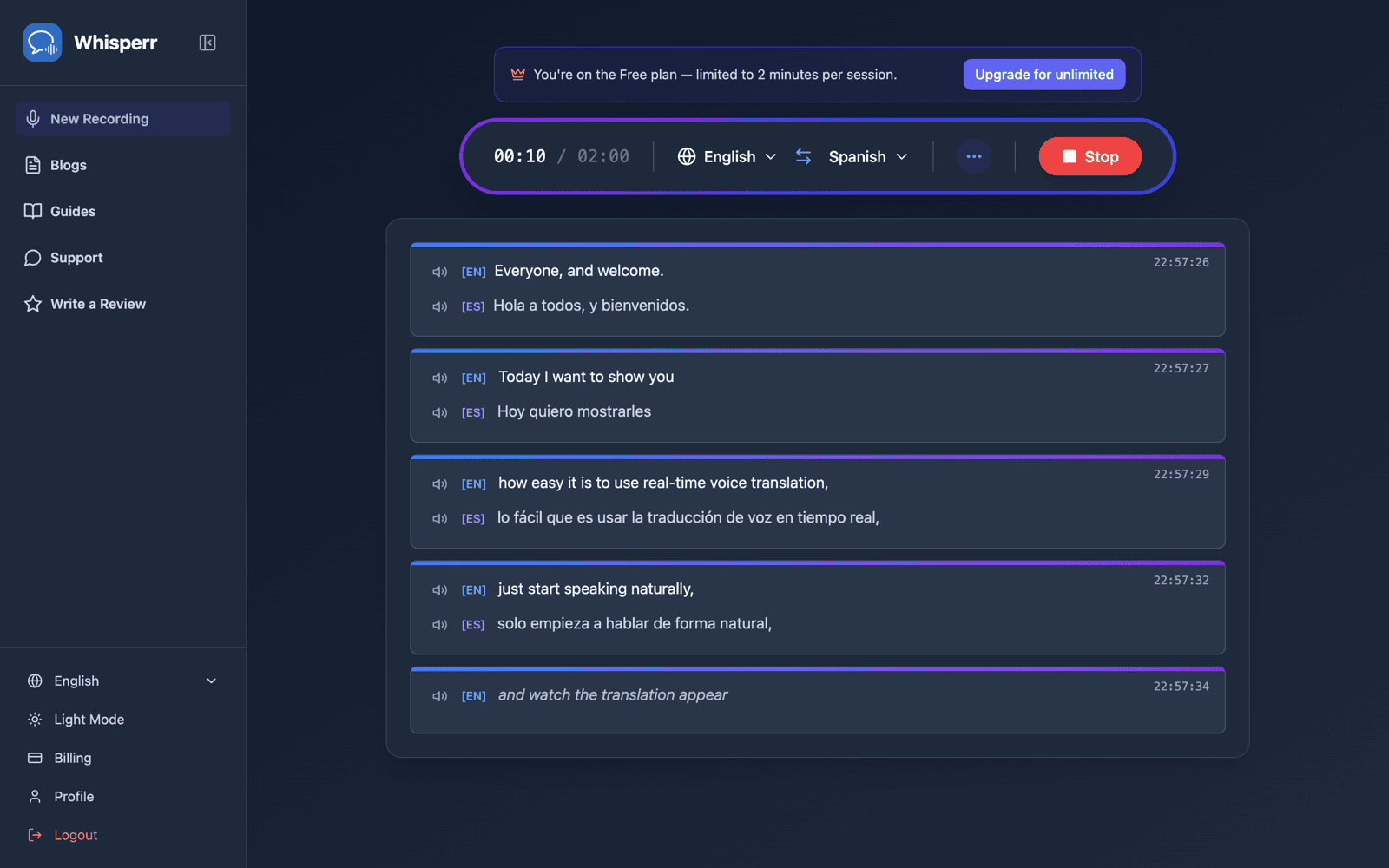
- Click Floating subtitles, next to Save to cloud, to pop the captions out into their own small window
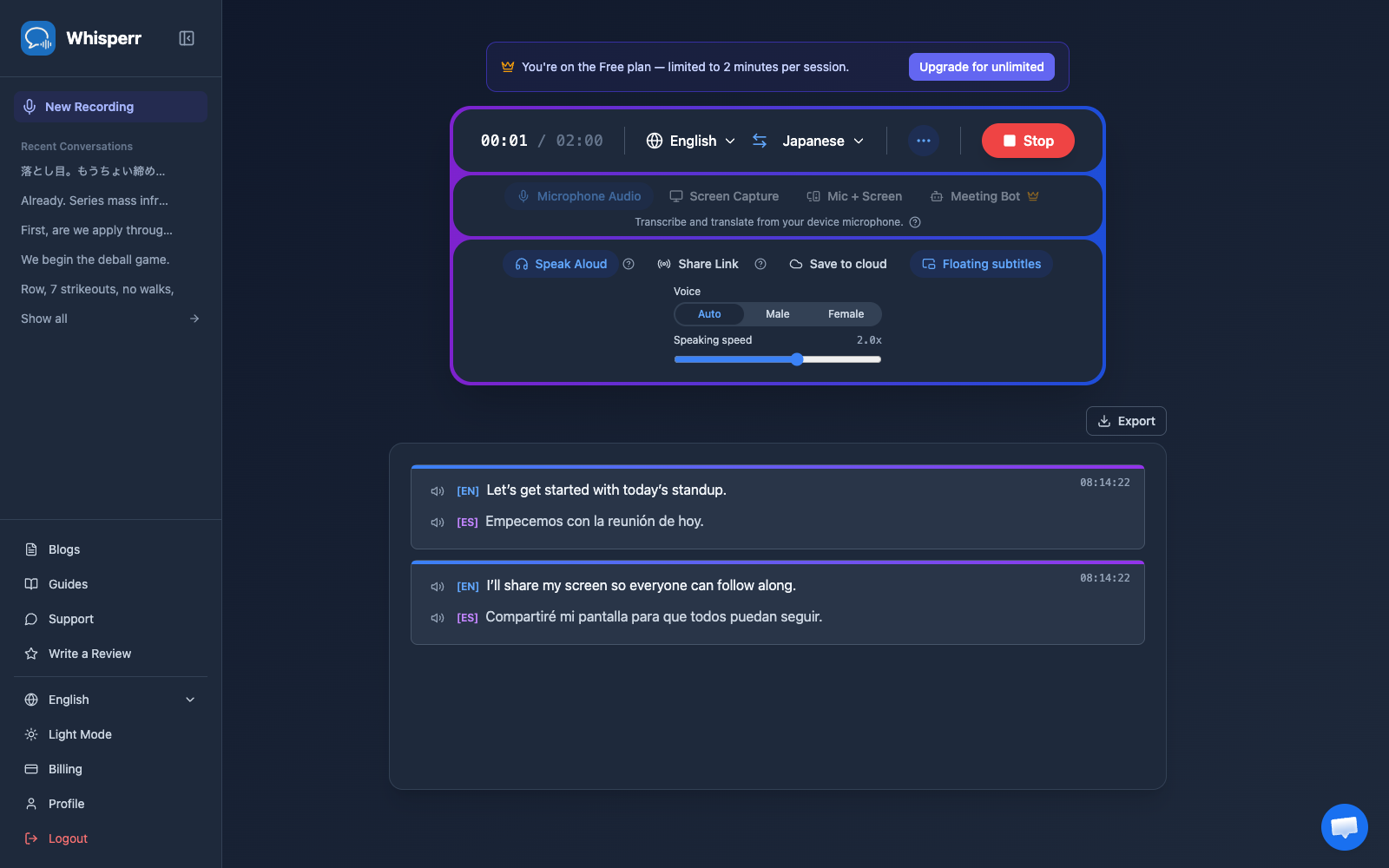
That window stays on top of every tab and app — including the one you're capturing audio from — so you can read along without switching back to the Whisperr tab:
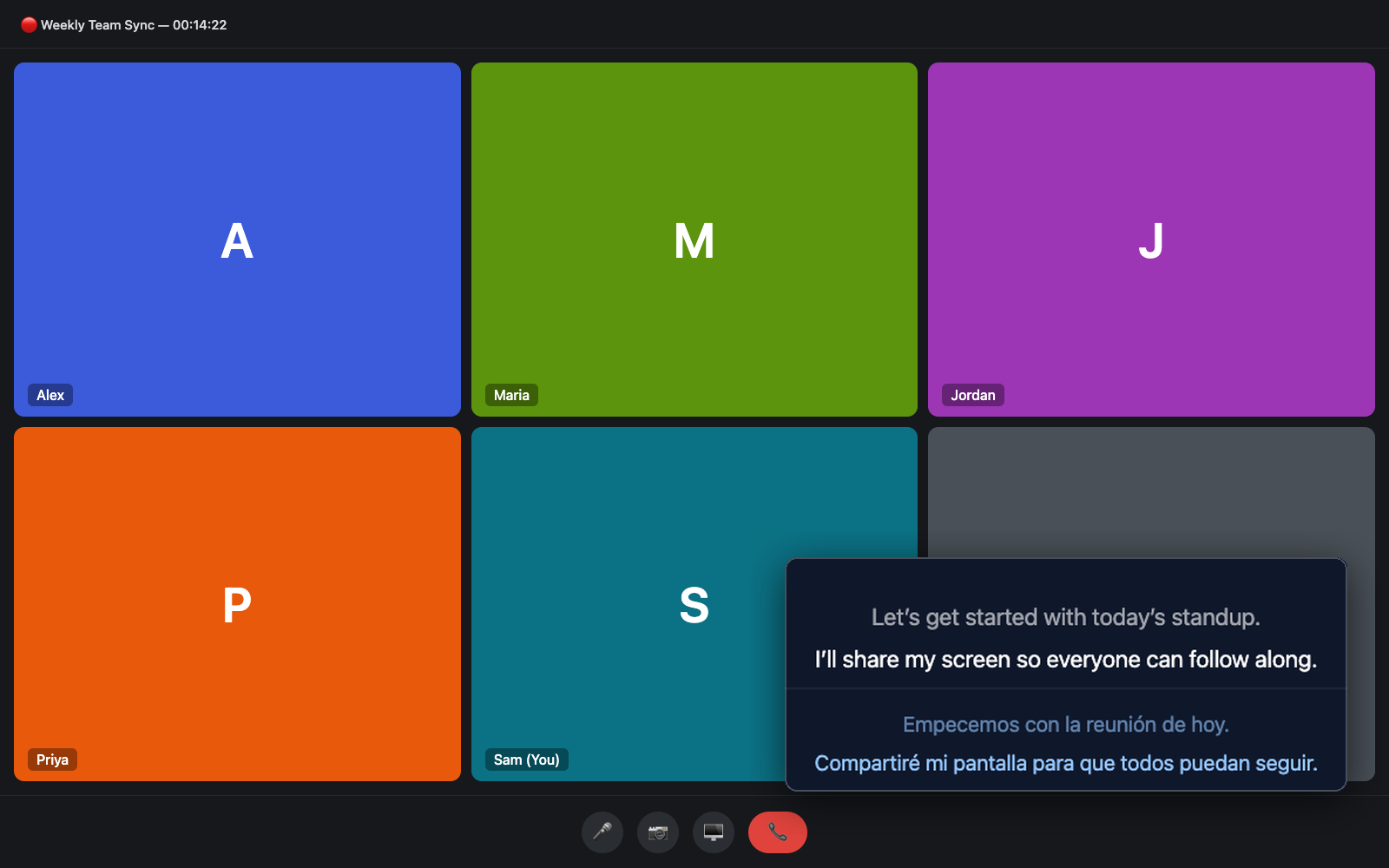
Available on Chrome and Edge only, since it relies on those browsers' Picture-in-Picture window support. On other browsers the button doesn't appear, and subtitles keep showing in the Whisperr tab as in step 5.
Common Issues (Web App)
I don't see the Floating subtitles button
The button only appears in Chrome or Edge on a computer (version 116 or newer). It is hidden in Safari, Firefox, and every phone or tablet browser, including Chrome on iPhone and Android, because those browsers can't open a window that stays on top of other apps. On those, keep the Whisperr tab visible as in step 5, or use the Whisperr app for iPhone/iPad or Android.
If you are on Chrome or Edge and still don't see it: update the browser (Menu → Help → About), then reload whisperr.co/app. Some privacy extensions and company-managed browser policies also turn off the Picture-in-Picture feature the button relies on — try a different browser profile or an incognito window with extensions disabled.
The floating window closed on its own
The window closes when the Whisperr tab is closed or reloaded, and when you click its own close button. Click Floating subtitles again to reopen it; the live transcript keeps going in the Whisperr tab either way.
Still not working? Contact Support
Related
- Floating Subtitles (overview) — how it works, supported platforms, and general tips
- On iPhone/iPad · On Android · On the Chrome Extension · On Mac · On Windows
- Microphone Audio Capture — how Whisperr captures and transcribes audio
- Online Meetings — use floating subtitles during video calls