Floating Subtitles on Windows
This page covers the Windows setup for floating subtitles. For how it works and supported platforms, see the Floating Subtitles overview.
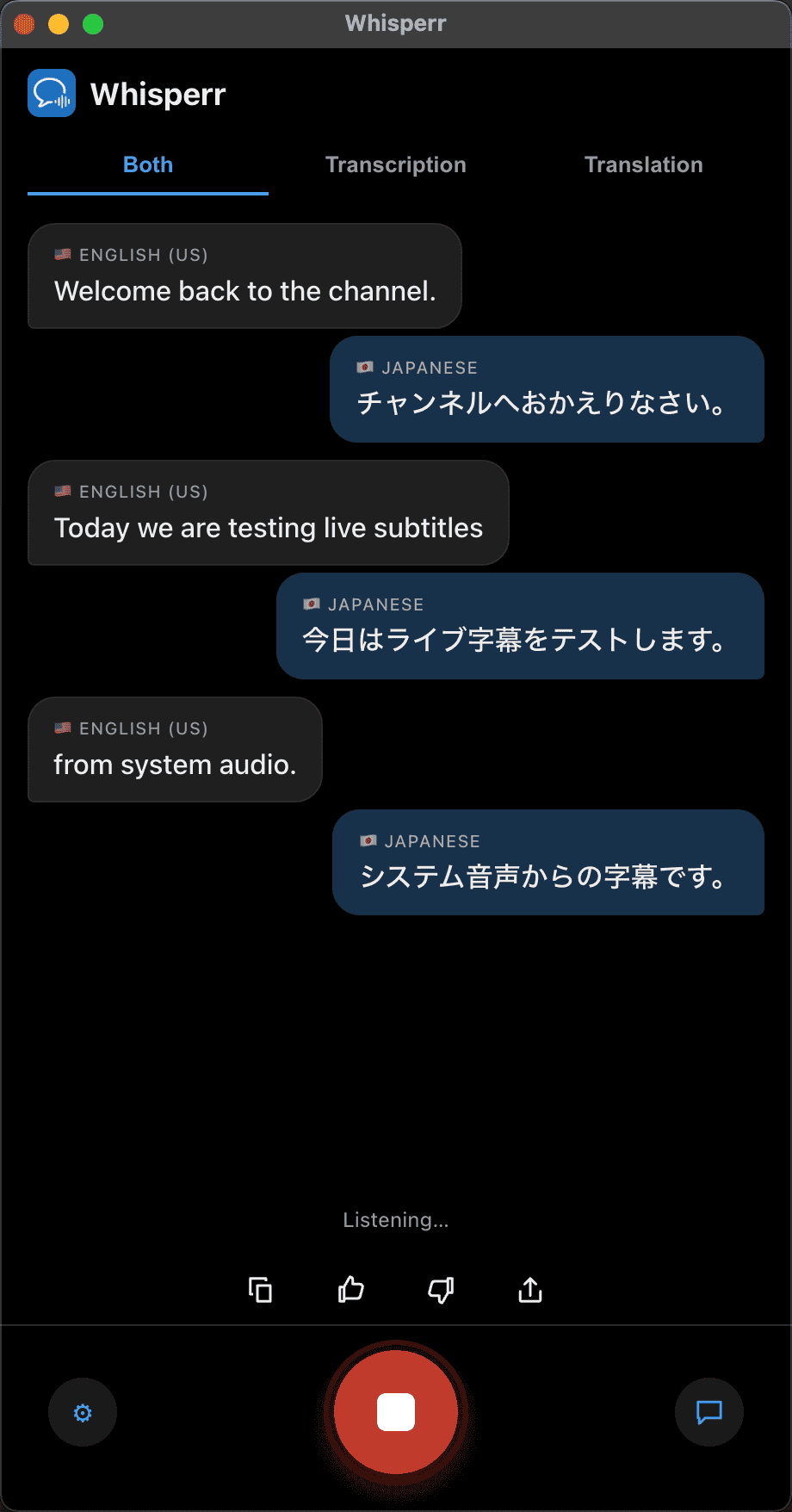
On Windows, Whisperr runs in its own window and captures System audio — whatever you're hearing from a video, call, or any other app — so live subtitles appear beside your content in real time. Keep the Whisperr window visible next to what you're watching (for example, snapped to one side of the screen).
How to Use Floating Subtitles on Windows
- Download Whisperr for Windows (Windows 10 and later), run the installer, and launch Whisperr
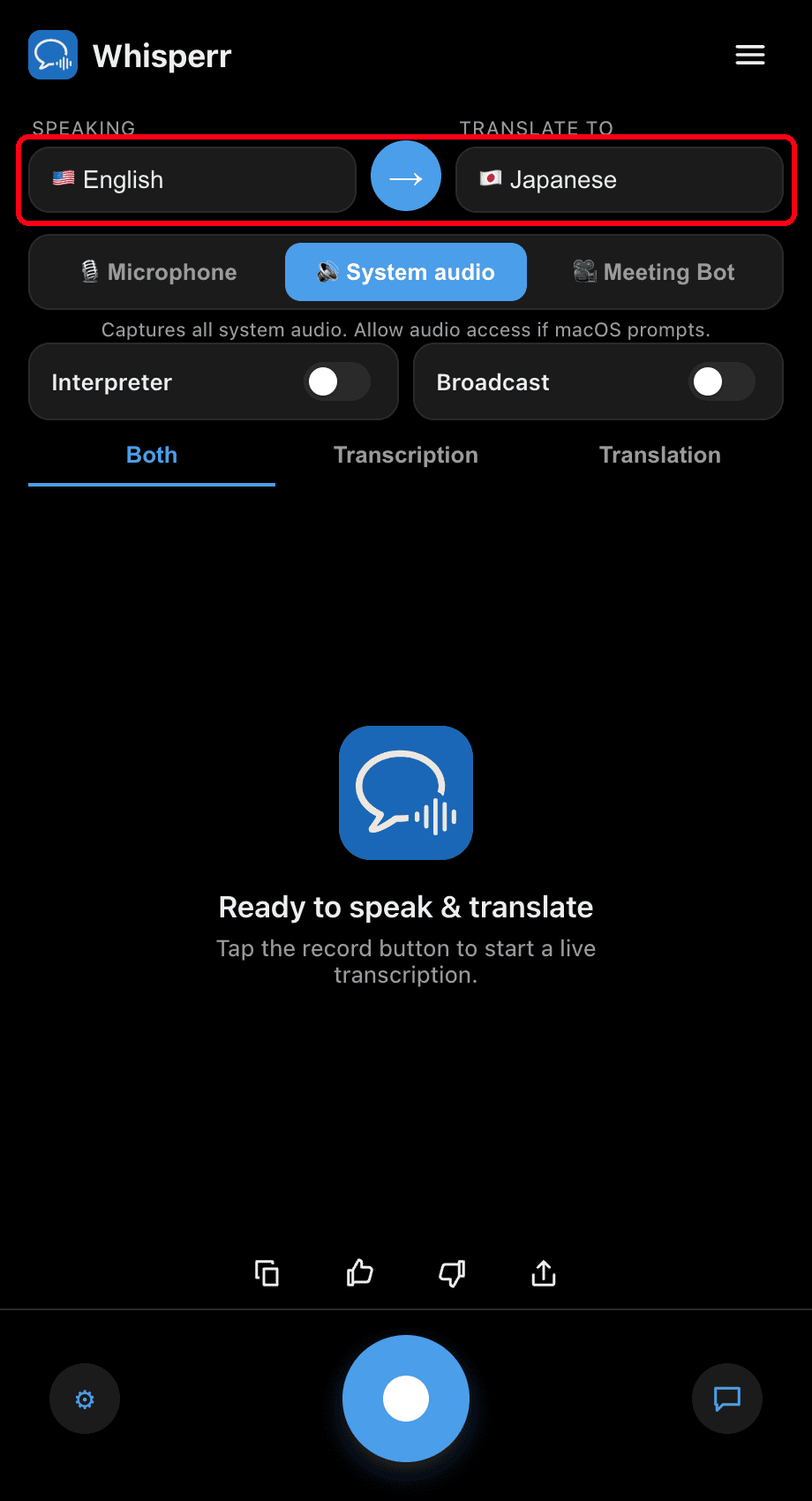
- Set your languages: pick the language you're hearing under Speaking and the one to Translate to
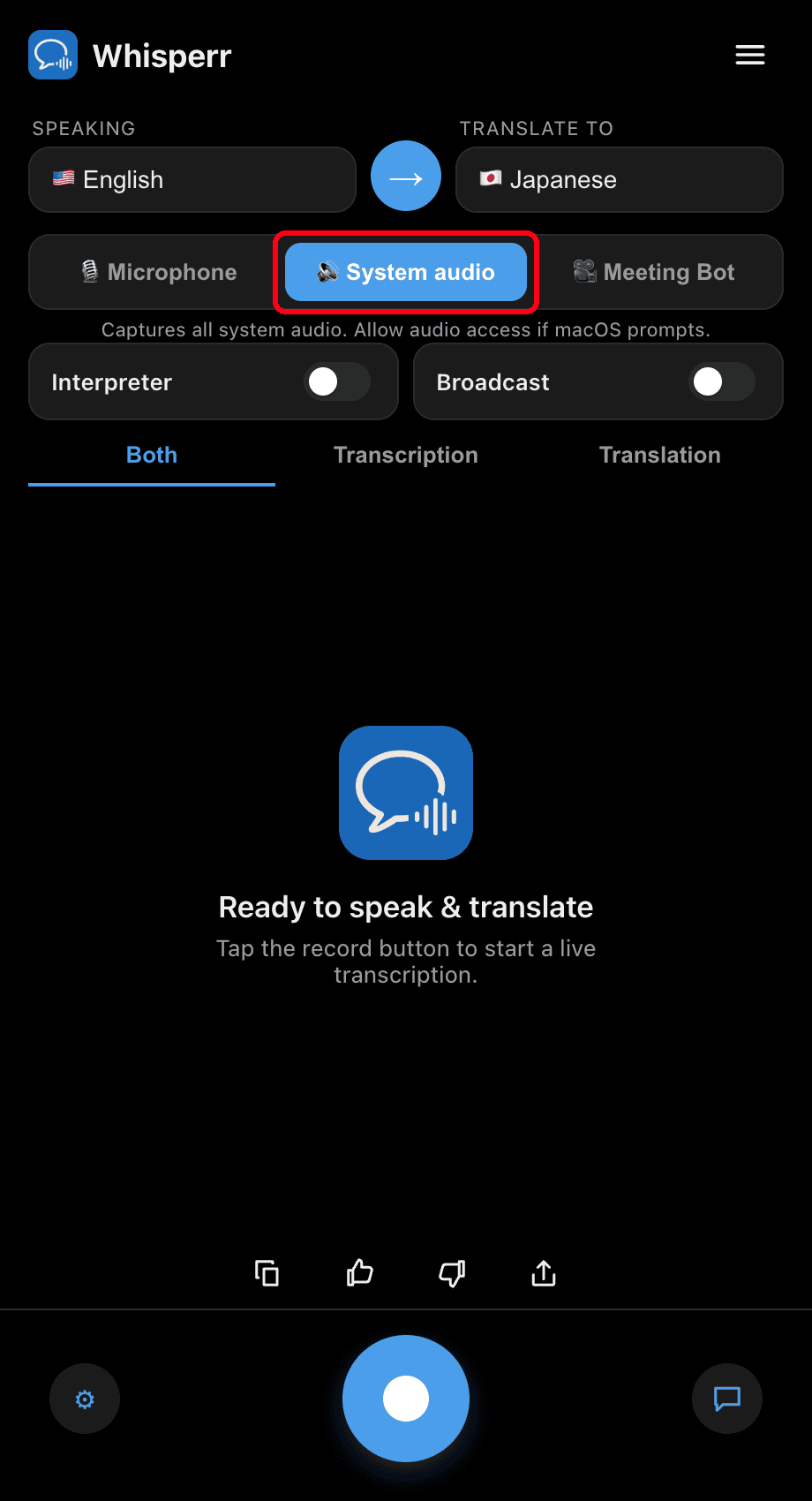
- Switch the source toggle to 🔊 System audio — on Windows this captures your PC's playback directly, no extra setup needed
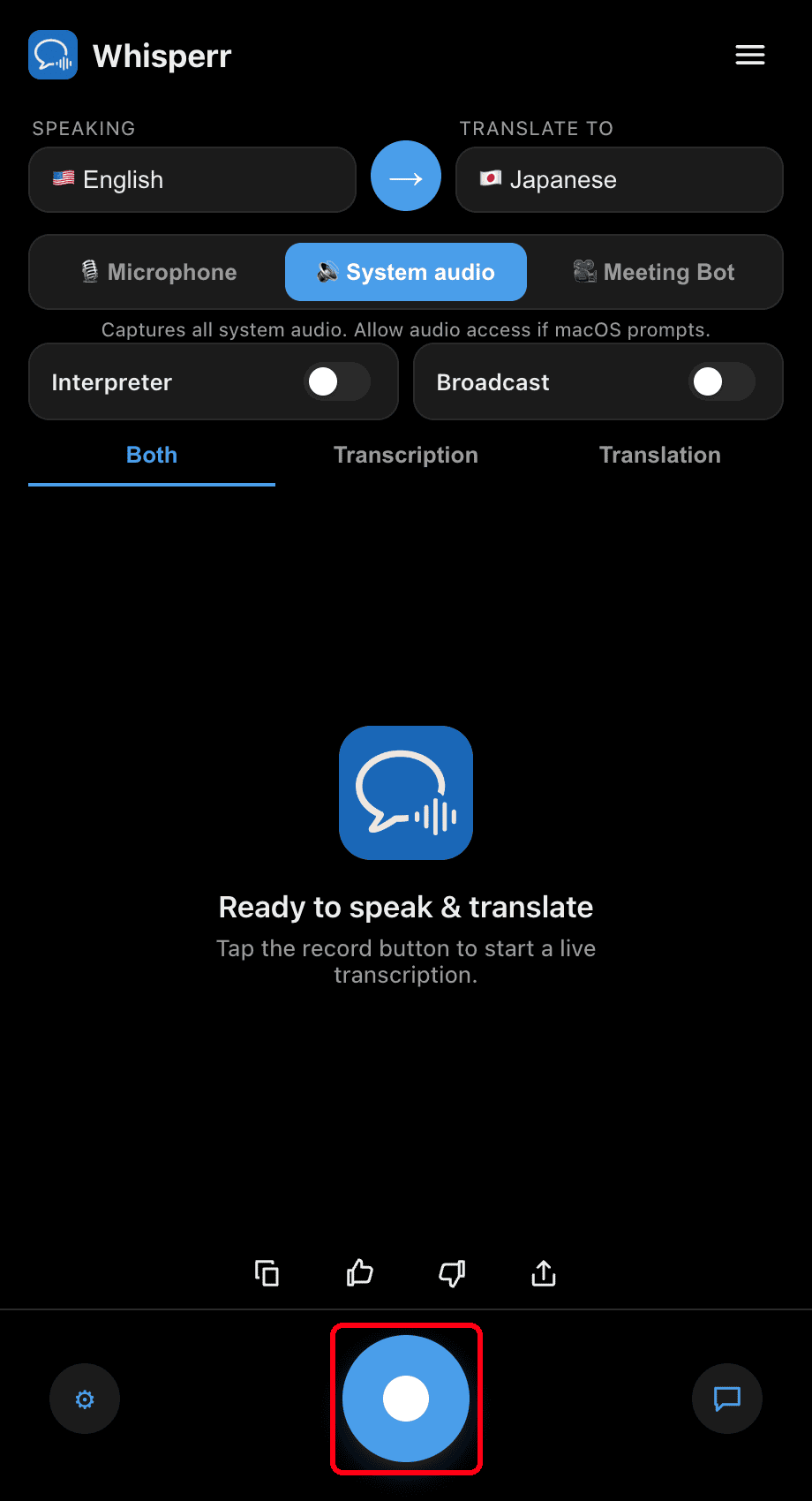
- Click the round record button — Whisperr transcribes everything playing on your PC and shows the translation live
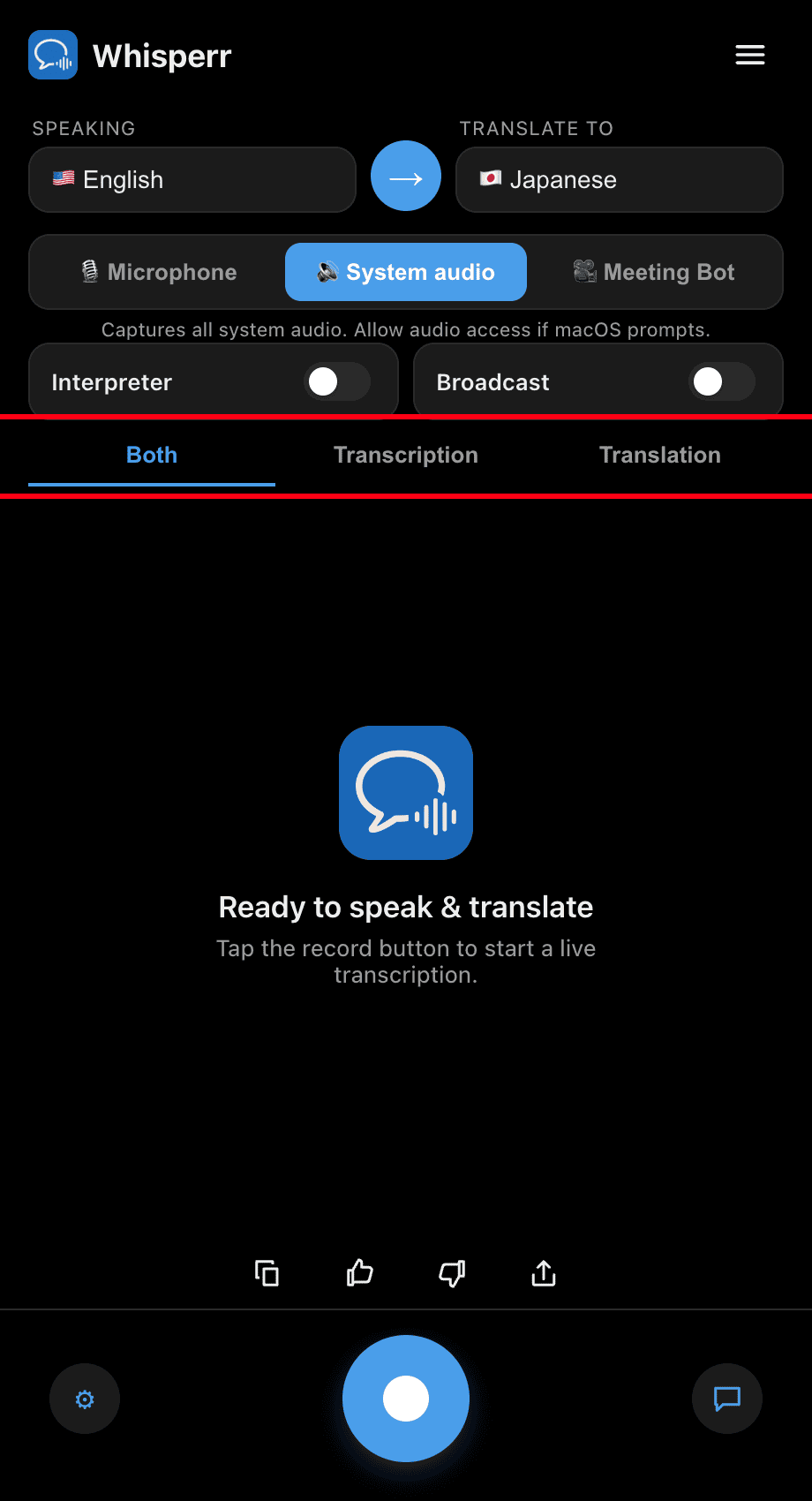
- Play your video or join your call, then keep the Whisperr window beside it — subtitles update in real time as the audio plays. Use the Both / Transcription / Translation tabs to choose what's shown
Common Issues (Windows)
Subtitles are empty while audio plays
Confirm the audio is playing through the right output device and isn't muted: right-click the speaker icon in the taskbar, choose Sound settings, and check Output under System > Sound.
Microphone is selected instead of System audio
To subtitle what you're hearing (not what you say), make sure the source toggle shows 🔊 System audio, not 🎙️ Microphone.
Still nothing
Restart the app and try again.
Still not working? Contact Support
Related
- Floating Subtitles (overview) — how it works, supported platforms, and general tips
- On Mac · On iPhone/iPad · On Android · On the Web App
- Microphone Audio Capture on Windows — transcribe your own voice or an external speaker instead
- Online Meetings — use subtitles during video calls