MCP Integration
Let Claude, ChatGPT, or Codex work with your Whisperr account. Once connected, you can ask it — in plain words — to send a Whisperr bot into a meeting, check on it, and later read back, summarize, or translate what was said.
MCP (Model Context Protocol) is the open standard Claude, ChatGPT, and Codex use to connect to other apps. Whisperr has an MCP server, so they can use Whisperr the same way you do.
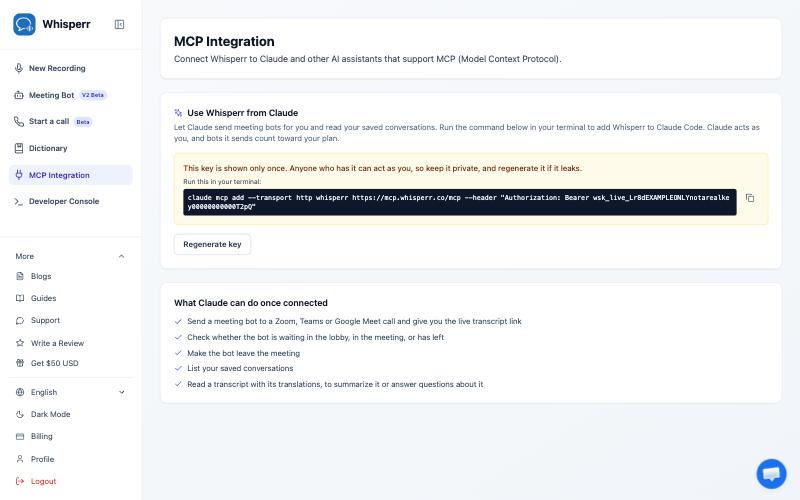
What Claude, ChatGPT, and Codex Can Do
| You ask it to… | What happens |
|---|---|
| "Send a Whisperr bot to this Zoom link for English and Japanese" | A Meeting Bot joins the call and transcribes and translates it. You get the live transcript link to share. |
| "Is the bot in the meeting yet?" | It checks whether the bot is waiting in the lobby, in the meeting, or has left. |
| "Stop the bot" | The bot leaves the meeting. |
| "List my Whisperr conversations" | It lists the conversations you saved to the cloud. |
| "Read my last meeting and give me the action items" | It reads the transcript, with its translations, then summarizes it or answers your questions. |
Your assistant does the summarizing and writing; Whisperr supplies the meeting and the transcript.
How It Works
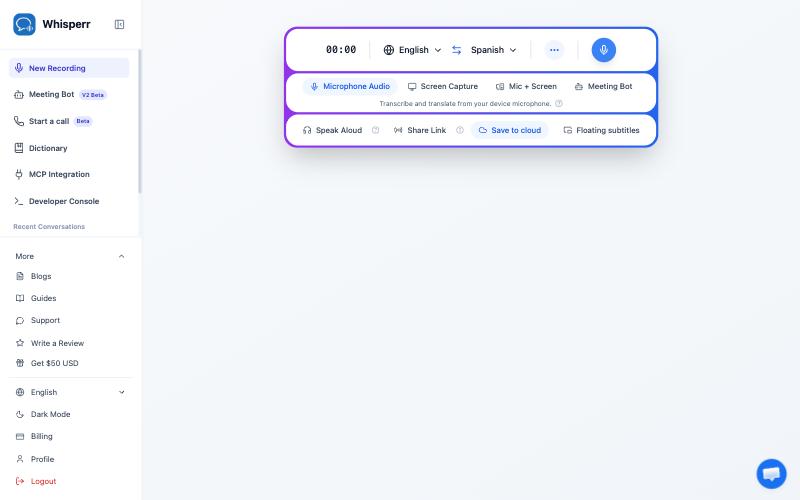
- Open MCP Integration in the Whisperr Web App — it's in the sidebar, right below Dictionary
- Add Whisperr to Claude, ChatGPT, or Codex — follow the guide for the app you use (below)
- Ask Claude, ChatGPT, or Codex to send a bot to a meeting, or to read one of your saved conversations
Get Started
Choose the app you use:
- Claude Desktop — add Whisperr as a custom connector
- Claude Code (terminal) — add Whisperr with one command
- ChatGPT — add Whisperr as a custom MCP server
- Codex (terminal) — add Whisperr with two commands
Your MCP Key
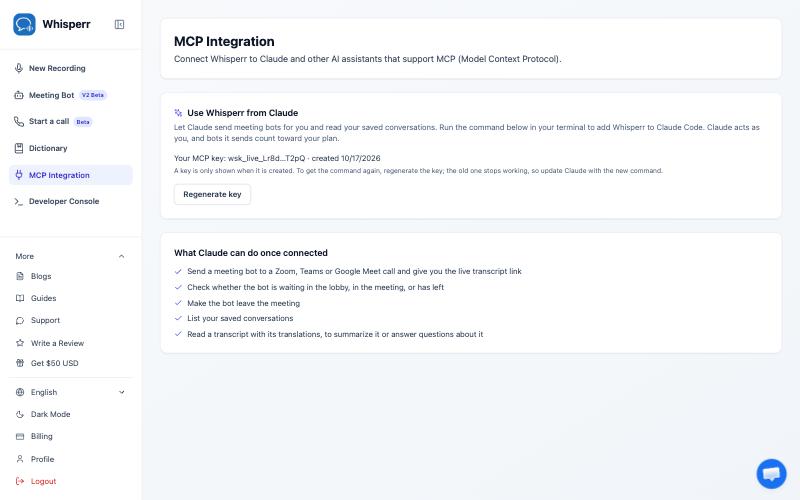
The first time you open MCP Integration, Whisperr creates an MCP key for you. It's what lets Claude Code act as you in Whisperr. Claude Desktop, ChatGPT, and Codex sign in with your Whisperr account instead, so there's no key to copy.
- It's shown only once, right after it's created. Copy it then.
- Treat it like a password. Anyone who has it can send bots and read your conversations as you.
- Lost it, or think it leaked? Click Regenerate key on the same page. The old key stops working immediately; add Whisperr to Claude Code again with the new one.
Good to Know
- A Whisperr account is required. Reading your saved conversations works on any account. Sending a meeting bot needs an active Whisperr subscription, and your plan runs one bot at a time.
- Your assistant can only read conversations you saved to the cloud. Turn on Store on the Cloud for the sessions you want it to see. Bots it sends save their transcript by default.
- Meetings: Zoom, Microsoft Teams, and Google Meet. The bot joins as a participant named "Whisperr Bot"; if the meeting has a lobby or waiting room, the host has to admit it. See Meeting Bot.
- Your assistant asks before it acts. You approve Whisperr actions as it asks, unless you choose to always allow them. Only always allow if you're comfortable with it sending bots without asking.
- What the assistant reads goes to Anthropic or OpenAI. The transcripts Claude, ChatGPT, or Codex reads become part of your conversation with it, so Anthropic (Claude) or OpenAI (ChatGPT and Codex) handles them under the privacy terms of your account with them, not Whisperr's.
Troubleshooting
| You see… | What to do |
|---|---|
| "Invalid or expired API key" | The key was regenerated or revoked. Open MCP Integration, click Regenerate key, and add Whisperr to Claude Code again with the new one. If you connected Claude Desktop with a key, remove the connector and add it again with the new key. If you connected Claude Desktop, ChatGPT, or Codex by signing in, disconnect Whisperr under Connected apps and connect again. |
| "subscription_required" | Sending a bot needs an active Whisperr subscription. Reading conversations doesn't. Subscribe in the Web App under Billing. |
| "concurrency_limit" | A bot of yours is still in a meeting. Ask your assistant to stop it, or wait for it to finish, then try again. |
| The bot never joins | Check the meeting link, and look for a lobby: the host must admit "Whisperr Bot". |
| "No saved conversations" | Your assistant only sees conversations saved to the cloud. Run a bot or turn on Store on the Cloud first. |
Related
- Meeting Bot — the bot your assistant sends, and how it joins calls
- Store on the Cloud — keep your sessions so your assistant can read them later
- Calls — start a translated call and share a link