Whisperr in Claude Code
This page covers adding Whisperr to Claude Code, Anthropic's terminal app. For what you can do once it's connected, see the MCP Integration overview. Using the Claude desktop app instead? See Claude Desktop.
Before You Start
- Claude Code installed and signed in
- A Whisperr account — sign in to the Web App. Sending meeting bots needs an active subscription; reading your saved conversations doesn't.
How to Add Whisperr
- Go to whisperr.co/app and sign in
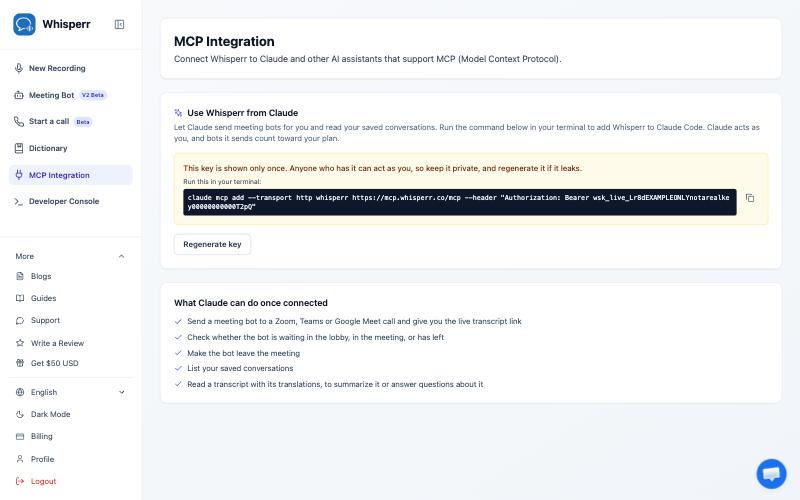
- Click MCP Integration in the sidebar, right below Dictionary
- Copy the command the page shows. It's your key, already filled in — and it's shown only once
-
Paste it into your terminal and press Enter. It looks like this (your key and address are filled in on the page):
claude mcp add --scope user --transport http whisperr https://prod-whisperr-mcp.fly.dev/mcp --header "Authorization: Bearer wsk_live_…" -
Check that it connected:
claude mcp listYou should see
whisperrlisted as connected. Inside Claude Code, typing/mcpshows the same, with Whisperr's six tools.
--scope user adds Whisperr for you everywhere, not just in the folder you ran the command in.
If Whisperr Was Added Before
claude mcp add won't replace an existing entry. Remove the old one first, then run the new command. The page shows both commands when you generate a key.
claude mcp remove --scope user whisperr
Try It
Start Claude Code with claude, then ask, in plain words:
| Ask | What happens |
|---|---|
| "List my Whisperr conversations" | Your saved conversations, with links |
| "Read my most recent conversation and summarize it" | Claude reads the transcript and its translations, then summarizes |
| "Send a Whisperr bot to your meeting link for English and Japanese" | A bot joins and Claude gives you the live transcript link. Admit "Whisperr Bot" if the meeting has a lobby |
| "Is the bot in the meeting yet?" | Waiting room, in the meeting, or ended |
| "Stop the bot" | The bot leaves the meeting |
| "Read that meeting's transcript" | A couple of minutes after the meeting ends, the transcript you just recorded |
Claude Code asks before it uses a Whisperr tool. Approve each one, or choose to always allow it if you trust it.
Your plan runs one bot at a time. If Claude says you've reached the limit, ask it to stop the running bot first.
Changing or Removing the Key
- Regenerate (lost the command, or the key may have leaked): on MCP Integration, click Regenerate key. The old key stops working immediately. Run the remove command, then the new add command.
- Disconnect Claude Code: run
claude mcp remove --scope user whisperr.
The command contains your key, so your shell history does too. Don't share your terminal history or paste the command into chats or screenshots. If you do, regenerate the key.
Troubleshooting
| What you see | What to do |
|---|---|
whisperr isn't in claude mcp list | Run the add command again. If it says the name already exists, run the remove command first. |
| "Invalid or expired API key" | The key was regenerated or revoked. Click Regenerate key on MCP Integration, then remove and re-add. |
| "subscription_required" | Sending a bot needs an active subscription. Reading conversations works without one. |
| "concurrency_limit" | A bot of yours is still in a meeting. Stop it first. |
| The bot doesn't join | Check the meeting link and look for a lobby — the host must admit "Whisperr Bot". |
More in the MCP Integration overview.
Related
- MCP Integration — what Claude can do with Whisperr
- Claude Desktop — connect the Claude desktop app instead
- ChatGPT — connect ChatGPT instead
- Meeting Bot — how the bot joins calls