Whisperr in Claude Desktop
This page walks you through connecting Whisperr to the Claude desktop app as a custom connector, one screen at a time. You sign in to Whisperr with your normal account and click Allow. There's no key to copy and nothing to type in a terminal.
For what you can do once it's connected, see the MCP Integration overview. Prefer the terminal? See Claude Code.
Before You Start
- Claude Desktop, signed in. Custom connectors are available on Free, Pro, and Max (Free accounts can add one), and on Team and Enterprise (see Team and Enterprise below).
- A Whisperr account — sign in to the Web App. Sending meeting bots needs an active subscription; reading your saved conversations doesn't.
How to Connect Whisperr
1. Copy the connector address
- Go to whisperr.co/app and sign in
- Click MCP Integration in the sidebar, right below Dictionary
- Under Claude on claude.ai or the desktop app, click the copy button next to the address. It ends in
/mcp
Keep it on your clipboard for step 4.
2. Open Connectors in Claude Desktop
In Claude Desktop, click Customize in the left sidebar, then open the Connectors tab.

3. Add a custom connector
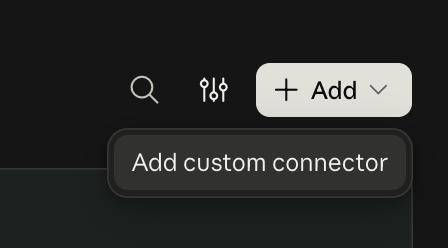
Click + Add at the top right, then choose Add custom connector.
4. Enter a name and the address
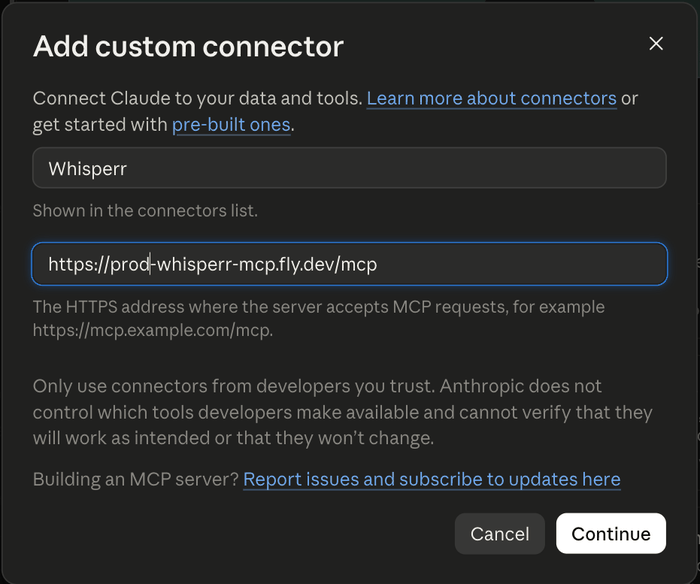
- In the first box, type a name. Use
Whisperr. It's how the connector appears in your list. - In the second box, paste the connector address you copied
- Click Continue
5. Keep the detected sign-in settings, then click Add
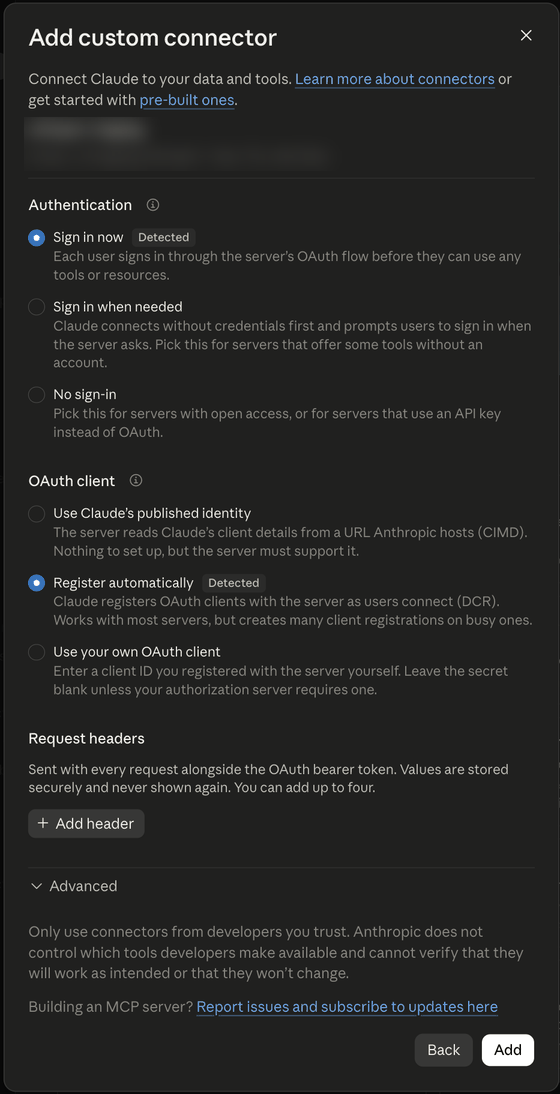
Claude checks the address and recognizes that Whisperr uses sign-in. You'll see Sign in now marked Detected, and Register automatically marked Detected under OAuth client. Leave both as they are, and leave Request headers empty. Click Add.
6. Click Connect
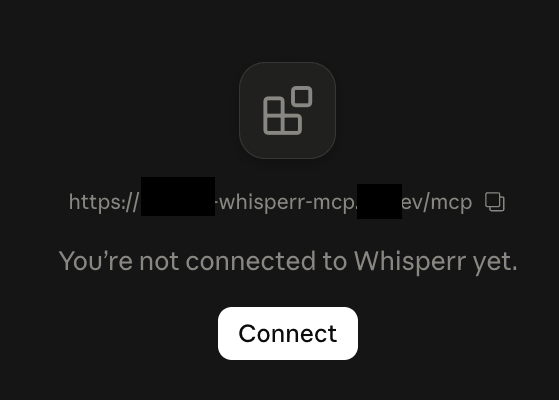
Whisperr now appears in your connectors, but says You're not connected to Whisperr yet. Click Connect.
Your web browser opens on a Claude page asking Finish connecting a connector? You just started this from Claude Desktop, so click Continue connecting.
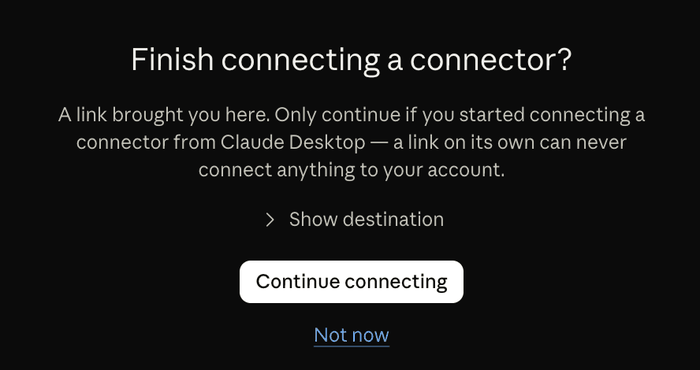
Only click Continue connecting if you just pressed Connect in Claude Desktop yourself. A link someone sends you can never connect anything on its own, but if you didn't start this, click Not now.
7. Sign in to Whisperr and click Allow
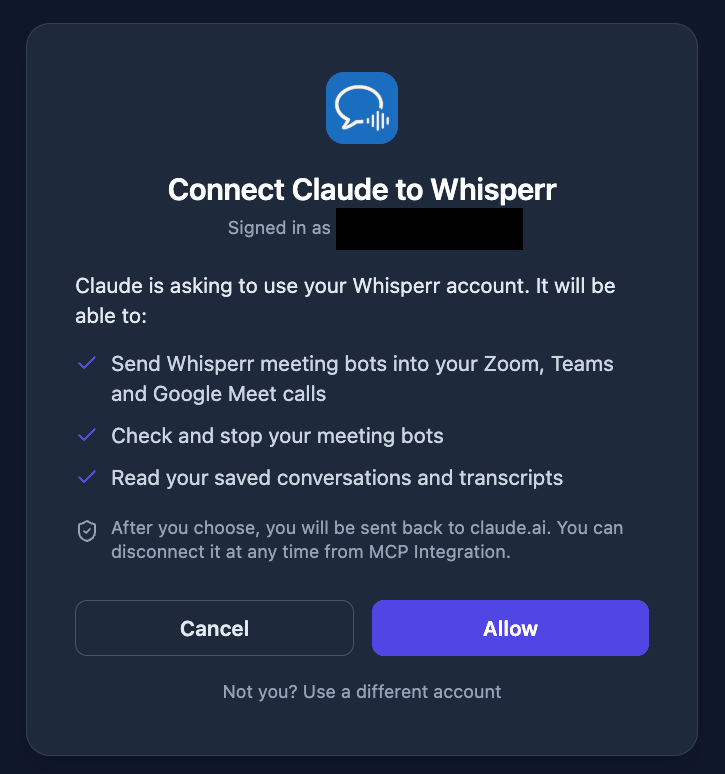
The browser now shows Whisperr. If you're not signed in, sign in first (Google, Apple, or email, whichever you use for Whisperr). Then you'll see Connect Claude to Whisperr, with the account you're signed in as and exactly what Claude will be able to do:
- Send Whisperr meeting bots into your Zoom, Teams, and Google Meet calls
- Check and stop your meeting bots
- Read your saved conversations and transcripts
Click Allow. (Cancel connects nothing. If it's the wrong account, click Not you? Use a different account.)
8. Go back to Claude Desktop
The browser shows Connected — Taking you back to the desktop app. Your browser may ask Open Claude? Click Open Claude. (If you tick Always allow, it won't ask next time.) You can then close the browser tab.
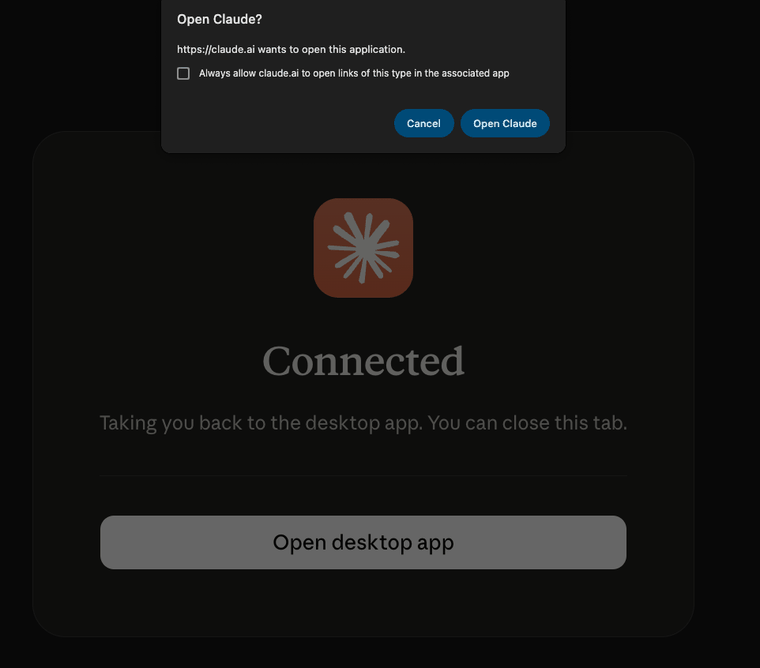
Back in Claude Desktop, Whisperr is connected.
Use It in a Chat
- Open a chat and click the + button at the lower left
- Choose Connectors and switch Whisperr on for this conversation
- Ask Claude, in plain words:
| Ask | What happens |
|---|---|
| "List my Whisperr conversations" | Your saved conversations, with links |
| "Read my most recent conversation and summarize it" | Claude reads the transcript and its translations, then summarizes |
| "Send a Whisperr bot to your meeting link for English and Japanese" | A bot joins and Claude gives you the live transcript link. Admit "Whisperr Bot" if the meeting has a lobby |
| "Is the bot in the meeting yet?" / "Stop the bot" | Claude checks on it, or makes it leave |
Claude asks before it uses a Whisperr tool. Click Allow each time, or Allow always if you trust it to send bots without asking. You can switch individual tools off in the Search and tools menu.
Your plan runs one bot at a time. If Claude says you've reached the limit, ask it to stop the running bot first.
Disconnect Whisperr
- From Whisperr: open MCP Integration in the Web App. Under Connected apps you'll see Claude and when it connected. Click Disconnect. Claude is signed out and has to connect again to work.
- From Claude: open Customize, then Connectors, and remove the Whisperr connector.
Team and Enterprise
On Team and Enterprise plans, an organization Owner adds the connector once, and then each person connects with their own account:
- Owner: go to Organization settings, then Connectors. Click Add, hover over Custom, and choose Web. Enter
Whisperrand the connector address, then continue and add it. - Each member: open Customize, then Connectors, find Whisperr, and click Connect. Each person signs in to their own Whisperr account and clicks Allow, so Claude only ever acts as the person who connected it.
Another Way: Connect With Your MCP Key
If you'd rather not sign in, or sign-in isn't working, you can connect with your MCP key instead. It works on individual accounts.
-
Follow steps 2 to 4 above
-
On the authentication screen, choose No sign-in
-
Under Request headers, click Add header and add:
Name Value AuthorizationBearer wsk_live_…(the wordBearer, a space, then your key) -
Click Add
Your key is on the MCP Integration page, in the command for Claude Code: it's the wsk_live_… text after Bearer, and it's shown only once. If you've lost it, click Regenerate key there.
A key added to an organization connector is shared by everyone who uses it, so every member would act as you in Whisperr. On Team and Enterprise, use the sign-in method above instead, so each person connects as themselves.
Troubleshooting
| What you see | What to do |
|---|---|
| Claude doesn't say Detected for sign-in | Check the address: it must be the full https://…/mcp address from MCP Integration, with no extra spaces. Click Back, correct it, and Continue again. |
| Clicking Connect opens a page asking you to continue, then nothing | Make sure you click Continue connecting, then sign in to Whisperr and click Allow. If you clicked Not now or Cancel, click Connect again. |
| The Whisperr page says the sign-in request isn't valid or has expired | The request only lasts a short while. Go back to Claude Desktop and click Connect again. |
| Whisperr says your account has reached its limit of API keys | Each connected app uses one key. Open MCP Integration (or the Developer Console) and remove a key or app you don't use, then try again. |
| Your browser doesn't offer to open Claude | Open Claude Desktop yourself. If it still says you're not connected, click Connect again. |
| Whisperr doesn't show up in the + menu | Open Customize, then Connectors, and check Whisperr is connected. Then switch it on in the chat. |
| Claude says it can't reach Whisperr, or the key is invalid | The connection was disconnected. Remove the Whisperr connector and add it again. |
| "subscription_required" | Sending a bot needs an active subscription. Reading conversations works without one. |
| "concurrency_limit" | A bot of yours is still in a meeting. Stop it first. |
| The bot doesn't join | Check the meeting link and look for a lobby — the host must admit "Whisperr Bot". |
| "No saved conversations" | Claude only sees conversations saved to the cloud. Run a bot or turn on Store on the Cloud first. |
More in the MCP Integration overview.
Related
- MCP Integration — what Claude can do with Whisperr
- Claude Code (terminal) — add Whisperr with one command instead
- ChatGPT — connect ChatGPT instead
- Meeting Bot — how the bot joins calls