Whisperr in Codex
This page covers adding Whisperr to Codex, OpenAI's terminal app. You run two commands, then sign in to Whisperr in your browser and click Allow. There's no key to copy.
For what you can do once it's connected, see the MCP Integration overview. Using ChatGPT on the web instead? See ChatGPT.
Before You Start
- Codex installed and signed in. See OpenAI's Codex documentation if you need to set it up.
- A Whisperr account — sign in to the Web App. Sending meeting bots needs an active subscription; reading your saved conversations doesn't.
How to Add Whisperr
1. Add the Whisperr server
In your terminal, run:
codex mcp add whisperr --url https://prod-whisperr-mcp.fly.dev/mcp
whisperr is the name Codex will use for it. The address is the same one shown on MCP Integration in the Whisperr Web App.
2. Sign in to Whisperr
Run:
codex mcp login whisperr
Your browser opens on Whisperr. If you're not signed in, sign in first (Google, Apple, or email, whichever you use for Whisperr). Then you'll see Connect Codex to Whisperr, with the account you're signed in as and exactly what Codex will be able to do:
- Send Whisperr meeting bots into your Zoom, Teams, and Google Meet calls
- Check and stop your meeting bots
- Read your saved conversations and transcripts
Click Allow. (Cancel connects nothing. If it's the wrong account, click Not you? Use a different account.)
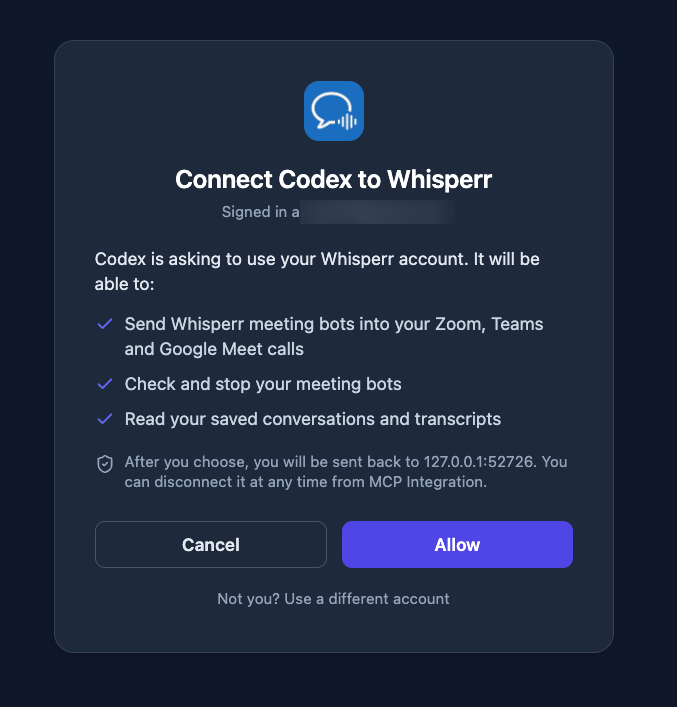
The page says you'll be sent back to an address starting with 127.0.0.1. That's Codex, listening on your own computer to finish signing in. Nothing is sent anywhere else.
Only click Allow if you just ran codex mcp login whisperr yourself. If a page you didn't expect asks you to connect Codex to Whisperr, click Cancel.
3. Start Codex
Back in your terminal, once the login finishes, run:
codex
To check that Whisperr is connected, you can run codex mcp list at any time.
4. Ask Codex
Ask, in plain words:
| Ask | What happens |
|---|---|
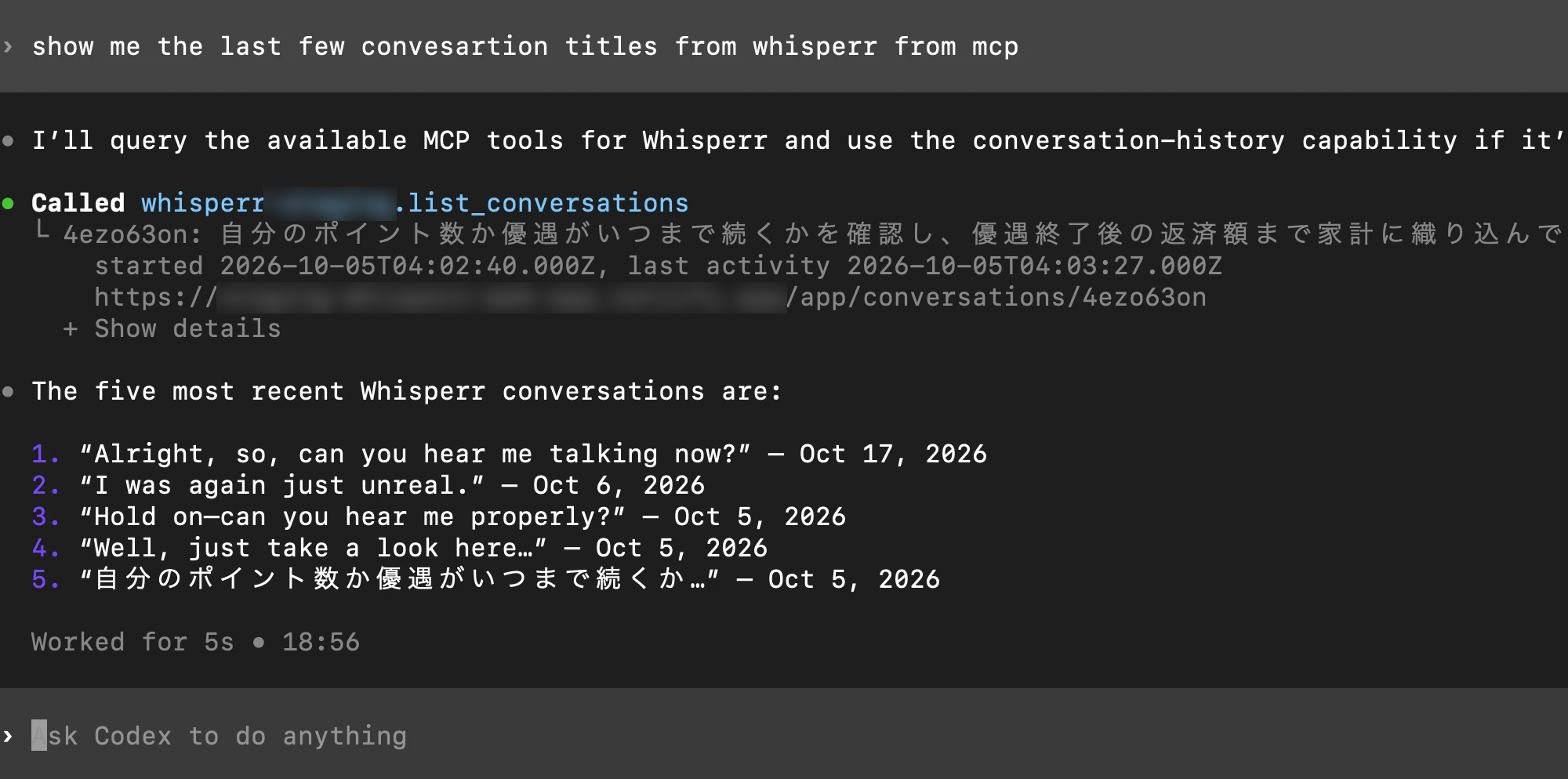
| "Show me the last few conversation titles from Whisperr" | Your saved conversations, with links |
| "Read my most recent Whisperr conversation and summarize it" | Codex reads the transcript and its translations, then summarizes |
| "Send a Whisperr bot to your meeting link for English and Japanese" | A bot joins and Codex gives you the live transcript link. Admit "Whisperr Bot" if the meeting has a lobby |
| "Is the bot in the meeting yet?" / "Stop the bot" | Codex checks on it, or makes it leave |
Codex shows each Whisperr tool it uses, for example whisperr.list_conversations, and then answers from what it found:
Your plan runs one bot at a time. If Codex says you've reached the limit, ask it to stop the running bot first.
Disconnect Whisperr
- From Whisperr: open MCP Integration in the Web App. Under Connected apps you'll see Codex and when it connected. Click Disconnect. Codex is signed out and has to sign in again to work.
- From Codex: run
codex mcp logout whisperrto sign out, orcodex mcp remove whisperrto remove Whisperr completely.
To connect again later: after logout, run codex mcp login whisperr. After remove, run the command from step 1 first to add Whisperr back, then sign in.
Troubleshooting
| What you see | What to do |
|---|---|
codex: command not found | Codex isn't installed, or isn't on your path. See OpenAI's Codex documentation. |
codex mcp add says a server named whisperr already exists | Run codex mcp remove whisperr, then add it again. |
| Your browser doesn't open on Whisperr | Copy the address codex mcp login whisperr prints in the terminal into your browser. |
| The Whisperr page says the sign-in request isn't valid or has expired | The request only lasts a short while. Run codex mcp login whisperr again. |
| Whisperr says your account has reached its limit of API keys | Each connected app uses one key. Open MCP Integration (or the Developer Console) and remove a key or app you don't use, then try again. |
| Codex can't use Whisperr, or says you need to sign in | Run codex mcp login whisperr again. If you clicked Disconnect in the Web App, Codex has to sign in again. |
| "subscription_required" | Sending a bot needs an active subscription. Reading conversations works without one. |
| "concurrency_limit" | A bot of yours is still in a meeting. Stop it first. |
| The bot doesn't join | Check the meeting link and look for a lobby — the host must admit "Whisperr Bot". |
| "No saved conversations" | Codex only sees conversations saved to the cloud. Run a bot or turn on Store on the Cloud first. |
More in the MCP Integration overview.
Related
- MCP Integration — what Codex, ChatGPT, and Claude can do with Whisperr
- ChatGPT — connect ChatGPT on the web instead
- Claude Code (terminal) — add Whisperr to Claude Code
- Meeting Bot — how the bot joins calls