Meeting Bot on iPhone and iPad
This page covers the iPhone/iPad setup for the Meeting Bot. For how it works and which meeting platforms are supported, see the Meeting Bot overview.
How to Use the Meeting Bot on iPhone and iPad
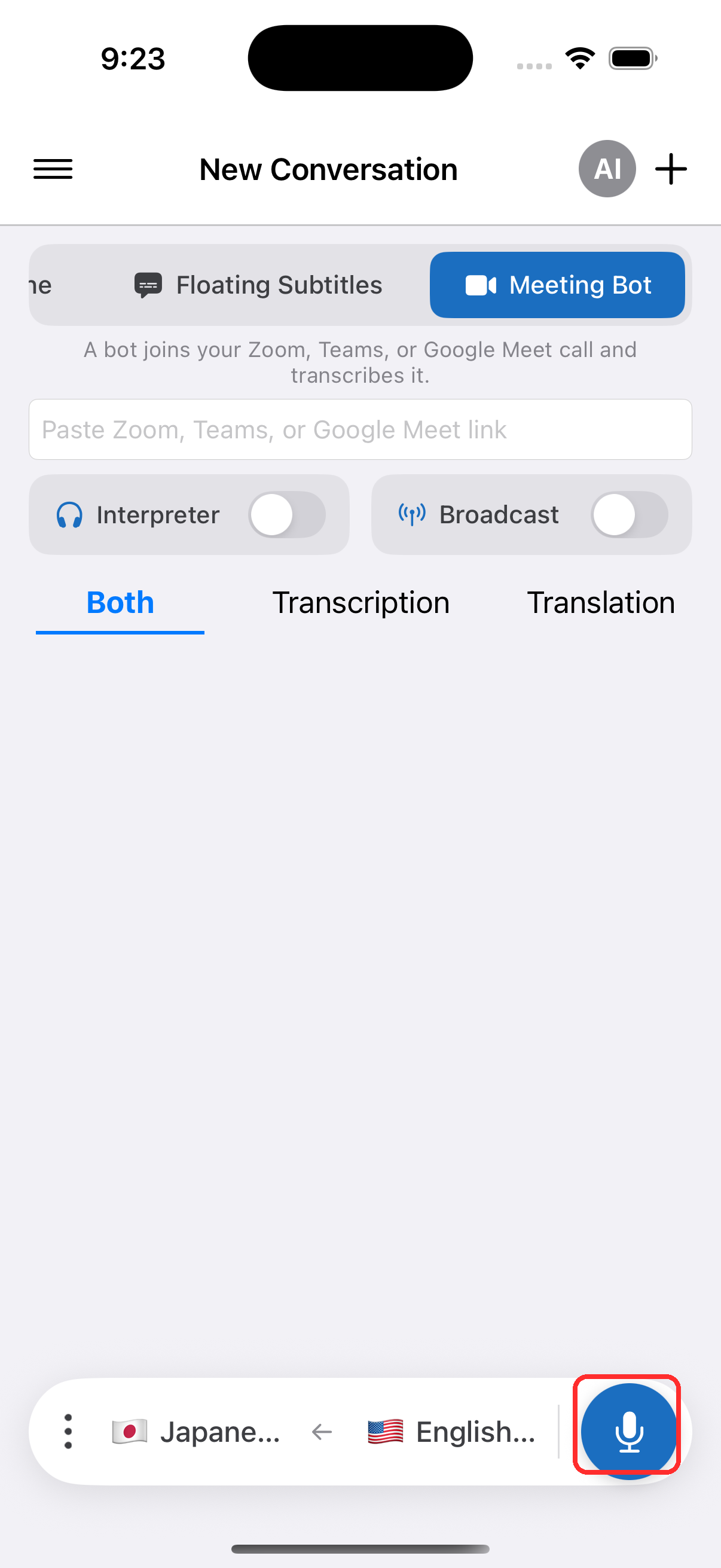
- Open the Whisperr app
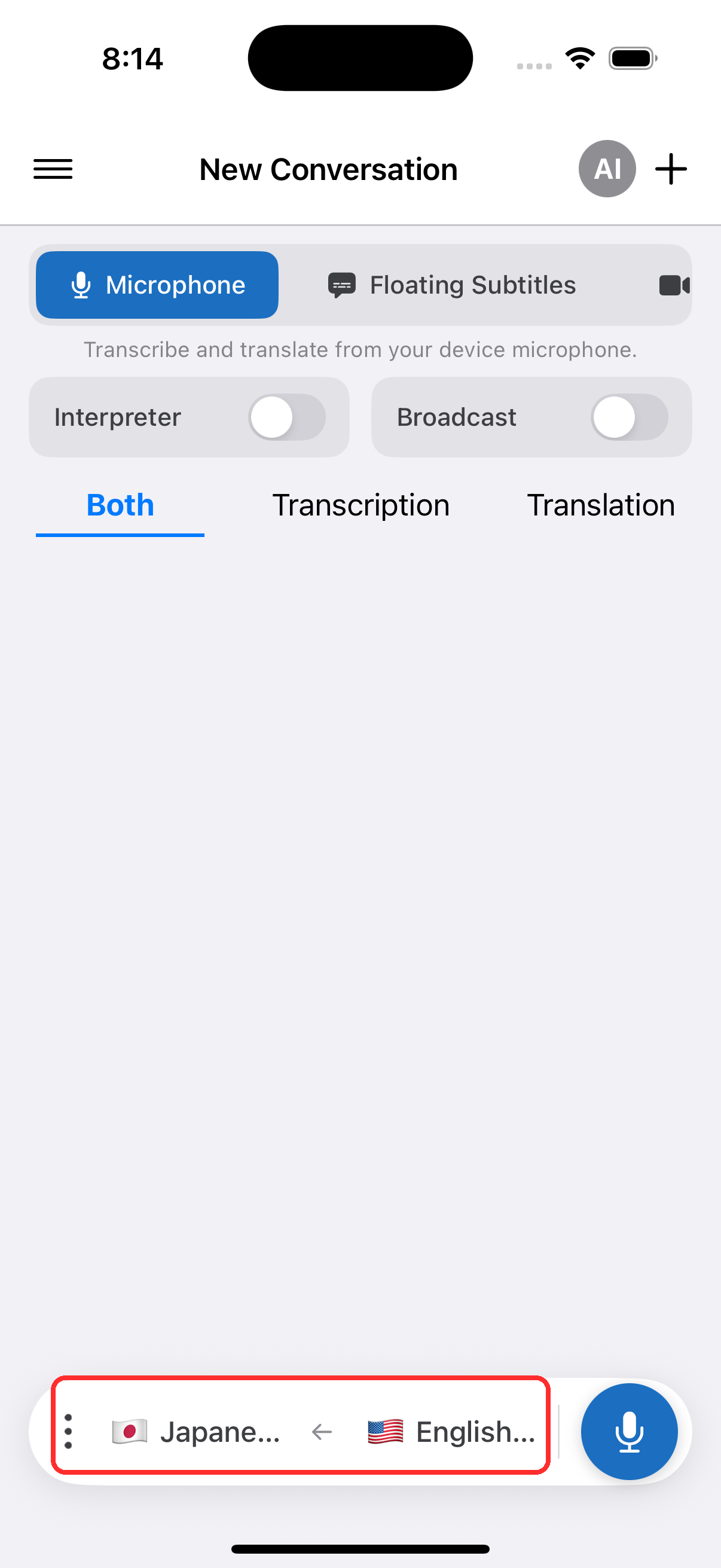
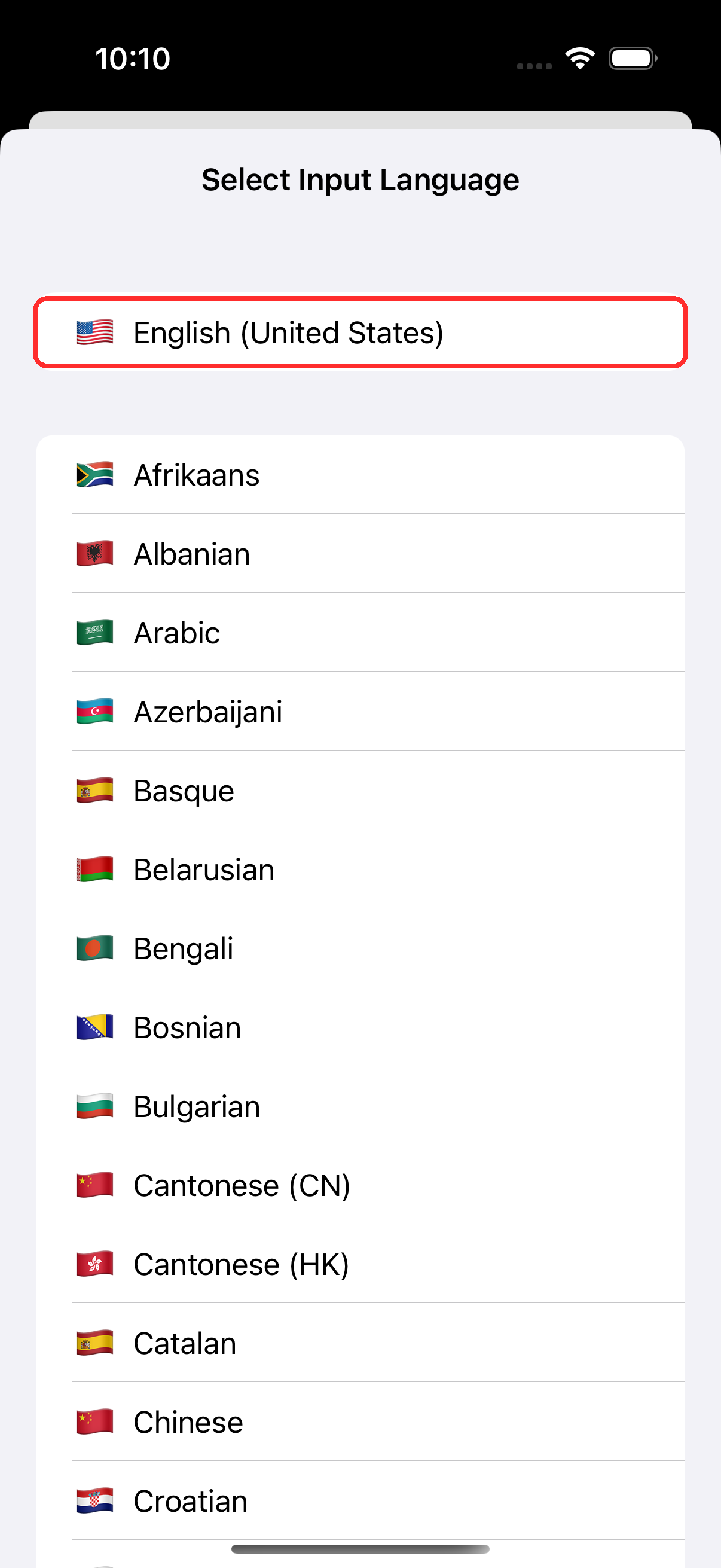
- Select your source and target languages in the bar at the bottom
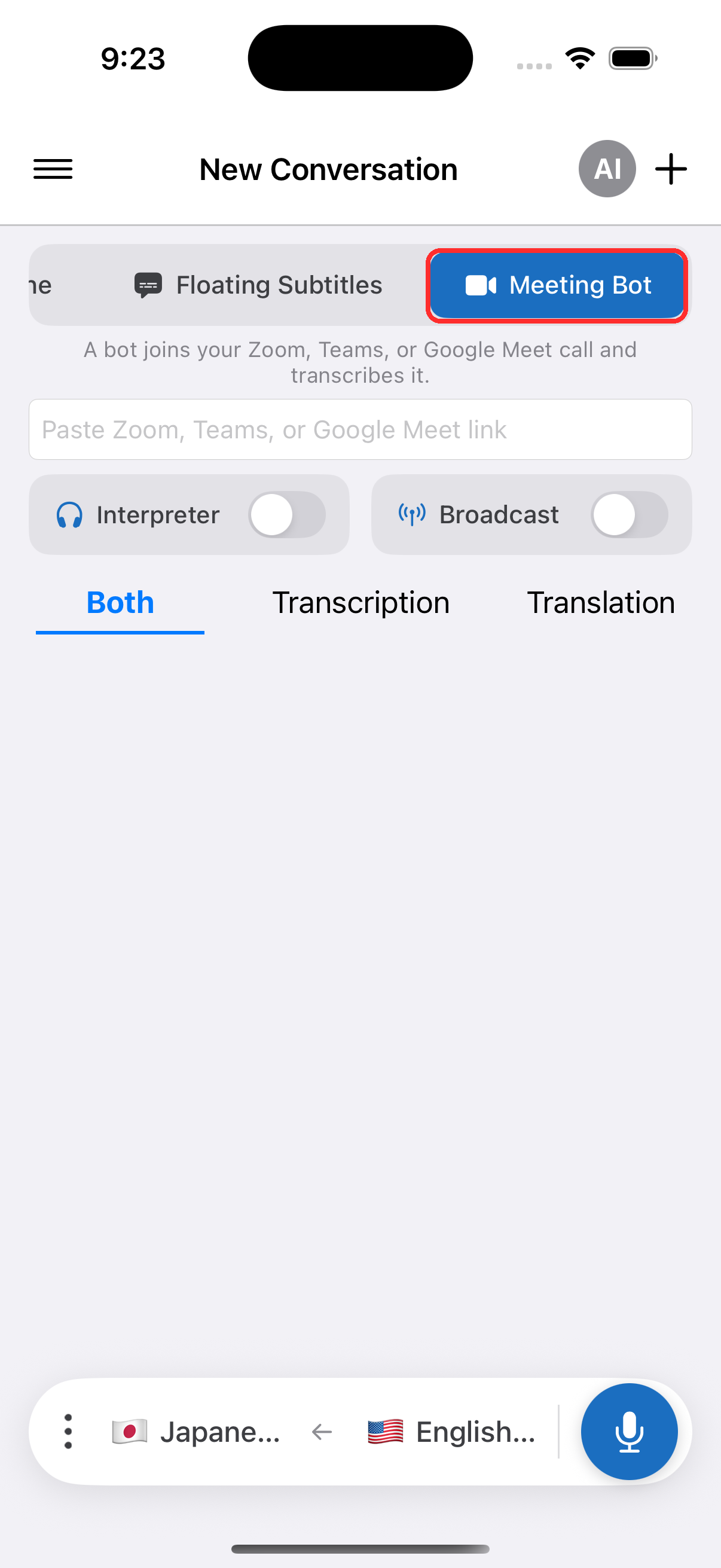
- In the top menu, swipe across and tap Meeting Bot
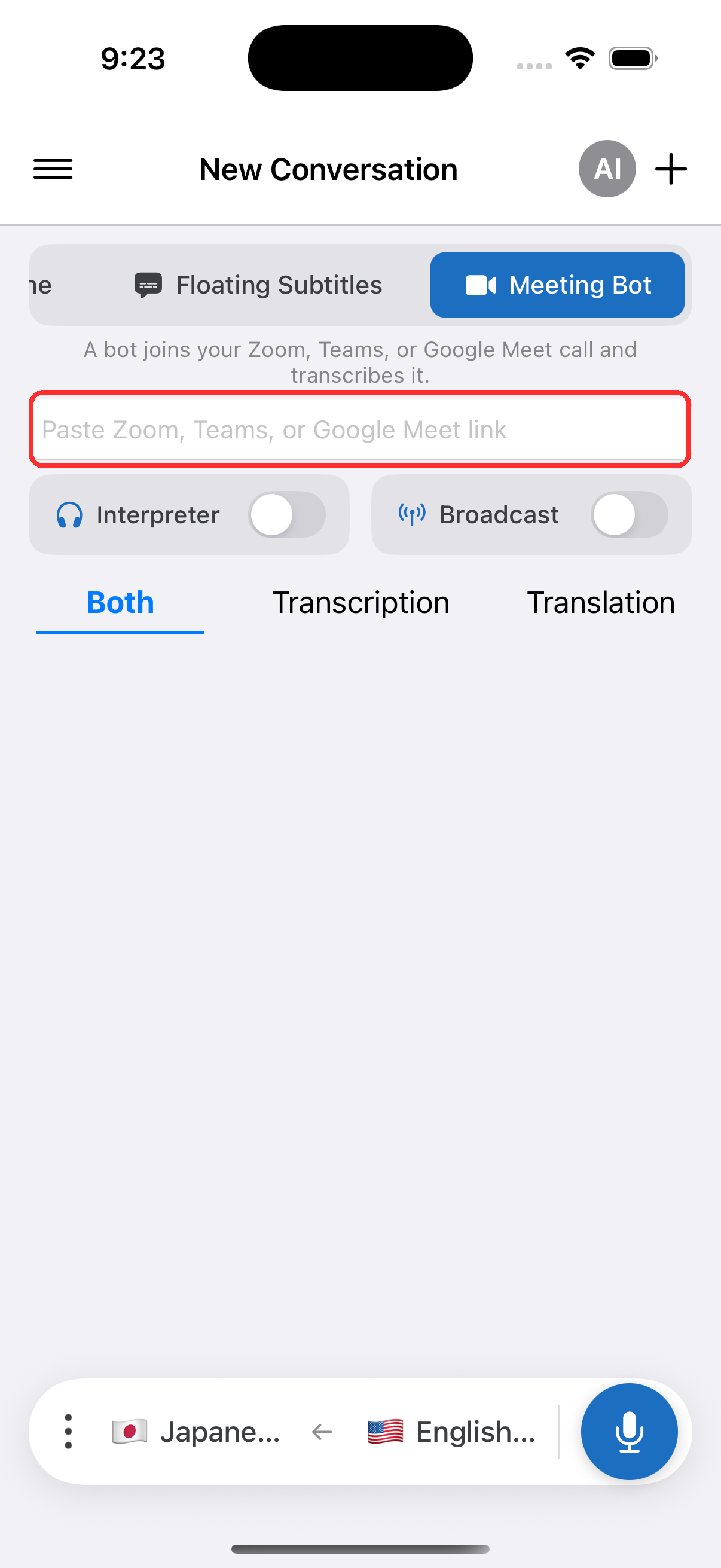
- Paste the meeting link (Zoom, Teams, or Meet) into the field that appears
- Tap the record button — the bot joins the meeting and transcription appears on your device
Admit the bot
The meeting host may need to admit the Whisperr bot from the waiting room before it can start listening.
Common Issues (iPhone/iPad)
Bot not joining the meeting
- Check the meeting link — make sure you pasted the full, valid meeting link
- Admit the bot — the host may need to let the Whisperr bot in from the waiting room
- Check your internet connection — the bot requires a stable connection to join and stream
No transcription appearing after the bot joins
- Make sure someone is speaking — the bot only transcribes when it detects speech
- Check your languages — verify you've selected the correct source and target languages
- Restart the session — stop and start the meeting bot again
Still not working? Contact Support
Related
- Meeting Bot (overview) — how it works and supported meeting platforms
- Microphone Audio Capture — capture audio through your device's microphone instead
- Floating Subtitles — overlay subtitles on top of other apps
- Online Meetings — other ways to get subtitles during calls