
Microphone Audio Capture

Whisperr captures audio through your device's microphone and transcribes and translates speech in real time. This is the core of how Whisperr works — whether you're in a face-to-face conversation, a lecture hall, or watching a video, Whisperr listens through your mic and converts spoken words into text.

How It Works
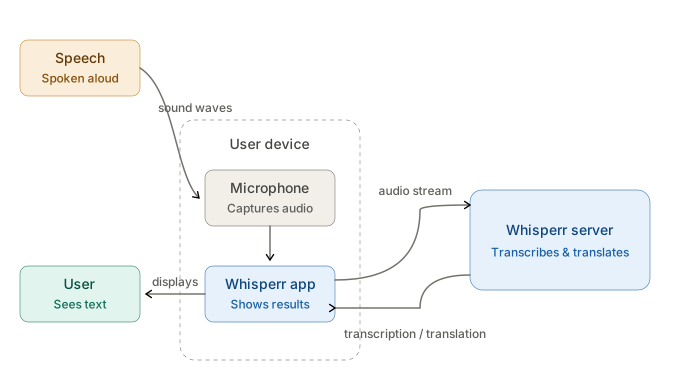
  1. Whisperr accesses your device's microphone — built-in or external
  2. Audio is streamed to Whisperr's speech engine for real-time processing (requires an internet connection)
  3. Transcribed text appears on screen as the speaker talks, with optional translation into your target language

Getting Started

iOS

  1. Open the Whisperr app
  2. When prompted, tap Allow to grant microphone access
  3. Select your source and target languages
  4. Tap the Start button — you'll see live transcription appear on screen
Whisperr iOS app showing real-time transcription from English to Japanese

Whisperr transcribing and translating in real time on iOS

Mac

  1. Open the Whisperr app
  2. When prompted, click Allow to grant microphone access (or enable it in System Settings > Privacy & Security > Microphone)
  3. Select your source and target languages
  4. Click the Start button — you'll see live transcription appear on screen
Whisperr Mac app showing real-time transcription from English to Japanese

Whisperr on Mac with live transcription and translation

Web App

  1. Go to app.whisperr.co
  2. Select your source and target languages
  3. Click the recording button and select Microphone Audio
Click the recording button and select Microphone Audio
  1. Your browser will ask for microphone permission — click Allow

Chrome browser asking for microphone permission

Browser compatibility

The Web App works best in Chrome and Edge. Safari may have limited microphone support depending on your macOS version.

Supported Platforms

PlatformSupportedNotes
iOSCaptures external audio using microphone
MacCaptures external audio using microphone
Web AppRequires browser mic permission
Chrome ExtensionUse Web App to capture mic
Android✅ 🔜Coming soon
Windows✅ 🔜Coming soon

Tips for Best Results

Three tips for best microphone capture results: stay close, reduce noise, use external mic
  • Stay within 1–2 meters of the speaker for best accuracy with a built-in microphone
  • Reduce background noise — Whisperr works best in quieter environments. Turn off TVs, fans, or music that isn't the target audio
  • Use an external microphone for large rooms, lectures, or noisy environments — even a basic lapel mic significantly improves accuracy
  • Speak clearly and at a normal pace — very fast speech or heavy mumbling reduces transcription quality

Common Issues

No transcription appearing

Still not working? Contact Support