Microphone Audio Capture on iPhone and iPad
This page covers the iPhone/iPad setup for microphone capture. For how it works under the hood and tips that apply to every platform, see the Microphone Audio Capture overview.
How to Capture Microphone Audio on iPhone/iPad
- Open the Whisperr app on your iPhone or iPad
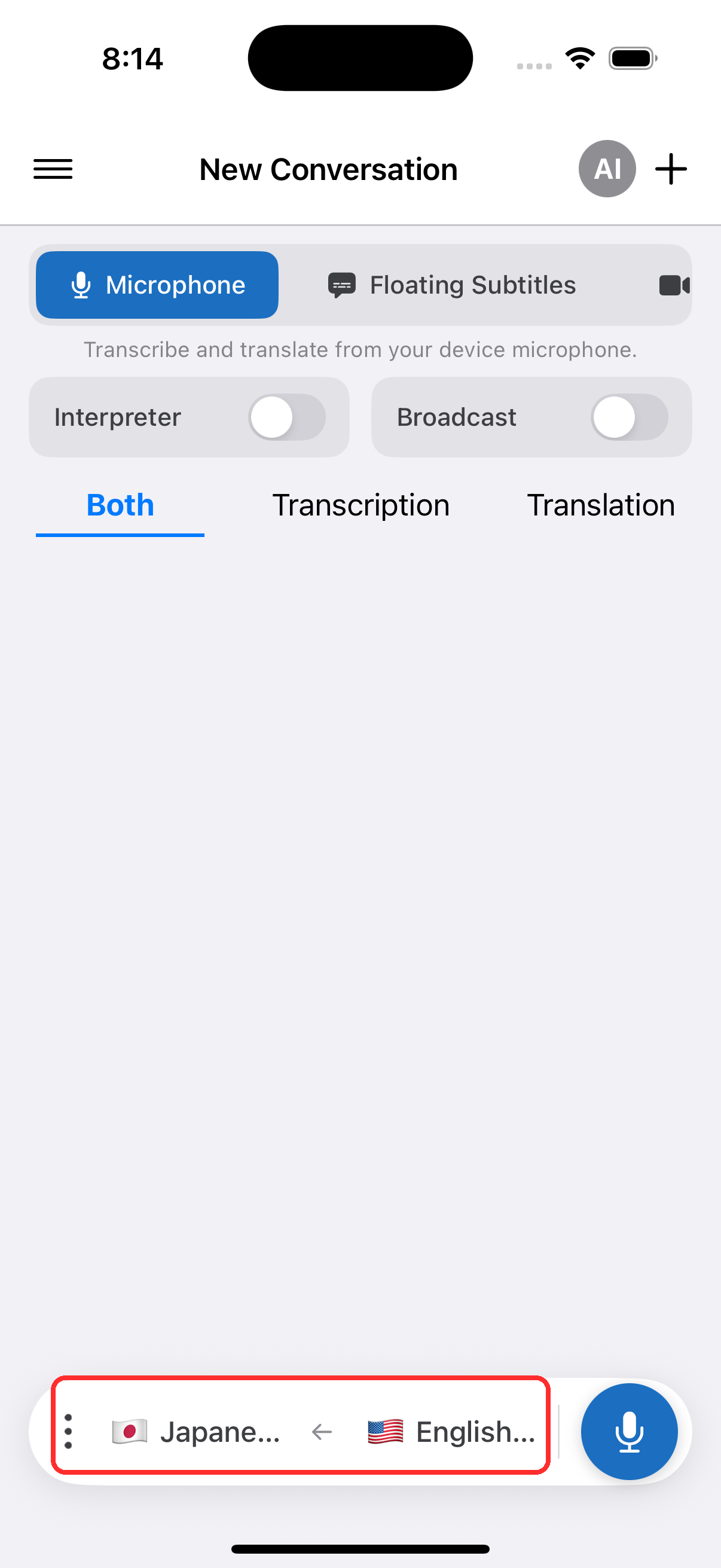
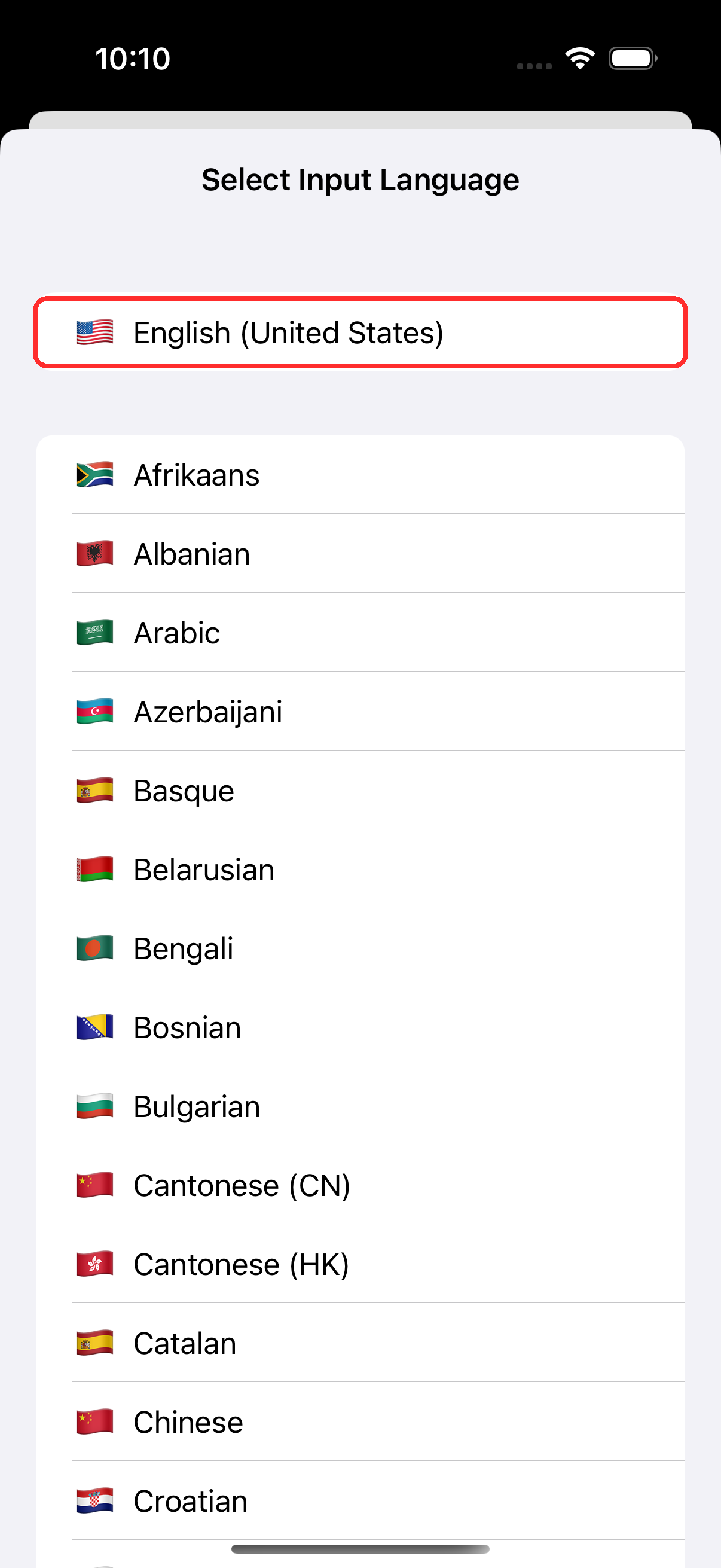
- Select your source and target languages in the bar at the bottom
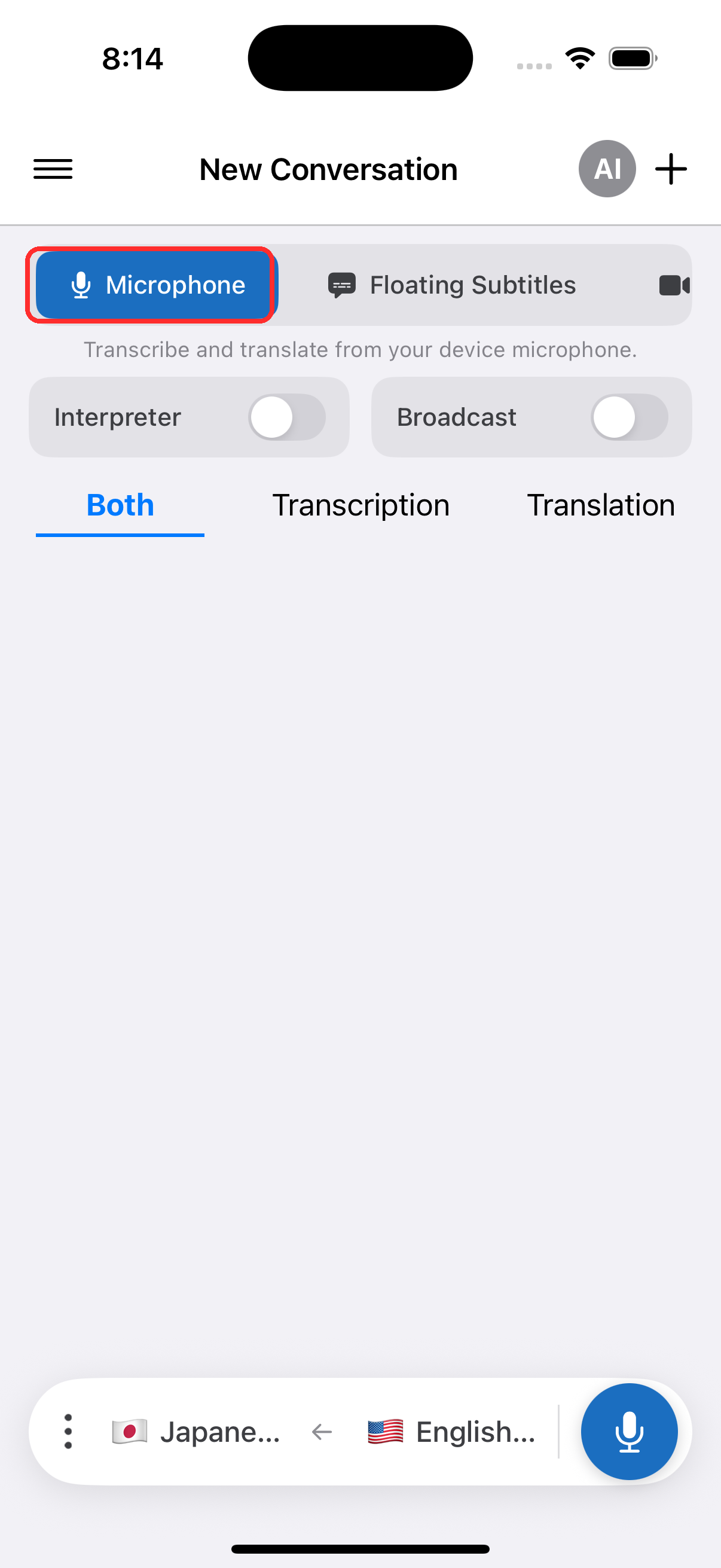
- In the top menu, make sure Microphone is selected
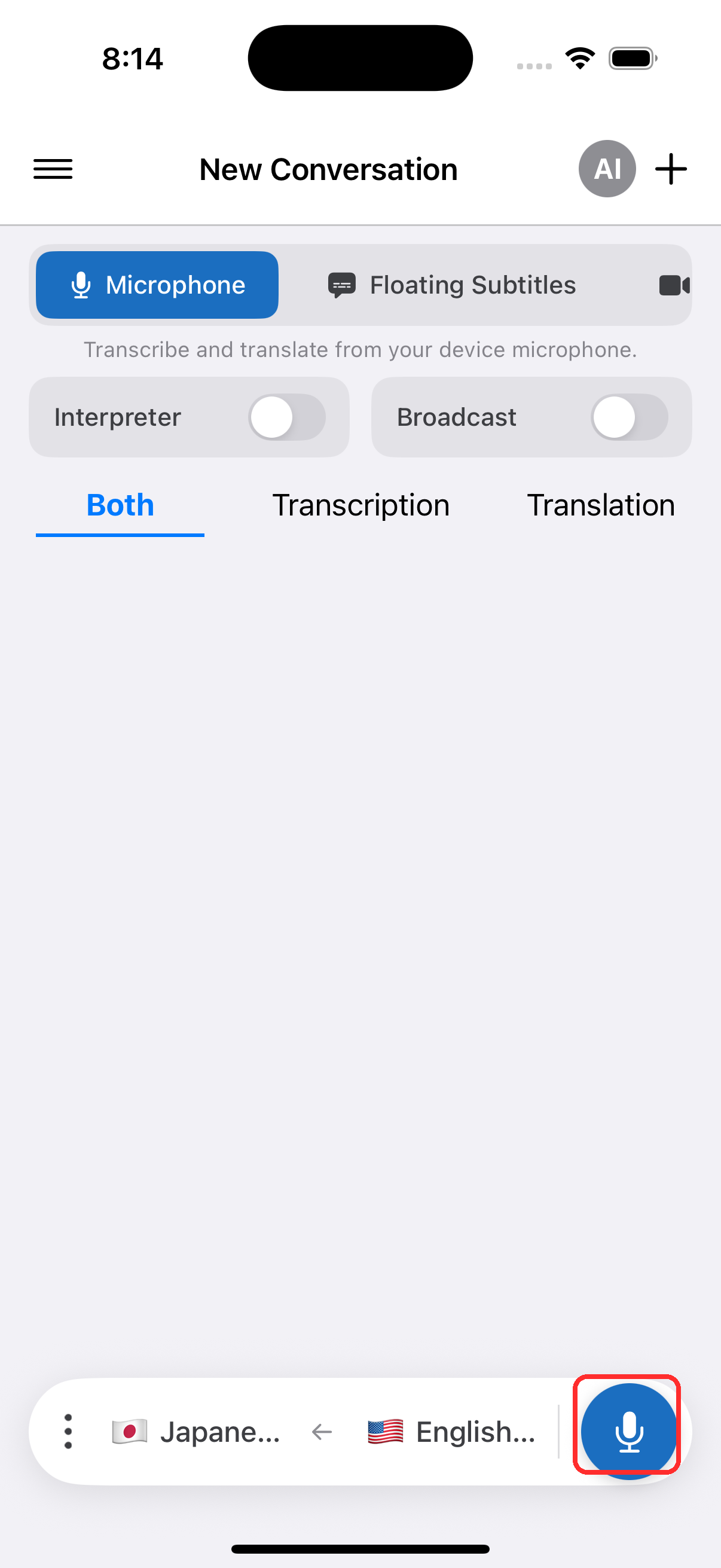
- Tap the record button, then tap Allow to grant microphone access when prompted
- Start speaking, or point the device toward the speaker — live transcription appears on screen, with translation into your target language
Common Issues (iPhone/iPad)
Microphone permission is disabled
Whisperr needs microphone access to transcribe. If no transcription appears, the permission may be off — enable it from system settings:
- Open Settings
- Tap Privacy & Security > Microphone
- Turn on Whisperr
Audio not reaching the mic
Move closer to the speaker, or use an external microphone.
Still nothing
Restart the app and try again.
Still not working? Contact Support
Related
- Microphone Audio Capture (overview) — how it works, supported platforms, and general tips
- On Android · On the Web App · On Mac · On Windows
- Floating Subtitles — see transcription over other apps
- In-Person Meetings — best setup for face-to-face conversations