Right-to-Left (RTL) Languages
Whisperr supports right-to-left (RTL) reading for four languages: Arabic, Hebrew, Persian, and Urdu. In the Web App you can use any of them as the language you speak, the language you translate into, or the language of the Whisperr menus.
Supported RTL Languages
| Language | Web App | Mac | Windows | iOS | Android |
|---|---|---|---|---|---|
| Arabic (العربية) | ✅ | ✅ | ✅ | ✅ | ✅ |
| Hebrew (עברית) | ✅ | ✅ | ✅ | ✅ | ✅ |
| Persian (فارسی) | ✅ | ✅ | ✅ | — | — |
| Urdu (اردو) | ✅ | ✅ | ✅ | — | — |
✅ means that when you set the Whisperr language to that language, the whole screen — menus, buttons, and layout — flips so it reads from the right.
Mixed Arabic and English Lines
Lectures and meetings often mix languages: an Arabic sentence that keeps a product name, an acronym, or a technical term in English, such as React, API, or Docker.
In the Web App, every transcript and translation line is laid out in the reading direction of its own language, not the language of the menus:
- An Arabic, Hebrew, Persian, or Urdu line reads right-to-left and lines up on the right, even when it contains English words and even when your menus are in English.
- An English (or other left-to-right) line reads left-to-right and lines up on the left, even when your menus are in Arabic.
- The language tag in front of each line (for example
[AR]or[EN]) stays on the side where you start reading, with a small gap before the text. - Punctuation such as a full stop or question mark stays at the end of the sentence, and English words sit in the correct place inside the Arabic sentence.
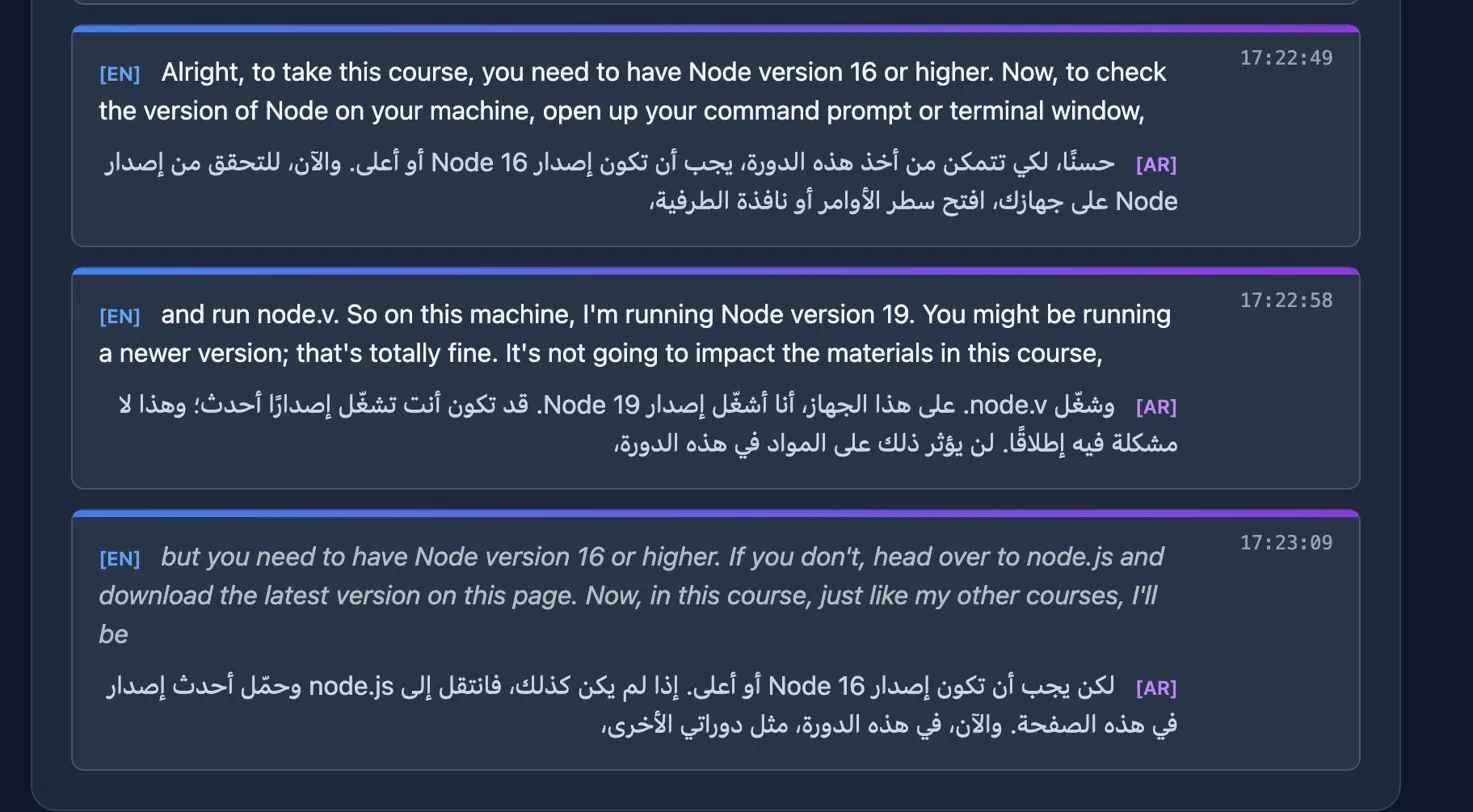
This applies everywhere the Web App shows a transcript: the recording page, Broadcast Mode rooms your audience opens, saved conversations, Calls, Floating Subtitles, and the browser overlay.
This page describes the Web App. The other apps use the device's own text rules for each line, and this page does not yet describe how they handle mixed-language lines.
Tips for Best Results
- Set your menus to the language you read best. Reading direction of the transcript follows each line's language, so you can keep the menus in English and still read Arabic lines correctly.
- Share a Broadcast Mode room with your audience if they read Arabic, Hebrew, Persian, or Urdu — each viewer picks their own translation language and sees it laid out from the right.
- Add unusual English terms to your Dictionary so they are transcribed correctly before they are translated into an RTL language.
Related
- Broadcast Mode — share a live room so your audience reads in their own language
- Calls — translated calls by link
- Floating Subtitles — keep translations visible while you use other apps
- Speech Mode — hear the translation spoken, including Voice Support by Language