Store on the Cloud in the Web App
This page covers saving your transcriptions to the cloud from the Whisperr Web App. For what the feature does, see the Store on the Cloud overview.
How to Save Transcriptions to the Cloud
- Go to whisperr.co/app and sign in
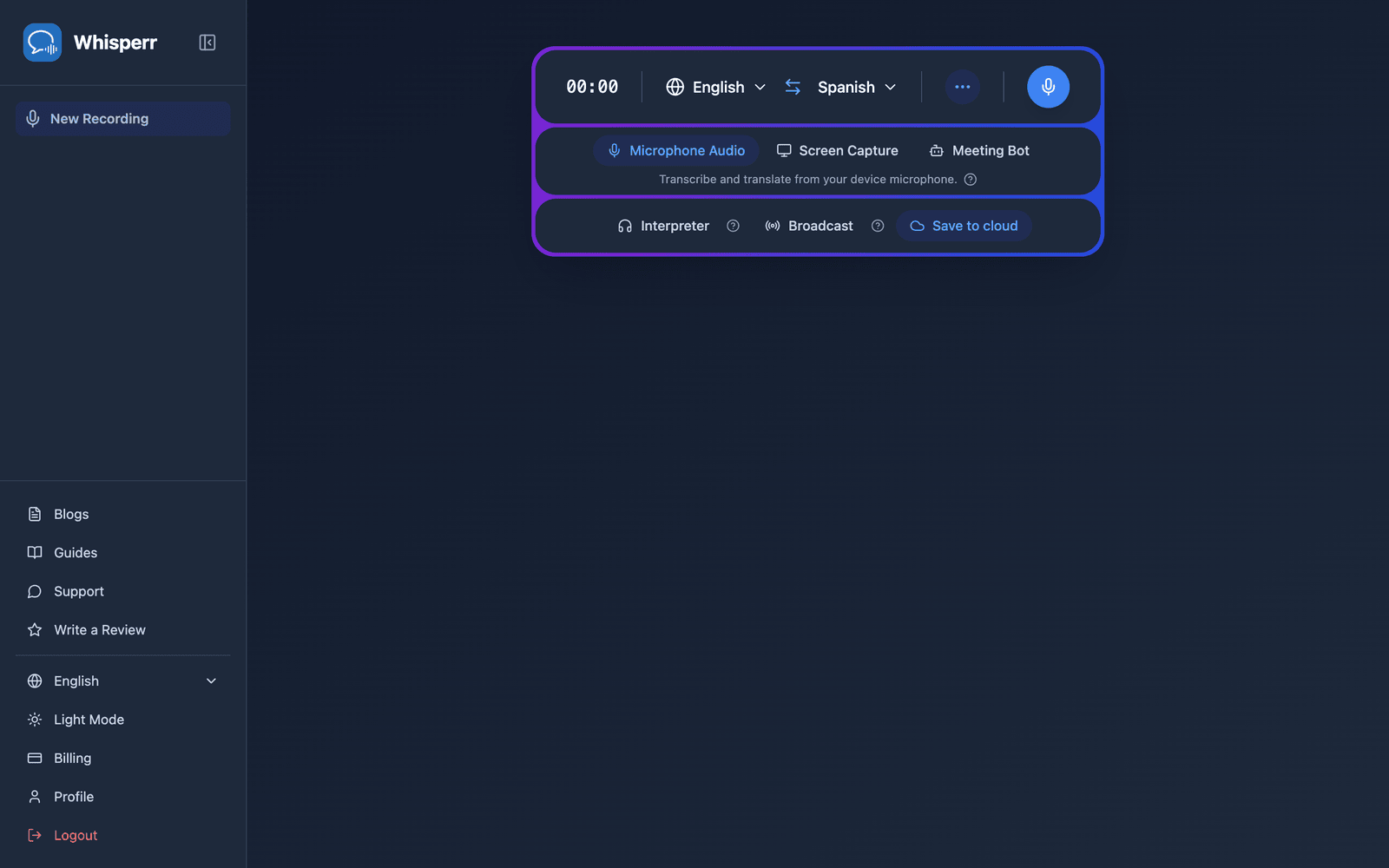
- Make sure Save to cloud is turned on in the recording bar — it's on by default and highlighted in blue when active. Click it to toggle it on or off (the setting is remembered for your next recording)
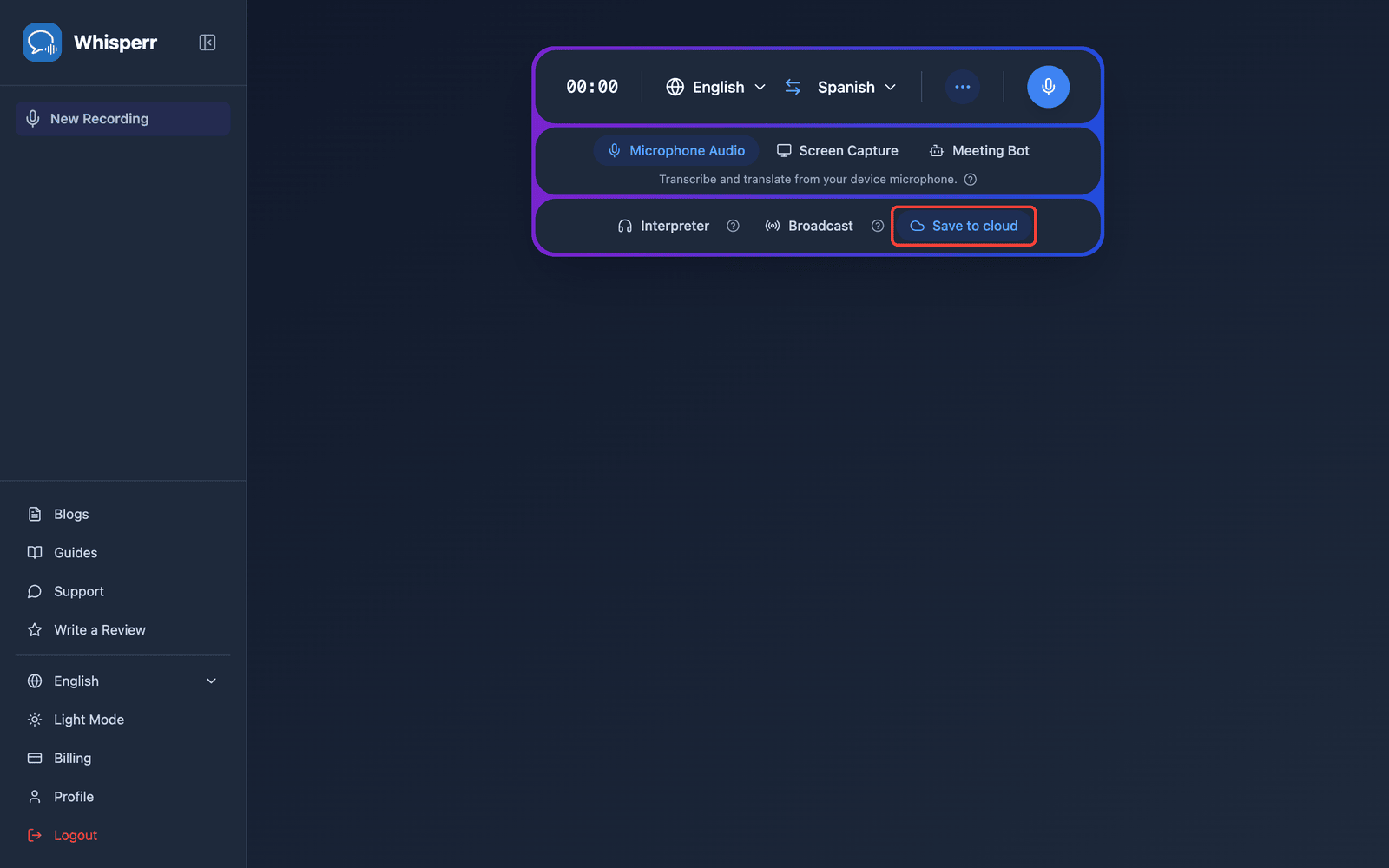
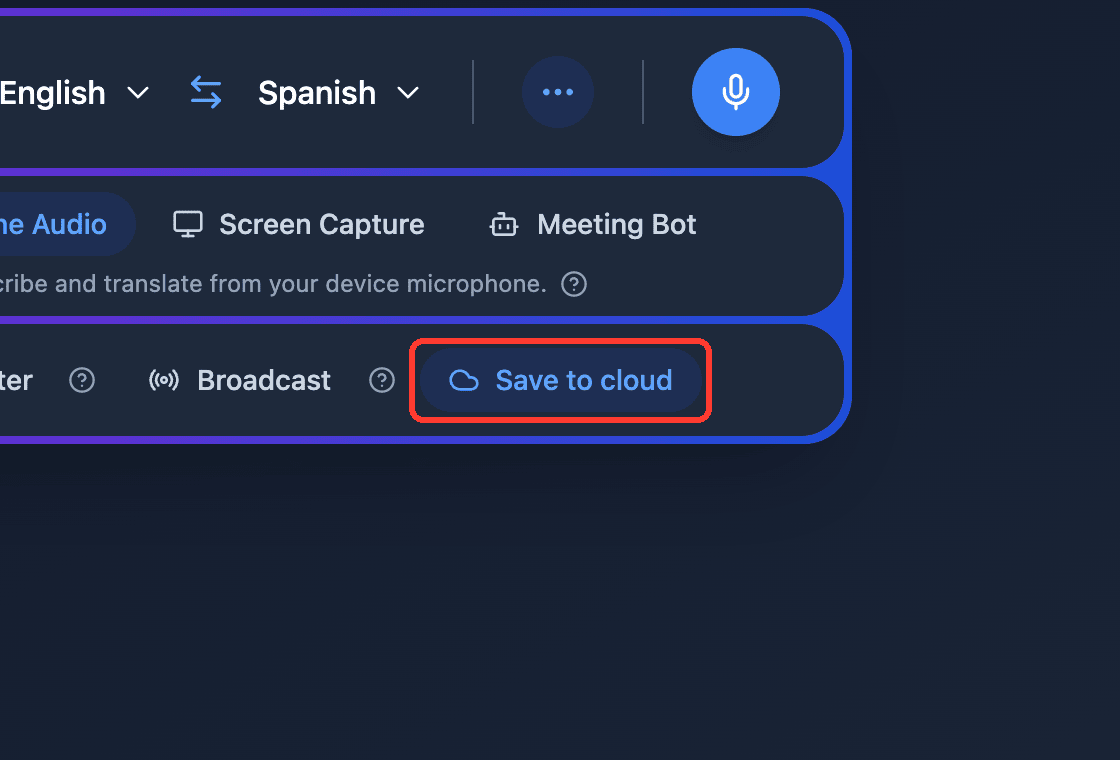
- Record as usual — transcription and translation appear in real time while Whisperr saves the conversation in the background
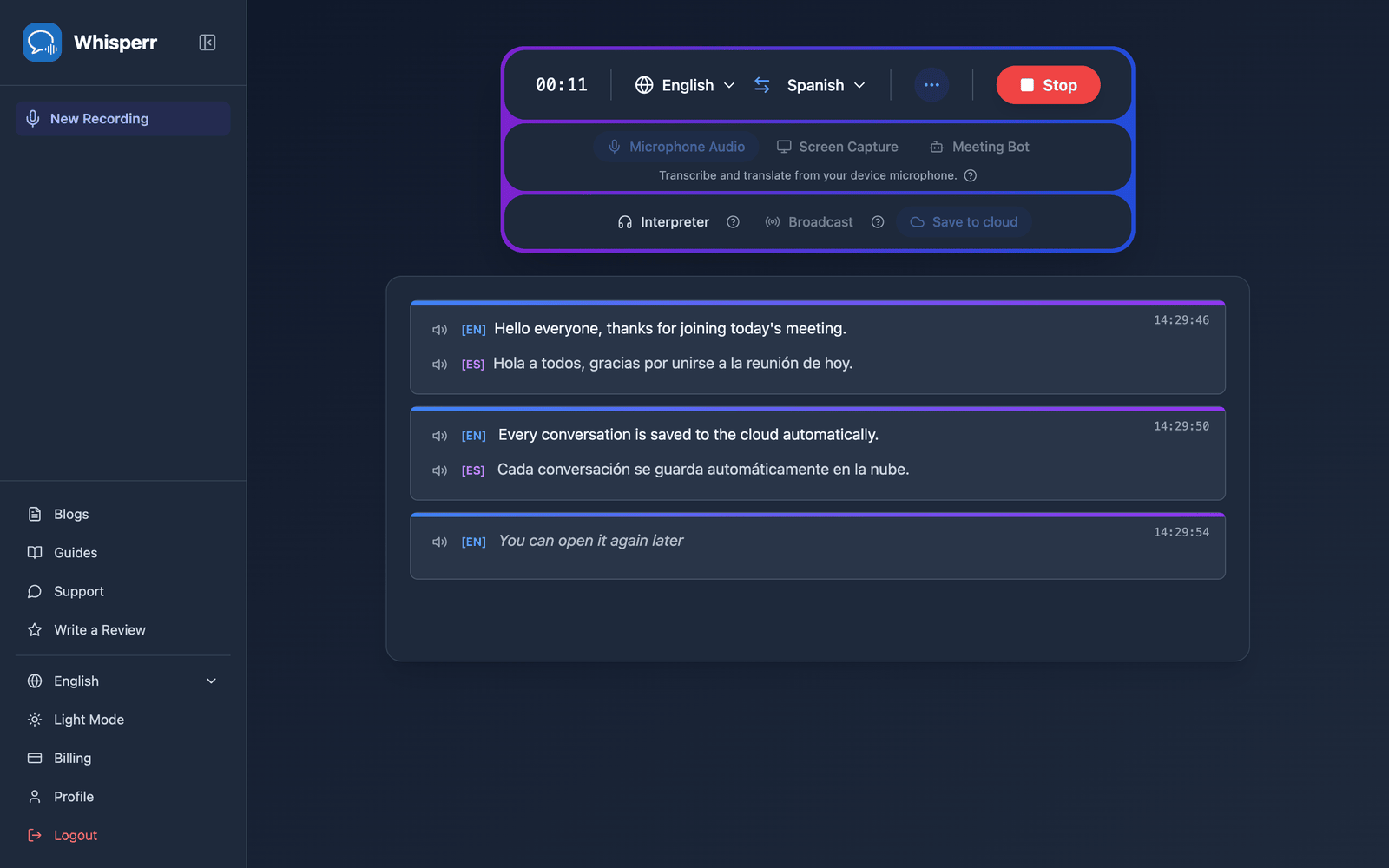
- Click Stop when you're done — the conversation appears under Recent Conversations in the sidebar
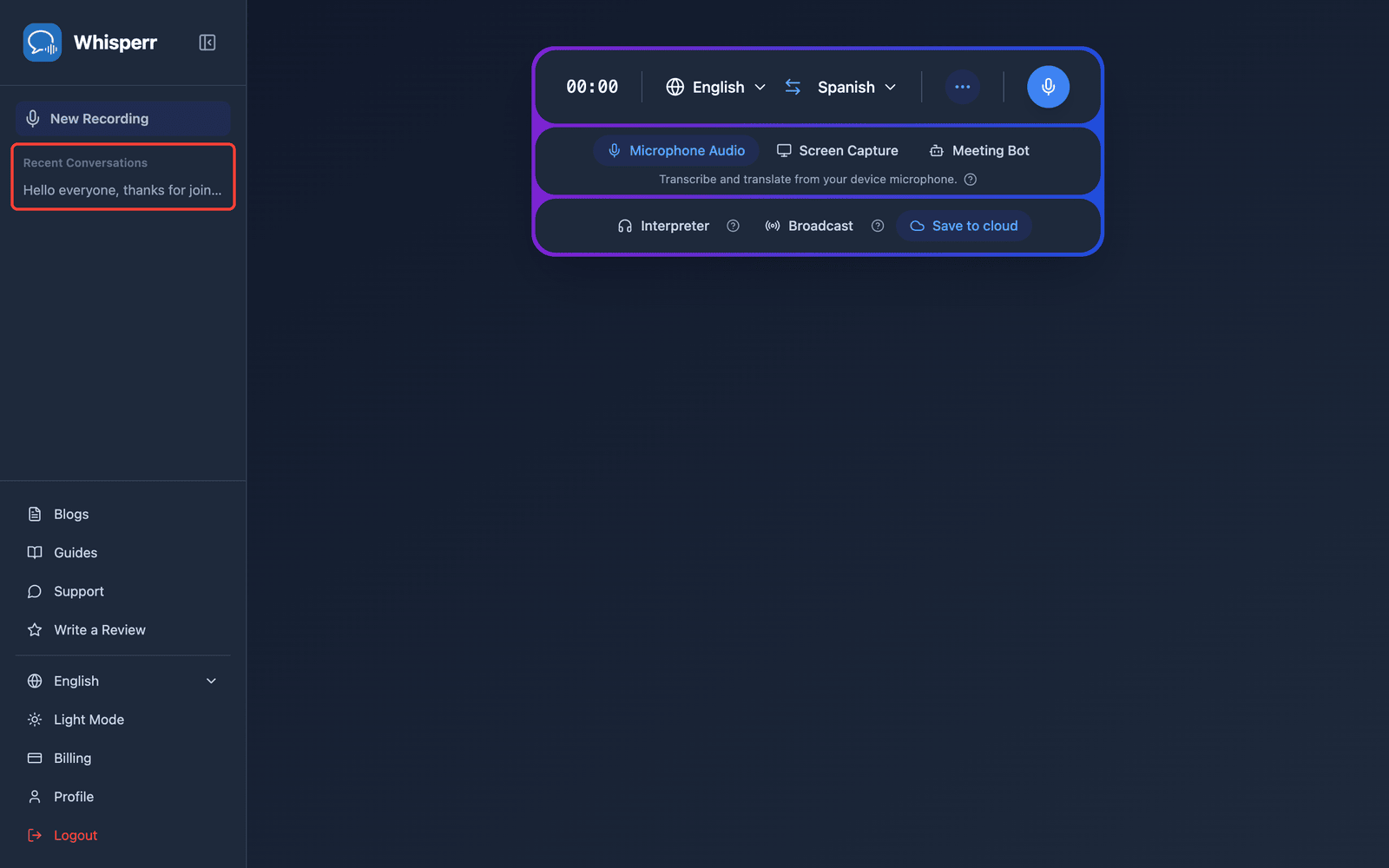
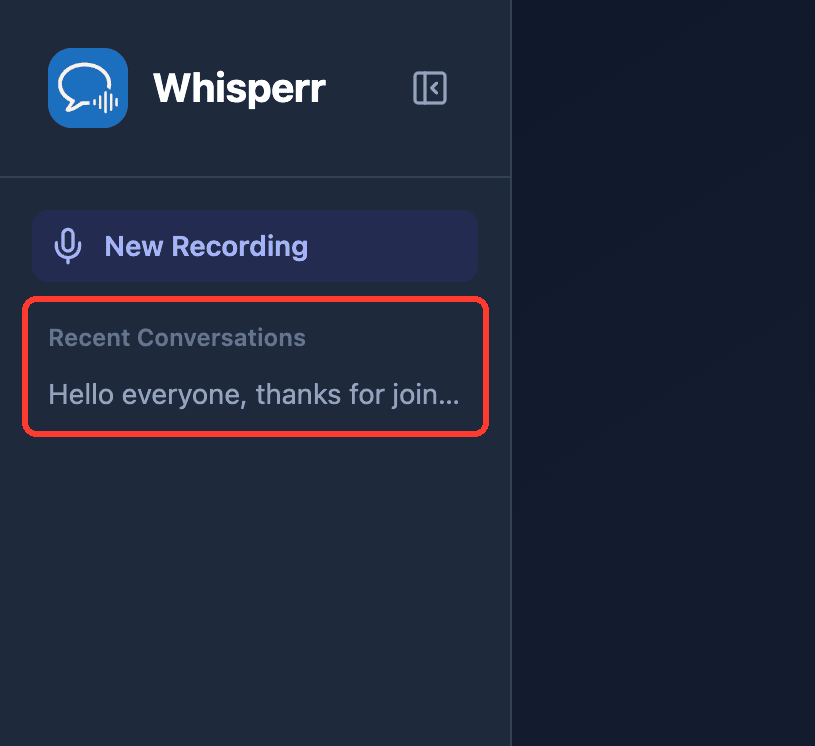
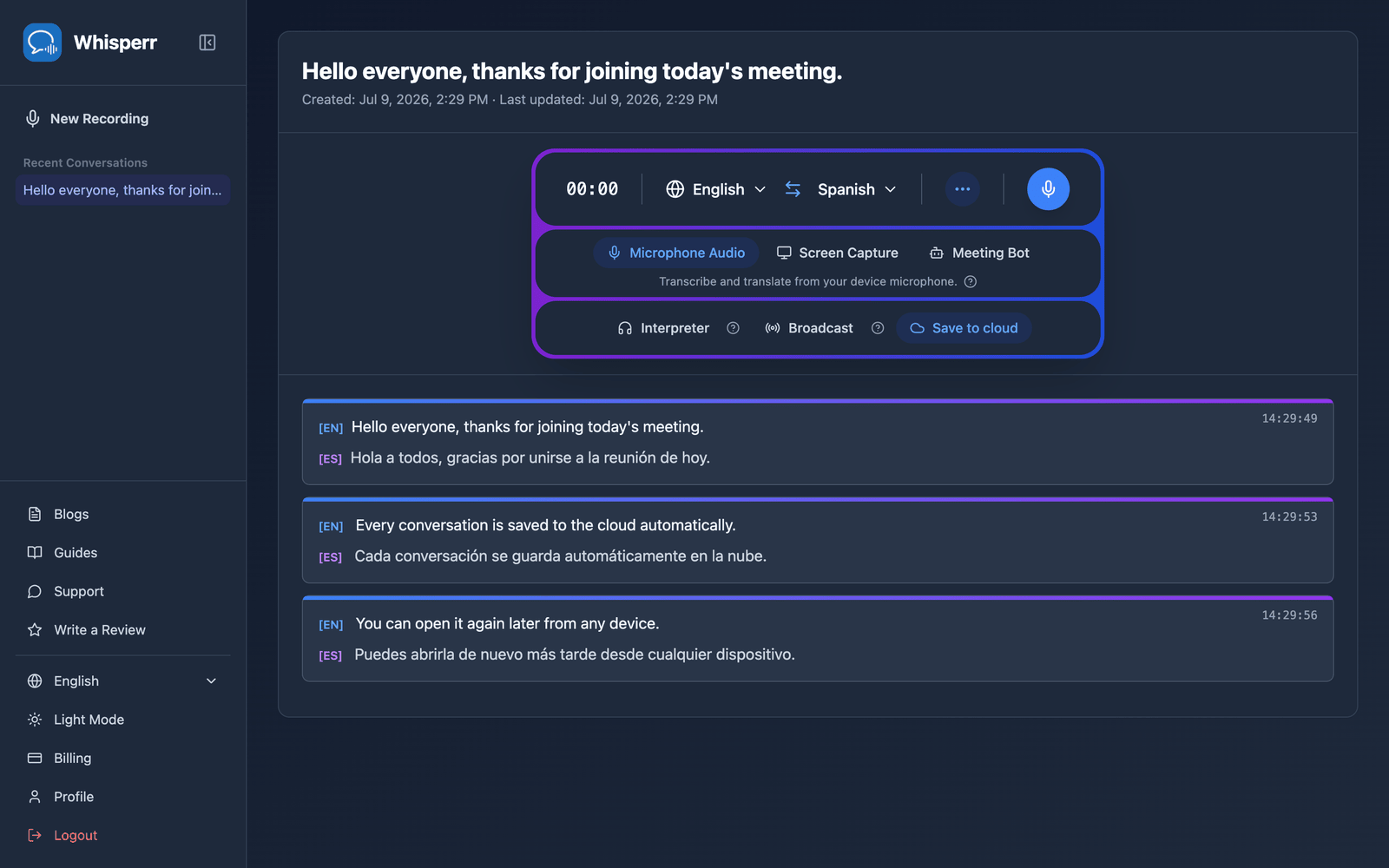
- Click a conversation to reopen it — the full transcript and translations are right where you left them, on any device you sign in on
Common Issues (Web App)
My conversation doesn't show up in Recent Conversations
The conversation appears a few seconds after you click Stop — refresh the page if it hasn't shown up yet. Also check that Save to cloud was on while you were talking: a session recorded with it off is not stored, and switching it on part-way through stores only what came after.
Changing Save to cloud during a recording
You can click the toggle at any time, including while a recording is running — you don't have to stop and start again. The change applies from the next thing you say, so it is never retroactive: switching it on part-way through stores the rest of the session but not what was already said, and switching it off leaves whatever was already stored in place.
I don't want my transcripts stored
Click Save to cloud so it's no longer highlighted, before you start recording — that keeps the whole session out of your history. Turning it off part-way through only stops the lines that follow; anything said before the toggle is already stored. Whisperr remembers your choice for future recordings.
Still not working? Contact Support
Related
- Store on the Cloud (overview) — what the feature does and supported platforms
- Microphone Audio Capture on the Web App — record from your device microphone
- Meeting Bot on the Web App — transcribe Zoom, Teams, and Google Meet calls