Speech Mode on Android
This page covers the Android setup for Speech Mode. For how it works and use cases, see the Speech Mode overview.
How to Use Speech Mode on Android
- Open the Whisperr app
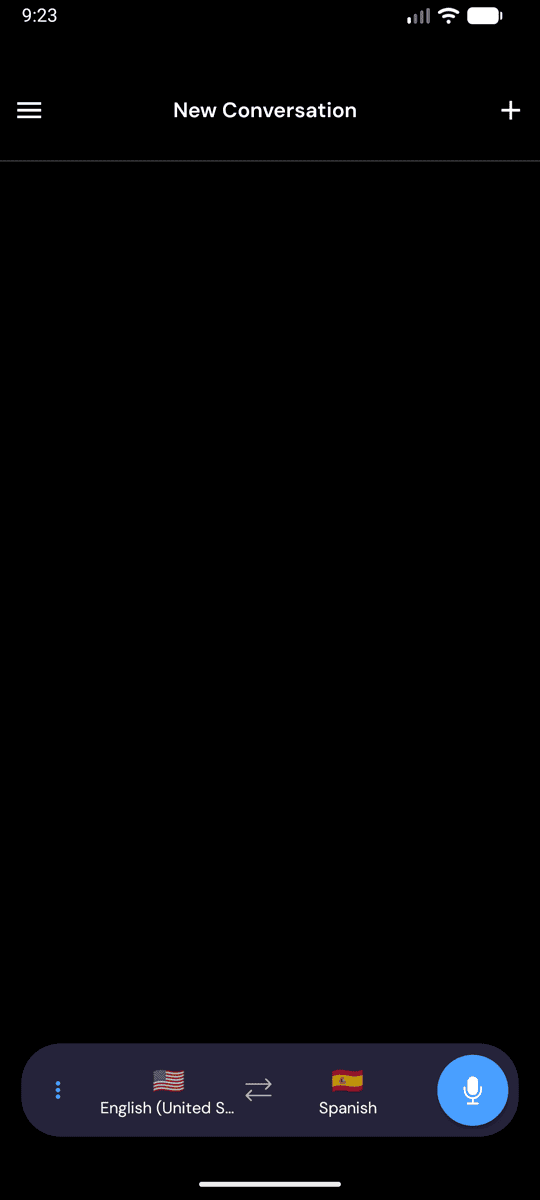
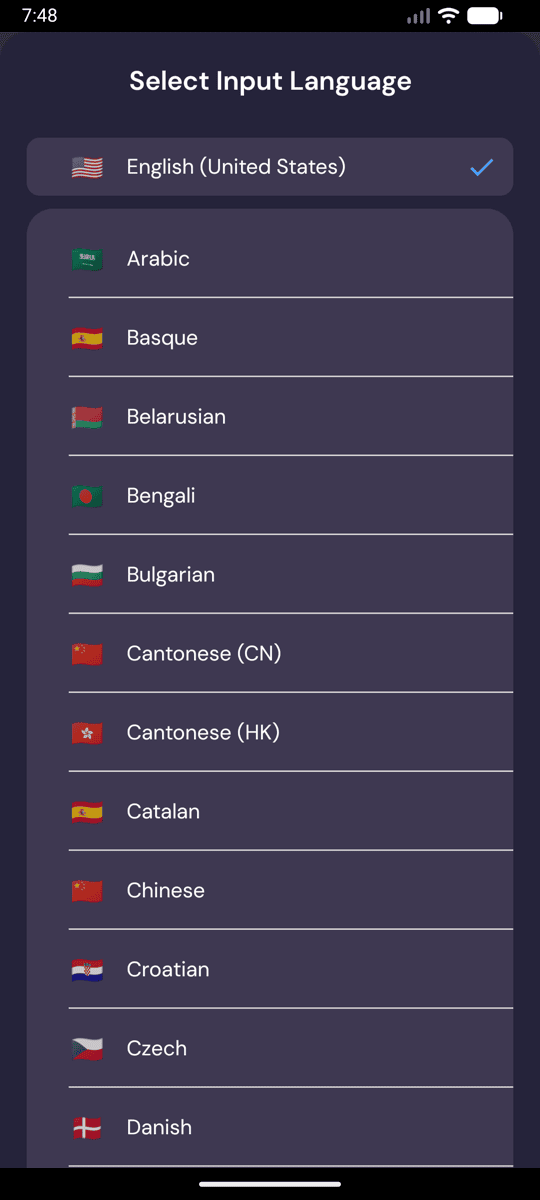
- Select your source language (what you'll be hearing) and target language (what you want spoken back)
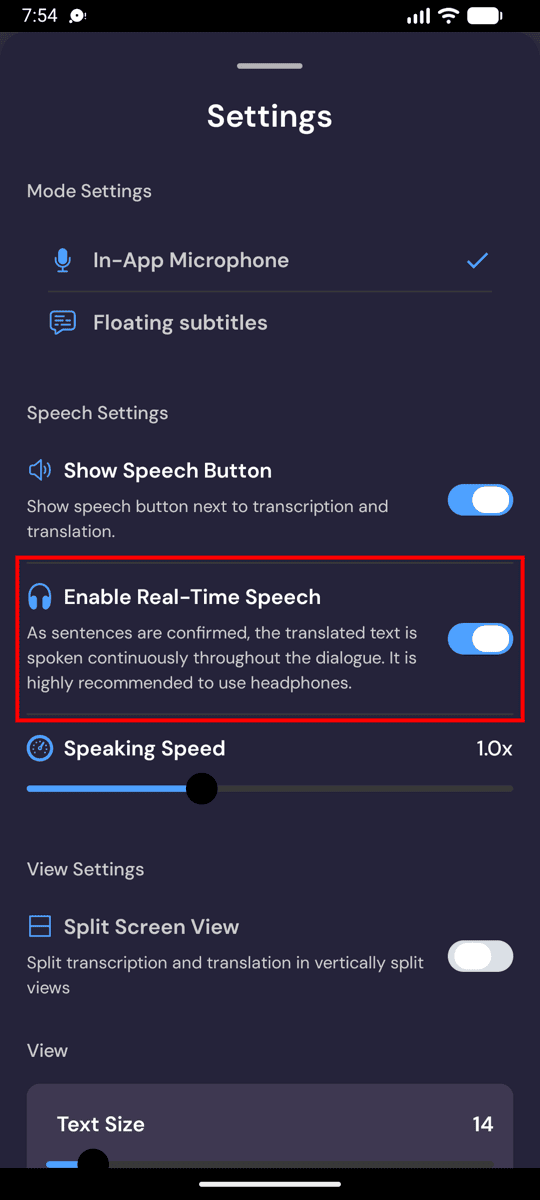
- Open the ••• options menu in the recording bar to find the Speech settings:
- Enable Real-Time Speech — speaks each translated line aloud as soon as it's confirmed
- Show Speech Button — adds a speaker icon next to each transcription and translation so you can replay any line on demand
- Speaking Speed — adjust the playback rate from 0.5× to 2×
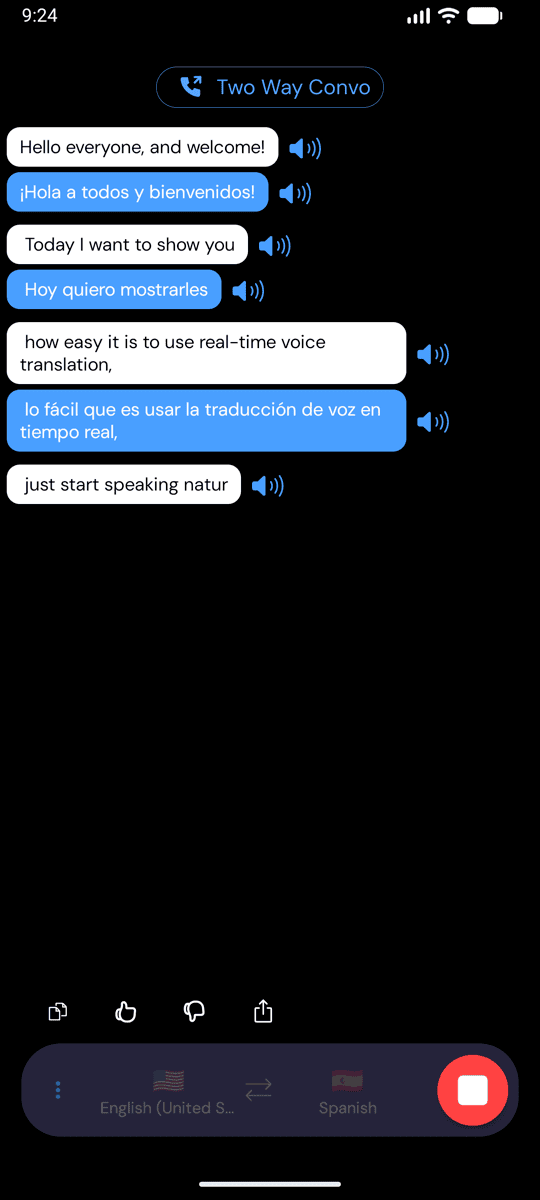
- Tap the microphone to start — with Real-Time Speech on, Whisperr reads each translated line aloud as it appears
- Optionally connect headphones for private listening
Toggle Enable Real-Time Speech off to silence the spoken audio while keeping the on-screen translation running. Your speech settings are remembered for next time.
Related
- Speech Mode (overview) — how it works, use cases, and general tips
- On iPhone/iPad · On the Web App · On Mac · On Windows
- Microphone Audio Capture — how Whisperr captures the input audio
- Floating Subtitles — keep translations visible while using other apps