Speech Mode on Mac
This page covers the Mac setup for Speech Mode. For how it works and use cases, see the Speech Mode overview.
Speech Mode reads each finished translation aloud through your Mac's speaker or headphones, so you can listen instead of (or alongside) reading the screen.
How to Use Speech Mode on Mac
- Download Whisperr for Mac if you haven't already, then launch Whisperr
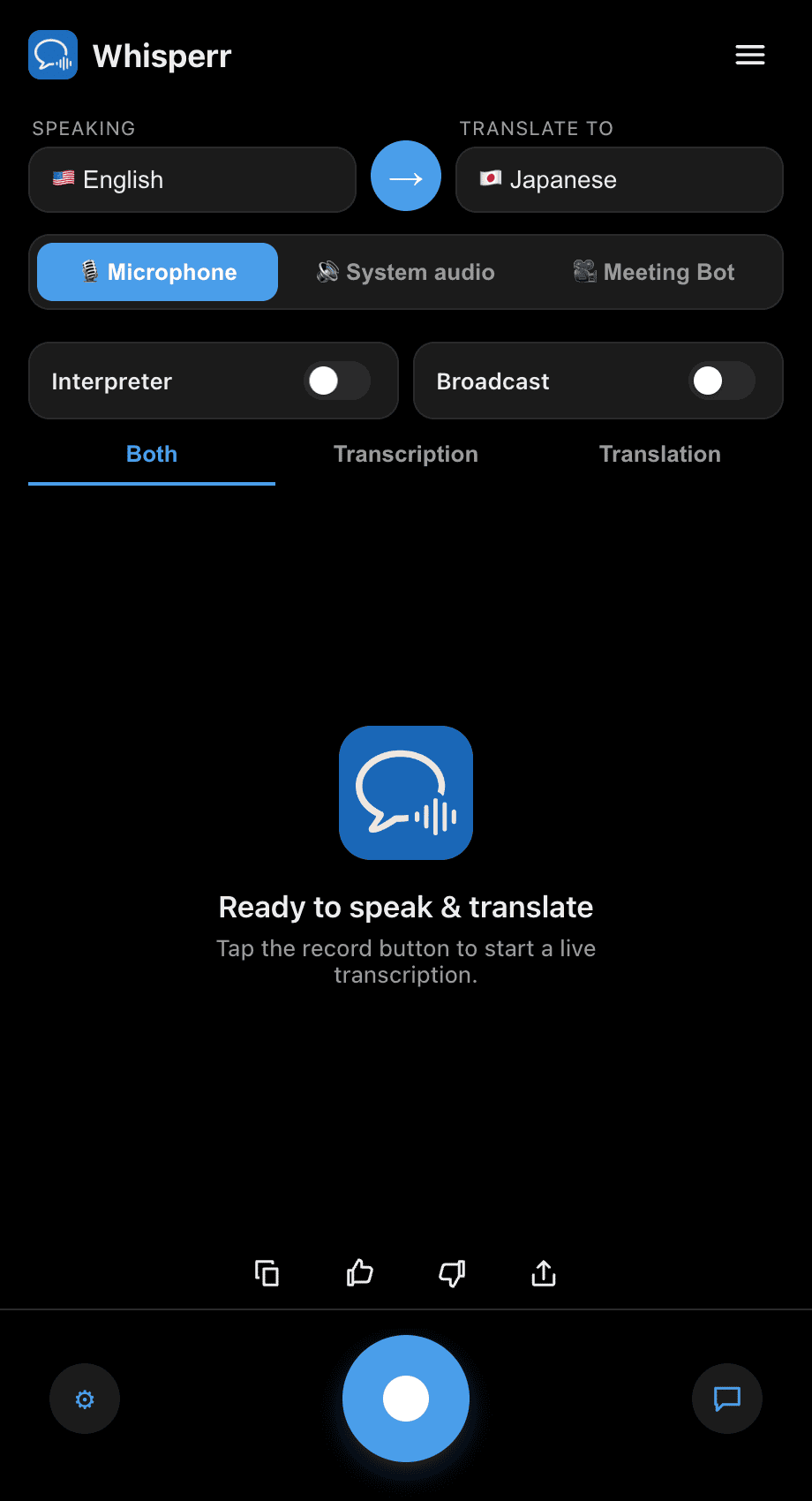
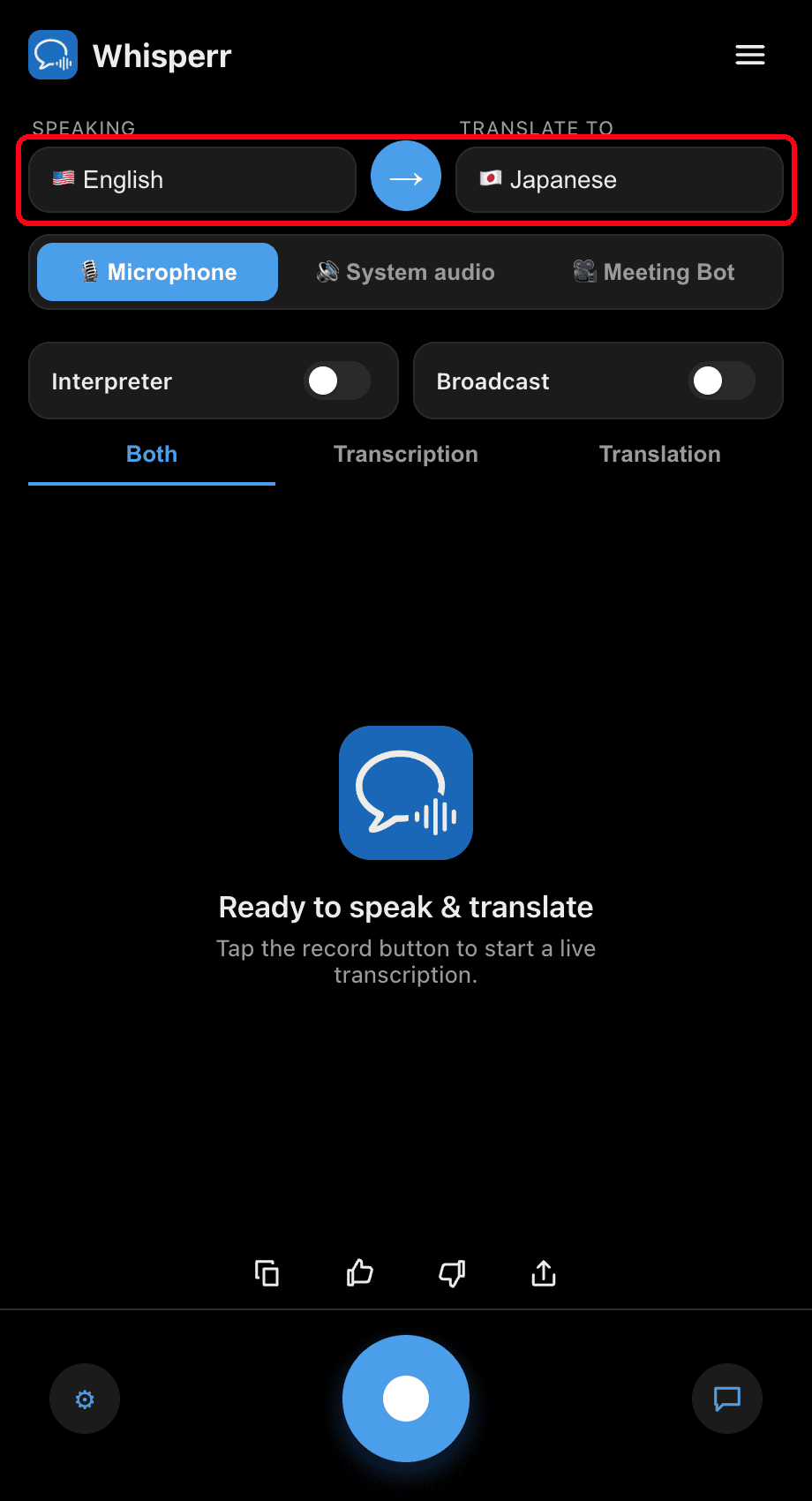
- Set your Speaking (source) and Translate to (target) languages
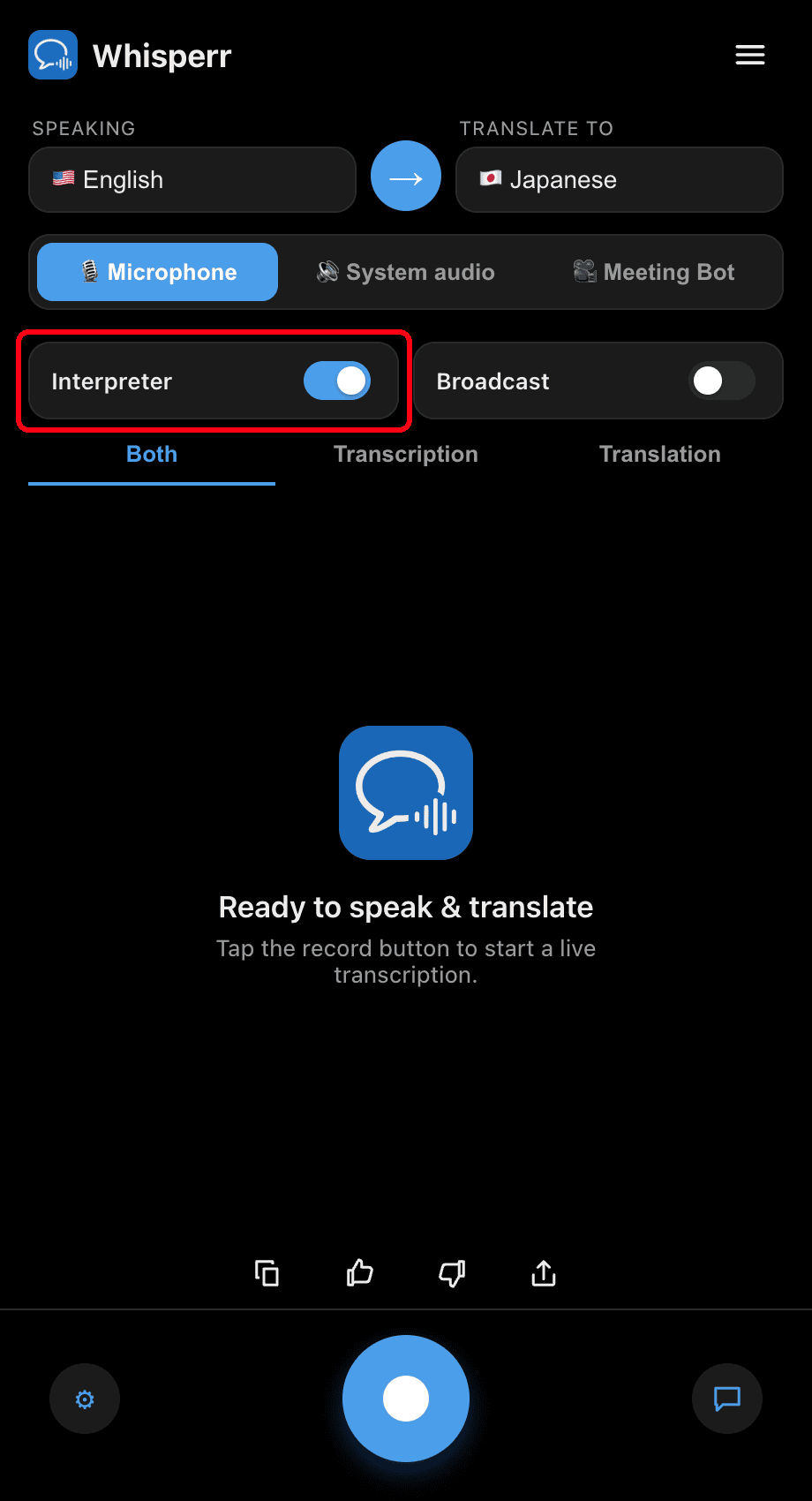
- Turn on the Interpreter toggle — Whisperr speaks each translated line aloud as it appears
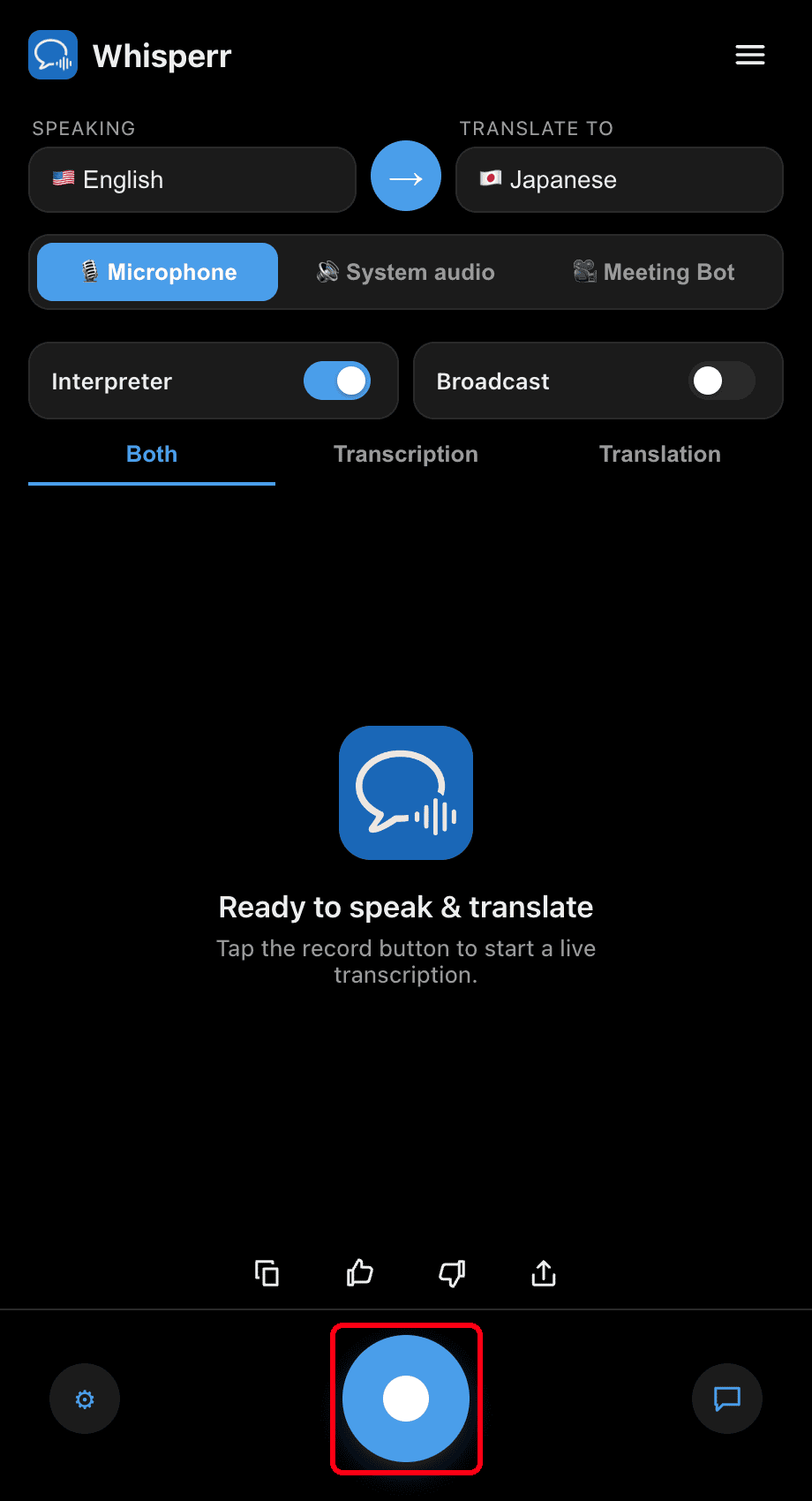
- Click the record button — each finalized translation is spoken aloud while the text stays on screen
Adjust the Speaking speed (0.5×–2×) under ⚙ Settings to taste. Use headphones for private listening and to avoid the spoken output being picked back up by the microphone.
Common Issues (Mac)
No audio is spoken
Confirm the Interpreter toggle is on, and that your Mac's output isn't muted (System Settings > Sound > Output).
Echo or feedback loop
If Whisperr's spoken translation is picked back up by the mic, use headphones or lower your output volume.
Still nothing
Restart the app and try again.
Still not working? Contact Support
Related
- Speech Mode (overview) — how it works, use cases, and general tips
- On Windows · On iPhone/iPad · On Android · On the Web App
- Microphone Audio Capture on Mac — how Whisperr captures the input audio
- Floating Subtitles on Mac — subtitle any system audio you hear