Speech Mode on the Web App
This page covers the Web App setup for Speech Mode. For how it works and use cases, see the Speech Mode overview.
How to Use Speech Mode in the Web App
- Open the Whisperr Web App and sign in
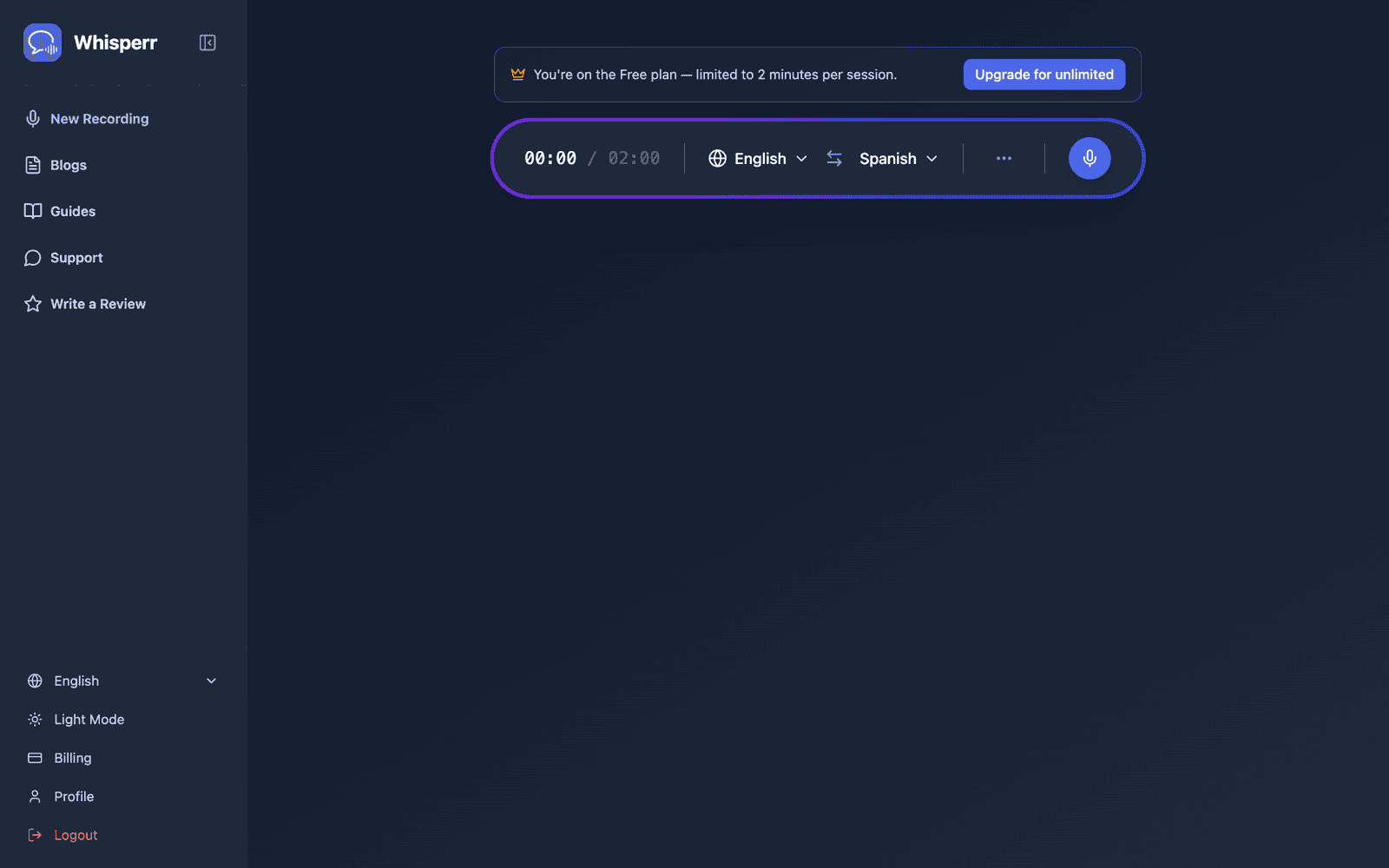
- Select your source language (what you'll be hearing) and target language (what you want spoken back)
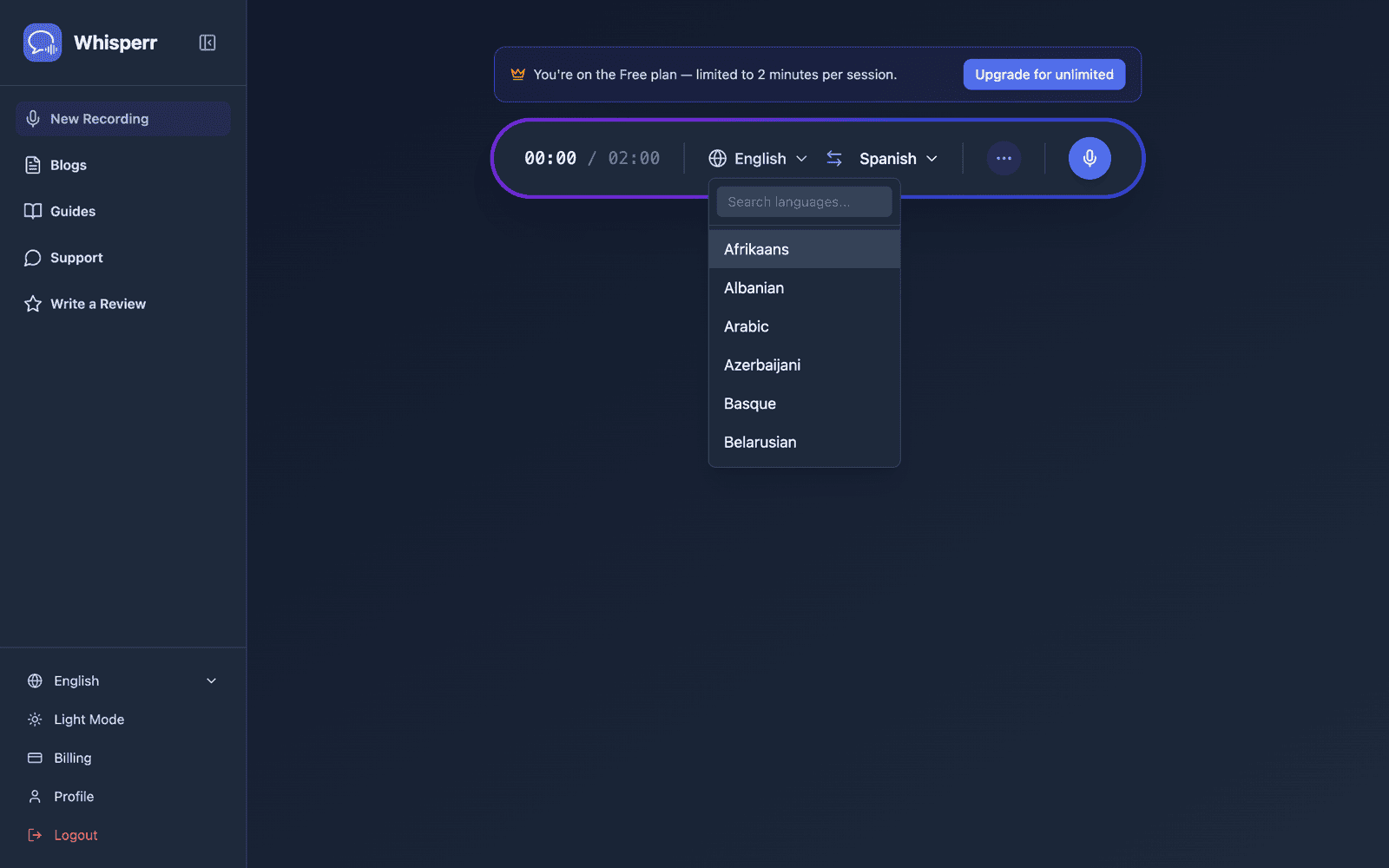
- Open the ••• options menu in the recording bar to find the Speech settings:
- Auto-speak translations — speaks each translated line aloud as soon as it's confirmed
- Show speaker button — adds a speaker icon next to each transcription and translation so you can replay any line on demand
- Voice — Auto, Male, or Female (see below)
- Speaking speed — adjust the playback rate from 0.5× to 3×
- Echo cancellation — filters your computer's speaker audio out of the microphone, so the spoken translation doesn't loop back in (off by default)
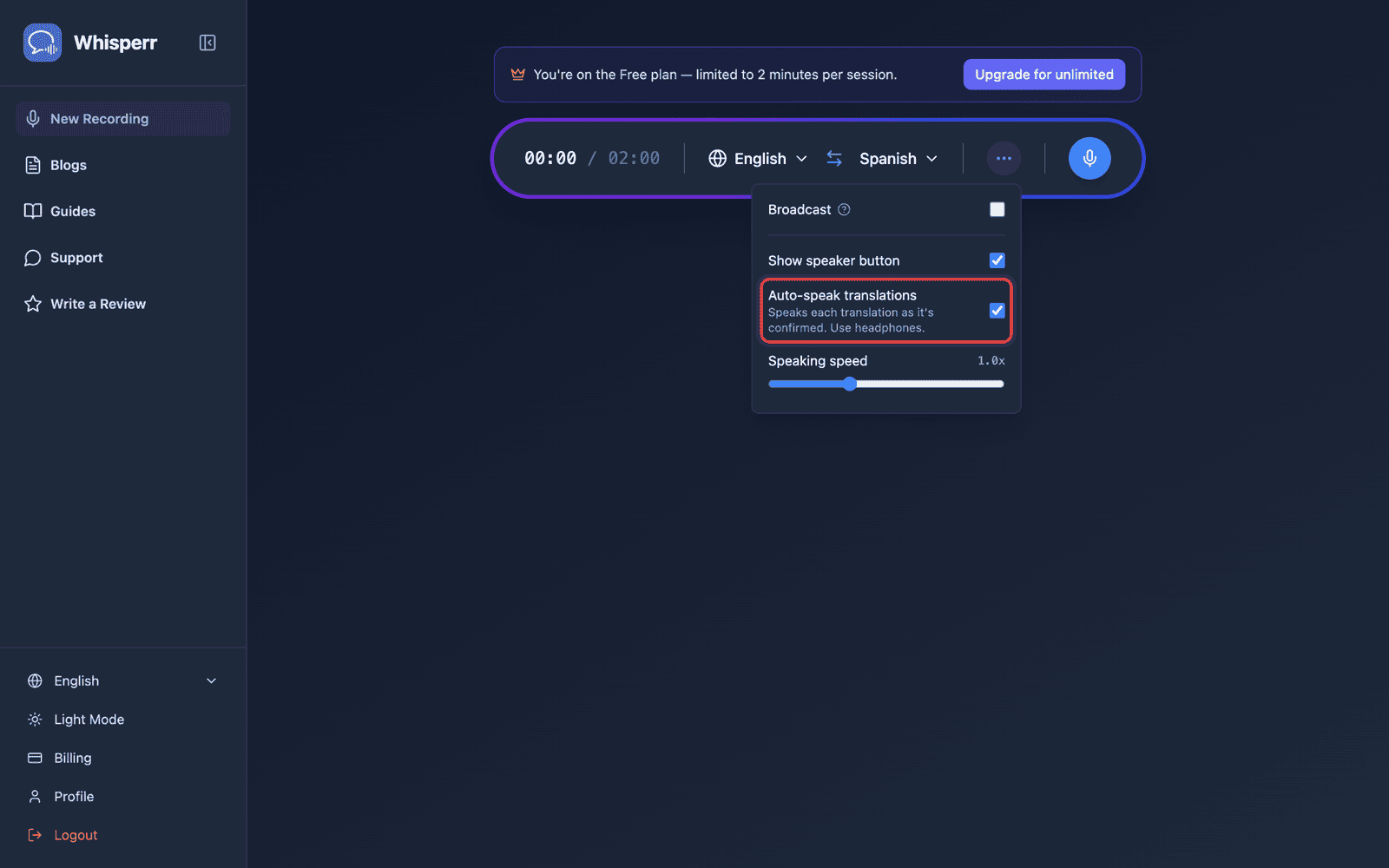
- Click Start and begin speaking — with Auto-speak on, Whisperr reads each translated line aloud as it appears
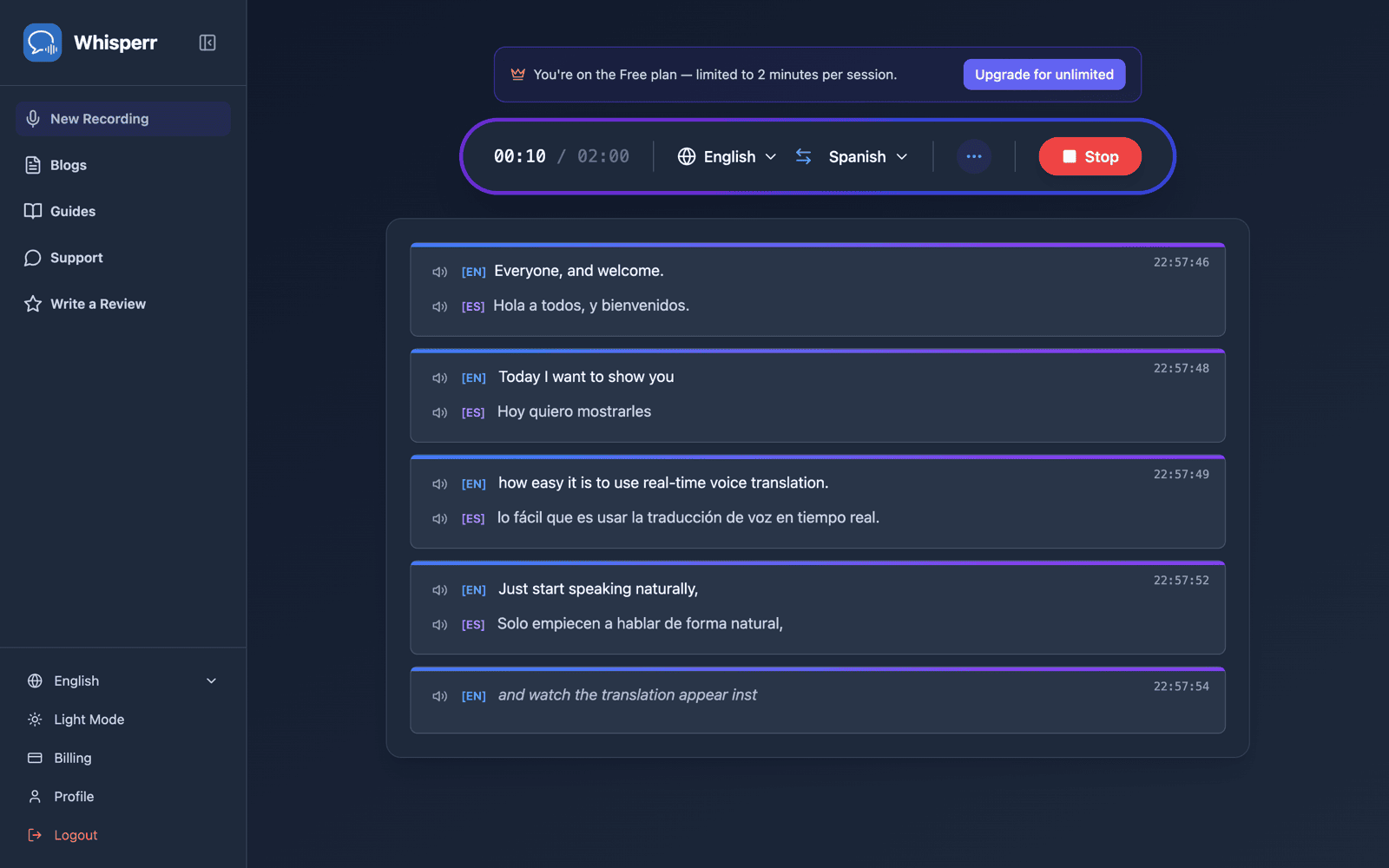
Audio plays through your browser, so connect headphones for private listening. Your speech settings are remembered in the browser for next time.
If you listen through your computer's speakers instead, turn Echo cancellation on in the same ••• menu before you start — in the Web App it is off by default, and without it the spoken translation is picked back up by the microphone, transcribed, and translated again in a loop. The toggle is locked while a recording is running, so set it beforehand. See Echo Cancellation in the Web App.
Choosing the Voice
The Voice picker sits with the other speech settings and appears once speaking translations aloud is switched on:
- Auto (default) — the voice follows the person speaking. Whisperr measures each speaker's voice as they talk — pitch, how much that pitch moves, and timbre — and reads their translated lines in the closest matching voice. A low voice comes back low, a higher voice comes back higher, and in a multi-person conversation each speaker keeps their own distinct voice. The match takes a few seconds of speech to settle; until then the standard voice for your target language is used.
- Male / Female — one fixed voice reads every line, whoever is speaking. Best for a single presenter, or when you simply prefer a steady narrator.
Change the voice mid-recording and it applies from the next spoken line. The choice is stored in your browser and shared with Broadcast Mode rooms, so listening to a room uses the same voice setting.
For more on how Auto works, see Choosing the Voice in the overview; for which languages it can match a speaker in, see Voice Support by Language.
Related
- Speech Mode (overview) — how it works, use cases, and general tips
- On iPhone/iPad · On Android · On Mac · On Windows
- Echo Cancellation in the Web App — stop the spoken translation looping back into the mic
- Microphone Audio Capture — how Whisperr captures the input audio
- Floating Subtitles — keep translations visible while using other apps