Two Way Conversation
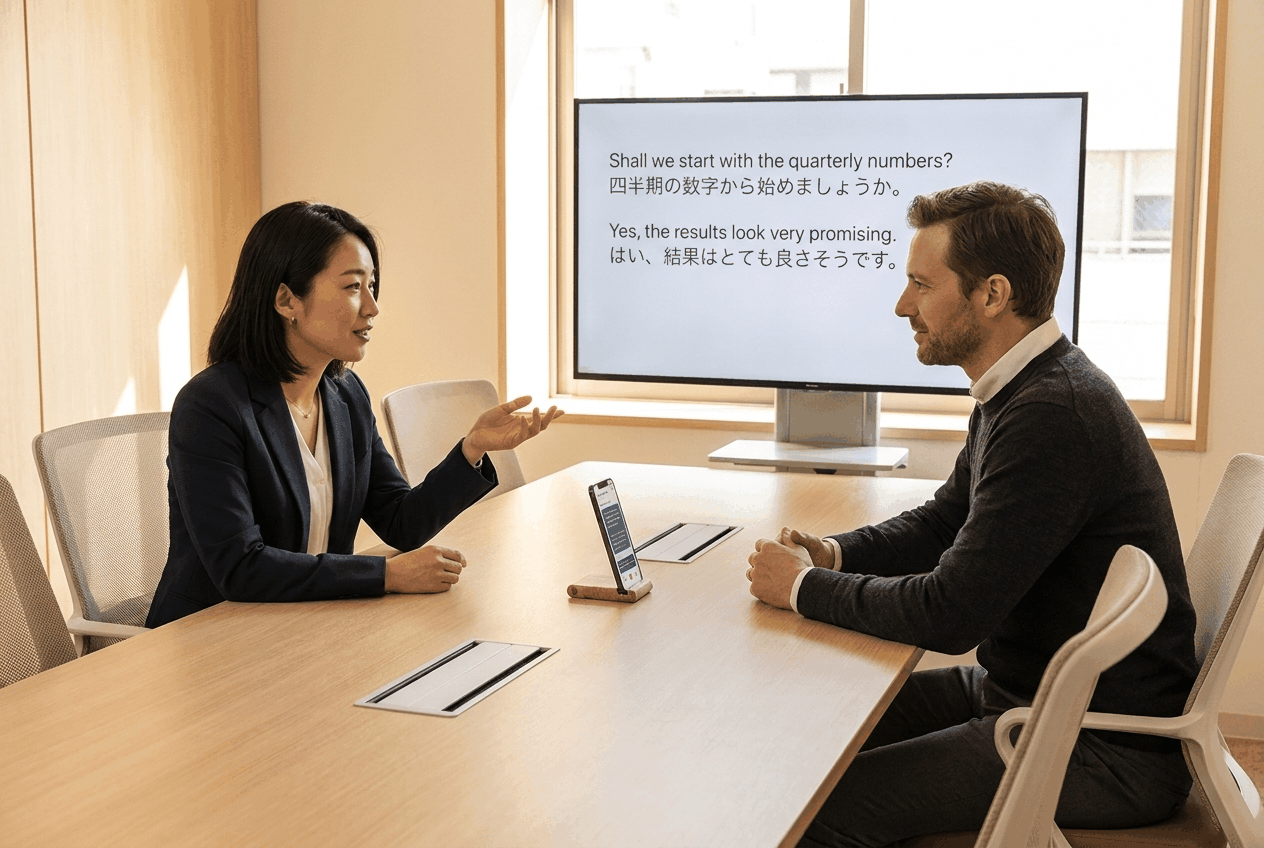
Two Way Conversation turns Whisperr into an interpreter that listens in both languages at once. You pick two languages, set the direction to ⇄, and start recording. Whichever of the two languages is spoken, Whisperr transcribes it and translates it into the other one — so two people can talk back and forth without anyone touching the app between turns.
One-way translation is the alternative: the → and ← directions lock Whisperr to a single language. That's what you want when you know only one language will be spoken — a lecture, a video, a meeting you're listening in on — because listening for one language instead of two makes the transcription of it more accurate.
How It Works
- You choose two languages — one in each language slot
- You set the direction to ⇄ by tapping the arrow icon between them
- Whisperr listens for both languages through the same microphone — there's no "my turn" button
- Each utterance is transcribed in the language it was spoken in and translated into the other one
- Everything lands in one running transcript, so both people can look back at what was said
A change of speaker — or a change of spoken language — always starts a new line in the transcript, so the two sides of the conversation stay visually separate.
Turning It On
There's no setting screen and no toggle called "Two Way Conversation". The control is the arrow icon between the two language pickers:

Tap (or click) it to cycle through the three directions:
| Direction | Meaning | Use case |
|---|---|---|
| ⇄ | Two-way — either language can be spoken, and each is translated into the other | Both languages are being spoken in the same session and you want both translated — a back-and-forth conversation |
| → | One-way — only the left language is transcribed, translated into the right | You know only the left language will be spoken. Listening for one language instead of two gives more accurate transcription of it |
| ← | One-way — only the right language is transcribed, translated into the left | Same, when the language being spoken is the one on the right |
Then set your two languages, keep Microphone selected as the audio source, and press record. Your choice of direction is remembered, so you only set it once.
The direction and the language pickers are locked while a recording is running — set them before you press record.
Get Started
Choose your platform for step-by-step setup:
- iPhone, iPad & Android — the arrow sits in the language bar at the bottom; starts on ⇄
- Web App — the arrow sits between the two language names; starts on ⇄
- Mac & Windows — the arrow sits between Speaking and Translate to; starts on →, so this is the one platform where you have to change it
Supported Platforms
Two Way Conversation works on every Whisperr app. Only the default direction differs:
| Platform | Supported | Default | Where the control is |
|---|---|---|---|
| iPhone/iPad | ✅ | ⇄ | The language bar at the bottom of the screen |
| Android | ✅ | ⇄ | The language bar at the bottom of the screen |
| Web App | ✅ | ⇄ | Between the two language names above the transcript |
| Mac | ✅ | → | Between the Speaking and Translate to pickers |
| Windows | ✅ | → | Between the Speaking and Translate to pickers |
On iPhone/iPad, Android and the Web App, two-way is where a fresh install starts — there's nothing to turn on unless you changed it before. On Mac and Windows the app starts one-way, so setting the arrow to ⇄ is a real step. You'll know it worked when both labels change to Speaking & translate.
Two Way Conversation runs on Whisperr's cloud speech engine, so it needs an internet connection on every platform.
Reading It From Both Sides of a Table
If the device is going to sit between the two of you, every platform has a way to make the transcript readable from both seats — Split Screen View and Face-to-Face Mode on iPhone and iPad, Full screen translations on Mac and Windows. Your platform's page has the steps.
Hearing It Instead of Reading It
Turn on Speak Aloud and Whisperr reads each translation out loud as it's confirmed — your side in their language, theirs in yours.
Use headphones. Playing the translation out of the device's own speaker means the microphone hears Whisperr, transcribes it, and translates it right back. See Speech Mode for the full set of speech options.
Getting the Most Out of It
- Leave a beat between turns. Whisperr splits lines on a change of speaker or language, and a clean pause makes that split cleaner.
- Put the device between you so it hears both people at similar volume — one microphone is doing all the listening.
- Set both language pickers to the two languages actually being spoken. Whisperr only listens for those two; anything else gets forced into the closest of them.
- Give each person their own device for a long conversation. Each person then controls their own text size and reads only their own language. In-Person Meetings compares the two setups.
FAQ
How does Whisperr know which language was just spoken?
You tell it which two languages to expect, and Whisperr listens for both at the same time. Each utterance is transcribed in whichever of the two it matches, then translated into the other. Nobody has to press anything between turns.
Do we have to take turns?
Not formally — there's no "my turn" button. But there's only one microphone, so talking over each other makes it harder for Whisperr to separate the two of you. A short pause between turns gives cleaner line breaks and better accuracy.
Can I do three or more languages at once?
No. Two Way Conversation is exactly two languages — the two in the pickers. If a third person joins speaking a third language, you'd have to change one of the two languages, or give each person their own device.
Does it work offline?
No. Two Way Conversation runs on Whisperr's cloud speech engine on every platform, so it needs an internet connection.
On iPhone and iPad specifically, if you normally use on-device transcription or translation, two-way overrides it for that recording. An on-device recognizer can only listen for one language at a time, which would leave one of the two speakers with no transcript at all — so two-way always takes the cloud path.
Only one of the two languages is being transcribed. Why?
The direction is on → or ← rather than ⇄. Stop the recording, tap the arrow icon until it shows the double arrow, and start again.
Can I change the direction while recording?
No. The direction arrow and the language pickers are locked during a recording. Stop, change them, and start again.
Whisperr keeps transcribing its own spoken translation
That's Speak Aloud playing out of the speaker and back into the microphone. Switch to headphones, or turn on Echo cancellation on the Web App.
Does Two Way Conversation work with Broadcast Mode?
Yes. Turning on Broadcast while recording two-way shares the room link as usual, and viewers see both sides of the conversation — a natural fit for a two-person interview or panel that an audience is following along with.
Does it work with Floating Subtitles?
On iPhone, iPad and Android, the two-way direction also applies when you're capturing screen audio with Floating Subtitles — Whisperr transcribes both of your languages out of the captured audio instead of just one. Useful for a video call or a video with two languages in it.
Does it cost extra?
No. Two Way Conversation is part of Whisperr's normal transcription and translation — the same plan limits apply as to any other recording.
Related
- On iPhone, iPad & Android · On the Web App · On Mac & Windows
- In-Person Meetings — one shared screen vs. a device each, and which to choose
- Microphone Audio Capture — how Whisperr captures the audio both people are speaking into
- Speech Mode — hear the translation spoken aloud instead of reading it
- Broadcast Mode — for one speaker and many listeners rather than a back-and-forth