In-Person Meetings
Use Whisperr to transcribe and translate face-to-face conversations in real time — business meetings, classrooms, conferences, medical or legal appointments, and travel. The right setup depends on your role in the conversation: are you only listening, talking back and forth, or presenting to a room? Use the guide below to pick yours.
How It Works
- Whisperr listens through a microphone — on your phone, laptop, or desktop
- Speech is transcribed and translated in real time on screen, and optionally read aloud
- Everyone follows the conversation without needing a shared language
What's Your Role?
👂 I'm only listening — use Microphone Capture
You're in a lecture, a tour, a meeting, or a conference and just want to follow the speaker in your language. Open Whisperr on whatever you have with you, pick the speaker's language and yours, and record through the microphone.
- iPhone / iPad → Microphone Audio Capture on iPhone and iPad
- Android → on Android
- Web App → on the Web App
- Mac / Windows → on Mac · on Windows
- Pros: No setup from the speaker; start whenever you need it; on mobile, Floating Subtitles keep the text visible while you use other apps
- Cons: Accuracy depends on how close you are to the speaker and how noisy the room is — sit within 1–2 m or use an external mic. Keep the direction arrow on one-way (→) so Whisperr listens for a single language
🗣️ We're both talking — use Two Way Conversation
Two people who don't share a language need to talk back and forth. Set the direction arrow between the two language pickers to ⇄ so Whisperr listens for both languages at once and translates each turn into the other — nobody touches the app between turns. See Two Way Conversation for how it works. Then pick what sits between you:
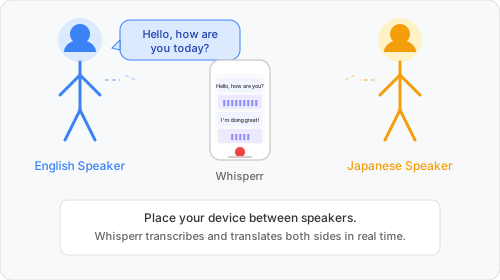
A) A phone or tablet in the middle
- iPhone / iPad / Android → Two Way Conversation on iPhone and Android
- Read it: turn on Split Screen View, and on iPhone and iPad Face-to-Face Mode, which flips the top half so the person across the table reads their language the right way up
- Or hear it: turn on Speech Mode so each translation is spoken aloud in the other person's language as soon as they finish — Whisperr switches languages automatically based on who's speaking
- Pros: One device, nothing to install for the other person, works anywhere
- Cons: Small screen for two readers; use headphones or keep the volume modest with Speech Mode so the mic doesn't pick the translation back up
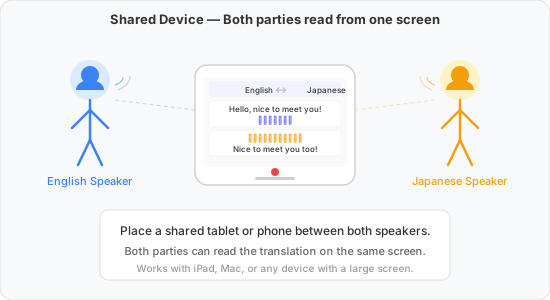
B) A laptop in the middle, or mirrored to a big screen — the easier option for meeting rooms
- Web App → Two Way Conversation on the Web App
- Mac / Windows → on Mac and Windows, using Full screen translations to hide the controls and enlarge the text
- Mirror it: connect the laptop to a monitor, TV, or projector so a small group can follow the back-and-forth at once
- Pros: Big, readable text for everyone in the room; only one person needs an account
- Cons: Needs a laptop and, for a group, a screen to mirror to
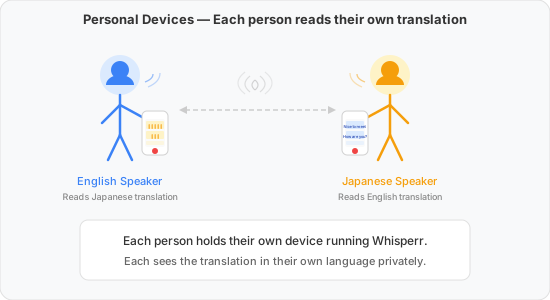
C) Everyone on their own phone — each person runs Whisperr on their own device and reads the translation privately, with their own font size and language.
- Pros: Full control over readability; no shared screen needed
- Cons: Each person needs the app and a subscription
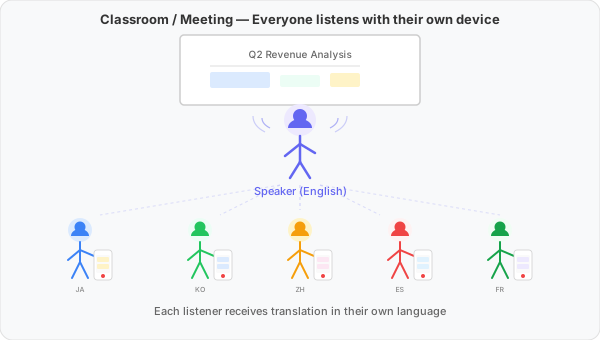
🎤 I'm presenting to a room — use Broadcast Mode
You're the speaker — a lecture, a keynote, a tour, a sermon, a team briefing — and the audience needs to follow in several languages. Turn on Broadcast Mode (Share Link), record your own voice once, and hand out the room link or QR code. Each listener opens it in any browser, picks the language they want, and can turn on Speech mode to hear the translation spoken in their ear — no app, no sign-up.
- iPhone / iPad / Android → Broadcast Mode on mobile
- Web App → Broadcast Mode on the Web App — the only place that can show a QR code for the audience to scan off the screen
- Mac / Windows → Broadcast Mode on desktop
- Pros: Best accuracy because the audio is captured at the source; one link covers an audience across up to 6 languages; listeners don't need the app or a subscription
- Cons: You have to set up the room and share the link; only your voice is translated, not questions from the audience
Quick Comparison
| Your role | Use | Who needs the app | Guide |
|---|---|---|---|
| Listening only | Microphone Capture, one-way direction | You | Microphone Audio Capture |
| Both talking, phone in the middle | Two Way Conversation + Face-to-Face or Speech Mode | One of you | on iPhone and Android |
| Both talking, laptop or big screen | Two Way Conversation + Full screen / mirroring | One of you | on the Web App · on Mac and Windows |
| Both talking, own phones | Two Way Conversation on each device | Everyone | Two Way Conversation |
| Presenting to a room | Broadcast Mode, link or QR code | Only the speaker | Broadcast Mode |
More Examples
- Travel — talk to locals, ask for directions, or order food with a phone in Two Way Conversation
- Medical and legal settings — a laptop between you and the patient or client, in Full screen translations
- Conferences and events — the speaker broadcasts; attendees scan the QR code and read or listen in their own language
Tips for Best Results
- Place the device close to the speaker — within 1–2 meters for best accuracy
- Use an external microphone for large rooms or noisy environments — a lapel mic significantly improves quality
- Reduce background noise — turn off TVs, fans, or music that isn't the target audio
- Leave a beat between turns in Two Way Conversation — a clean pause makes the speaker split cleaner
- Use headphones with Speech Mode so the spoken translation isn't picked up by the microphone
Supported Platforms
| Platform | Listening (mic) | Two Way Conversation | Broadcast Mode (speaker) |
|---|---|---|---|
| iOS | ✅ | ✅ Face-to-Face Mode | ✅ |
| Android | ✅ | ✅ Split Screen View | ✅ |
| Web App | ✅ | ✅ Big-screen friendly | ✅ Link + QR code |
| Mac | ✅ | ✅ Full screen translations | ✅ |
| Windows | ✅ | ✅ Full screen translations | ✅ |
| Chrome Extension | ❌ Use the Web App | ❌ | ❌ |
Related
- Two Way Conversation — let both people speak their own language without switching a setting
- Speech Mode — hear the translation spoken aloud instead of reading it
- Broadcast Mode — share one speaker's translation with many listeners over a link or QR code
- Microphone Audio Capture — how microphone capture works in detail
- Online Meetings — translate Zoom, Teams, Meet, or Webex calls
- Floating Subtitles — overlay subtitles on top of other apps