Online Meeting
Use Whisperr to transcribe and translate online meetings on Zoom, Teams, or Google Meet in real time. There are multiple ways to capture meeting audio depending on your platform and setup.
How It Works
- Whisperr captures audio from your online meeting — via browser tab capture, microphone, or a meeting bot
- Speech is transcribed and translated in real time on your device screen
- Follow the conversation in your preferred language without interrupting the meeting
Use Case Scenarios
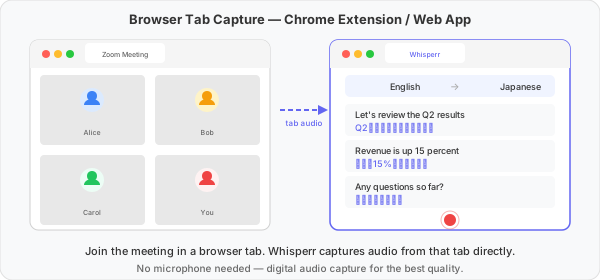
1. Browser Tab Capture (Chrome Extension / Web App)
Join the meeting in your browser and use Whisperr to capture the audio directly from the meeting tab. This is the most accurate method as it captures audio digitally without background noise.
- Recommended setup: Join the meeting via browser (not the desktop app), then use the Chrome Extension or Web App to capture the tab audio
- Pros: Best audio quality — no background noise, no microphone needed
- Cons: Must join the meeting in a desktop Chrome browser tab, not the desktop app. Does not work on mobile devices
2. Broadcast Mode
When you're the one speaking in the meeting (e.g., a presenter or host), use Broadcast Mode to share live translations with the other attendees. You capture your own mic with Whisperr and paste the room link into the meeting chat — anyone clicks it to read the translation in their browser.
- Recommended setup: open app.whisperr.co, select source/target languages, click Broadcast Mode and Record, then share the room URL via the meeting chat
- Pros: clean audio (captured directly from your mic); other attendees don't need the app or a subscription; works alongside any meeting platform
- Cons: only translates your speech, not what other participants say; you need to share the room link in chat
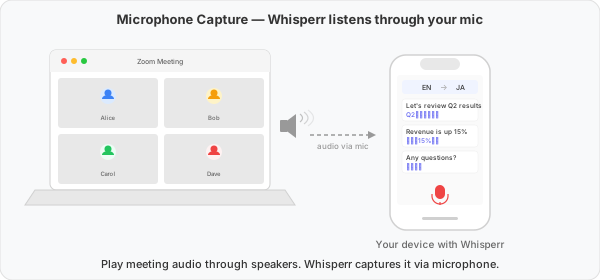
3. Microphone Capture
Play the meeting audio through your speakers and let Whisperr capture it through your device's microphone. Useful when you can't use browser tab capture or the meeting bot.
- Recommended setup: Play meeting audio on speakers, place your phone or laptop running Whisperr nearby
- Pros: Works with any meeting platform and any device
- Cons: Background noise can reduce accuracy. Audio quality depends on speaker volume and distance. If you are outside, you may not be able to use external speakers
4. Meeting Bot (iOS)
Send a Whisperr bot to join your meeting as a participant. The bot listens and streams the transcription and translation to your iOS device.
- Recommended setup: Use the Whisperr iOS app, tap Record, then tap Meeting Bot and paste the meeting link
- Pros: No need to change how you join the meeting — works with the desktop app. The bot joins separately
- Cons: The host may need to admit the bot from the waiting room. Currently iOS only

Which Method Should I Use?
| Method | Audio Quality | Setup Effort | Other Attendees Will Notice | Platform |
|---|---|---|---|---|
| Browser Tab Capture | Best | Medium | No | Chrome Extension / Web App |
| Broadcast Mode | Best (your mic) | Medium | Yes (link in chat) | Web App |
| Microphone Capture | Varies | Easy | No | iOS / Android / Mac / Web App |
| Meeting Bot | Best | Medium | Yes | iOS |
Supported Platforms
| Platform | Supported | Notes |
|---|---|---|
| Chrome Extension | ✅ | Captures audio directly from meeting browser tab |
| Web App | ✅ | Captures audio directly from meeting browser tab |
| iOS | ✅ | Meeting Bot or microphone capture |
| Mac | ✅ | Microphone capture only |
| Android | ✅ | Microphone capture |
| Windows | ✅ 🔜 | Coming soon |
Tips for Best Results
- Use browser tab capture when possible — it gives the cleanest audio with no background noise
- Use Meeting Bot if your team is comfortable with a bot showing up in the meeting
- Use microphone capture if you can put the laptop on speakers
Restrictions
- iOS: Cannot capture audio from Zoom, Teams, or Google Meet through Floating Subtitles due to privacy restrictions. Use the Meeting Bot, microphone capture, or join the call via a desktop browser and use the Web App or Chrome Extension for browser tab capture instead.
- Chrome Extension (Mac): Can capture audio from a browser tab (e.g. Zoom, Teams, or Google Meet running in Chrome) but cannot capture audio from the entire screen or an entire window due to privacy restrictions.
Related
- Broadcast Mode — share your translation with other meeting attendees via a room link
- Meeting Bot — how to set up and use the meeting bot
- Floating Subtitles — overlay subtitles on top of other apps
- In-Person Meetings — translate face-to-face conversations
- Microphone Audio Capture — how microphone capture works in detail