Online Meeting
Use Whisperr to transcribe and translate online meetings on Zoom, Microsoft Teams, Google Meet, or Webex in real time — or skip those platforms entirely and use Whisperr's own Calls feature instead. The right setup depends on what you're joining the meeting from. Use the guide below to pick yours — the options are listed from most to least recommended.
How It Works
- Whisperr captures the meeting audio — from your computer's system audio, from the meeting's browser tab, or through your phone's microphone
- Speech is transcribed and translated in real time on your screen
- Follow the conversation in your preferred language without interrupting the meeting
What Are You Joining the Meeting From?
🖥️ A Mac or Windows PC — use the desktop app (recommended)
This is the best setup. Join the meeting however you normally do — the Zoom, Teams, Meet, or Webex desktop app, or a browser — and let the Whisperr desktop app capture your computer's System audio. It hears everything the other participants say, with clean digital audio and no background noise, and works with every meeting platform.
- Mac → Floating Subtitles on Mac
- Windows → Floating Subtitles on Windows
- Want your own voice in the transcript too? Choose Mic + System audio as the source so both sides of the conversation are captured
- Want other attendees to read the translation? Turn on Broadcast Mode and paste the room link into the meeting chat. Anyone can open it in a browser and follow along in their own language — no app or subscription needed. From the Web App, you can also show a QR code
- Pros: Best audio quality; works with the native meeting apps, not only the browser; can capture you and the other participants at once; nobody else in the meeting needs to do anything
- Cons: Requires installing the desktop app
💻 A computer where you can't install apps — use the Web App
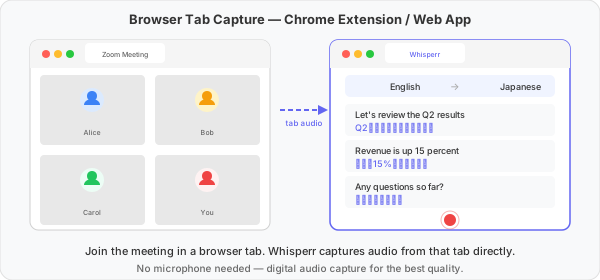
On a locked-down work laptop or a shared computer, use the Whisperr Web App instead. Join the meeting in a Chrome browser tab (not the desktop meeting app), open Whisperr in a second tab, and capture the audio from the meeting tab.
- Web App → Floating Subtitles on the Web App
- Pros: Nothing to install; clean digital audio captured straight from the tab
- Cons: The meeting must be joined in a browser tab — Whisperr can't capture a native meeting app, a window, or the whole screen from the browser. Keep the two tabs side by side to watch and read at once
📞 Don't need Zoom, Teams, Meet, or Webex specifically — start a Whisperr Call instead
If you're setting up the meeting yourself and don't need to be on Zoom, Teams, Meet, or Webex specifically, skip them entirely and use Whisperr's own Calls feature. Start a call from the Whisperr Web App sidebar, pick the language you speak, and share the link — guests join straight in their browser, pick their own language, and the conversation is translated live for everyone. Nothing else to install, and no separate meeting platform in the middle.
- Web App → Calls in the Web App
- Pros: Guests need no app, account, or Whisperr subscription to join — just the link; every participant reads (and can hear) the conversation in their own language, not just yours; audio is never saved, and the transcript is saved only if the host turns that on
- Cons: Not a way to join a Zoom, Teams, Meet, or Webex call someone else already scheduled — this replaces that platform rather than capturing it; free calls are capped at 2 minutes unless the host has an active plan; currently supports up to 8 people
📱 A phone or tablet — use the phone's microphone with Echo Cancellation off
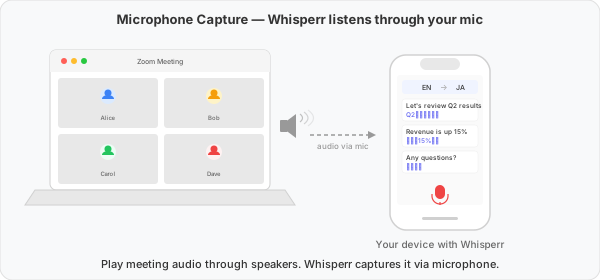
If you have to join from your phone, Whisperr listens to the meeting through the phone's own microphone. Put the meeting on the loudspeaker so the other participants' voices are audible in the room, start Whisperr with the Microphone source, and turn Echo Cancellation off — otherwise the phone filters its own speaker output out of the mic and Whisperr hears nothing.
- iPhone / iPad / Android → Echo Cancellation on iPhone, iPad and Android — how to turn it off
- Pros: Works with any meeting platform and no extra device
- Cons: Audio comes through the air, so background noise reduces accuracy. Headphones won't work — Zoom, Teams, Meet, and Webex block other apps from reading their audio on mobile for privacy, so the meeting must play out of the speaker. Floating Subtitles can't overlay these apps for the same reason
A second device helps: join the meeting on your laptop, play it on speakers, and run Whisperr on your phone next to it. See Microphone Audio Capture.
🤖 Any device — send the Meeting Bot instead
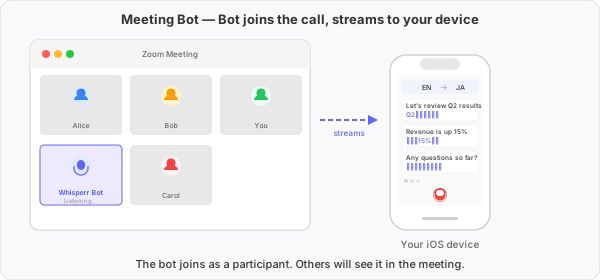
If you'd rather not change how you join at all, send a Whisperr bot into the meeting as a participant. It listens on the call and streams the transcription and translation to your device.
- iPhone / iPad → Meeting Bot on iPhone and iPad · Mac → on Mac · Windows → on Windows · Web App → on the Web App
- Pros: Works with Zoom, Teams, and Meet however you joined, including from a phone with headphones
- Cons: Other attendees see the bot join; the host may need to admit it from the waiting room. Webex is not supported yet
Quick Comparison
| You're joining from… | Use | Audio Quality | Others Will Notice | Guide |
|---|---|---|---|---|
| Mac or Windows PC (recommended) | Desktop app, System audio | Best | No | Mac · Windows |
| Mac or Windows PC, sharing with attendees | Desktop app + Broadcast Mode | Best | No, but you can share the Whisperr link in chat | Broadcast Mode on desktop |
| Web Browser (can't install apps) | Web App tab capture (join in browser) | Best | No | Web App |
| Not tied to Zoom/Teams/Meet/Webex | Whisperr Calls | Best | No | Calls in the Web App |
| Phone or tablet | Microphone, Echo Cancellation off, meeting on speaker | Varies | No | Echo Cancellation on mobile |
| Any device | Meeting Bot | Best | Yes (bot joins) | Meeting Bot |
Supported Platforms
| Platform | Supported | How it captures the meeting |
|---|---|---|
| Mac | ✅ | System audio (or Mic + System audio) from any meeting app; Meeting Bot |
| Windows | ✅ | System audio (or Mic + System audio) from any meeting app; Meeting Bot |
| Web App | ✅ | Audio from the meeting's browser tab; Meeting Bot |
| Chrome Extension | ✅ | Audio from the meeting's browser tab |
| iOS | ✅ | Microphone with Echo Cancellation off; Meeting Bot |
| Android | ✅ | Microphone with Echo Cancellation off |
Supported Meeting Platforms
| Meeting Platform | Desktop / Web App capture | Phone microphone | Meeting Bot |
|---|---|---|---|
| Zoom | ✅ | ✅ | ✅ |
| Microsoft Teams | ✅ | ✅ | ✅ |
| Google Meet | ✅ | ✅ | ✅ |
| Webex | ✅ | ✅ | 🔜 |
Tips for Best Results
- Use the desktop app when you can — System audio capture is the cleanest and works with the native meeting apps
- On the Web App, join the meeting in the browser, not the desktop meeting app, or there is no tab to capture
- On a phone, meeting on speaker + Echo Cancellation off is the only combination that works for microphone capture — or use the Meeting Bot instead, which works over headphones too
- Sharing with the room? Use Broadcast Mode so attendees read along in their own language
Restrictions
- iPhone, iPad, and Android: Zoom, Teams, Meet, and Webex don't let other apps read their audio, so Whisperr can't capture the call through headphones and Floating Subtitles can't overlay these apps. Play the meeting on the speaker with Echo Cancellation off, or use the Meeting Bot.
- Web App / Chrome Extension: Can capture audio from a browser tab only — not from the native Zoom, Teams, Meet, or Webex apps, a window, or the whole screen. Use the Mac or Windows app for those.
- Broadcast Mode: Shares the audio Whisperr is capturing. With the Microphone source that's your own voice; with System audio it's what your computer is playing.
Related
- Floating Subtitles — System audio capture on desktop and tab capture on the web
- Echo Cancellation — why it must be off to translate audio playing from your phone
- Broadcast Mode — share your translation with other attendees via a room link
- Meeting Bot — how to set up and use the meeting bot
- Calls — start your own translated call by link instead of using Zoom, Teams, Meet, or Webex
- In-Person Meetings — translate face-to-face conversations
- Videos and Entertainment — TikTok Live, YouTube, Netflix