Broadcast Mode on Mac
This page covers running a broadcast as a speaker from the Whisperr Mac app. For how Broadcast Mode works and the viewer experience, see the Broadcast Mode overview.
Broadcast as a Speaker (Mac)
-
Download Whisperr for Mac if you haven't already, then launch Whisperr
-
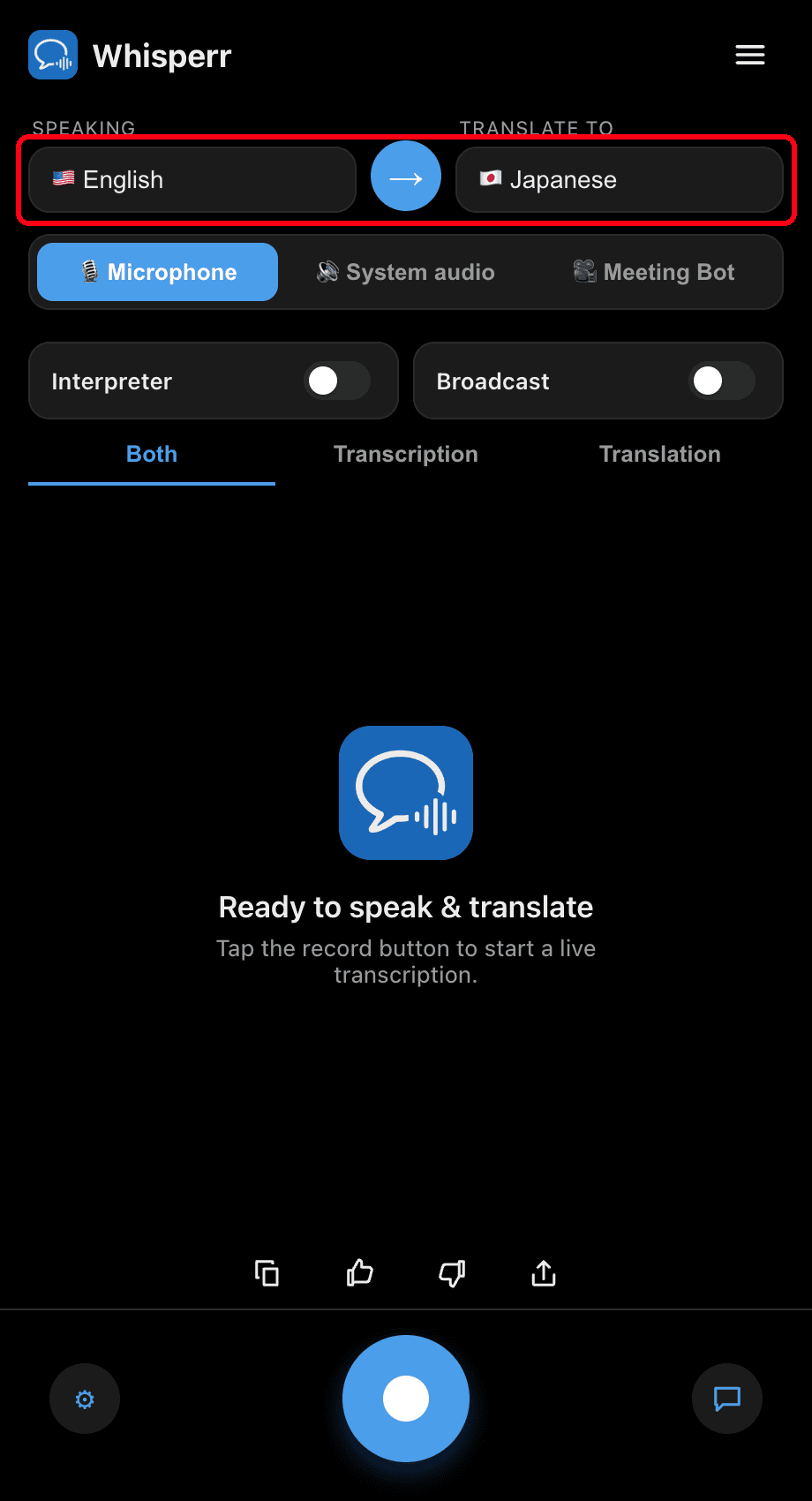
Set your Speaking (source) and Translate to (target) languages — the target is the language your viewers will read
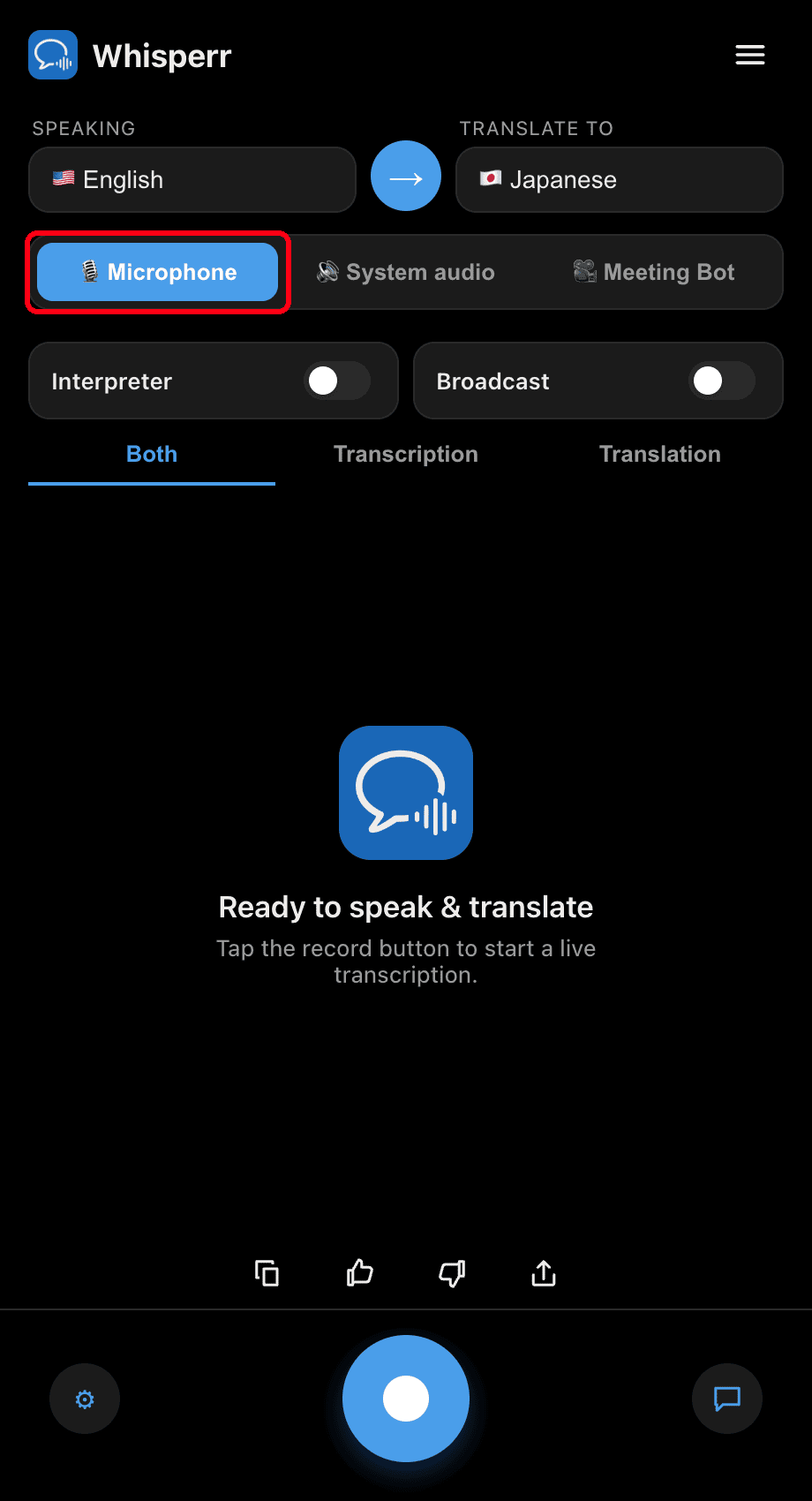
- Keep Microphone selected as the audio source so Whisperr captures your voice
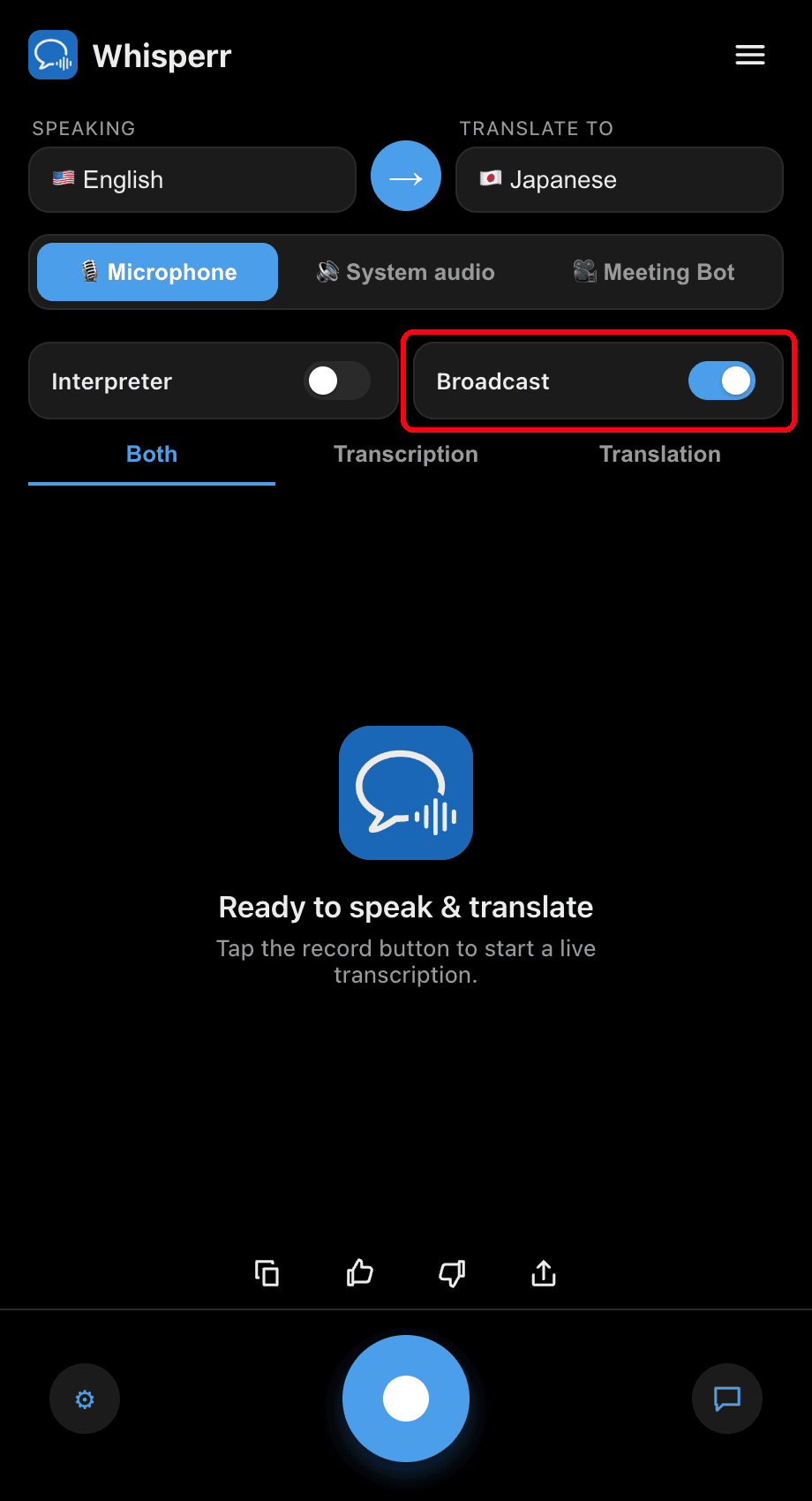
- Turn on the Broadcast toggle in the quick-mode toggles (you don't need to open Settings)
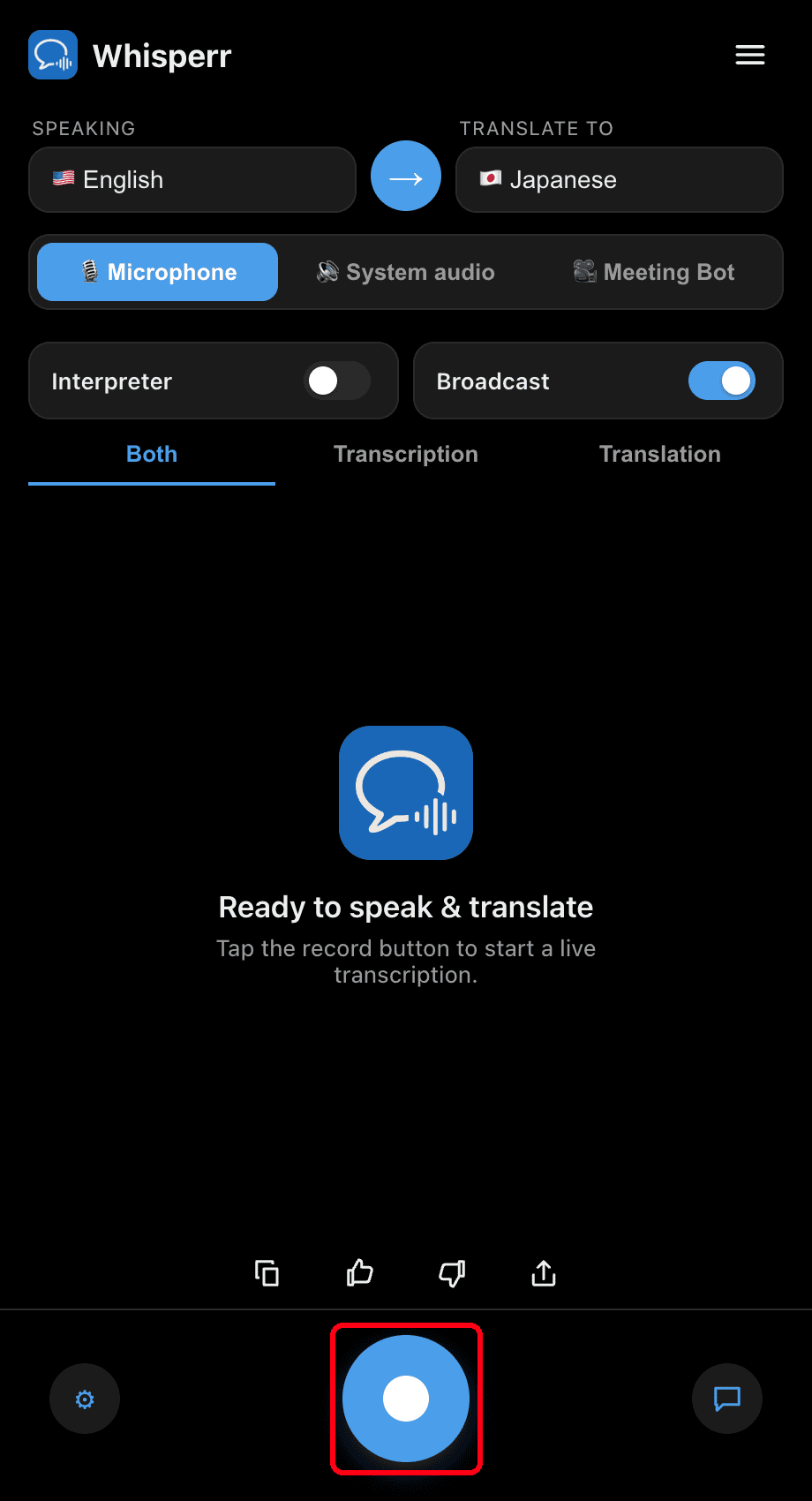
- Click the record button — Whisperr starts capturing audio and a Live share link banner appears
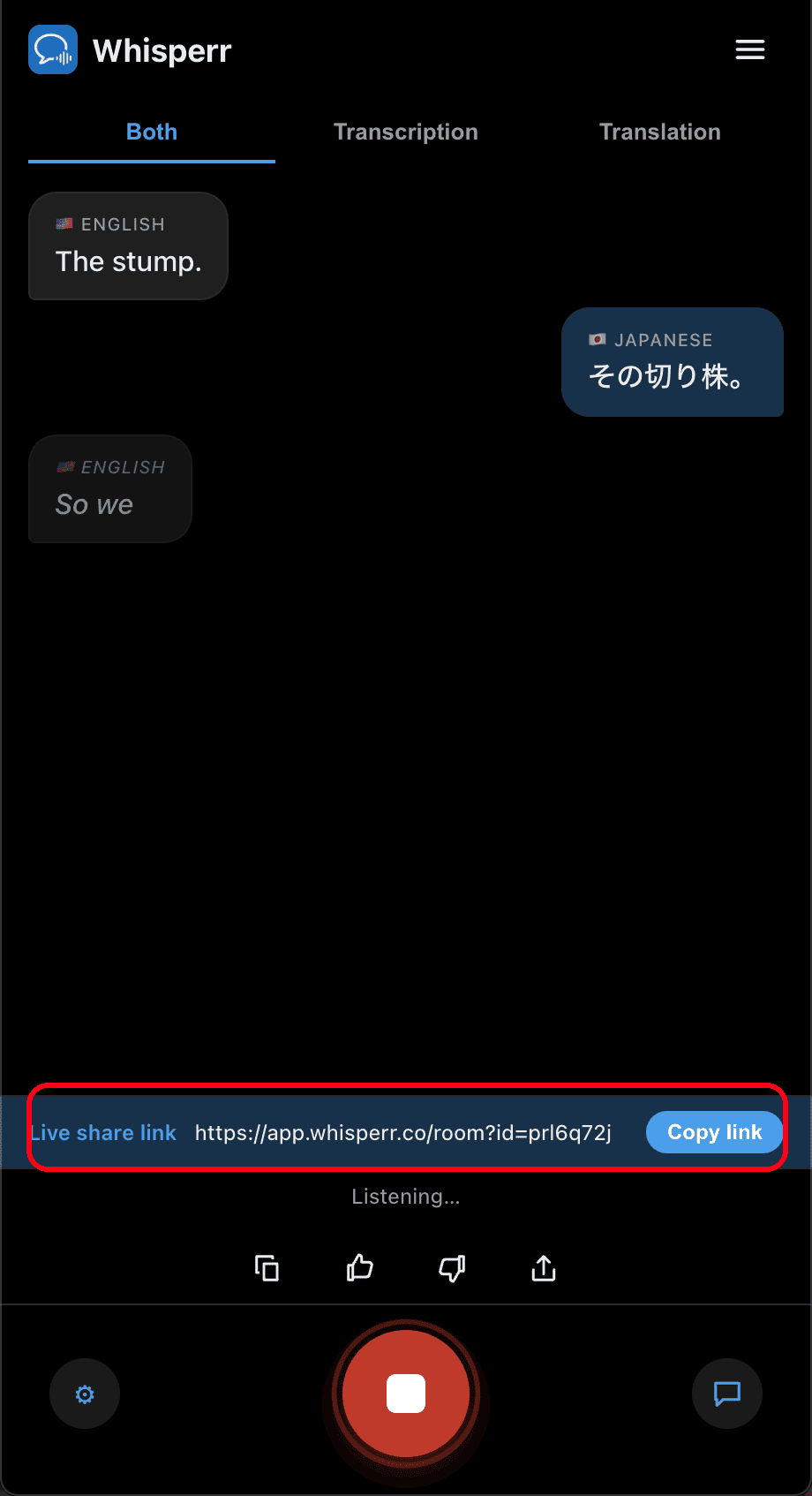
- Click Copy link and share it with your viewers — they open it in any browser to follow your live transcription and translation
The room stays active as long as you're recording. Click the record button again to stop.
Common Issues (Mac)
No share link banner appears
The Live share link banner shows only while recording with the Broadcast toggle on. Turn Broadcast on before you start recording.
Viewers don't hear/see updates
Viewers follow the text (transcription + translation), not audio. Make sure you're still recording — the room is live only during an active recording.
Capturing the wrong audio
For presenting your own voice, keep the Microphone source selected. If you switch to System audio, Whisperr broadcasts what your Mac is playing instead.
Still not working? Contact Support
Related
- Broadcast Mode (overview) — how it works, supported platforms, and the viewer experience
- On Windows · On iPhone/iPad · On the Web App
- Broadcast Mode FAQ — common questions about rooms, links, and viewers