Meeting Bot on Mac
This page covers sending the Whisperr meeting bot into a call from the Whisperr Mac app. For how the Meeting Bot works, see the Meeting Bot overview.
Meeting Bot isn't available on the free plan. Upgrade in the app (Upgrade / Manage subscription) to send the bot into a call.
How to Use the Meeting Bot on Mac
-
Download Whisperr for Mac if you haven't already, then launch Whisperr
-
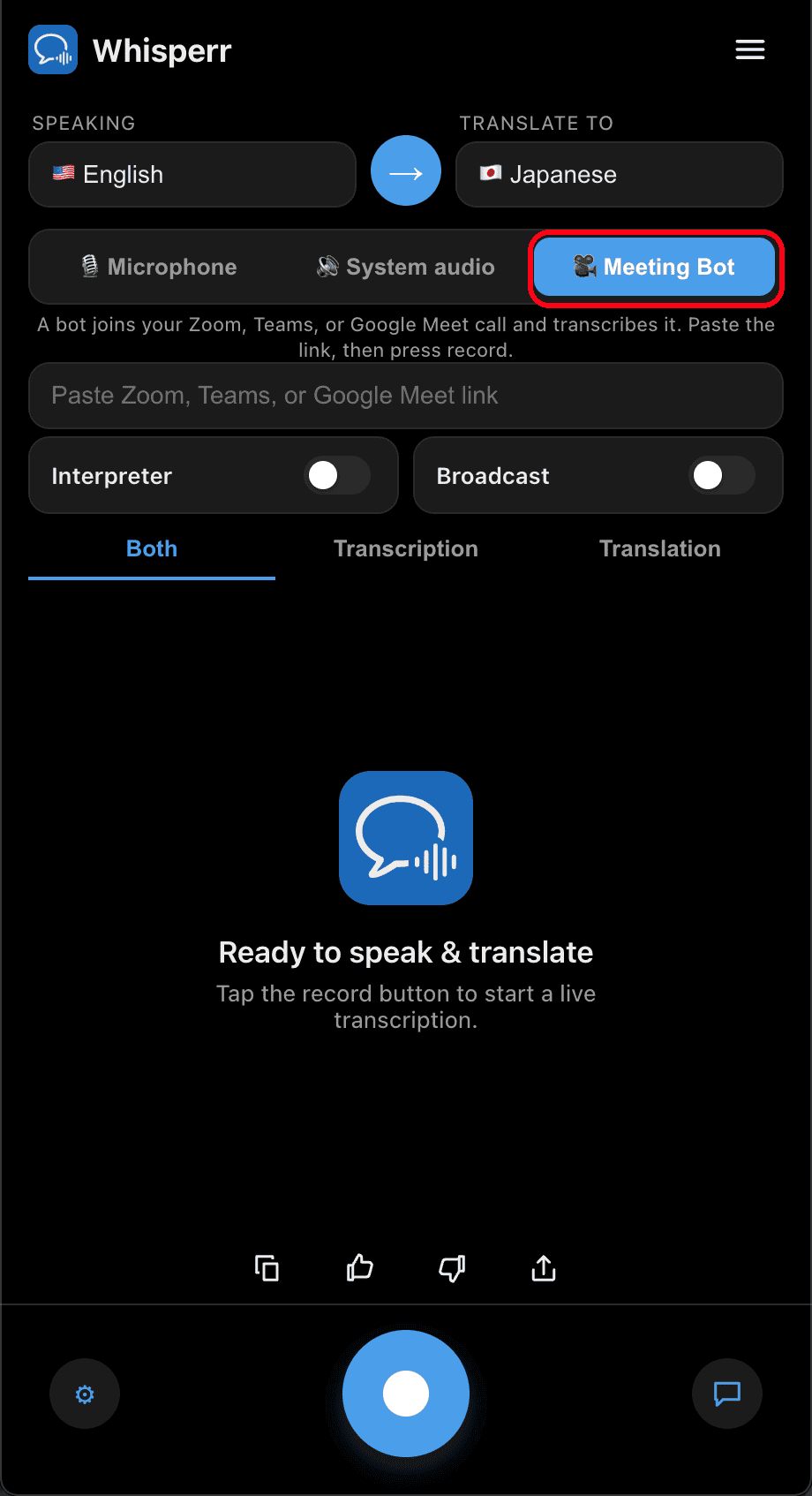
In the audio source selector, choose 🎥 Meeting Bot
A bot joins your Zoom, Teams, or Google Meet call and transcribes it. Paste the link, then press record.
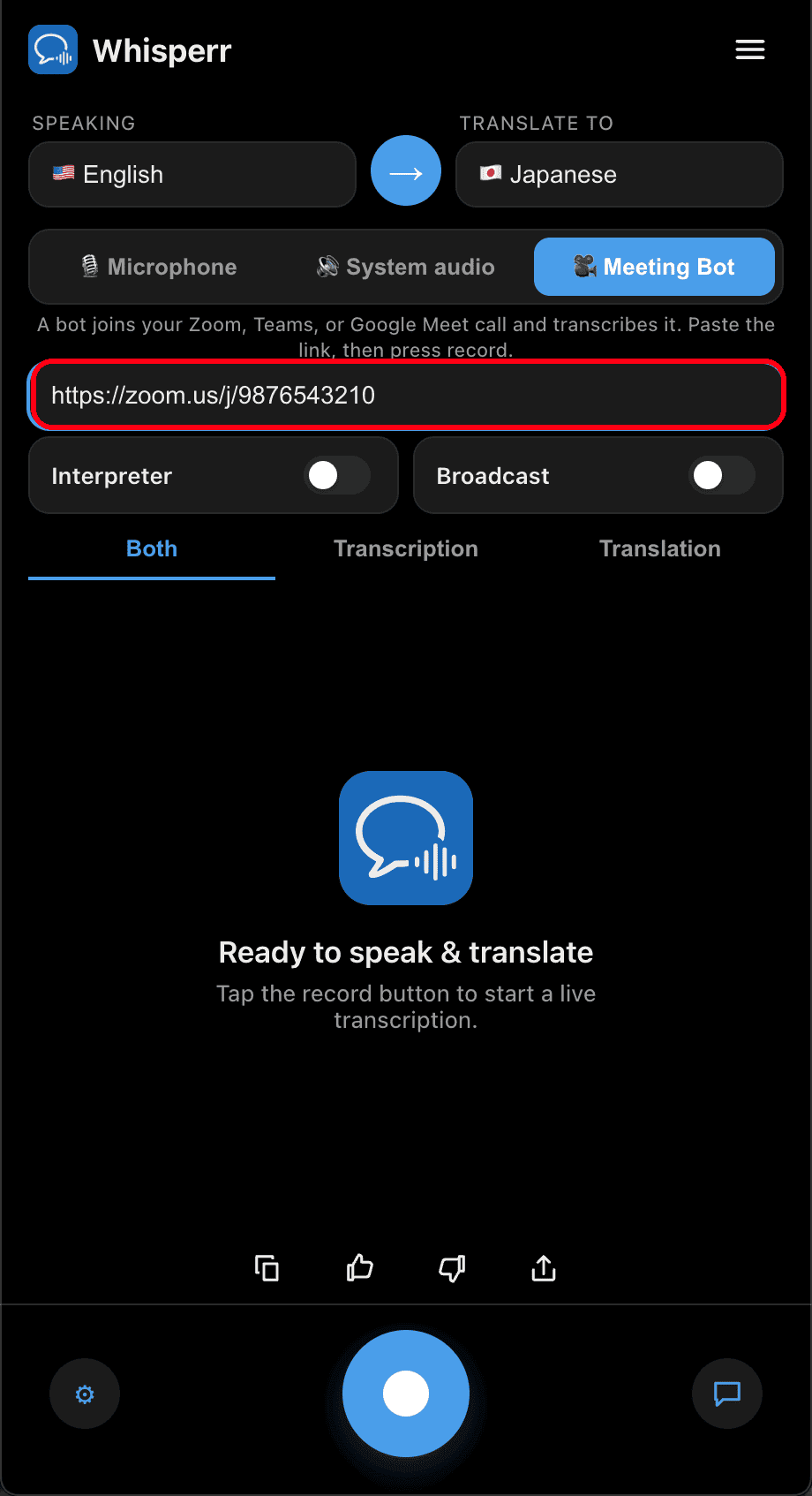
- Paste the meeting link (Zoom, Teams, or Google Meet) into the Paste Zoom, Teams, or Google Meet link field
-
Set your Speaking (source) and Translate to (target) languages
-
Click the record button — the Whisperr Translation Bot dials into the meeting as a participant
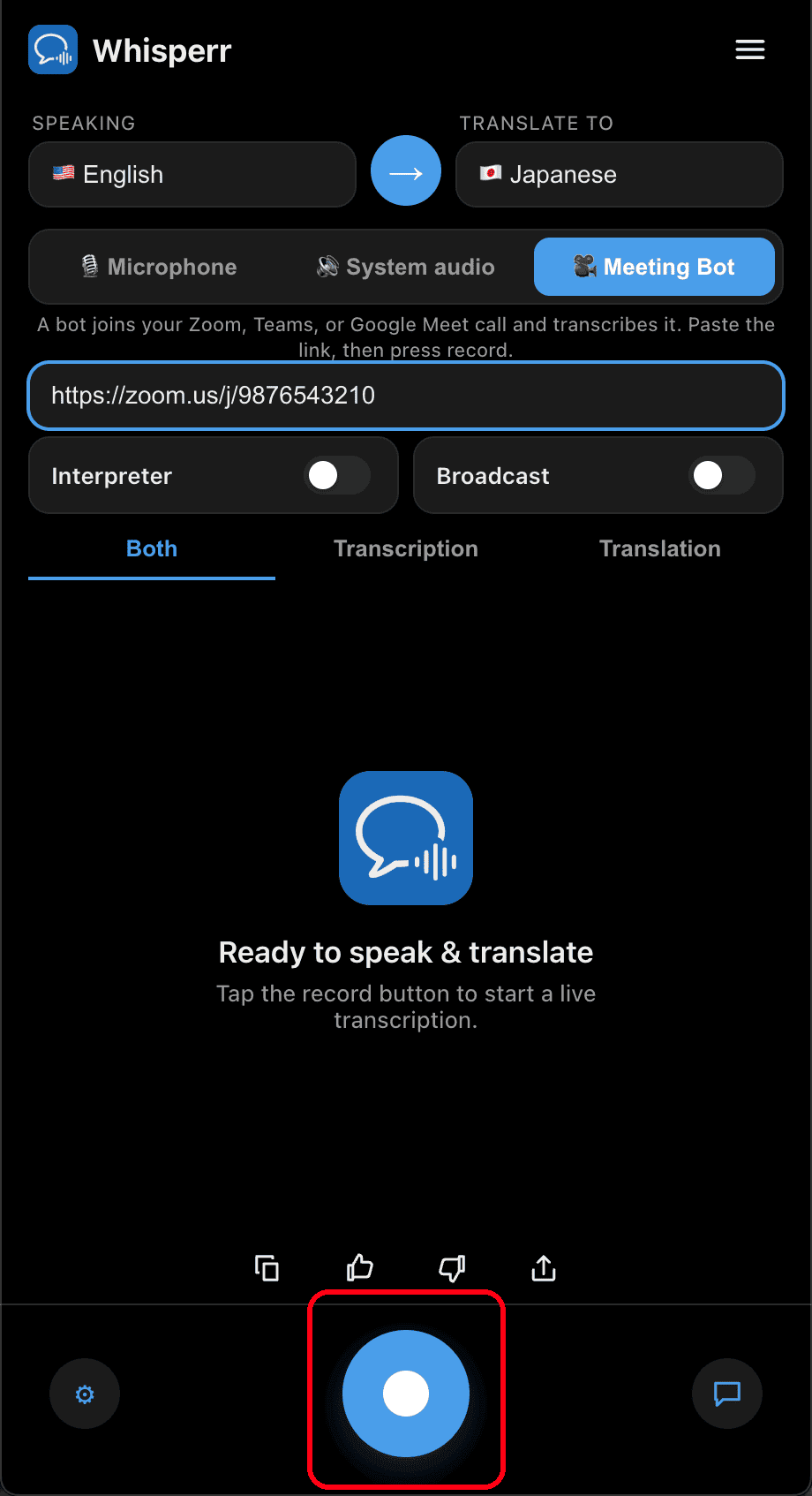
- Admit the bot from the meeting's waiting room if your host has one enabled — transcription and translation then appear in real time on your Mac
Click the record button again to remove the bot and end the session.
Common Issues (Mac)
The Meeting Bot source is greyed out
Meeting Bot requires an active subscription. Check the plan banner and choose Upgrade if you're on the free plan.
"Please enter a valid URL" or "Use a Zoom, Teams, or Google Meet link"
Paste the full meeting link. Only Zoom, Microsoft Teams, and Google Meet links are supported — copy the Join link directly from the meeting invite.
The bot never joins
The host may need to admit the bot from the waiting room. Also confirm the meeting hasn't ended and the link is still valid.
No transcription after the bot joins
Make sure someone is speaking, and double-check your Speaking and Translate to languages are correct.
Still not working? Contact Support
Related
- Meeting Bot (overview) — how it works and supported meeting platforms
- On Windows · On iPhone/iPad · On the Web App
- Microphone Audio Capture on Mac — capture audio through your device instead