Broadcast Mode on Android
This page covers running a broadcast as a speaker from the Whisperr Android app. For how Broadcast Mode works and the viewer experience, see the Broadcast Mode overview.
Broadcast as a Speaker (Android)
-
Open the Whisperr app on your Android phone or tablet
-
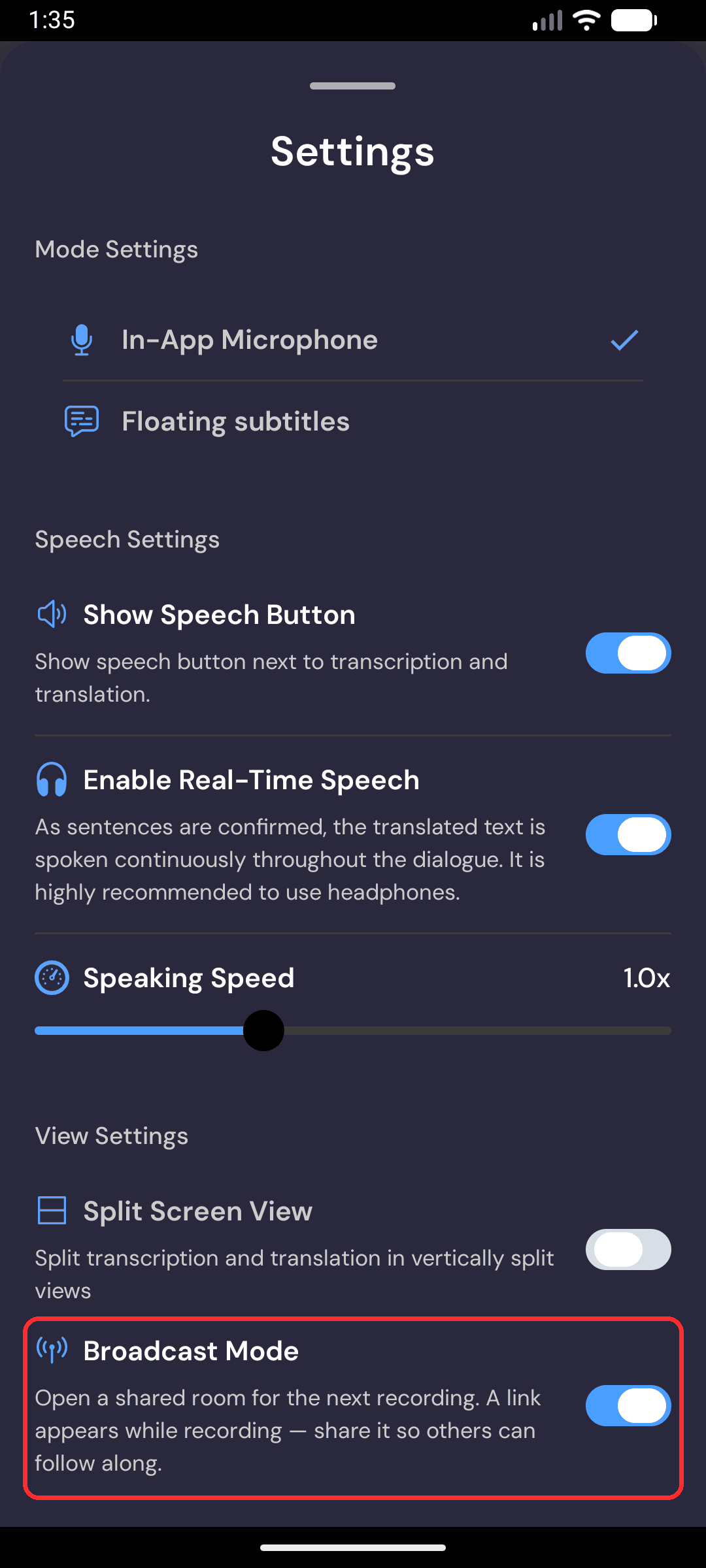
Open Settings, then turn on Broadcast Mode
Broadcast Mode opens a shared room for the next recording. A link appears while you're recording — share it so others can follow along.
-
Go back to the home screen and select your source language (the language you'll be speaking) and target language (the language viewers will read)
-
Tap the record button to start — Whisperr begins capturing audio through your device microphone and a share link (
app.whisperr.co/room?id=…) appears at the top of the screen -
Tap the copy button next to the link and share it with your viewers — they open it in any browser to follow your live transcription and translation
The room stays active as long as you're recording. Tap the record button again to stop. Starting a new conversation (the + button) creates a fresh room and link.
What Your Viewers See
Anyone who opens the room link gets this page in their browser — no app, no account, no sign-up. Most of your audience will be on a phone, where it looks like this, with each line of transcription and translation appearing as you speak.
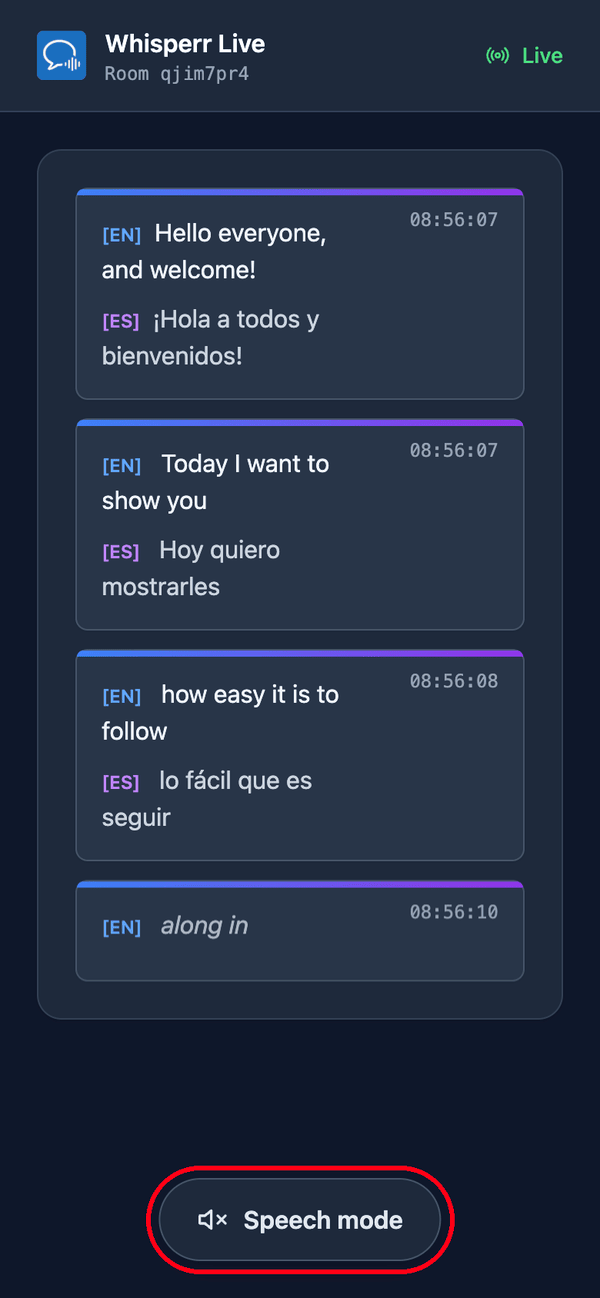
If they'd rather listen than read, they tap Speech mode at the bottom of the page. The button turns blue, a Speaking speed slider appears at the top, and Whisperr reads each translation aloud on their own device as soon as it's finalized.
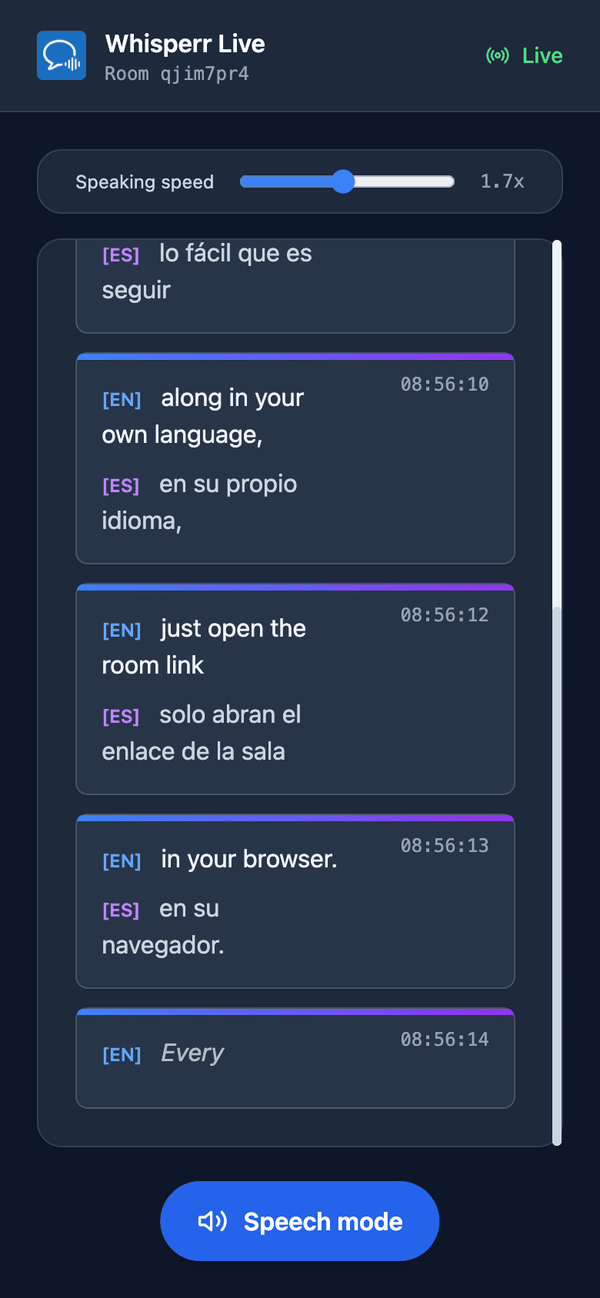
Speech mode starts off for everyone — that first tap doubles as the gesture browsers require before they'll play audio. It's a per-viewer choice, so some of your audience can listen while the rest just read. More detail in the viewer experience.
Common Issues (Android)
No share link appears
The link only shows while you're actively recording with Broadcast Mode on. Confirm Broadcast Mode is enabled in Settings, then start recording.
Viewers see nothing
Make sure you're still recording — the room is live only during an active recording. Viewers should reload the room link if they opened it before you started.
Wrong translation language for viewers
Viewers read the target language you selected before recording. Stop, change the target language, and start a new recording to change it.
Still not working? Contact Support
Related
- Broadcast Mode (overview) — how it works, supported platforms, and the viewer experience
- On iPhone/iPad · On the Web App
- Broadcast Mode FAQ — common questions about rooms, links, and viewers