iPhone 和 iPad 上的广播模式
本页介绍如何在 iPhone 或 iPad 上以演讲者身份运行广播。有关广播模式的工作原理及观众体验,请参阅广播模式概览。
作为演讲者进行广播(iPhone/iPad)
- 打开 Whisperr 应用
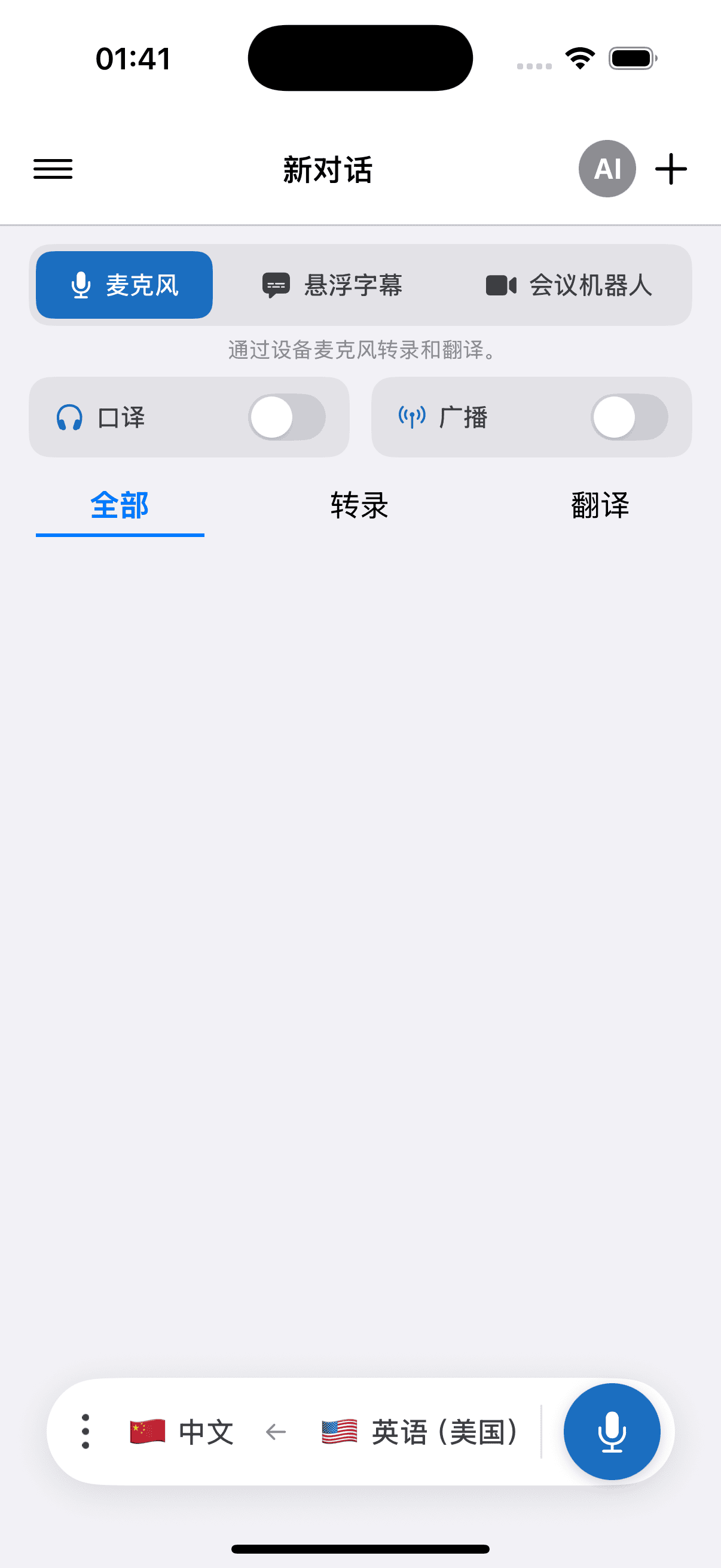
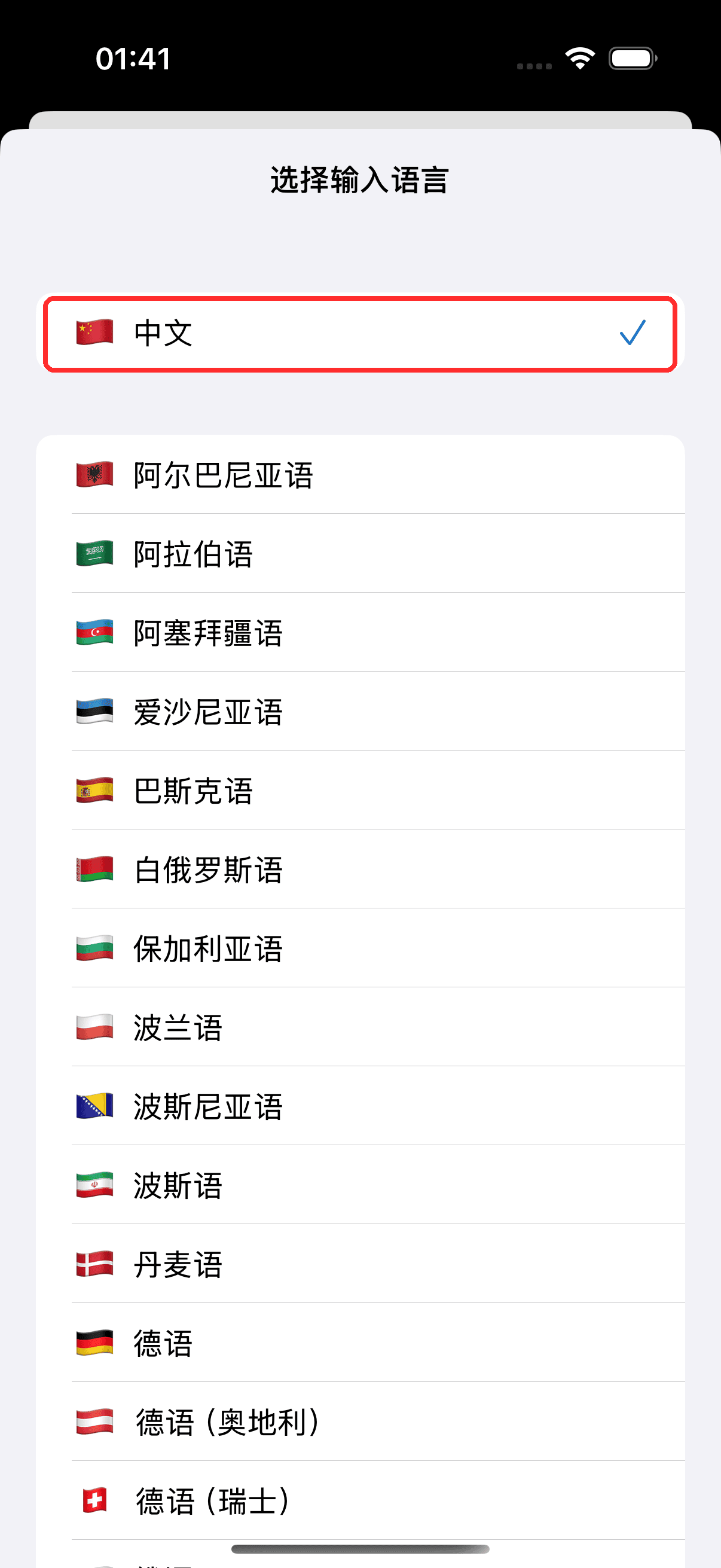
- 在底部的栏中选择源语言(你要讲的语言)和目标语言(观众将阅读的语言)
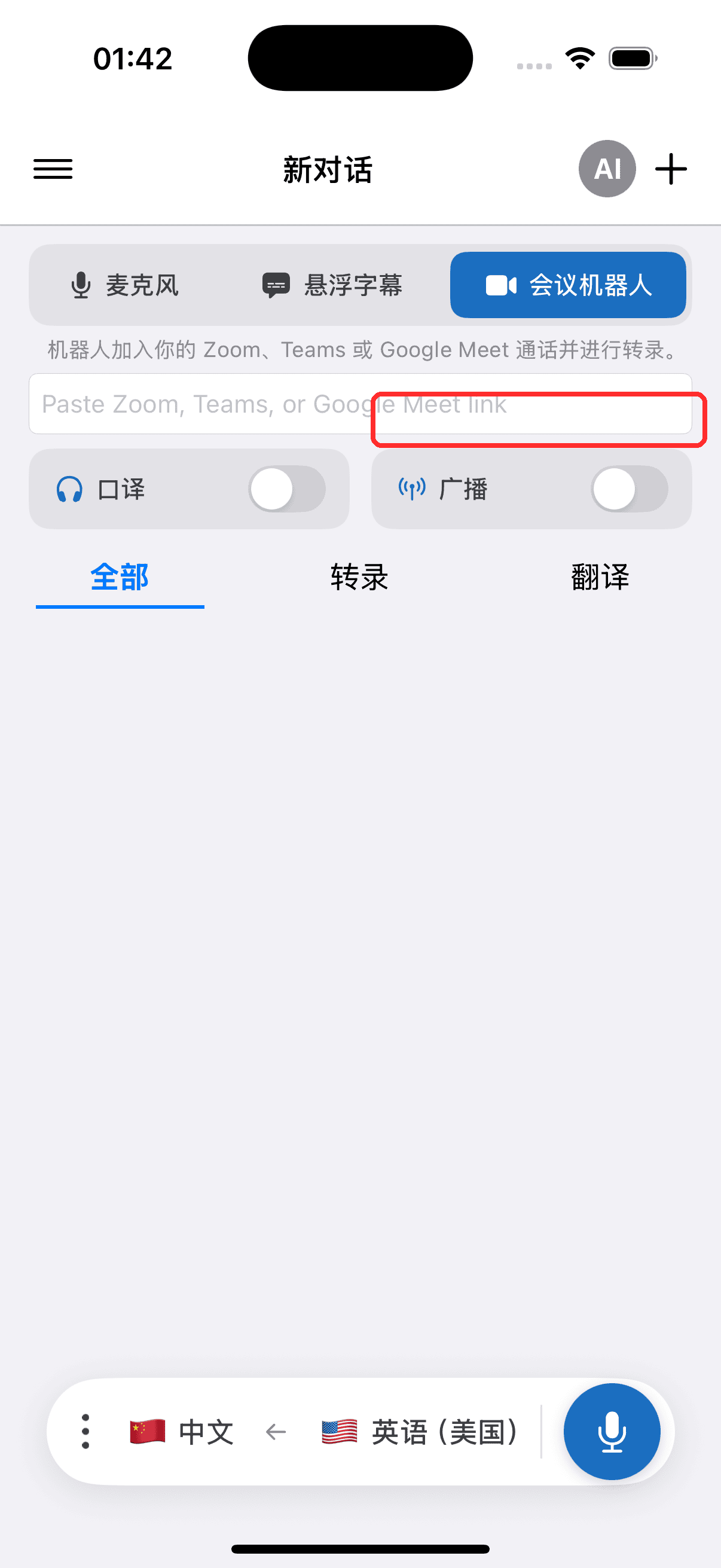
- 打开 广播 开关
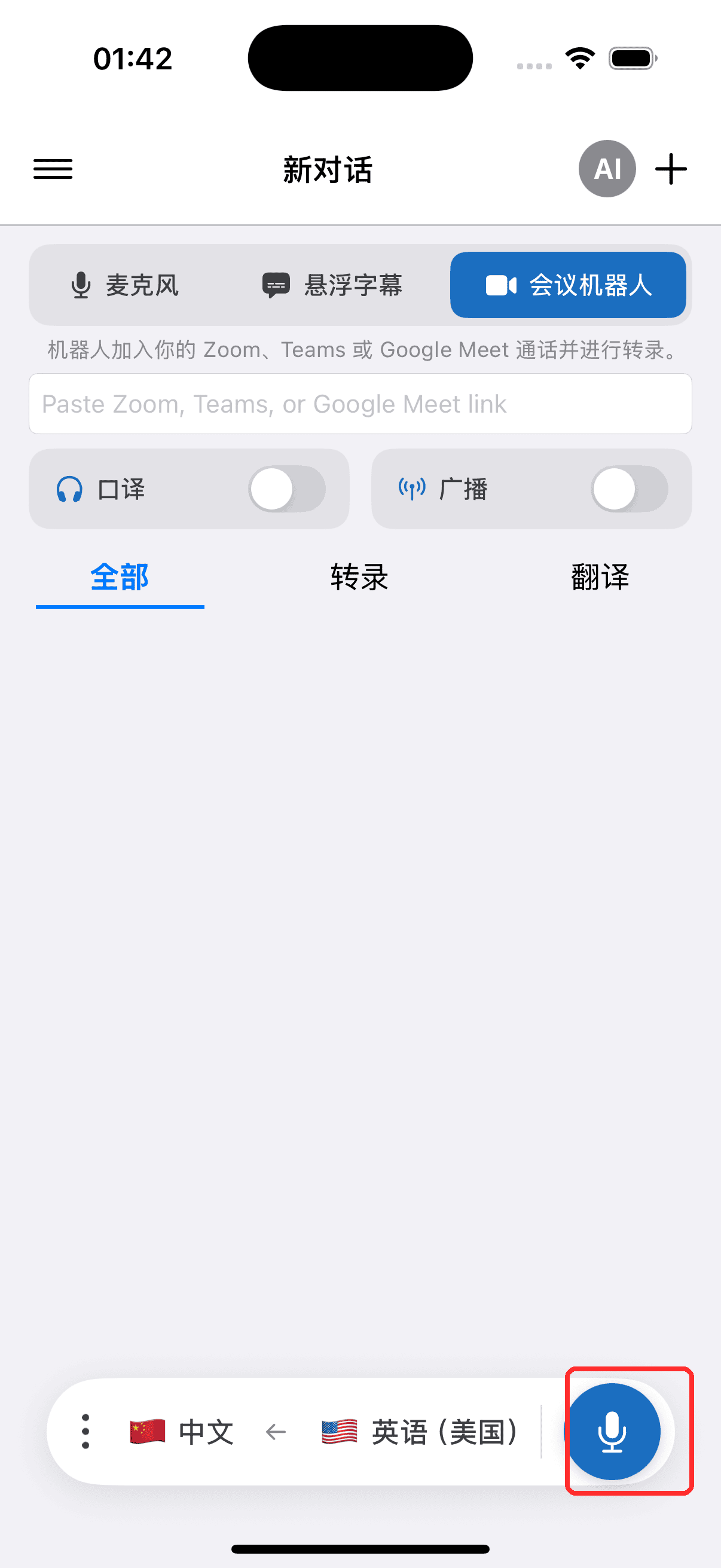
- 点按录制按钮开始 — Whisperr 开始采集音频,并出现一个可分享的房间链接
- 将房间链接分享给观众 — 他们可在任意浏览器中打开,实时跟随你的转录和翻译
你的观众看到的画面
任何人打开房间链接,都会在浏览器中看到这个页面——无需应用、无需账号、无需注册。大多数观众会用手机观看,界面如下所示,你每说一句,转写和翻译就会逐行出现。
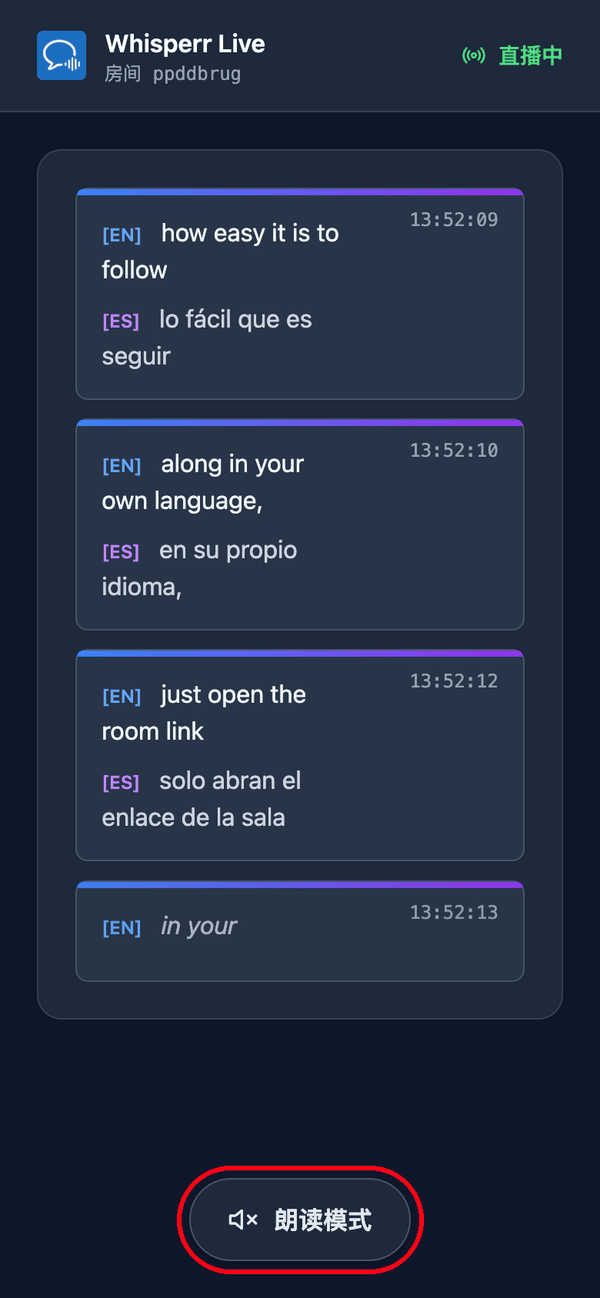
如果他们更想听而不是读,只需点按页面底部的 朗读模式 。按钮变为蓝色,顶部出现 朗读速度 滑块,每当一句翻译定稿,Whisperr 就会在他们自己的设备上朗读出来。
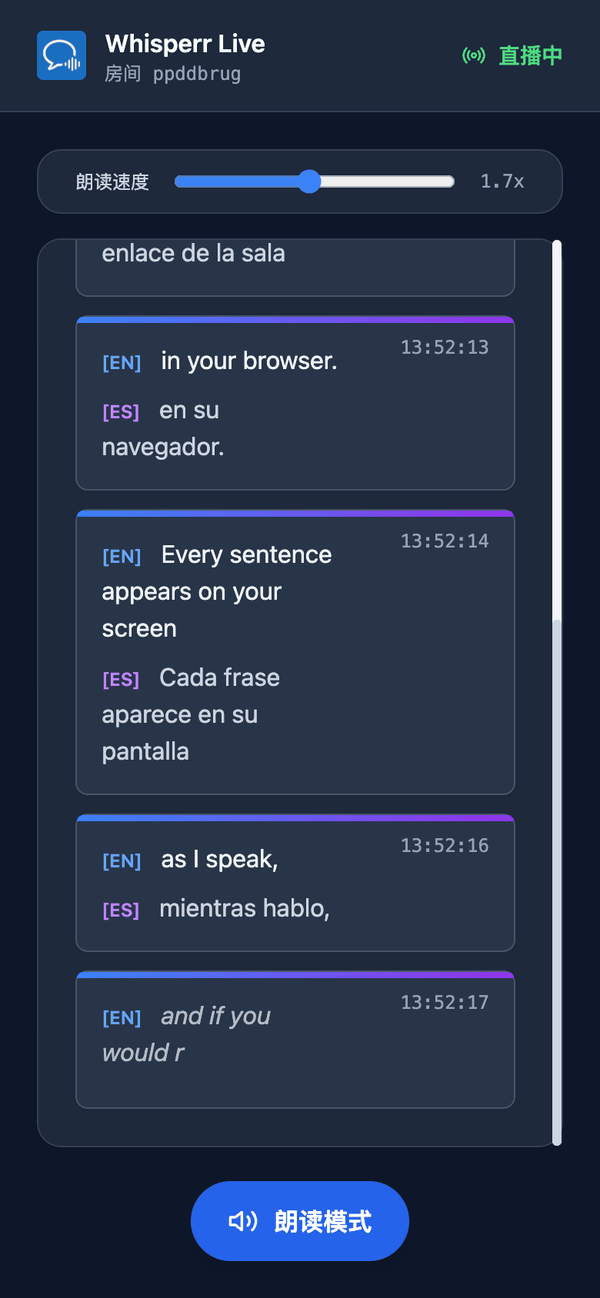
朗读模式对所有人都是默认关闭的——第一次点按正好充当浏览器在播放音频前所要求的用户操作。这是每位观众各自的选择,因此一部分听众可以听,其余人只看文字。更多说明见 观众视角 。
相关内容
- 广播模式(概览) — 工作原理、支持的平台及观众体验
- 在 Web 应用中使用 — 从 Web 应用发起广播
- 广播模式常见问题 — 关于房间、链接和观众的常见问题