网页应用上的会议机器人
本页面介绍如何从 Whisperr 网页应用 将 Whisperr 会议机器人加入通话 — 无需下载。如需了解会议机器人的工作原理,请参阅会议机器人概览。
需要订阅
会议机器人不适用于免费套餐。请在应用中升级(升级 / 账单),即可将机器人加入通话。
如何在网页应用中使用会议机器人
- 前往 whisperr.co/app 并登录
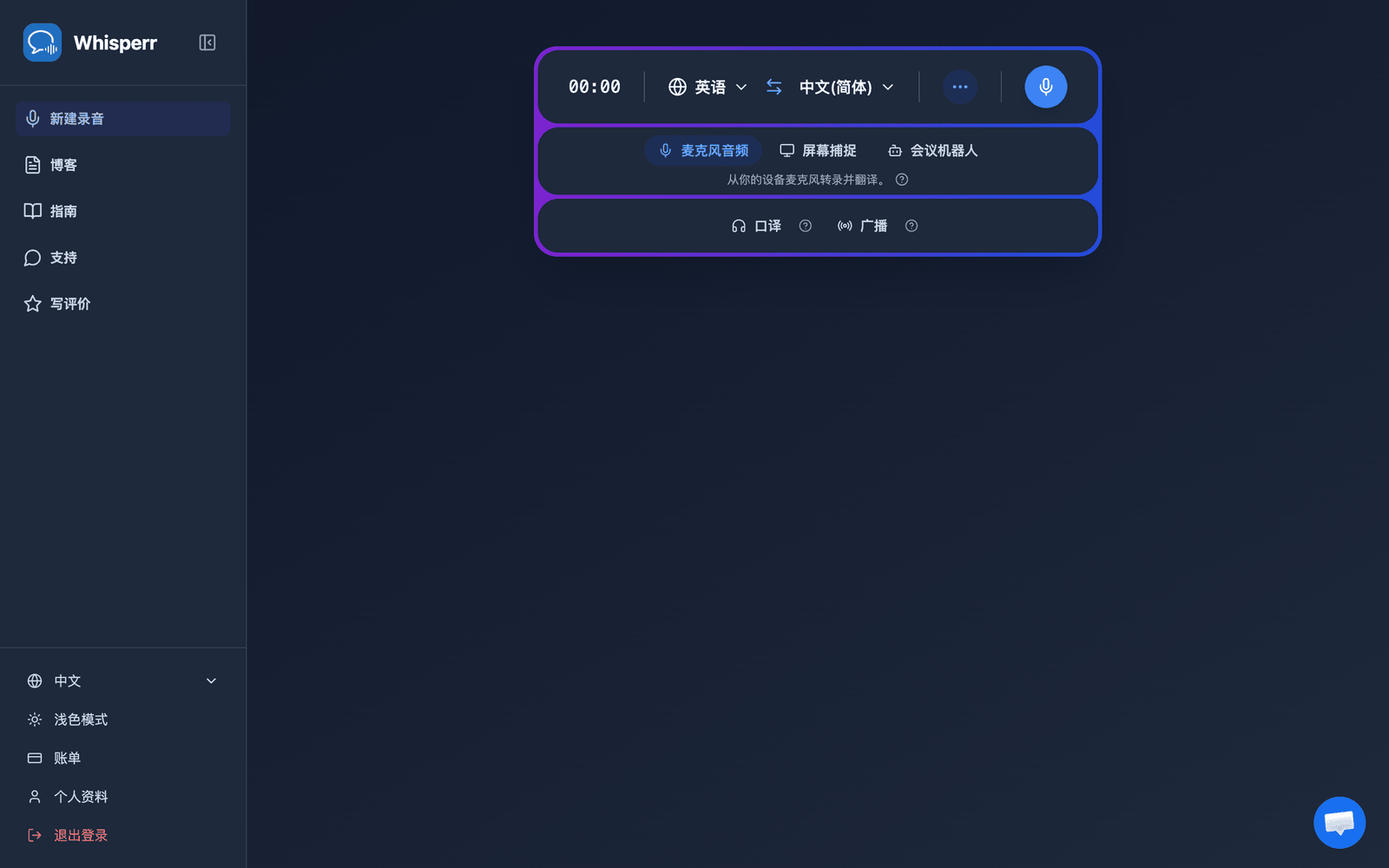
- 在录音栏下方的来源选择器中,点按 会议机器人
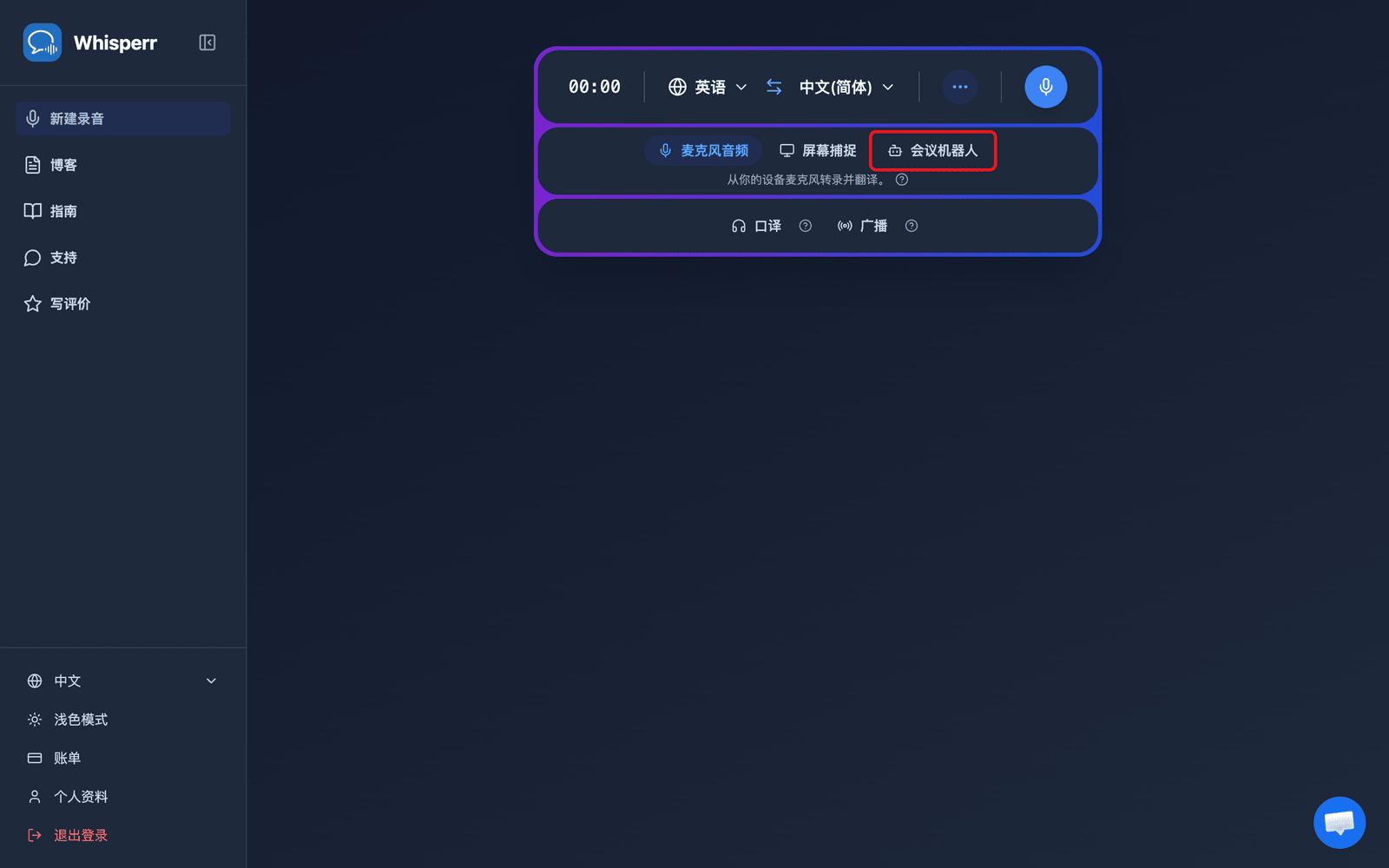
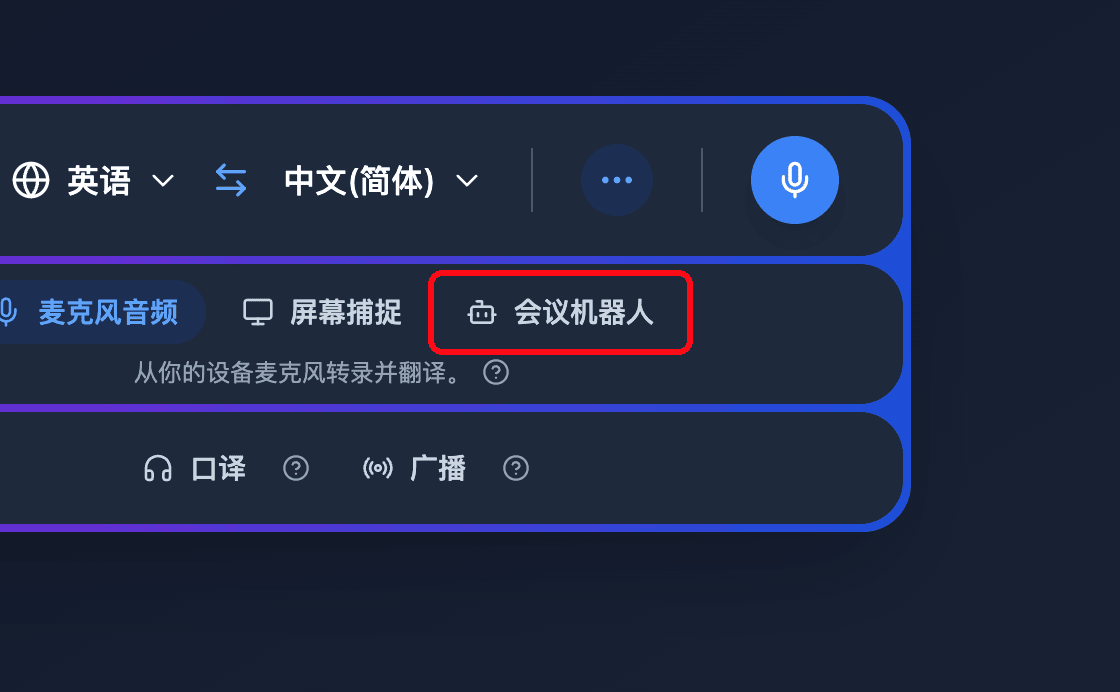
- 将会议链接(Zoom、Teams 或 Google Meet)粘贴到 粘贴 Zoom、Teams 或 Google Meet 链接 输入框中 — Whisperr 会自动检测平台
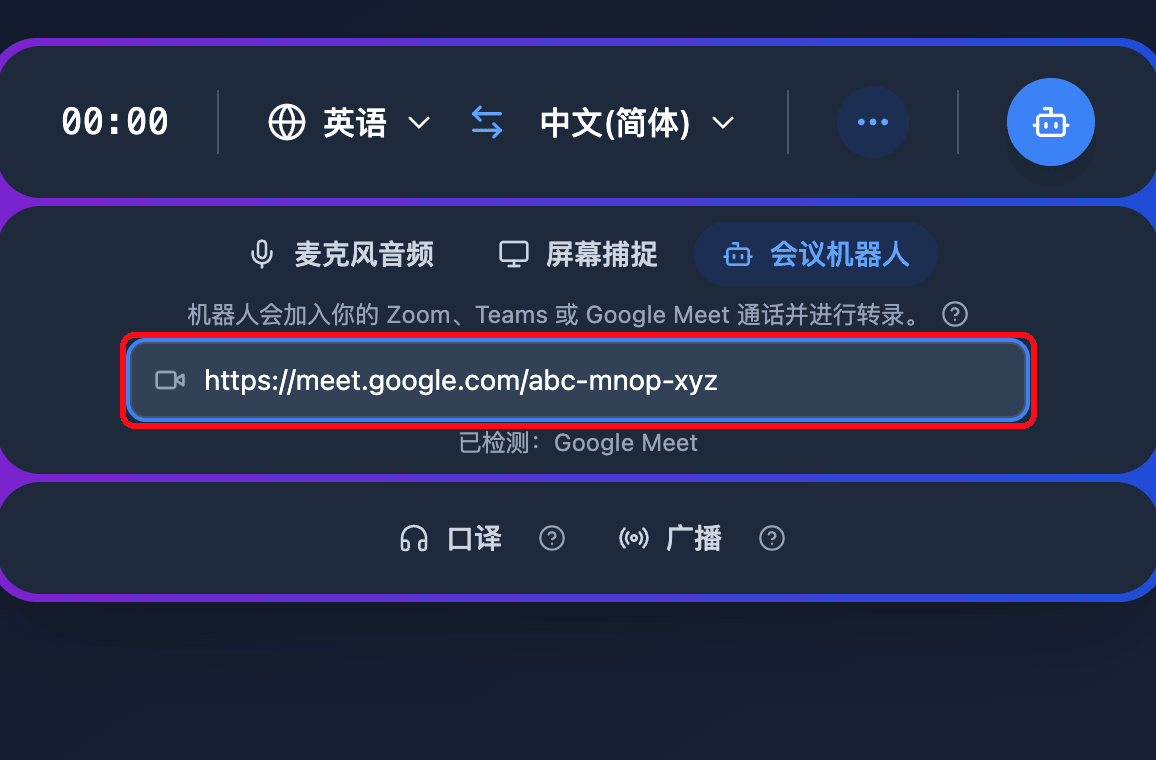
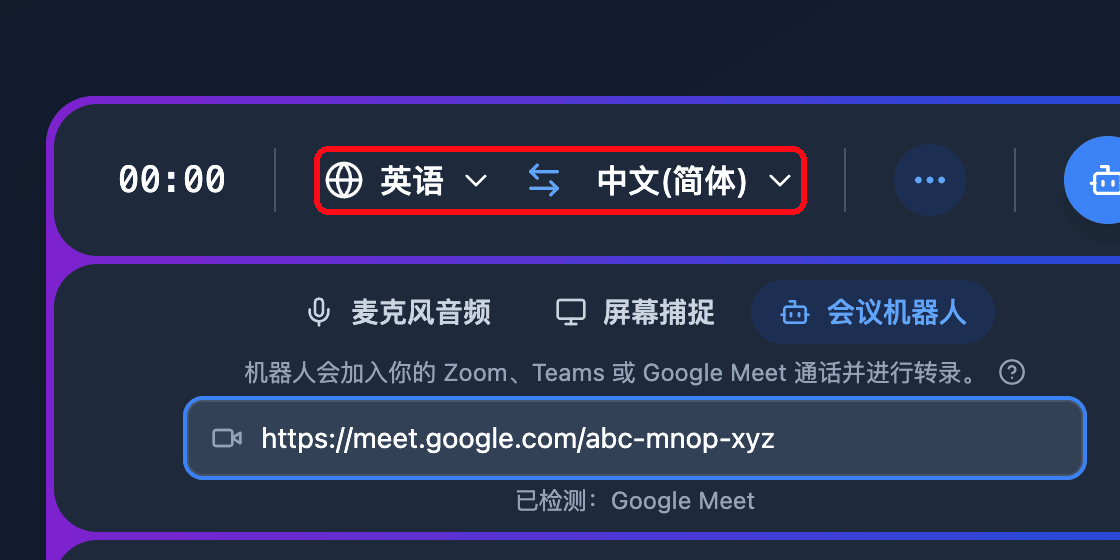
- 在录音栏顶部设置源语言和目标语言
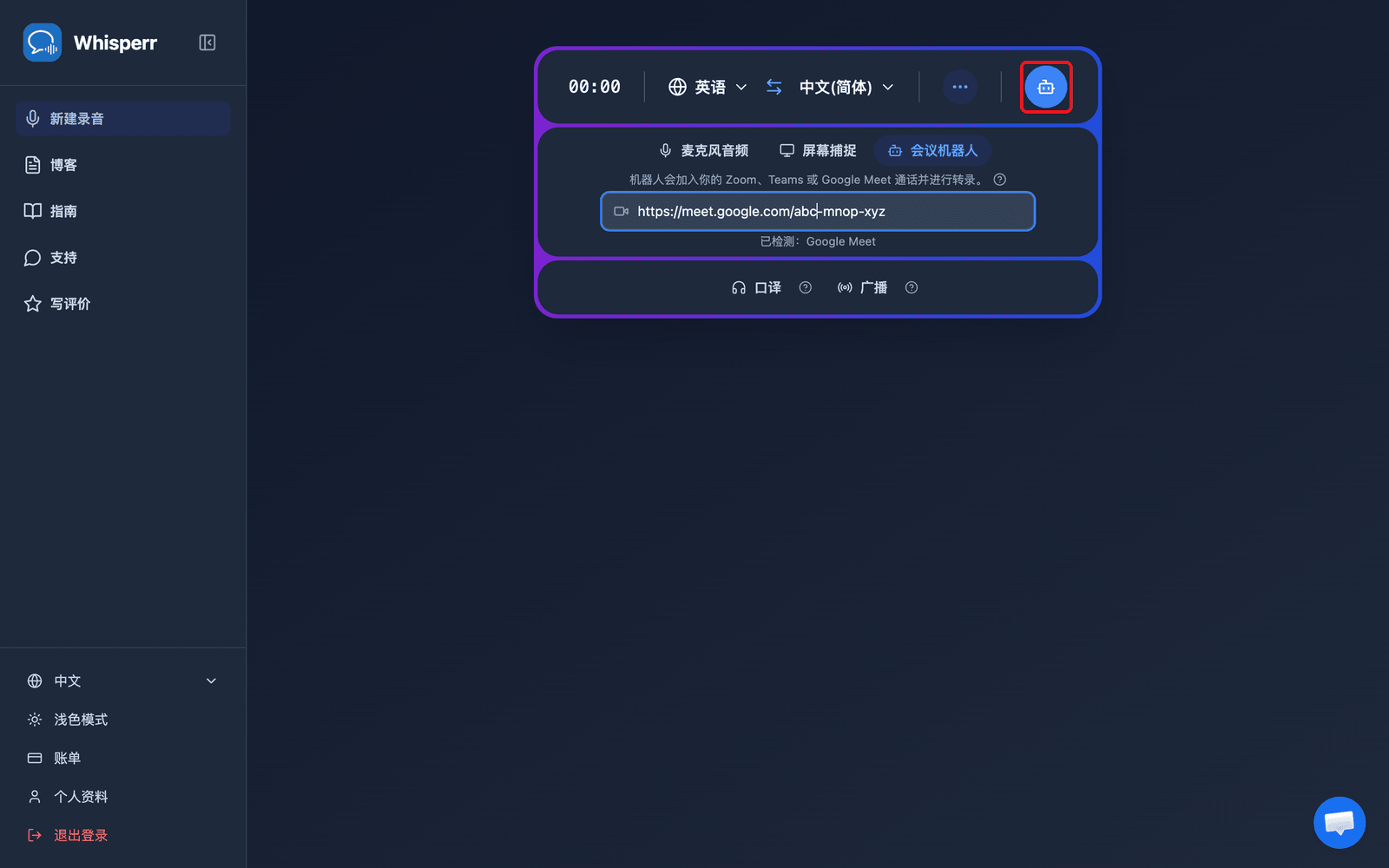
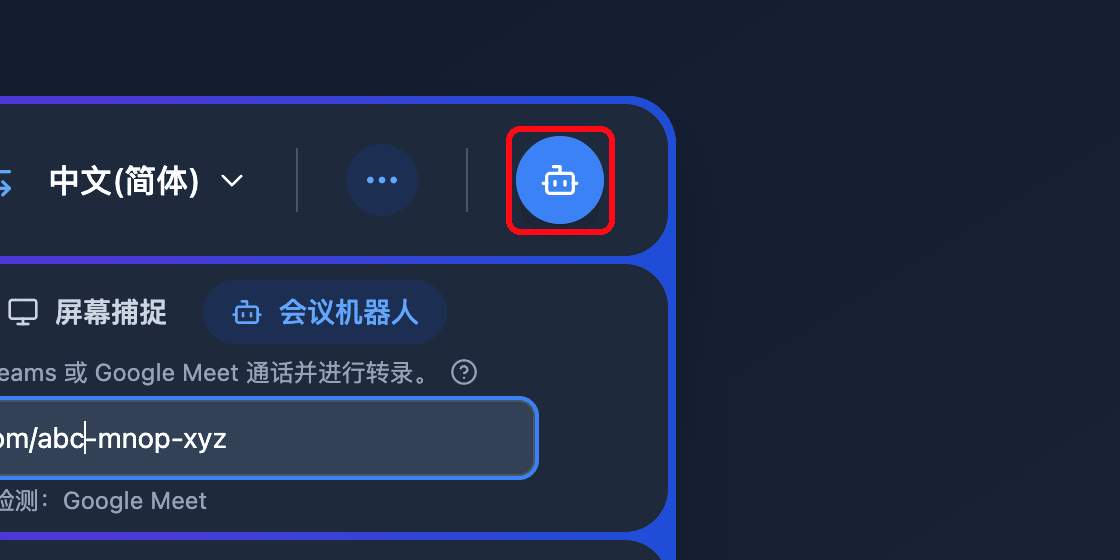
- 点按 发送机器人 按钮 — Whisperr 翻译机器人 会以参与者身份加入会议
- 如果主持人启用了等候室,请从等候室允许机器人进入 — 之后转录和翻译会实时显示在您的浏览器中
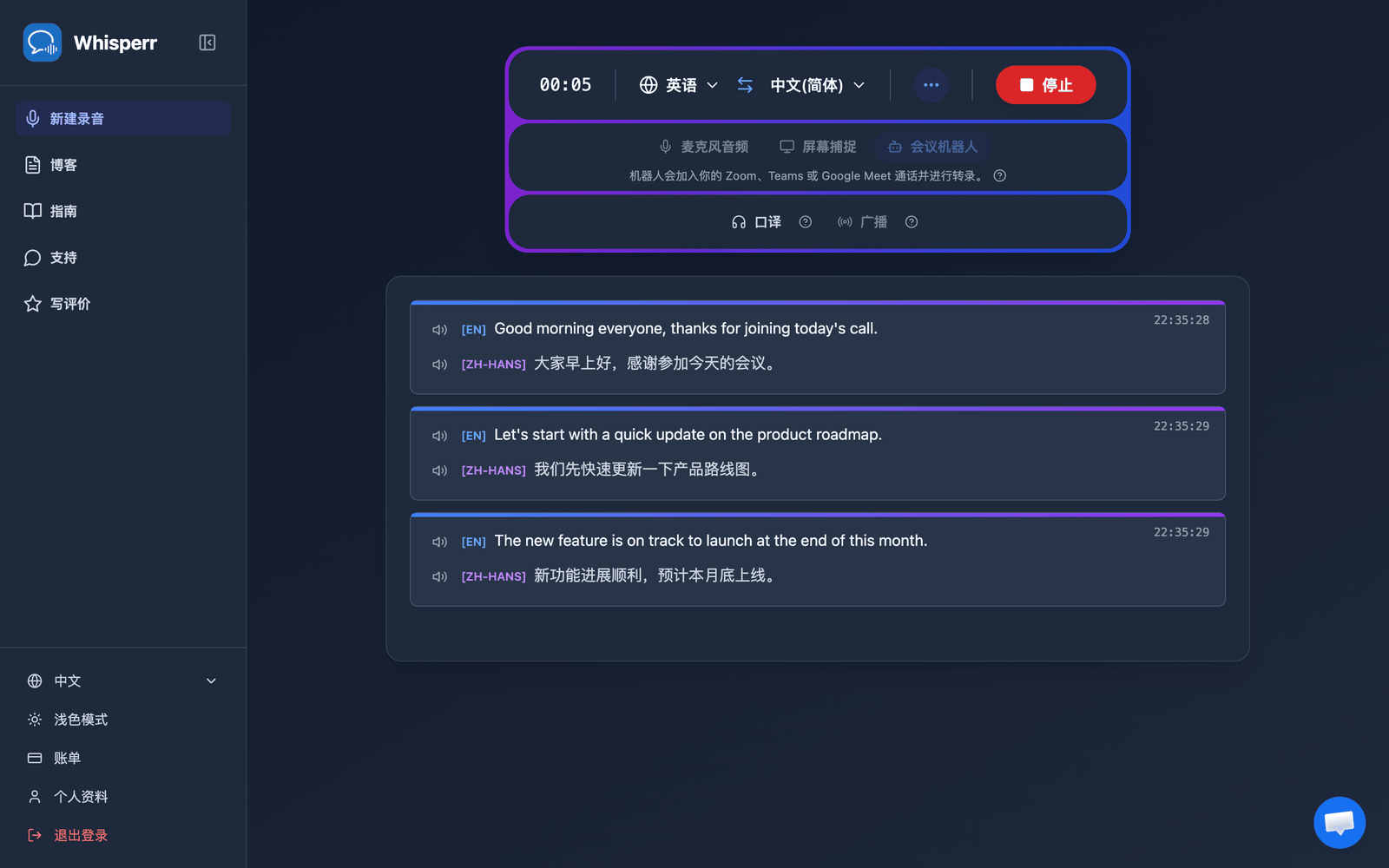
点按 停止 即可移除机器人并结束会话。
常见问题(网页应用)
发送机器人按钮要求我升级
会议机器人需要有效的订阅。请查看套餐横幅,如果您使用的是免费套餐,请选择 升级。
显示“请输入有效的 Zoom、Teams 或 Google Meet 链接。”
请粘贴完整的会议链接。仅支持 Zoom、Microsoft Teams 和 Google Meet 的链接 — 请直接从会议邀请中复制加入链接。
机器人一直无法加入
主持人可能需要从等候室允许机器人进入。另外请确认会议尚未结束,且链接仍然有效。
机器人加入后没有显示转录内容
请确认有人在发言,并再次检查录音栏中的源语言和目标语言。
问题仍未解决?联系客服
相关内容
- 会议机器人(概览) — 工作原理及支持的会议平台
- 在 iPhone/iPad 上 · 在 Mac 上 · 在 Windows 上
- 网页应用中的麦克风音频捕获 — 改为通过设备捕获音频