.png)
Best Floating Subtitle & Translation Overlay Apps for Android (2026)

You want translated captions floating on top of whatever is on your screen: a livestream in Japanese, a TikTok seller in Seoul, a YouTube tutorial in Portuguese, a video call with a relative who speaks Spanish. On Android there are a lot of apps that claim to do this, but they don't all mean the same thing by "floating subtitle." Some show captions in the language being spoken and never translate. Some only translate text that's already printed on the screen. A few actually listen to the audio and put translated subtitles over it in real time.
This guide sorts them out. Below are the best floating subtitle and translation overlay apps for Android in 2026, what each one is actually good at, and where each one stops being useful.
The three kinds of "overlay" apps (so you pick the right one)

The label "floating subtitles" gets stuck on three very different tools. Knowing which kind you need saves a lot of disappointment.
- Same-language caption overlays. These transcribe spoken audio into a floating caption box, but only in the language being spoken. Great for accessibility, useless if you don't speak that language.
- Screen-text translation overlays. These read text that's already drawn on your screen (game menus, app buttons, manga, comments) using OCR and overlay a translation on top. They translate pixels, not sound, so they can't help with a live conversation or a video's audio.
- Voice translation overlays. These capture the actual audio playing on your device, transcribe it, translate it, and float the translated subtitles over whatever app you're in. This is the category you want for live video, calls, and streams.
Most of the confusion online comes from mixing these up. The roundup below labels each app so you know what you're getting.
The best floating subtitle & translation overlay apps for Android
1. Whisperr — real-time translated subtitles over any audio
Type: voice translation overlay. Whisperr is the closest thing to "translated subtitles for real life" on Android. The video above shows it in action: it taps the audio stream coming out of your device using Android's MediaProjection (the same permission every screen recorder uses), transcribes it, and floats translated subtitles on top of whatever app is open. Because it's a realtime voice translator working on the audio stream itself, the captions stay clean even with background music, fast speech, or a heavy accent.
You pick two languages once, and it translates both directions automatically, so it works for a one-way livestream and a back-and-forth conversation without changing any settings. It covers 100+ languages, including the long-tail pairs the big platforms skip, and it's accurate on the common ones too (it's a genuinely accurate Spanish translator for english to spanish translation voice, for example).
- Best for: live video, TikTok and YouTube Lives, video calls, in-person conversations, anything with spoken audio.
- Not for: translating static text in a game menu (use a screen-text app for that).
- Where it runs: Android, plus iPhone, a web app, and a browser extension for desktop.
There's a step-by-step setup further down.
2. Google Live Caption — free, automatic, but same-language only
Type: same-language caption overlay. Live Caption is built into Android and turns on automatic captions for any media playing on your phone, in a small floating box you can drag around. It's free, runs on-device, and needs no setup beyond a toggle. The catch is right there in the name: it captions, it doesn't translate. If a video is in Korean, you get Korean captions. For deaf and hard-of-hearing users in their own language it's excellent. For understanding another language, it does nothing.
- Best for: same-language captions, accessibility, muted viewing.
- Not for: any kind of translation.
3. Google Translate — strong text and camera, weak on live audio

Type: screen-text overlay + conversation tool. Google Translate is the default everyone reaches for, and for the right job it's great. "Tap to Translate" pops a floating bubble when you copy text, and the camera mode overlays translated text on signs and menus in augmented reality. But for live spoken audio it falls back to Conversation mode, which is turn-based: one person talks, you wait, the phone catches up, then the other person talks. That's not a floating subtitle over a continuous stream, and it doesn't sit on top of other apps while a video plays.
- Best for: copied text, signs, menus, short turn-taking exchanges.
- Not for: continuous live voice translate over a video or stream.
4. Translate On Screen / Screen Translator — best for game and app text
Type: screen-text translation overlay. Apps in this family (Translate On Screen is the most common) add a floating button that, when tapped, OCRs whatever text is currently on screen and overlays a translation. They're the right tool for translating game dialogue, manga, app interfaces, or comment threads that won't let you copy text. Some offer an "auto" mode that re-translates as the screen changes. What they can't do is hear anything: there's no audio involved, so a live conversation or a video's spoken track is out of scope.
- Best for: games, manga, app UIs, on-screen text you can't select.
- Not for: spoken audio, calls, livestream voice.
5. Microsoft Translator — solid conversations, not a true overlay
Type: conversation tool. Microsoft Translator handles text, voice, and multi-person conversations well, and the split-screen conversation view is genuinely useful for two people sitting across a table. But like Google Translate it's a foreground app you talk into, not a subtitle layer that floats over a livestream or another app. It's a capable voice translation tool; it just isn't an overlay.
- Best for: sit-down conversations, text, image translation.
- Not for: floating subtitles over live video.
6. Live Transcribe — accessibility transcription, no translation
Type: same-language caption tool. Google's Live Transcribe turns the room's speech into on-screen text in real time and is one of the best accessibility tools on Android. But it fills the screen rather than floating over other apps, and it transcribes rather than translates. Like Live Caption, it keeps you in the same language you started in.
- Best for: real-time transcription for accessibility.
- Not for: translation or overlaying other apps.
Quick comparison
App | Type | Translates speech? | Floats over other apps? | Languages |
|---|---|---|---|---|
Whisperr | Voice translation overlay | Yes, real time | Yes | 100+ |
Google Live Caption | Same-language captions | No | Yes | Limited |
Google Translate | Text / camera / conversation | Turn-based only | No | 100+ (text) |
Translate On Screen | Screen-text (OCR) overlay | No (text only) | Yes | Many |
Microsoft Translator | Conversation tool | Turn-based only | No | 100+ |
Live Transcribe | Same-language transcription | No | No | Many |
If your goal is translated subtitles floating over live audio, Whisperr is the only one in the list built for it. The rest are excellent at narrower jobs.
How to set up translated floating subtitles with Whisperr
Here's the full flow for getting a live audio translate overlay running on Android. It takes about a minute.
1. Install Whisperr from the Play Store

Download the Whisperr Android app and open it. Sign in or create a free account.
2. Pick your two languages

Choose the language being spoken and the language you want to read. That's all the setup the translation needs. Whisperr translates both directions by default, so you don't have to set a "source" and "target" or flip anything for a back-and-forth conversation.
3. Start recording

Tap Start. Android shows the standard MediaProjection prompt asking to capture what's playing on your device, the same dialog every screen recorder uses. Allow it. Whisperr now hears the audio your phone is playing directly, so there's no microphone echo and nothing to point at a speaker.
4. Turn on floating subtitles

Enable the floating subtitles toggle and grant the "display over other apps" permission when prompted. This is what lets the translated captions sit on top of any app.
5. Open the app you're watching

Switch over to YouTube, TikTok, your video call, or any app with audio. The translated subtitles float on top, line by line, and update in real time as people talk. Drag the window wherever it's least in the way. When you're done, return to Whisperr and tap Stop.

How to translate any online meeting with Whisperr
Floating subtitles aren't just for videos. The same approach turns any online meeting into one you can follow in your own language, whether it's a Zoom call, a Microsoft Teams standup, a Google Meet interview, or a Webex webinar. On Android you can run the meeting app and float Whisperr's translated subtitles on top; on a laptop you watch the meeting in one browser tab while Whisperr captures that tab's audio. Here's the universal flow.
1. Open Whisperr and choose your two languages
Open the Whisperr web app (or the Android app) and pick the language being spoken and the one you want to read. It's a two-way translation by default, so you can understand the room and be understood without flipping any settings.

2. Join the meeting in your browser
Open your meeting the way you normally would, in a browser tab. The method is identical for Zoom, Teams, Google Meet, and Webex, since Whisperr works off the audio rather than plugging into any one platform.

3. Start recording and share the meeting tab
Click Record, and when your browser asks what to share, pick the meeting tab and make sure share tab audio is checked. Whisperr now captures the meeting's audio directly, so the live audio translate stays clean even when several people are talking.

4. Read the live translation side by side
Put Whisperr and the meeting next to each other and read the translated captions as everyone speaks. On Android, turn on floating subtitles instead and they sit on top of the meeting app. Either way you get real-time voice translation of the whole call, no interpreter and no business account required.

Why Whisperr stands out for live translation
It translates the speech, not just the screen

Same-language caption tools and screen-text OCR apps both leave a gap: one won't translate, the other can't hear. Whisperr's whole job is to do live voice translate on the actual audio, which is what you need for a real conversation or a stream.
It captures device audio directly
No second phone, no speakerphone trick, no holding your mic up to a speaker. Whisperr taps the audio stream itself, so the voice translation stays accurate even with music, crosstalk, or accents in the mix.
Two-way by default
Pick two languages once and it translates both directions automatically. The same setup works for a one-way livestream and a two-person conversation without touching a single setting.
100+ languages, including the long tail
Japanese, Korean, Portuguese, Arabic, or something far less common, Whisperr has a pair for it, and it's a dependably accurate Spanish translator when you need english to spanish translation voice on the spot.
It follows you everywhere
The same account works on Android, iPhone, the web app, and a desktop browser extension, so your floating subtitles aren't locked to one device.
Frequently Asked Questions
What's the difference between floating subtitles and a translation overlay?
"Floating subtitles" usually means captions in a movable window on top of your screen, often in the same language being spoken. A "translation overlay" can mean either translating text already on the screen (OCR) or translating spoken audio into floating captions. For translated subtitles over live audio, you specifically want a voice translation overlay like Whisperr.
Can Google Live Caption translate to another language?
No. Live Caption transcribes audio into captions in the language being spoken, but it does not translate. For translated captions you need a separate voice translation tool.
Do these apps work over any app, like TikTok or a video call?
A true overlay app like Whisperr floats its subtitles over any app, including TikTok, YouTube, and video calls, because it captures device audio and draws on top using the "display over other apps" permission. Screen-text and conversation apps generally don't float over live video.
Is there a free floating subtitle app for Android?
Yes. Google Live Caption is free but same-language only. Whisperr has a free tier that's enough to try translated floating subtitles on a short video or call before deciding.
Do I need a second phone or any extra hardware?
No. Whisperr captures the audio your phone is already playing, so one device is all you need. There's no second phone, no speakerphone hack, and nothing for the other person to install.
Will the other person or a streamer know I'm using it?
No. Whisperr runs entirely on your own device and only changes what you see. Nothing is added to the call, the chat, or the stream, and there's nothing for anyone else to set up.
Which languages are supported?
Whisperr supports 100+ languages and translates between them in real time, so you can match almost any speaker's language to the one you read most comfortably.
Try it on your next video
The next time something on your Android screen is in a language you don't speak, you don't have to guess your way through it. Open Whisperr, pick the two languages, start the capture, and turn on floating subtitles to read along while the audio plays. Grab the Whisperr Android app and try it on the next video, call, or stream you open.
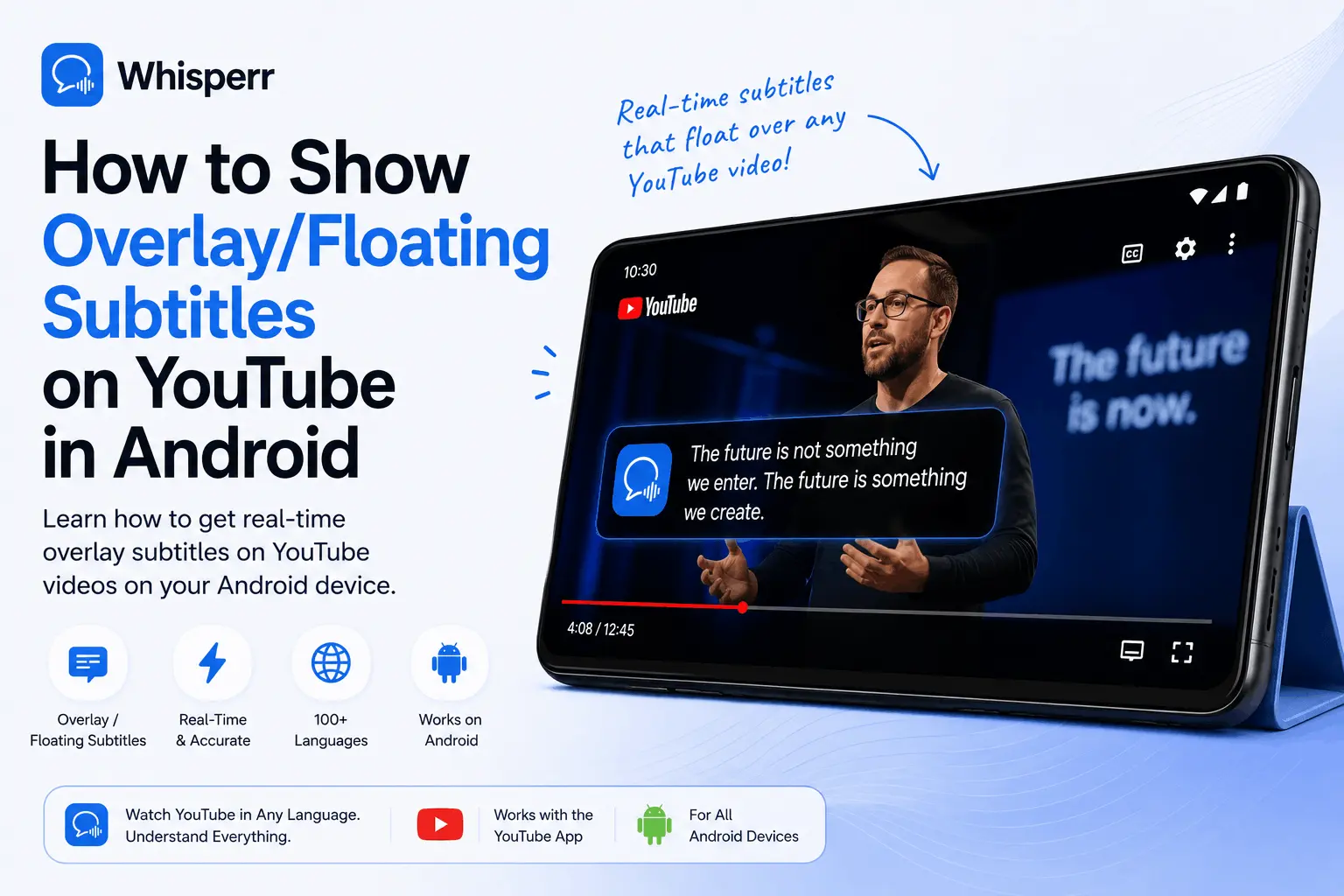
Overlay realtime floating subtitles on your YouTube app on Android. 100+ language pairs, no second device needed.