
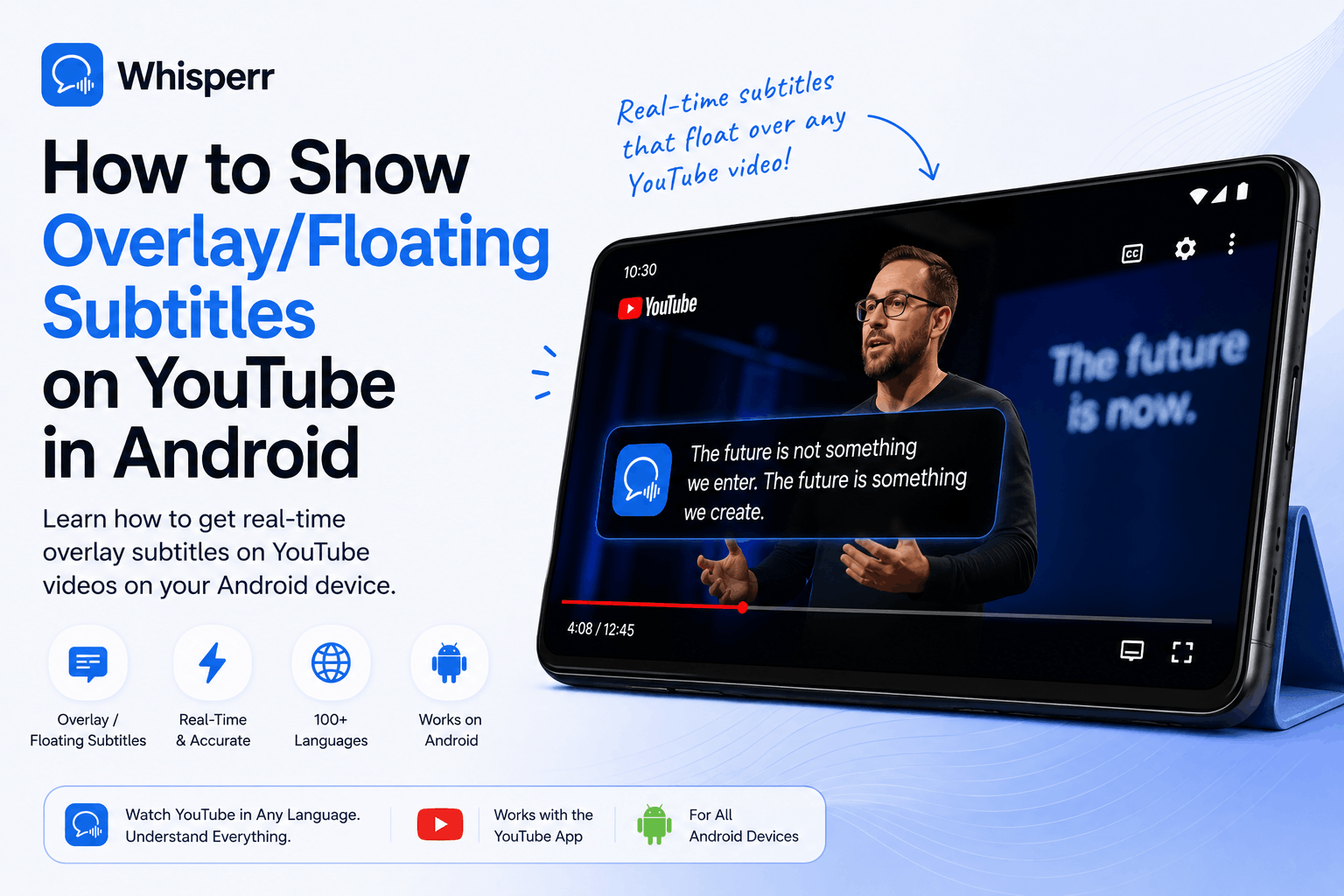
How to Show Overlay/Floating Subtitles on YouTube in Android

You want to watch a YouTube video, maybe a Japanese product review, a Korean variety show, a German news segment, a Spanish football match, and you need subtitles. YouTube's own captions are missing, badly auto-translated, baked into a language you don't speak, or only work properly on the desktop site. You're on your Android phone, in the YouTube app, the way you actually watch YouTube. And you want translated subtitles to float on top of the video, in real time, while it plays.
There's one method on Android that does this without making you switch apps, mirror the screen, or play audio out loud through a speaker: Whisperr's Floating Subtitles feature, which uses Android's sanctioned Picture-in-Picture system. This guide covers only that approach, because it's the one that actually works the way you'd want it to.
What You Can Get Subtitles For This Way
- YouTube live streams (sports, product launches, K-pop, gaming, news)
- Regular YouTube videos (any uploaded video, any channel)
- YouTube Shorts
- Anything else playing inside the YouTube Android app
The Whisperr floating window stays on top of YouTube the entire time, line by line, with sub-second latency, across 100+ language pairs.
Step by Step: Floating Subtitles on YouTube on Android
1. Install the Whisperr Android app
Grab Whisperr from the Google Play Store and open it.

2. Pick your 2 languages
Tap the language icon and pick the two languages you want to bridge. For example: Japanese and English, Korean and English, or Spanish and English.
Translation runs both ways by default, so you don't need to worry about which one is the source and which one is the target. Whichever language is spoken in the video gets translated into the other one automatically.

As you can see, Whisperr supports 100+ language pairs, including the long tail you usually can't find anywhere else, like Vietnamese, Indonesian, Polish, Hindi, Arabic, plus East Asian, Southeast Asian, South Asian, Middle Eastern, European, and major regional dialects.
3. Tap Settings on the bottom left
Tap the Settings icon in the bottom-left of the Whisperr app to open the mode picker.

4. Tap Floating Subtitles mode
In the settings panel, tap Floating Subtitles at the top. This tells Whisperr to display captions in a Picture-in-Picture window that sits on top of whichever app you switch to next, including YouTube.

5. Tap the recording icon on the bottom right to start
Back on the main screen, tap the Recording icon in the bottom-right corner to begin a session.

6. Allow screen sharing
Android shows the standard MediaProjection permission dialog asking to capture what's playing on your device, the same prompt every Android screen recorder uses. Tap Start now.

This is how Whisperr captures YouTube's audio directly from the app rather than through your microphone. Cleaner audio in means cleaner translation out.
7. Open YouTube
Switch to the YouTube app. Open the video, Short, or live stream you want subtitles for and hit play. The moment YouTube starts playing audio, Whisperr begins capturing it. You'll still hear the audio normally through your speakers or headphones, since capturing doesn't mute playback. Translated subtitles appear in the floating window on top of YouTube, line by line.

Drag the floating window to wherever it doesn't block what you're watching. You can also scale the font up or down in Whisperr's settings so captions read cleanly from arm's length. When you're done, tap the × on the top-right of the floating subtitles window, or open Whisperr and tap Stop.
Why Floating Subtitles via Whisperr Beats the Alternatives
A few reasons this is the path to use on Android, rather than the various "translate YouTube" or "subtitle overlay" workarounds you'll find. If a live stream is what you are watching, see every way to translate a YouTube live stream in real time on any device.
True overlay on top of the YouTube app, in real time
The Picture-in-Picture window stays on top of YouTube the whole time. You don't switch apps. You don't split-screen. You don't read in a separate browser tab.
A handful of "subtitle overlay" apps try to do something like this using Android Accessibility Service permissions, which give an app the ability to read every word on every screen of every app you use. That's a heavy ask just to read subtitles over a YouTube video. Whisperr uses Android's sanctioned PiP system feature instead. No accessibility permission, no APK from a forum, no risk.
Captures YouTube audio directly, no second device, no speakerphone hack
Other approaches force you to play the video out loud and hope a separate phone's microphone picks it up cleanly over ambient noise. Whisperr taps the audio stream coming out of the YouTube app itself, before it routes to your speakers or headphones. The result: clean translation even for videos with background music, fast speech, or accented dialogue.
Real translation, not just transcription
Google's Live Caption on Android is great for accessibility, but it only transcribes. Korean speech in, Korean text out. It won't turn that Korean video into English subtitles. YouTube's own auto-translate captions are unreliable on the mobile app and often missing entirely on live streams and Shorts. Whisperr translates across 100+ language pairs.
Works with headphones and Bluetooth earbuds
Audio capture happens at the system level, before audio routes to your output device. Pixel Buds, Galaxy Buds, AirPods on Android, and Sony WH-series headphones all work normally. You hear the YouTube audio in your headphones and read the translated subtitles in the PiP window at the same time.
One subscription, no per-video fees
Same flat rate whether you watch one video a year or one a day. No per-stream fees, no per-minute charges.
GDPR compliant
Audio is processed in real time and isn't permanently stored on Whisperr's servers. Any saved transcripts stay under your account and are deletable at any time.
FAQ
Does this work for YouTube Shorts?
Yes. Floating subtitles overlay the YouTube app regardless of what's playing, whether that's Shorts, regular videos, or live streams. The PiP window stays on top while you scroll Shorts.
Does YouTube have a built-in floating subtitle overlay on Android?
No. YouTube's mobile app shows captions inside the video player itself, not as an overlay that floats on top of the app. There's also no built-in translation of those captions on the Android app; auto-translate is largely a desktop-only behavior, and it's unreliable when it works. For a real floating subtitle overlay that translates as well, a third-party app using Android's MediaProjection API is the only path that works today.
Will the subtitles keep showing if I lock my screen?
For best results, keep the screen on while watching. Android's battery optimizer can pause background audio capture on some devices when the screen locks. For long sessions, exempt Whisperr from battery optimization in Settings, Apps, Whisperr, Battery, Unrestricted.
Will I still hear the YouTube audio?
Yes. Whisperr captures audio without muting playback. You hear the video normally through speakers or headphones, and the floating subtitles appear on top in parallel.
Does it work without an internet connection?
No. Real-time translation needs the network, since Whisperr streams audio for processing and streams captions back. This is the same constraint as any cloud-based live translation tool.
Can I use the same flow for Instagram or TikTok?
Yes. The Floating Subtitles flow works on top of the Instagram app (Reels, Live) and TikTok (For You feed, TikTok Live). Start recording in Whisperr, then switch to the app you want subtitles for.
What languages does it support?
100+ language pairs, including major European, East Asian, Southeast Asian, South Asian, and Middle Eastern languages, plus regional dialects. If you can name the language, there's a good chance Whisperr supports it.
Is there a free tier?
Yes, Whisperr is free for one-off use. You only pay when you need more.
Is there a version for iPhone or desktop?
Yes. There's a Whisperr iPhone app with the same Floating Subtitles capability via iOS Picture-in-Picture, and a Web App that runs in any modern browser on Mac, Windows, or Linux for translating browser tab audio (Zoom, Teams, Meet, Twitch, etc.). One subscription covers all of them.
Try It on Your Next YouTube Video
The flow, top to bottom:
- Install Whisperr from the Google Play Store and sign up.
- Pick your 2 languages (two-way translation runs by default).
- Tap Settings on the bottom-left, then tap Floating Subtitles.
- Tap the Recording icon on the bottom-right, then tap Start now on the Android screen-sharing prompt.
- Switch to the YouTube app and play any video, Short, or live stream.
- Read translated subtitles in the floating window. Keep watching YouTube normally.
Ever sat in a meeting where people speak in a different language, speak too fast, or have accents you struggle to follow? Whisperr can solve it