
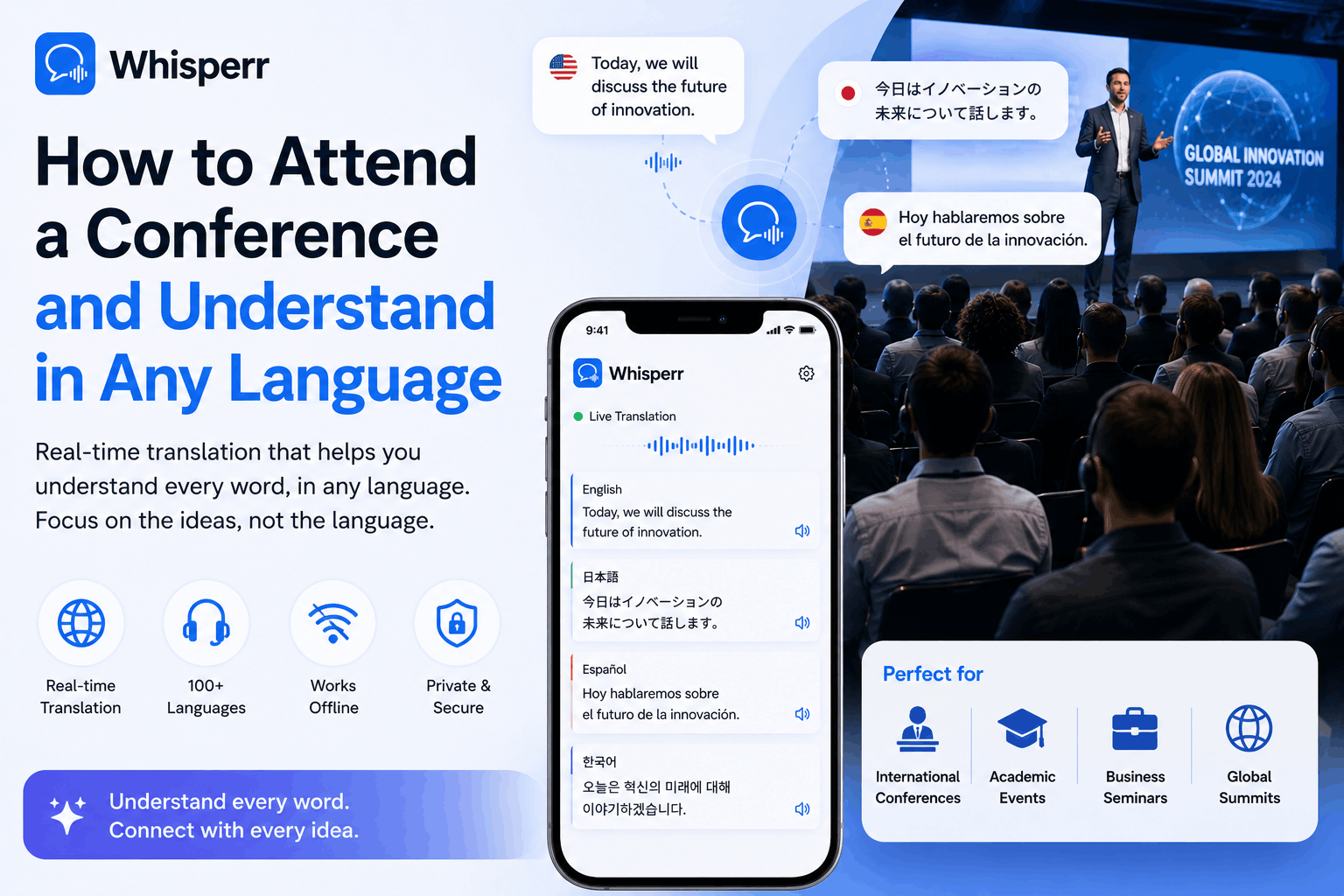
Conference Live Translation Without an Interpreter: Step-by-Step (2026)

Industry summits, academic symposiums, investor conferences, international keynotes. They're some of the highest-stakes rooms you can sit in, and they're also some of the most multilingual. The headline talk is in Japanese. The fireside chat is in German. The panel you flew in for switches between Spanish and English every three minutes. The official interpreter line is either non-existent, paywalled, broken, or whispered to you over a delayed FM channel that sounds like 1992.
You don't need any of that. With a phone, a pair of headphones, and a realtime voice translator running in speech mode, you can sit in any conference room in the world and hear every talk in your own language, in real time, in your ear, with no setup from the organizers.
This post walks through the exact setup, end to end.
The one-method approach
There's a clean way to do this and a bunch of messy ones. The clean way uses two Whisperr capabilities working together:
- The iPhone or Android app listens to the conference audio through its built-in microphone, picking up the speaker on stage the same way it would pick up someone talking across a café table. We covered this exact capture pattern in our previous guide on translating in-person conversations on iPhone and Android.
- Real-Time Speech mode reads the translation back to you through your headphones, so instead of staring at your phone the whole talk, you keep your eyes on the speaker, the slides, and the room, and your ears hear the translation as the speaker says each line.
That's it. One phone, one set of headphones, one app. Works for any conference, any language pair Whisperr supports, and any seat in the hall.
Why this beats the alternatives
A handful of reasons the phone-plus-headphones combo wins for conferences specifically:
- No reliance on the organizer. Most conferences either don't provide a live voice translate option, or provide it only for the keynote and not the breakout rooms. Your setup is independent.
- Works across the entire venue. Move from main hall to breakout room to hallway track to dinner Q&A. Same phone, same headphones, same flow.
- Captures the actual speaker, not a delayed video stream. The hall mic feeds the PA, the PA reaches your phone, your phone translates in sub-second time. No livestream buffering.
- Eyes free. Speech mode means you can watch the slides and the speaker. Reading captions for an hour-long keynote is exhausting and you miss everything happening on stage.
What you need before you sit down
- Your iPhone or Android phone, charged. A power bank for full-day conferences.
- Wired or Bluetooth headphones. Wired tends to have lower latency. AirPods, Sony WF/WH, Bose QC, and most other Bluetooth options all work fine.
- The Whisperr app installed and signed in. The free tier covers a single session. Longer events benefit from a paid plan.
- A seat anywhere the hall PA is clearly audible. You don't need to be in row one. A phone mic on a table at the back of a 500-seat ballroom picks up amplified speech without issue.
Step-by-step setup
Step 1: Install Whisperr
Install Whisperr from the App Store on iPhone or from the Google Play Store on Android, and sign in. Once you're seated, place the phone on the armrest, the table in front of you, or on top of your bag on your lap. Keep it screen up with the bottom edge pointed roughly toward the stage speakers. The bottom microphone on most modern phones picks up amplified speech across a large room much better than people expect.

If you're standing at the back, hold the phone in your hand at chest height with the mic pointing toward the nearest PA speaker. Don't press it against your body, since your jacket or shirt will muffle the input.
For a deeper walkthrough of the phone-as-listener setup, see our previous guide on capturing in-person external audio on iPhone and Android. It's the same capture pattern, just applied to a conference room PA instead of a tabletop conversation.
Step 2: Pick your two languages
In the recording bar at the top of the app, tap the language selectors and pick the two languages you need. For example, Spanish and English if you're at a LATAM tech summit, or Japanese and English at a Tokyo investor event. Whisperr runs two-way voice translation by default, so whichever person on stage is speaking gets transcribed in their language and translated into the other one automatically. You don't need to assign a "source" and a "target" up front. The pair just works both ways.

Whisperr supports 100+ language pairs, including the long tail that most consumer apps under-serve: Vietnamese, Indonesian, Polish, Arabic, Hindi, all the major CJK and European pairs, and a properly accurate Spanish translator for both Iberian and Latin American varieties. Need to translate English Spanish at an event in Mexico City or Madrid? The same flow works, the same accuracy, the same single subscription.
Step 3: Enable Real-Time Speech mode
This is the key part. Open the options menu in the recording controls (the three-dot or settings icon, depending on platform) and turn on Speech output. This tells Whisperr to not just show the translation as text on screen, but to also speak it aloud through whatever audio output your phone is using.


Speech mode is what makes this work for a conference setting. It handles the full english to spanish translation voice playback (or any other pair) so that as the speaker on stage finishes each phrase, Whisperr generates a natural-sounding spoken translation a fraction of a second later. You can adjust the playback speed if the speaker is a fast talker. Slightly faster playback compresses the lag so you stay close to the live moment without falling behind.
Step 4: Connect your headphones
Plug in your wired headphones, or pair your AirPods or Bluetooth headphones the normal way. Once connected, the phone's audio output routes to the headphones automatically, including the spoken translation Whisperr is generating.
This is what makes the whole setup polite to your neighbors. The phone's microphone is still picking up the hall PA, but the translated voice plays only in your ear. Nobody around you hears anything. From the row behind, it just looks like a person with earbuds in, like half the audience.
A small thing that matters: turn your phone's media volume up to about 70 to 80 percent before the talk starts. If you need to adjust mid-session, do it from the headphone inline controls, your watch, or the side volume buttons. Don't wake the phone and disturb its mic placement.
Step 5: Tap the mic icon and start the live audio translate session
Tap Recording icon, then choose In-App Microphone. The app starts listening. Within a second or two of the speaker beginning, you'll hear the translated voice in your headphones, and the on-screen captions will scroll as a written backup. That's your live audio translate session running. No further input from you needed for the rest of the talk.

Tips that actually matter
- Sit where the PA is cleanest. The middle of the hall and the front third usually have the best sound. The back near doors and aisles picks up door slams, hallway chatter, and HVAC noise. If you can choose, choose better acoustics over closer-to-stage.
- Mute notifications on both phone and headphones. A WhatsApp ping in your ear mid-keynote is jarring and breaks the flow of the translated voice.
- Don't put the phone in your pocket. The mic can't hear through fabric. On the table, on the armrest, on top of a bag. Anywhere screen-up with the bottom edge unobstructed.
- Keep the captions as a fallback. If you miss a phrase because you were writing a note or someone tapped your shoulder, glance at the on-screen text. Whisperr keeps a running transcript you can scroll back through after the talk ends.
Common conference-specific questions
Will this work if the speaker walks around the stage with a lavalier mic?
Yes. The hall PA picks up the lavalier and pipes it through the room speakers, and your phone picks it up from the speakers. The signal chain is the same as a podium mic, so there's no difference from your phone's perspective.
What about whisper-quiet speakers or low-volume panel discussions?
If the PA itself is low, move closer or hold the phone in hand pointed at the nearest speaker stack. The phone is only as good as the audio it can hear, and there's no magic recovery from a barely-audible source. In a worst case, ask the AV team to bump the PA level. That helps everyone in the room, not just you.
Can I save the entire conference as a translated transcript?
Yes. The session transcript, in both languages, is saved in the app for the duration of the session and can be exported afterward. Useful for follow-up notes, slide annotations, or sharing with colleagues who couldn't attend.
What about side conversations and networking after the talk?
Leave the phone running. Switch one of the two languages if you're now talking to someone in a different one, place the phone on the table between you, and keep going. The two-way default means whoever speaks gets translated for the other person. Same in-person flow you'd use for any one-on-one conversation.
I'm at a hybrid conference watching some sessions from my laptop. Can I use Whisperr there too?
Yes. The Whisperr web app runs in any modern browser (Chrome, Edge, Firefox, Safari, Brave, Arc, Opera), and the Whisperr browser extension captures tab audio for hybrid sessions streamed through Zoom, Teams, Meet, Webex, or YouTube. Same account, same subscription, same 100+ pairs.
Will my battery last the whole conference day?
A modern iPhone or Android running Whisperr continuously through 6 to 8 hours of programming will burn meaningful battery. Plan on carrying a power bank or finding an outlet at lunch. The app itself isn't unusually heavy. It's just that any always-on capture app over a full conference day adds up.
Does it work offline if the venue Wi-Fi is overloaded?
No. Live speech translation needs the cloud for the speech-recognition and translation models. LTE or 5G on your phone works if conference Wi-Fi is congested. Many attendees switch to cellular at large events for exactly this reason.
Is there a more discreet way to do this?
Wired earbuds and a phone face-down on the armrest (with the bottom mic edge still exposed off the side) is about as low-profile as it gets. From any direction in the room, it looks identical to a person taking notes on their phone with earbuds in. Which is half the audience already.
Try it at your next conference
Real-time, in-ear conference translation has quietly become possible over the last couple of years. The combination of phone microphones that are surprisingly good in large rooms, speech recognition that runs sub-second, and natural-sounding voice output through ordinary headphones is what makes it work. No conference badge translation device, no rented receiver, no organizer involvement, no booth in the back of the hall.
Install Whisperr on iPhone or Android, pick your two languages, enable Speech mode, plug in your headphones, and you're set. The talk happens in one language, you hear it in another. That's the whole product.
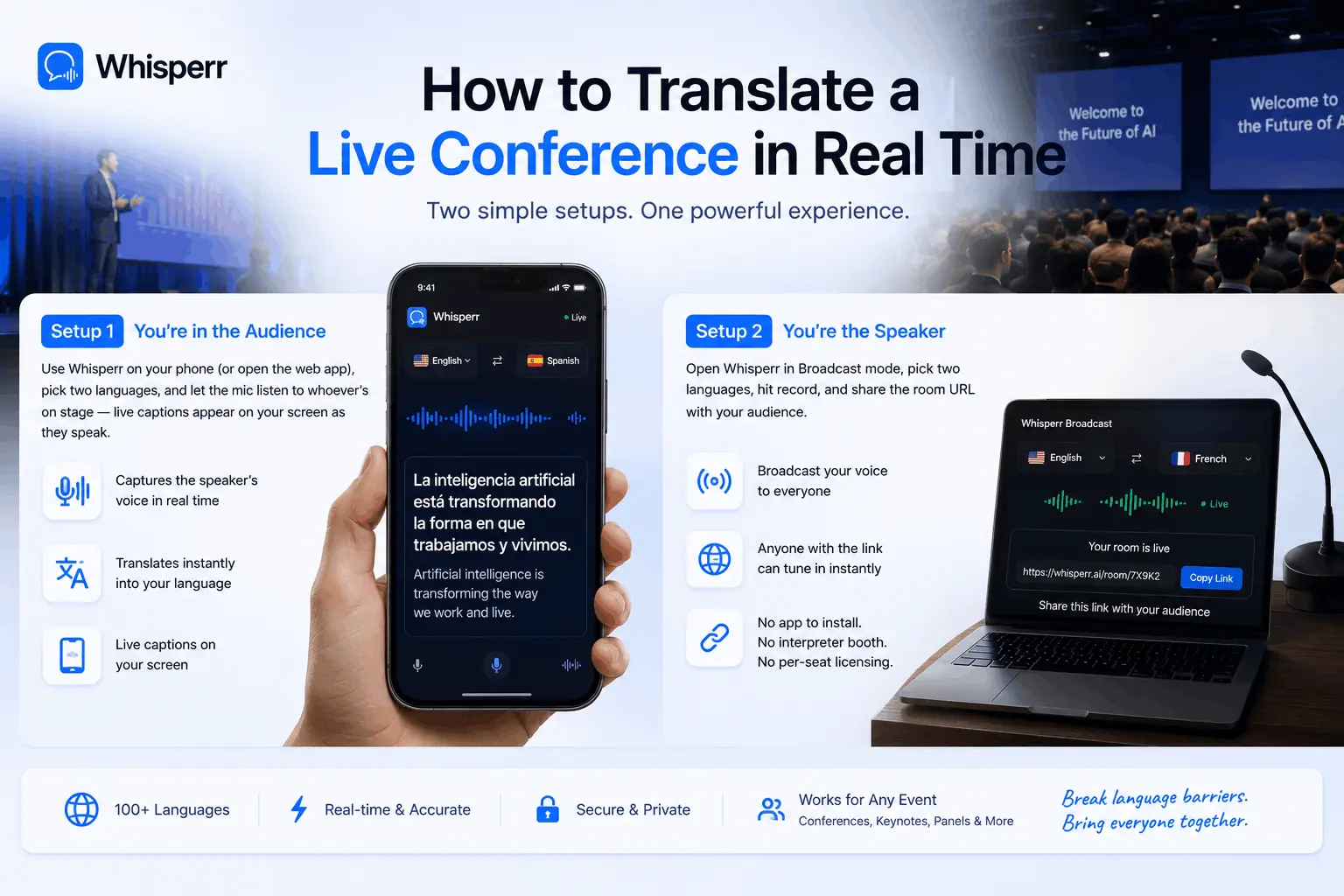
Two setups for live conference translation - every listener reads on their own phone, or one speaker broadcasts captions to the whole audience. No interpreter booth, no per-seat licenses.