How to Real Time Translate a Live Conference

Live conferences are where translation tools get exposed. Forty-five minutes of continuous speech, two or three languages in the room, a Q&A where the panel hops between French and Mandarin in the same answer — this is the scenario that breaks the "translate two sentences and stop" apps that ship on phones by default. Hiring a simultaneous interpreter solves it, but only if you have $800–$1,500 a day and a booth at the back. Most conferences don't.
A modern realtime voice translator handles this differently. The audio gets captured directly (either off the speaker's voice in the room, or off the speaker's own microphone), processed live, and surfaced as captions on whichever device the reader is holding. Voice translation that used to need a hardware setup now runs in a browser tab or a phone app, on the device the audience already brought with them.
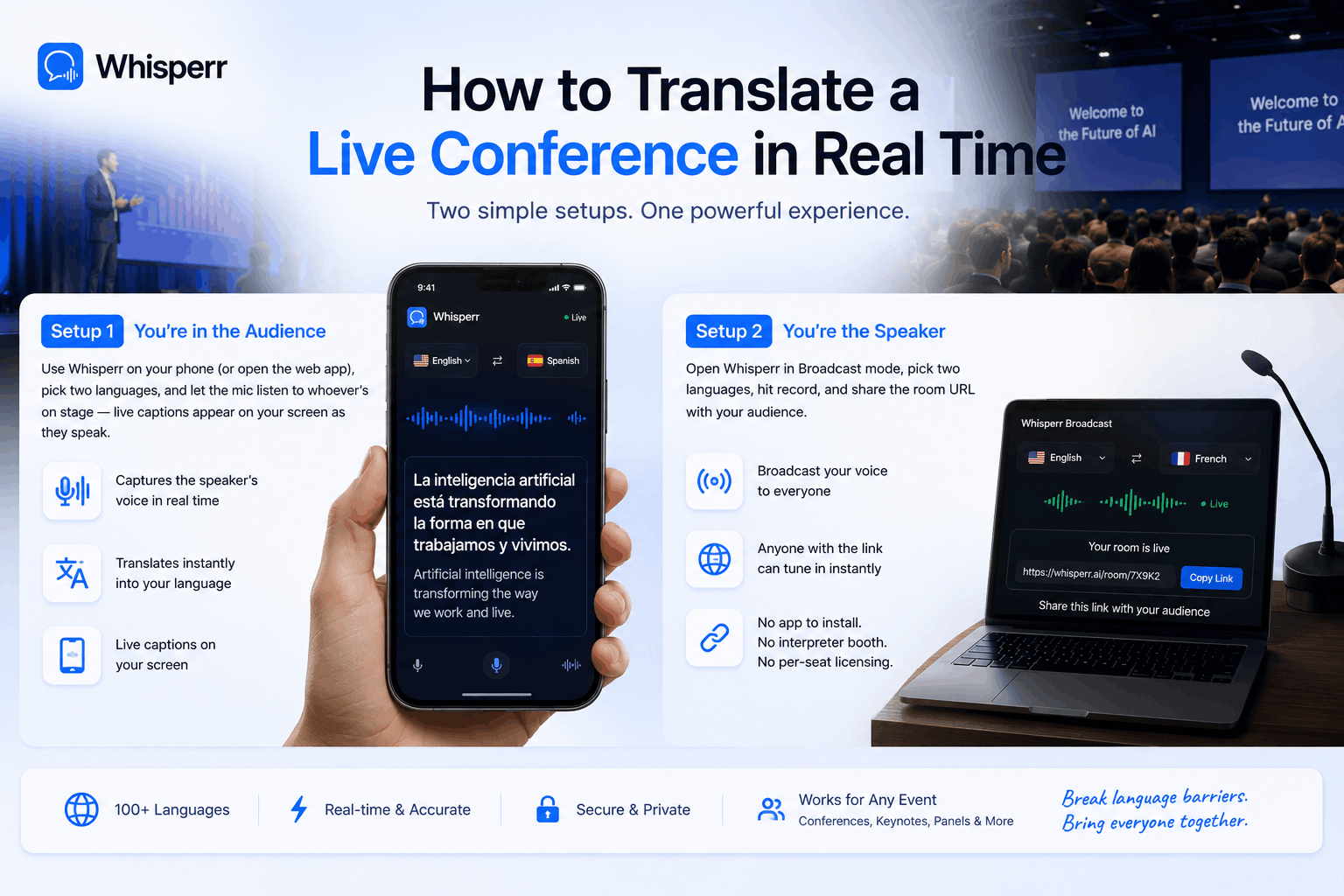
This guide walks through the two scenarios that cover almost every conference: you're a listener and want to follow along in your language, or you're a speaker and want your whole audience to follow along in theirs. We'll use English and Spanish throughout as the example pair — but Whisperr supports 100+ languages and runs as a two-way translation by default, so you can swap in any pair and the steps are identical.
Two scenarios, two setups
| Scenario 1: You're a listener | Scenario 2: You're a speaker |
|---|---|---|
Who runs Whisperr | Each listener, on their own device | One person (you, the speaker) |
What the device does | Captures the speaker's voice through its mic | Captures your voice through its mic, publishes to a URL |
Audience devices | iPhone, Android, or any web browser | Any browser — they just click a link that you shrae |
Account needed | Yes (the listener) | Yes (the speaker) |
Per-listener cost | One subscription per listener (or use a shared broadcast — see Scenario 2) | Free for every listener |
Best for | A few attendees, conferences where you can't change the AV setup, casual / hybrid events | Larger audiences, conferences where the speaker is willing to use the tool, multilingual audiences |
Internet needed | Yes, on the listener's device | Yes, on the speaker's device; listeners just need a browser |
Both scenarios run on the same app and the same single subscription model — you're picking which side of the room is doing the work.
Scenario 1: You're a listener — translate the speaker's voice on your own device
You're sitting in the audience. The keynote is in Spanish. Your Spanish is fine for ordering coffee, not for following a 40-minute talk on supply-chain economics. You don't want to ask the organizer to switch languages, and there's no interpreter channel.
The setup: open Whisperr on your phone (or laptop), point its microphone at the stage, and read live English captions as the speaker talks. Because Whisperr runs as a two-way translation by default, anything you say back (during Q&A, or if you turn to a neighbor) also gets captioned in the other language — no source/target to flip.
This is the lightest possible setup. Nothing changes on the conference's side. The organizer doesn't need to install anything, the speaker doesn't need to know you're doing it, and the AV crew doesn't need to add a channel.
1. Install Whisperr or open the web app
Three options, pick the one for the device you brought:
- iPhone: Install Whisperr from the App Store.
- Android: Install Whisperr from the Google Play Store.
- Laptop / Mac / Windows / Chromebook: Open Whisperr Web App in browser. No install.

2. Pick your two languages
In the recording bar at the top of the app, tap the language dropdowns and pick the two languages in play. For example, English and Spanish. The order doesn't matter — Whisperr runs two-way translation by default, so whichever language gets spoken, the other one comes out as captions.
If the conference has more than two languages and you only care about one direction (say, Mandarin → English), you can tap the arrow icon between the dropdowns to switch it from two-way to one-way. Otherwise, leave it on automatic two-way and not really think about it.


3. Start a new recording with microphone capture
Tap Recording icon (mic icon on phone, mic icon in the recording bar on web). The first time, your device will ask for microphone permission — allow it.
On phone, that's all you need to do. On web/laptop, when prompted for an audio source pick In-App Microphone.

4. Place your device within earshot of the speaker
This is the part that matters most for live audio translate quality. The mic does most of the work; the model does the rest.
- Conference auditorium with a PA system: Sit anywhere with a clear line to a speaker. The PA pushes a clean, normalized signal — even halfway back, your phone's mic picks it up well.
- Small room with no PA: Sit in the first few rows. The closer to the speaker's voice, the better.
- Panel discussions on a stage: Open mics on the panel = great. Lapel mics = great. People talking without a mic at the back of the panel = worse.
- Phone position: Lay it flat on the table, screen up. The bottom mic on iPhones and most Androids picks up speech across a room better than people expect — better than holding it in your hand.
If audio quality is bad, you have one fallback: if the conference is also being streamed online (Zoom, YouTube Live, a webinar tool), open the stream in a browser tab on a laptop and switch Whisperr to Screen Capture → Chrome Tab instead of microphone capture. That gives you the cleanest possible audio — straight off the stream's data, no room noise.
5. Read live captions as the speaker talks
Captions appear on screen, line by line, with timestamps. Two lines per utterance: the speaker's original Spanish, and the live English translation underneath. Latency is sub-second on a decent connection.
A few things people don't expect on the first run:
- Both directions caption automatically. If you whisper a question to your neighbor in English, that gets transcribed and translated to Spanish in the same feed. Useful if you want to remember what you asked; ignore it if you don't.
- You can scroll back mid-session. If you missed a sentence because you were typing, scroll up — the captions don't disappear.
Battery drain is comparable to a video call. A full conference day on phone needs a power bank or a seat near a plug; a 30-minute panel is fine on whatever battery you walked in with.
Scenario 2: You're the speaker — broadcast captions to everyone in their language
Flip side of the same problem. You're the one on stage. Your audience speaks more languages than you do. You want them all to follow along, live, without anyone installing anything, signing up, or paying.
The setup: open Whisperr in Broadcast mode, pick two languages, start recording with your microphone, and share the room URL. The URL is public — anyone who opens it in a browser sees the live transcription in your language and the live translation in the other, side by side, updated as you speak. No app for them to install. No account for them to create.
This is the setup most conferences should be using and aren't, because most organizers assume "translation" means "hire an interpreter" or "set up a captioning vendor." Broadcast mode collapses that to one person, one subscription, one URL.
1. Open Whisperr and sign in
You can run this from any of three places:
- iPhone: The Whisperr iPhone app (App Store).
- Android: The Whisperr Android app (Google Play Store).
- Laptop:
app.whisperr.coin Chrome, Edge, or any Chromium browser.
The phone apps are slightly easier for a speaker holding a mic; the web app gives you the biggest screen for monitoring captions in real time, which matters if you want to glance up at what your audience is reading. Pick whichever fits your hands.
2. Pick your two languages
Same as Scenario 1 — in the recording bar, pick English and Spanish (or whatever your pair is). Two-way translation is on by default, which is what you want for conferences with Q&A: when a Spanish-speaking audience member asks a question and you answer in English, both halves of the exchange get captioned for everyone.
3. Enable Broadcast mode
This is the one toggle that separates "I'm using Whisperr to read captions for myself" from "I'm publishing captions to a public URL for my whole audience."
- On web (
app.whisperr.co): tick the Broadcast checkbox in the recording bar before you hit record. - On iPhone: tap the vertical "···" on the bottom left of the screen, then enable Broadcast mode.
- On Android: open the settings icon at the bottom of the screen, enable Broadcast mode.

Until you do this, Whisperr is doing live voice translate only on your screen. After you do it, it's also publishing every translated line to a public room URL.
4. Start the recording with your microphone
Tap the mic icon. When prompted for an audio source, pick Microphone. The device's mic now listens to your voice and Whisperr captions every line.
5. Share the room URL with your audience

The moment recording starts, Whisperr generates a public room URL — something like app.whisperr.co/room?id=ab12cd34. Copy it. Get it in front of your audience however you can:
- Put it on your title slide. A short URL, big font. Mention it in the first 30 seconds: "Captions in Spanish are live at this URL; open it on your phone."
- Generate a QR code from it (any free QR generator) and put that on your slide instead. People in the back row can scan it in two seconds.
- Paste it in the event Slack / WhatsApp / Discord if your conference has one.
- Email it to the registration list before the talk.
- Hand it to the conference organizer to add to the event app or program PDF.
Each audience member who opens the URL gets live transcription in your language and the live translation in theirs, side by side, line by line, in their browser. Phone, tablet, laptop — anything with a browser. No signup, no install, no microphone permission, no account. They just read.
6. Run two rooms if your audience speaks more than two languages
A single broadcast room handles one language pair — say, English and Spanish. If half your audience speaks French and a third speaks Japanese, one room won't cover them.
The fix: run two (or three, or four) broadcast rooms in parallel from the same device, with different language pairs. Each room generates its own URL. Paste all of them on your title slide, labeled by language:
- 🇪🇸 Español →
app.whisperr.co/room?id=... - 🇫🇷 Français →
app.whisperr.co/room?id=... - 🇯🇵 日本語 →
app.whisperr.co/room?id=...
Each audience member clicks the URL for their language. All rooms run off the same microphone audio, all on the same single subscription. The audience sees only the language they care about.
Why this beats the alternatives
A few reasons broadcast-mode voice translation beats the usual conference options.
One subscription covers everyone. Only the speaker (in Scenario 2) or the listener (in Scenario 1) pays. There is no per-attendee pricing. Three audience members or three hundred, the cost to broadcast is the same flat rate. Most "live captioning" vendors price per seat or per minute — Whisperr's broadcast pattern flips that to a single-payer model.
No install for the audience. The biggest reason captioning tools fail at conferences is friction: people don't install apps for a 40-minute talk. A URL in a browser is the lowest possible friction. Locked-down corporate laptops, parents who don't want another app, grandparents in the audience — all of them just open the link.
Two-way by default. Conferences aren't monologues. Q&A happens, panels happen, audience members chime in. Two-way translation captions both halves automatically — speaker English to audience Spanish, audience Spanish back to speaker English — without anyone toggling anything.
100+ languages, including the long tail. Major Western European, East Asian (Japanese, Korean, Mandarin, Cantonese), Southeast Asian (Vietnamese, Indonesian, Thai), South Asian (Hindi, Bengali, Tamil), Middle Eastern (Arabic, Hebrew, Persian, Turkish), and major regional variants. Most translation apps support 30 languages well and degrade on the rest. Conferences with attendees from Eastern Europe, Africa, or Southeast Asia run into this constantly — Whisperr covers the long tail.
GDPR compliant. Audio captured during the conference is processed in real time and isn't permanently stored. The bilingual transcript saved to your account is yours to keep or delete. Useful when the conference covers private business strategy, customer data, or anything else you'd rather not have sitting on someone else's server.
Frequently asked questions
Can the audience read captions on iPhone, Android, and laptop at the same time? Yes. The broadcast URL works in any browser on any device. iPhone Safari, Android Chrome, Windows Edge, Mac Safari, Linux Firefox — they all open the same room and show the same live captions. No platform compatibility issues, because there's no app to be compatible.
What if the speaker doesn't have a microphone — just talking in a quiet room? Scenario 1 (listener side) still works. The audience members run Whisperr on their own phones with microphone capture, and as long as they're within a few meters of the speaker, the captions come through. Scenario 2 (speaker broadcast) works best with a real mic — phone mic only is okay for a small room, marginal in a large hall without a PA.
Does the speaker need to be the conference organizer or have AV access? No. Broadcast mode runs entirely on the speaker's own device. The conference doesn't need to provision anything, install anything, or even know it's happening. The only thing the speaker needs is a phone or laptop with internet and a way to share a URL.
Can I use Whisperr if the conference is also being streamed online (Zoom, YouTube Live, etc.)? Yes, and it actually gets easier. Instead of mic capture in the room, open the stream in a broser tab on a laptop, then run Whisperr in another tab using Screen Capture → Tab. You get the cleanest possible audio (straight off the stream, no room noise) and the same broadcast URL works for remote attendees.
What's the latency? 0.2 seconds on a decent connection. Translation appears within roughly half a second of the speaker finishing a phrase. Fast enough that audience members can follow Q&A in real time without lag.
Does it work offline? No. Realtime voice translator quality requires the cloud — speech recognition and translation models run server-side. You need Wi-Fi or LTE/5G. For tourist phrasebook use, offline tools exist; for conference-quality voice translation, online is what gives you usable accuracy.
How long can a broadcast run? As long as your device stays plugged in and online. Multi-hour conferences, full-day workshops, week-long summits — all fine. Battery is the practical limit on phone; on a laptop with a charger, you can run all day.
Try it at your next conference
Three things to remember:
- You're a listener? Install Whisperr on iPhone or Android, pick two languages, point the mic at the stage. Read.
- You're a speaker? Open Whisperr, toggle Broadcast, share the room URL on your title slide. Your audience reads.
- You have a multilingual audience? Run a second broadcast room with a different language pair. Both rooms on the same subscription, same mic.
Conferences are where realtime voice translator tooling earns its keep. A €1,500-a-day interpreter is the old answer. A URL on a title slide is the new one.
Ever sat in a meeting where people speak in a different language, speak too fast, or have accents you struggle to follow? Whisperr can solve it