
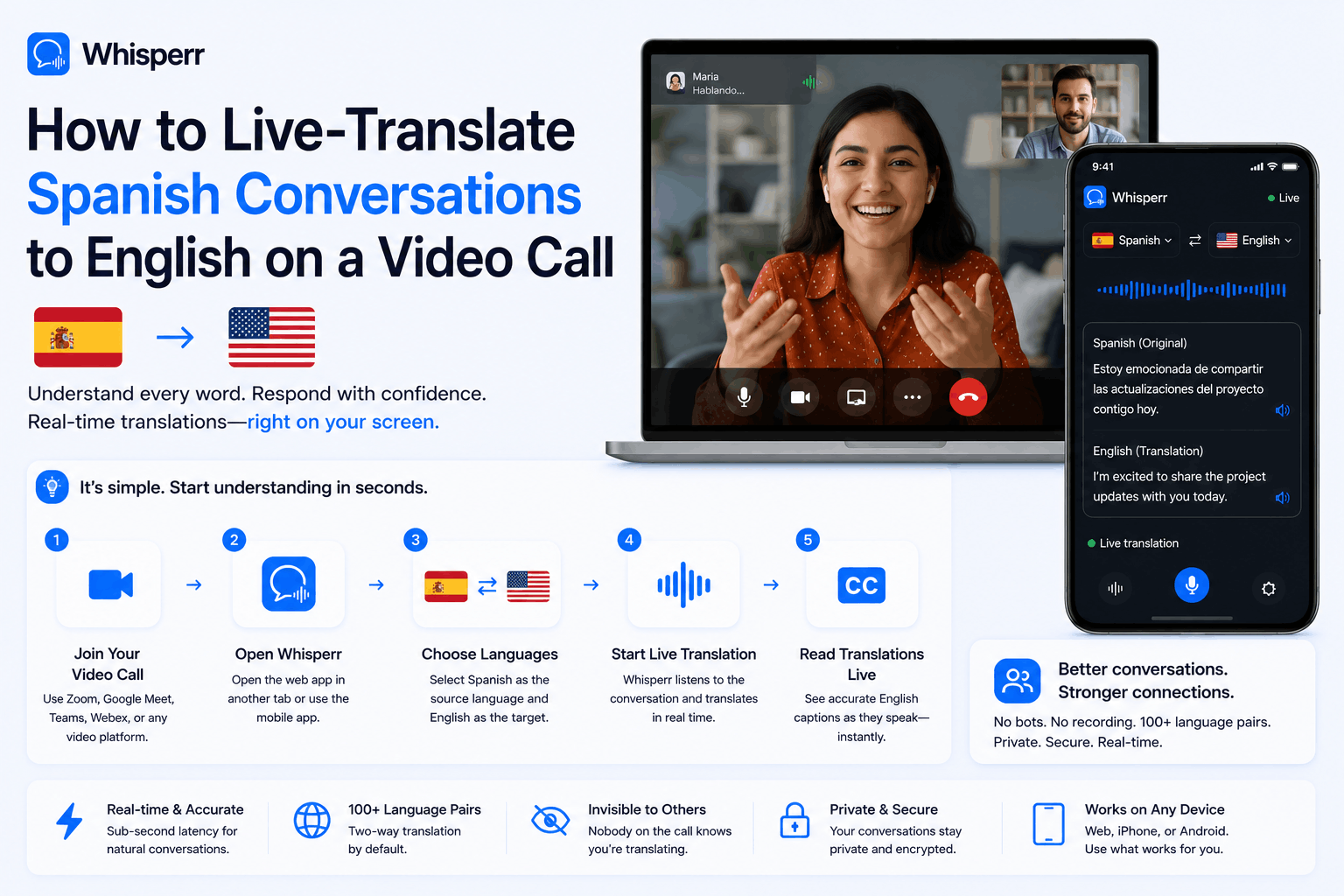
How to Live-Translate Spanish to English and Vice Versa on a Video Call

You're on a Zoom, Microsoft Teams, Google Meet, or Webex call. The other side is speaking Spanish — a customer in Mexico City, a supplier in Madrid, a remote teammate in Buenos Aires, a sales lead who's clearly more comfortable in their first language. You want to actually follow the conversation in English, live, without asking them to switch or relying on someone's cousin to interpret.
Most "translate english spanish" tools were built for typing in a phrase and getting it back. They fall apart the moment someone speaks at normal conversational speed for more than a few seconds, and they don't know what to do with audio from a video call at all. What you actually need is a realtime voice translator that can pull audio straight out of the call and turn it into accurate English captions as the meeting plays.
This guide covers two ways to do that — one that captures the call audio at source-quality (best accuracy), and one that works from any device with a microphone (most flexible). Pick whichever fits your setup.
Two ways to live-translate a Spanish video call
The setup depends on where the Spanish audio is coming from and what device you have in front of you. Almost every real-world case fits into one of these two:
| Option 1 — Capture the call tab (recommended) | Option 2 — Listen through speakers |
|---|---|---|
Typical use case | Zoom / Teams / Meet / Webex / GoToMeeting in the browser | Call on speakerphone, conference room, second laptop, phone-only setup |
Audio source | The browser tab playing the call | Your device's microphone |
Audio quality | Source-quality — Whisperr reads the raw audio stream directly | Depends on speaker volume, room acoustics, and mic |
Device needed | Desktop or laptop with a Chromium-based, Firefox, or Safari browser | |
Best for | Accuracy, accented Spanish, fast speakers, noisy rooms | Mobility, no-laptop situations, second-screen on a phone |
Setup time | About 60 seconds | About 30 seconds |
Both options use the same accurate Spanish translator engine and the same 100+ language coverage. The only thing that changes is how Whisperr gets the audio.
Option 1 — Capture the call tab in your browser (recommended)
This is the cleanest setup for english to spanish translation voice work because there's no acoustic hop. The browser hands Whisperr the call's audio stream directly, so background noise, room echo, and speaker distortion don't degrade the transcription. If you have a laptop available, do it this way. The outcome looks like this:
The setup: join the video call in a browser tab, open the Whisperr web app in another tab, and capture the call tab's audio.
1. Sign up at the web app
Open any modern browser — Chrome, Edge, Brave, Firefox, Safari, Arc — and go to app.whisperr.co. Sign up; it takes one click. You'll land in the app with the recording bar at the top: a timer, two language dropdowns, a Broadcast checkbox, and a microphone button.


2. Join the video call in your browser
For Zoom, Teams, Google Meet, Webex, or any other video-conferencing platform, join the call in a browser tab rather than the desktop app. Teams and Meet specifically prompt you with "Continue on this browser" when you click a meeting link — pick that option. Zoom has a "Join from your browser" link near the bottom of the join page. Webex has the same.
This is the one non-obvious detail of the whole setup. Whisperr captures audio from a browser tab, so the call needs to actually be playing in a browser tab on your machine.

3. Pick Spanish and English
Click the language dropdowns. Pick Spanish on one side and English on the other — it doesn't matter which is left and which is right. Whisperr does two-way voice translation by default, so whichever language it hears, it translates to the other one. If your Spanish-speaking colleague switches into English mid-sentence to ask a question, Whisperr will translate that back to Spanish on the same screen.

The translate english spanish direction works equally well in both directions. This is the same Spanish ↔ English pair that covers Mexican, Castilian, Argentine, Colombian, Chilean, and most Latin American regional accents — Whisperr's model is trained across the major variants, so an Andalusian speaker and a Mexican speaker both transcribe cleanly.
4. Start a recording and capture the call tab
Click New Recording. Choose Screen Capture.

Your browser will pop up its standard tab-share dialog with three options at the top: a single tab, a window, or your entire screen. Pick the tab option, then select the specific tab where your video call is playing. Make sure the Share tab audio checkbox is ticked (this is the easy thing to miss — without it, you'll capture video but no sound). Click Share.

If you also want others on the call to read the live captions, tick the Broadcast checkbox before you start recording. Whisperr generates a public room URL you can paste into the call's chat. Anyone can open the link and read the live audio translate output in their own browser. No signup, no install for them.
5. Read the live captions side by side
Live transcription in Spanish and live English translation appear side by side in the Whisperr tab, timestamped, line by line. Latency is sub-second. Keep the Whisperr tab open in a second window or on a second monitor next to the call, glance over for the English when you need it, and follow along normally.
That's the whole flow. The same setup works for any combination — pick a different pair from the language dropdowns and the rest of the steps are identical.

Option 2 — Listen to the call through speakers with iPhone, Android, or the web app
This is the right setup when you don't have a laptop available, or when the call is happening on a different device than the one you'd use Whisperr on — you're on your work laptop's locked-down Zoom client and your IT department won't let you install anything, but you have your phone; you're in a conference room with the call on a TV speaker; you joined from your phone and want a second device to handle captions.
The setup: turn on the call's audio through speakers, put the iPhone app, Android app, or the web app next to the speaker, and let the mic do the work.
1. Install the Whisperr app (or just open the web app)
On iPhone: install Whisperr from the App Store. On Android: install from the Google Play Store. On any computer or tablet: just open app.whisperr.co in a browser — no install needed.

All three give you the same recording bar with the same language dropdowns and the same live voice translate output. Pick whichever device you have closest to where the audio is playing.
2. Position the device near the speaker
Put the phone or laptop within about a meter and a half of the speaker. Lay an iPhone or Android phone flat, screen up. The bottom mic on phones picks up speech across a small table much better than people expect — better than holding the phone in your hand or propping it against a cup.
If the call is on a laptop or TV speaker, point the device at the speaker. If you're in a noisy room, get closer rather than turning the volume up — speaker distortion at high volume hurts transcription more than distance does.
3. Pick Spanish and English in the recording bar
Same as Option 1. Pick Spanish and English in the two language dropdowns. Two-way voice translation is on by default, so if you also speak during the call, your English will be translated to Spanish in the same live feed.

4. Start the recording
Tap Recording icon and then In-App Microphone button. The first time, the app or browser will ask for microphone permission — allow it. The recording begins immediately.

If you also want to share the captions with someone else in the room or on the call, tick the Broadcast checkbox before starting. This is in the settings view which can be shown by tapping on the three dot icons the bottom left of the screen. The room URL works in any browser on any device, so a colleague joining the call from their phone can read captions in their browser without installing anything.
5. Read the live captions
Captions appear in both languages, line by line, as the conversation happens. Sub-second latency, same as Option 1 — the only thing that changes is audio quality, which depends on how loud the speaker is and how clean the room is. In a quiet office, this option is nearly as accurate as tab capture. In a busy café with a barista grinding beans behind you, expect a small accuracy hit on quieter syllables.

Why this beats the alternatives
A few reasons this approach holds up against built-in captions, desktop translator apps, and "just use Google Translate on your phone":
Two-way translation, not just one direction
Most "live translation" tools translate one language into another in a single direction. Whisperr does both at once on a single recording. You don't have to know in advance who's going to speak Spanish and who's going to speak English — both get transcribed and translated as they happen. For mixed teams where people code-switch mid-sentence, this is the difference between captions that mostly work and captions that fall behind every time someone says "anyway, let me ask you something in English real quick."
Source-quality audio in Option 1
Browser tab capture is the cleanest possible signal — Whisperr reads the call's audio stream the same way the speakers do. No microphone, no room, no acoustic hop. For accented Spanish, fast speakers, or any call where accuracy matters more than convenience, this is the most accurate Spanish translator setup available without a paid interpreter.
No setup needed for the other person
The Spanish speaker on the other end doesn't install anything, doesn't sign up for anything, doesn't change their meeting settings. From their side, nothing is different. If you broadcast the captions through a room link, viewers on the call also need nothing — they click the link and read.
Works on any device, including locked-down corporate machines
The web app runs in any modern browser, including Edge (preinstalled on every Windows machine and whitelisted at almost every company), so you don't need admin rights, an installer, or an IT ticket. The iPhone and Android apps cover situations where the laptop isn't an option.
100+ language pairs
Spanish ↔ English is the most common pair we see, but the same flow works for Spanish ↔ French, Spanish ↔ Portuguese, Spanish ↔ German, Spanish ↔ Mandarin, and every other major pair — plus the long tail (Vietnamese, Indonesian, Polish, Hindi, Korean, Arabic) that most desktop translator apps skip.
Nothing stored without your say-so
Audio is processed in real time. Nothing lingers on disk unless you explicitly save the bilingual transcript inside Whisperr. Good for confidential customer calls, sales conversations, HR meetings, or anything you'd rather not have indexed by a third-party desktop app.
Does Zoom, Teams, Google Meet, or Webex have built-in Spanish–English translation?
Sort of, but with significant gaps. Zoom's translated captions require a paid add-on on top of the base license. Microsoft Teams' live translated captions need either Teams Premium ($10/user/month) or Microsoft 365 Copilot ($30/user/month), and even then they're one-directional. Google Meet's translated captions cover a limited set of pairs and require a Google Workspace Business Standard tier or higher. Webex's translation is similarly gated behind paid tiers.
None of them are two-way out of the box, none of them are free, and all of them require the call organizer to have the right license — which is no help if you're the participant trying to follow along. A browser-based realtime voice translator running alongside the call avoids all of that.
Which option gives more accurate Spanish translation?
Option 1 — browser tab capture — gives more accurate output, especially for fast speakers, strong regional accents, or calls happening in noisy environments on the other side. Source-quality audio always beats microphone-captured audio, full stop.
That said, Option 2 is usually accurate enough for most calls when the speaker is clear and the room is quiet. The gap shows up most when audio quality is already marginal — heavy accent plus background noise plus speakerphone volume is where tab capture pulls clearly ahead.
Can I broadcast the captions to everyone on the call?
Yes. Tick the Broadcast checkbox before you start recording in either option. Whisperr generates a public room URL, you paste it into the call's chat, and anyone who clicks it reads live captions in their browser. They don't need a Whisperr account, an installer, or microphone permission. Only the broadcaster needs an account, and a single subscription covers any number of viewers — three people or three hundred.
This is especially useful for sales demos, all-hands meetings, or webinars where one English speaker is presenting to a mixed Spanish-and-English audience (or vice versa).
What if I'm joining the call from my phone only?
Use Option 2 with the audio on speaker, or with the call on speakerphone routed to a Bluetooth speaker. Put a second device — another phone, a laptop, a tablet — running the iPhone app, the Android app, or the web app near the speaker, and let it listen.
A single-phone setup (call and Whisperr on the same iPhone or Android) doesn't work reliably yet because iOS and Android don't expose call audio to third-party apps for privacy reasons. The two-device or speakerphone route is the workaround.
Try it on your next Spanish call
The whole flow, top to bottom:
- Have a laptop? Join the call in any browser → open app.whisperr.co → pick Spanish and English → New Recording → Screen Capture → Tabs → pick the call tab (with "Share tab audio" ticked) → read English captions side by side.
- Phone only? Install the iPhone app or Android app → put the call on speaker → pick Spanish and English → tap New Recording → read captions on the phone screen.
Two-way translation by default. 100+ language pairs. No setup needed for the Spanish speaker on the other end. Free to try at app.whisperr.co.
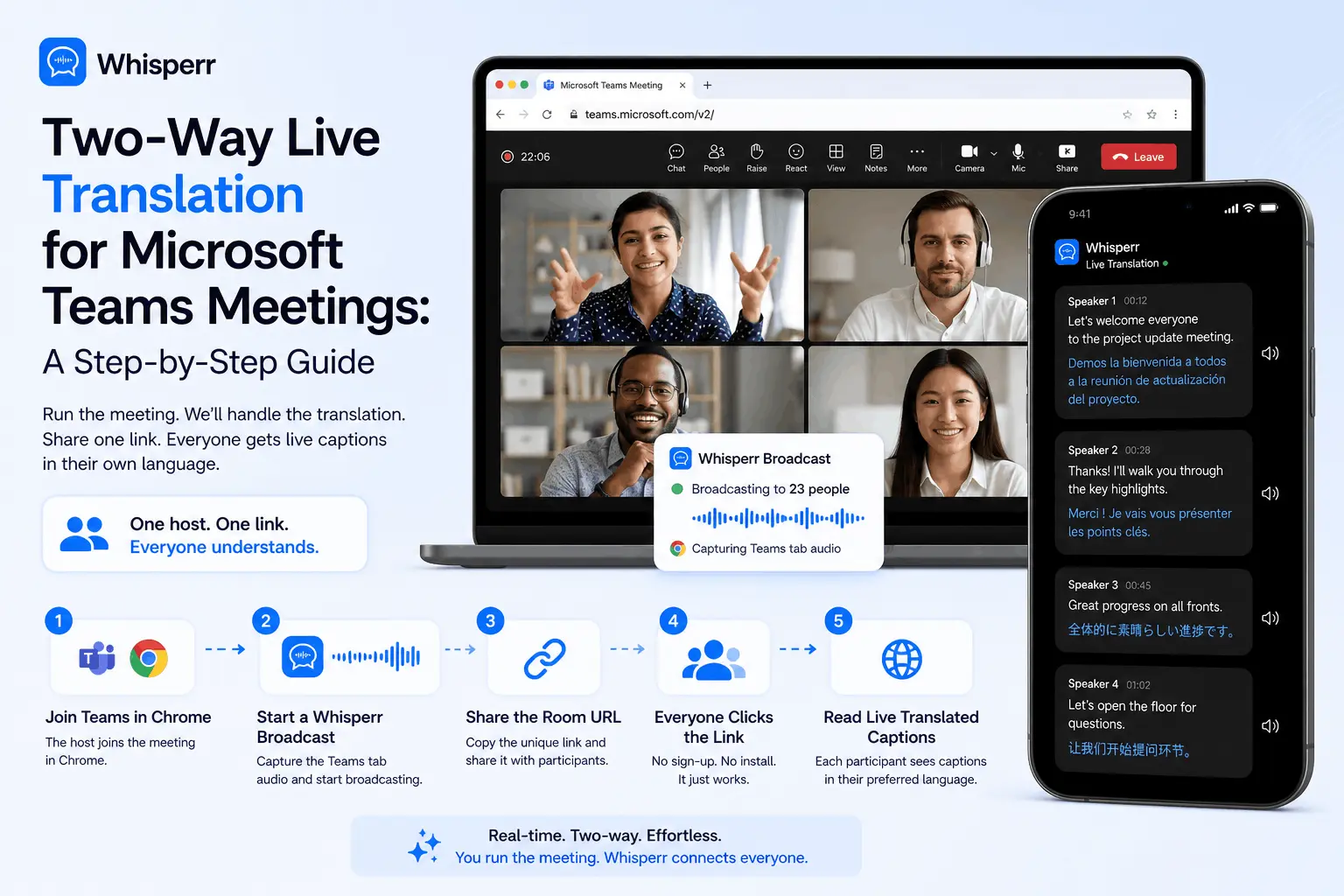
Set up real-time translation in any Microsoft Teams meeting in under 5 minutes. One person runs Whisperr — everyone else just clicks a link. No per-seat licenses. Free for viewers.
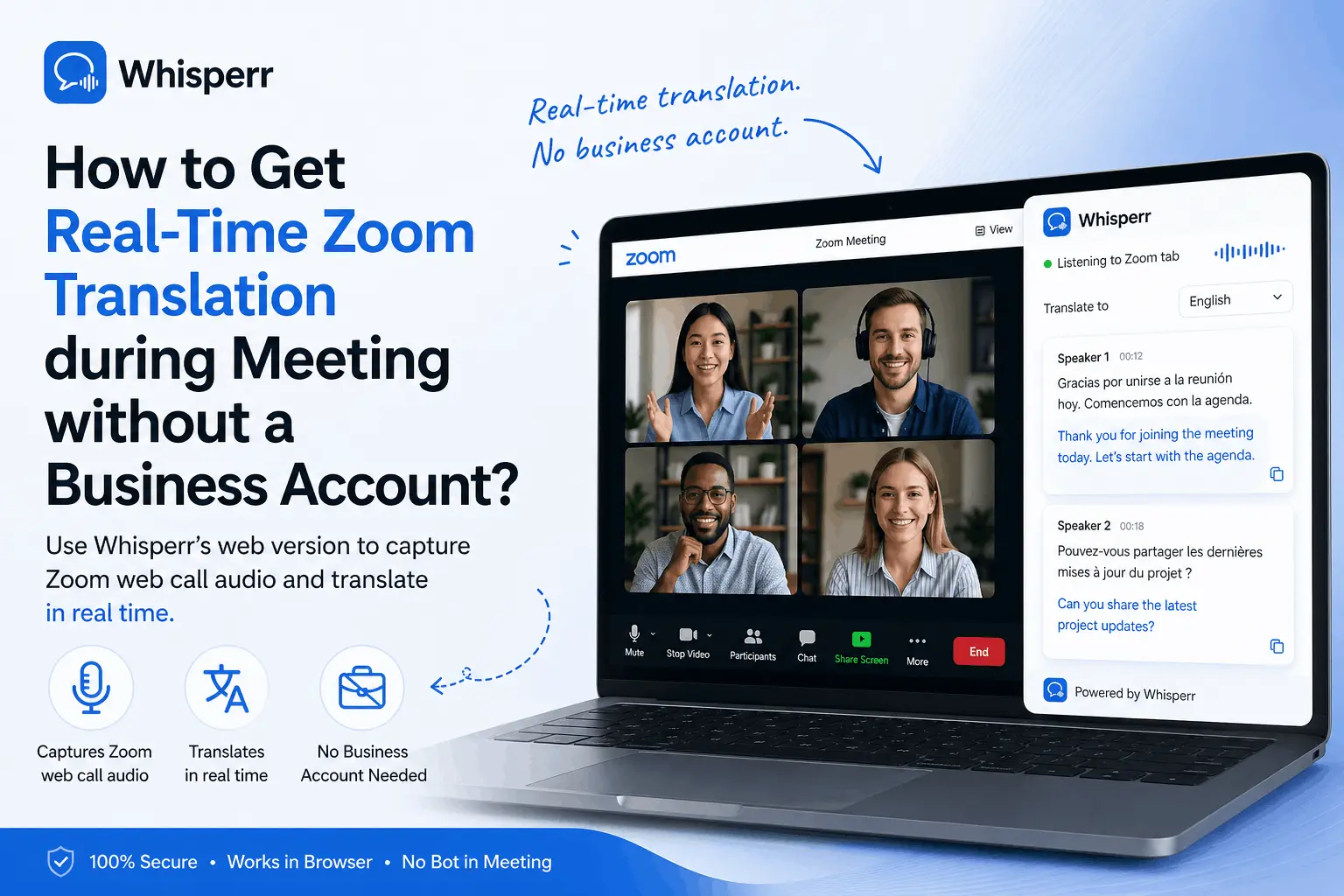
Zoom translation needs a Business plan + host setup, caps at 5 hrs/mo, and supports only 9 languages. Whisperr in Chrome: unlimited, 100+ langs, fast.