
.png)
How to Live-Translate Webex Calls in Real Time (Two Methods)

You're on a Webex call. Someone speaks Spanish, or Japanese, or Mandarin, or any of the other 100+ languages Webex doesn't have great translation coverage for. The built-in Webex captions are English-anchored and require a paid license tier. You want a realtime voice translator that catches every word — without the other attendees knowing you're using one, and without asking the speaker to slow down or switch languages.
There are two ways to do this with Whisperr, and the right one depends entirely on how the Webex call is joined.
This guide walks through both: the cleanest method (browser-based tab capture, near-perfect audio quality) and the universal fallback (microphone capture from any device).
Two scenarios for live-translating a Webex call
| Scenario 1 — Browser tab capture (Recommended) | Scenario 2 — Microphone capture |
|---|---|---|
Best for | Recommended for highest quality | When you must use the Webex desktop or mobile app |
Audio source | Webex meeting tab in your browser | The laptop or phone speaker, picked up by another device's mic |
You join Webex from | Your browser ("Join from your browser") | Webex desktop or mobile app |
Whisperr runs on | Web App (desktop browser) | |
Visible to other attendees? | No — runs entirely on your side | No — runs entirely on your side |
Latency | Sub-second | Sub-second, slightly noisier |
Scenario 1 is the one to use if you have the option. Capturing audio directly from the Webex browser tab gives Whisperr a clean, uncompressed stream straight from the source — no microphone, no room noise, no speaker fidelity loss. Voice translation accuracy follows audio quality directly, and the difference between a raw tab stream and a phone mic listening to a laptop speaker is meaningful.
Scenario 2 exists because sometimes you're stuck. Maybe Webex Events forces the desktop app. Maybe you're listening from your phone in a meeting room. Maybe a colleague has the Webex tab on their laptop and you're sitting next to them. The mic-capture path covers all of it.
Scenario 1 — Webex in the browser + Whisperr Web App (recommended)
This is the cleanest setup. You join Webex from the browser, then point the Whisperr Web App at that tab. Whisperr pulls the audio stream directly from the browser's tab-audio API — the same channel Webex uses to play sound through your speakers — so you get the raw audio before it ever hits a microphone.
The other attendees see nothing. No screen share. No popup. No bot in the participant list. Whisperr lives entirely in a separate browser tab on your machine.
What you need
A laptop or desktop with any modern browser — Chrome, Safari, Edge, Firefox, Brave, whatever you already have open. Plus a Webex meeting link and a Whisperr account at the Web App.
1. Join the Webex call in your browser
When you click a Webex meeting link, Webex tries to launch the desktop app by default. Cancel that prompt. On the launch page, look for the "Join from your browser" link — it's usually below the main "Open Webex" button — and click it instead.

Webex will open the call in a browser tab with the same camera, mic, chat, and participant list as the desktop app. This is the non-obvious step that makes the whole setup work: tab audio capture only sees browser tabs, so the meeting itself needs to be playing in one.
2. Open the Whisperr Web App in another tab
In a second tab in the same browser, go to the Web App and sign in (or sign up — it takes about 20 seconds).

Keep both tabs open in the same window. You don't need to share your screen or do anything inside the Webex tab itself — just leave the meeting playing.
3. Pick your two languages
In the Whisperr toolbar, pick the two languages involved in the meeting. For example, English and Spanish. Order doesn't matter — Whisperr does two-way live voice translate by default, so a single session captions Spanish into English and English into Spanish at the same time.

100+ language pairs are supported, including the ones Webex's built-in captions don't cover well: Vietnamese, Indonesian, Polish, Turkish, Hindi, Tagalog, Thai, Ukrainian, and dozens more.
4. Tick "Broadcast" if you want to share the translations
If you're the only person who needs the live audio translate, skip this step.
If other attendees on the Webex call also want live captions in their preferred language, tick the Broadcast checkbox in the Whisperr recording bar before you start recording. Whisperr generates a public room URL you can paste into the Webex chat. Anyone — on any device, including iPhone, Android, or another browser — can open the link and read the captions live. No signup or install on their end.

5. Start recording and choose Screen Capture
Click the microphone icon in the Whisperr recording bar. A small menu appears with two options: Microphone Audio and Screen Capture. Pick Screen Capture.

6. Select your Webex tab and tick "Share tab audio"
Your browser will pop up its standard screen-share dialog with three tabs at the top. You must click on Tab -> Choose Webex -> Share.
Critical detail: before clicking Share, make sure the "Share tab audio" checkbox at the bottom-right above the "Share" button is ticked. If it isn't, the browser shares the tab's video only and Whisperr won't receive any sound. Then click Share.

7. Read the live captions
Switch back to the Whisperr tab. As people speak in the Webex meeting, you'll see live transcription in the source language and live translation in the target language appear side by side, timestamped, line by line. Latency is sub-second on a normal connection.

The best practice is to split the window into two tabs like you can with Chrome, so that you can see the screen share or attendees faces on the left side while you see the translations on the right side.
Scenario 2 — Webex app + microphone capture
Use this method when joining Webex from a browser isn't an option. Common reasons:
- Webex Events / Webinars — some Webex event types only run in the desktop app.
- You're on mobile. The Webex iOS or Android app is the only way to join the call from a phone.
- You're in a meeting room. The Webex call is on a colleague's laptop in front of you, and you don't have your own tab.
- Corporate machine restrictions — IT has blocked browser-based meeting joins.
In this scenario, Whisperr captures audio through a microphone — your phone's mic, your laptop's mic, or a USB mic. The Webex call plays out loud through a speaker, the mic picks it up, and Whisperr handles the voice translation in real time.
It's slightly noisier than tab capture (you're picking up room reverb and any background sound), but a quiet room and a phone placed near the speaker get you 90% of the same quality.
What you need
A device running Whisperr for iPhone, Whisperr for Android, or the Web App on a separate laptop. Plus the Webex call playing out loud through speakers on whatever device is hosting the meeting.
1. Install Whisperr on the device you'll listen with
If you're listening on a phone, install Whisperr for iPhone or Whisperr for Android.
If you're using a second laptop, or capturing the same laptop's mic, open the Web App in any modern browser. No install needed.

2. Join the Webex call on the other device
Open the Webex meeting and join with the Webex app or from the browser.

3. Turn on speakerphone or unmute the speakers
Make sure the Webex audio is coming out of the device's speakers, not headphones.
4. Open Whisperr and pick your two languages
Open the Web App, iPhone app, or Android app and sign in. Select the two languages involved. Order doesn't matter — Whisperr does two-way live voice translate by default, so a single session covers both directions of the conversation. Optionally, you can tap on the two-way arrow to make this into a one-directional translation.


5. Position the listening device near the speaker
If you're using a phone: place it face-up, screen toward you, 30 to 60 cm from the speaker that's playing the Webex audio. A flat table works well. Avoid putting it on top of the speaker itself — vibration creates noise.
If you're using a laptop: just make sure its built-in mic isn't covered or muted. External USB mics work even better if you have one.
6. Start microphone capture
In Whisperr, tap or click the record button and choose In-App Microphone. Grant the mic permission if prompted (first time only).

Whisperr starts listening. Within a second or two of the Webex speaker talking, live captions begin appearing — original-language transcription on one side, translated voice translation on the other.
7. Read the live captions
Watch your phone or laptop screen as the Webex call plays. Latency is sub-second. The transcript scrolls automatically, and the entire bilingual session saves to your Whisperr account when you tap stop.

Which method should you pick?
Pick Scenario 1 (browser tab capture) if you have any choice. The audio quality difference is significant, and accuracy follows audio quality directly. It also requires zero extra hardware — just two tabs in the same browser.
Pick Scenario 2 when:
- You're on mobile only.
- The meeting forces the Webex desktop app (some Events and Webinars do).
- You're listening to someone else's screen in a meeting room.
- You want to translate an in-person speaker who's also dialed into a Webex call on speakerphone — Whisperr's mic mode catches both at once.
Most people end up using both at different times. Once you've signed in once, switching between Web App, iPhone, and Android is seamless — same account, same transcript history, same language preferences.
Why Whisperr for Webex
A few specific reasons this beats the alternatives — Webex Closed Captions (limited languages, English-anchored, paid Webex tier required for the better tier), Google Translate (no live meeting mode), or "asking a colleague to interpret" (slow, error-prone, doesn't scale).
Invisible to the rest of the call. Whisperr runs entirely on your device. No bot joins the meeting. No screen share. No "Whisperr is recording" announcement. The other participants have no way to know you're translating along.
Two-way by default. Pick two languages and Whisperr handles both directions in a single session. Useful when the Webex call has people speaking both languages — sales call with a Madrid customer and a Boston AE, both reading captions in their own language.
100+ language pairs, including ones Webex skips. Whisperr handles Vietnamese, Indonesian, Polish, Turkish, Hindi, Tagalog, Thai, Arabic, Hebrew, Ukrainian, Bengali, Tamil, and 90+ more — including direct pairs that don't pivot through English.
Broadcast mode for the whole call. Tick Broadcast before recording and Whisperr gives you a public room URL. Drop it in the Webex chat. Other attendees open the link and read live captions in their preferred language — even if it's different from yours. One subscription. Unlimited viewers. No per-seat licensing.
Tab capture works for everything else too. The same browser-tab method translates Zoom, Microsoft Teams, Google Meet, GoToMeeting, YouTube livestreams, foreign-language webinars, and recorded videos. One mechanism, every meeting platform.
Free for short calls. The free tier covers most casual one-off voice translation sessions. Paid plans unlock longer sessions, transcript history, and Broadcast.
FAQ
Does Webex have built-in real-time translation?
Webex Closed Captions can transcribe and translate, but with significant constraints. As of May 2026, Webex's built-in translation is largely English-anchored (most pairs translate to or from English rather than directly between two non-English languages), the higher tier of captioning requires a paid Webex license, and the supported language list is shorter than what dedicated third-party tools offer. For two-way translation, broader language coverage, or anything outside the paid Webex tier, you need a separate realtime voice translator like Whisperr.
Will the other Webex attendees see my captions?
No. In Scenario 1, the entire Whisperr session runs in a separate browser tab on your machine. In Scenario 2, it runs entirely on a separate device. Neither path injects anything into the Webex call — no bot, no overlay, no screen share. Unless you choose to broadcast (which generates a link you actively paste into chat), nobody else on the call has any signal that you're translating.
Can everyone on the Webex call read captions in their own language?
Yes — that's what Broadcast mode is for. Tick the Broadcast checkbox before starting your Whisperr recording in Scenario 1. Whisperr generates a public room URL. Paste it into the Webex chat. Each viewer opens the link and sees live captions in the language pair you set. To support more than one target language, run two Whisperr Broadcast sessions in parallel from the same Webex tab — one English↔Japanese, one English↔Spanish — and share both URLs in chat, labeled by language. Each viewer clicks the room they need.
Can I translate a Webex Webinar or Events session?
Yes. If the webinar plays in your browser, use Scenario 1 — same tab-capture flow. If Webex forces the desktop app for that event type, use Scenario 2 with your phone or a second laptop's mic. Both work.
Is my Webex call audio stored anywhere?
Audio is processed in real time and isn't permanently stored on Whisperr's servers. The bilingual transcript saves to your account only if you want to keep it, and you can delete it any time. Nothing from the Webex call lives on a third-party server beyond what you choose to retain.
Can I use this on an iPad?
The Web App runs in browsers on iPad, and the iPhone app works on iPad too. For Scenario 2 (mic capture), iPad works perfectly.
What languages does Whisperr support for Webex calls?
100+ source/target pairs covering major European, East Asian, Southeast Asian, South Asian, Middle Eastern, and African languages, plus regional dialects (LATAM Spanish, Brazilian Portuguese, Mandarin, Cantonese, and others). If you have a specific pair in mind, open the Web App and check the language dropdown — it's the full list.
Try it on your next Webex call
Open the Web App, download Whisperr for iPhone or Android, and start your first live audio translate session in under a minute.
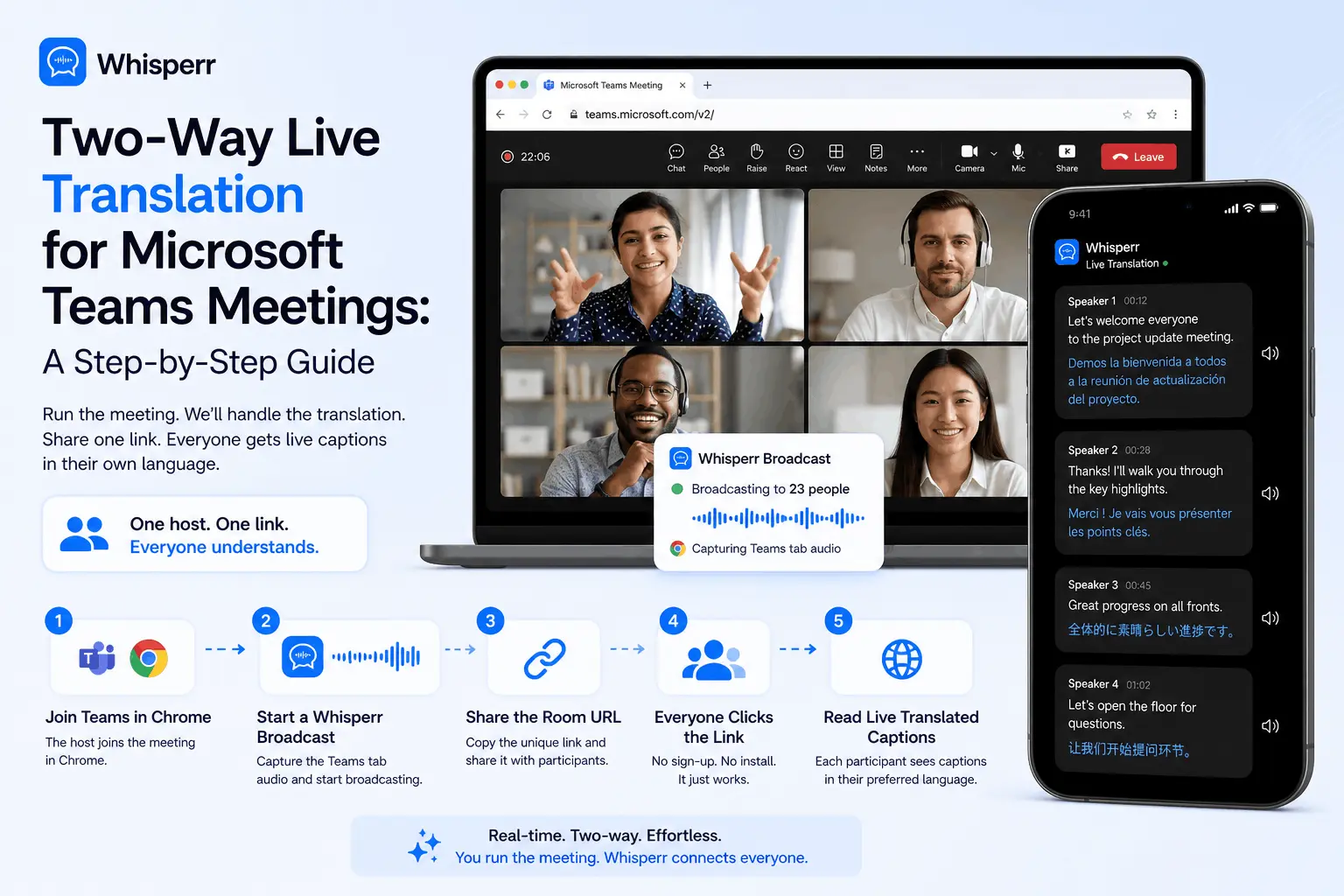
Set up real-time translation in any Microsoft Teams meeting in under 5 minutes. One person runs Whisperr — everyone else just clicks a link. No per-seat licenses. Free for viewers.
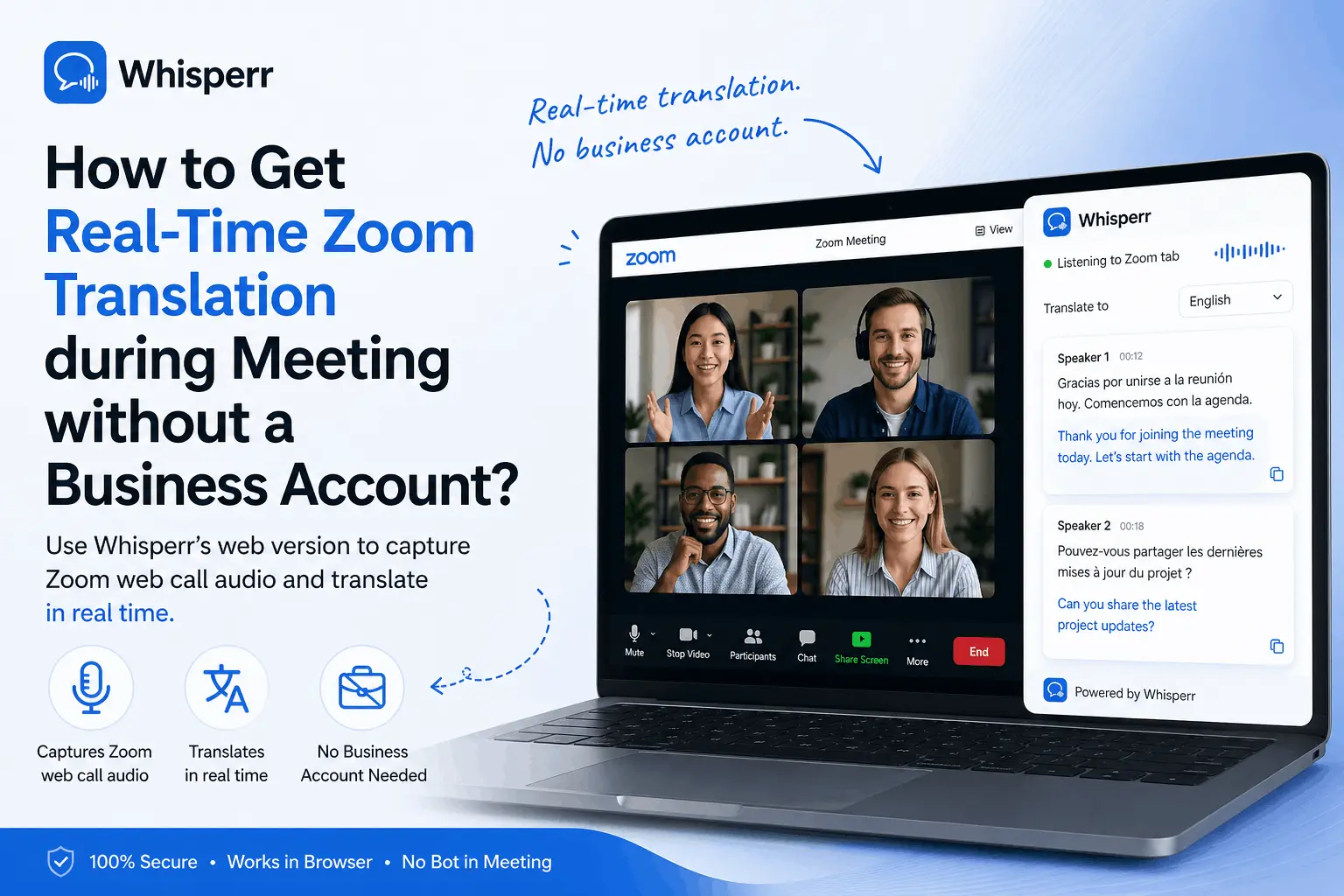
Zoom translation needs a Business plan + host setup, caps at 5 hrs/mo, and supports only 9 languages. Whisperr in Chrome: unlimited, 100+ langs, fast.