
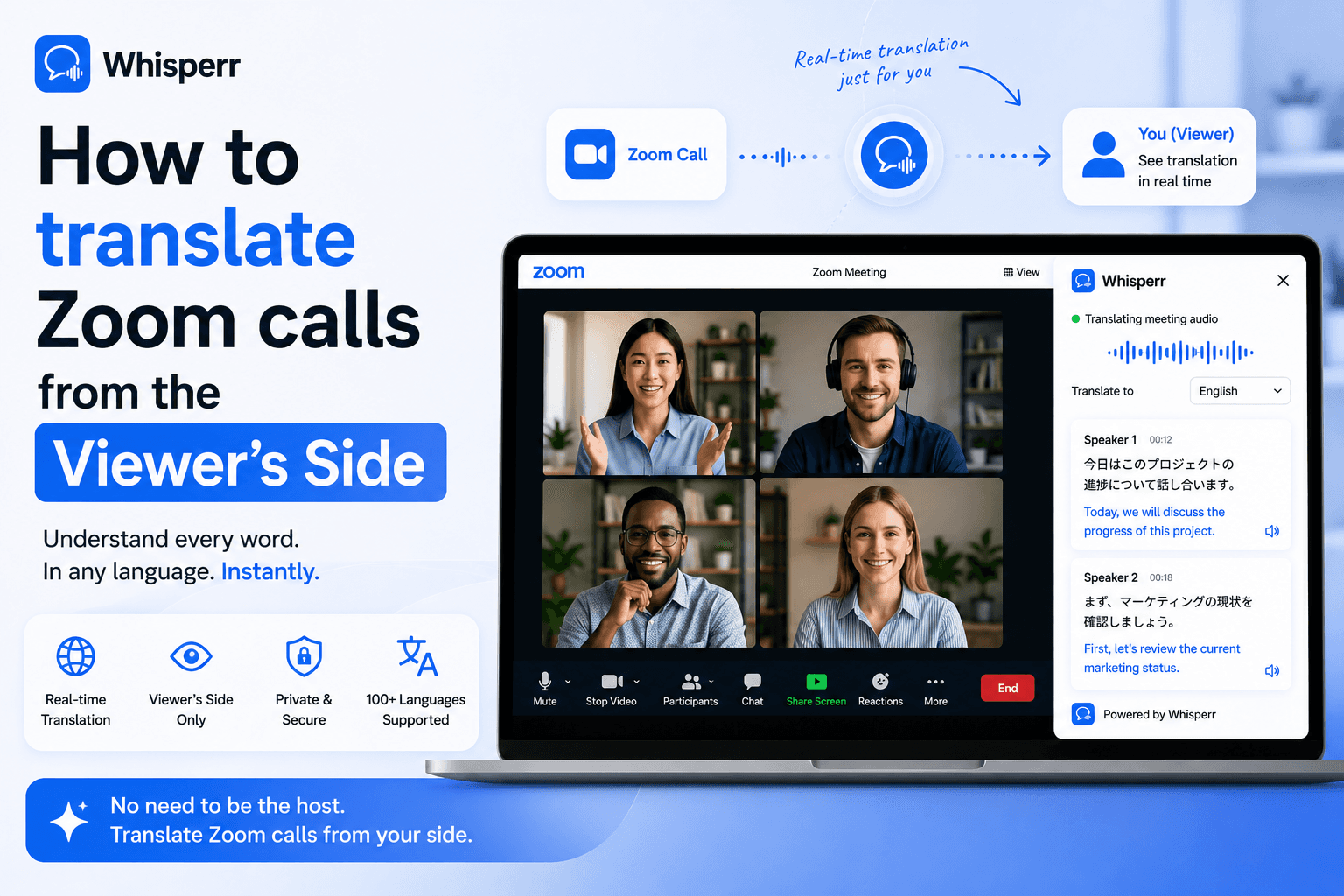
How to live translate Zoom calls from the Viewer's Side

Why Zoom translation usually depends on the host, and why this doesn't
If you've looked for live translation inside Zoom, you've hit the same wall everyone hits: the settings that matter aren't yours. Zoom's own translated captions and language interpretation have to be switched on by the host, and on most accounts they sit behind a paid plan or add-on. As a guest on someone else's call (a vendor demo, a remote interview, a webinar from overseas), you simply can't reach those controls.
The fix is to stop asking Zoom to translate and treat the meeting audio like any other audio source. When Zoom runs in a browser tab, that tab's audio can be captured digitally and fed into a voice translation layer running alongside the call. Whisperr is built for exactly that. It takes whatever audio it can capture from a browser tab and gives you live bilingual captions, entirely on your side of the screen.
The one detail that makes this work: you join the meeting in a browser, not the Zoom desktop app. The desktop app keeps its audio to itself, the way the Teams and Twitch apps do. A browser tab hands its audio over cleanly. That's the whole trick.
What you need before you start
- A Whisperr account. The free tier is enough for short sessions. Sign up on the Whisperr web app.
- The two languages on the call. You don't set a source and a target. You just pick two languages, and Whisperr runs two-way translation by default. It might be more suitable to specify the direction between two languages so that it does not translate the language audio that you are familiar with. For example, Spanish -> English instead of Spanish <-> English.
- A desktop browser on Mac, Windows, or Linux. It can be Chrome or Edge — tab capture needs a Chromium browser, so it's not just Chrome, but Safari and Firefox won't work.
- The Zoom meeting link. You do not need to be the host, and you don't need a paid Zoom plan.
The method: capture Zoom in a browser tab
This is the cleanest setup there is. The Zoom call plays in a browser tab on your machine and Whisperr captures that tab's audio directly. No microphone, no speaker, no second device. Because the audio is grabbed digitally before it reaches your ears, headphones and AirPods work fine, and you get accurate captions instead of a muffled room recording.
Step 1: Join the Zoom meeting in your browser

Open the Zoom invite link. Zoom will try to launch the desktop app, so ignore that prompt. On the launch page, click "Join from Your Browser" (sometimes worded "Continue in browser"). Enter your name and join. The call is now running inside a browser tab, which is exactly what Whisperr needs. If you can hear the meeting, you're set.
Why the browser and not the app? The Zoom desktop app doesn't expose its audio to other apps, but a browser tab does. Joining in-browser is the single decision that makes everything else possible, and it requires nothing from the host.
Step 2: Open the Whisperr web app

In a new tab, open the Whisperr web app and sign in. Leave the Zoom tab open and playing, because Whisperr needs it live to capture the audio. If you'd rather not juggle tabs, the Whisperr Chrome extension runs the same capture from the toolbar popup.
Step 3: Pick the two languages

Use the two language dropdowns at the top of Whisperr and choose the two languages on the call, for example English and Japanese. You don't have to set a source and a target. Whisperr is a realtime voice translator that runs two-way by default, so it follows the conversation in both directions automatically. If you only want one side, tap the direction arrow to switch to one-way, and you'll see only the translation you care about instead of both languages scrolling past.
The 100+ supported pairs cover what real Zoom calls need, from Spanish and Portuguese for the Americas to Mandarin, Korean, and Vietnamese across APAC. If you need to translate English Japanese on a business call, Whisperr works as an accurate Japanese translator with natural english to japanese translation voice output, plus German, French, Arabic, Russian, Hindi, and the rest of the long tail.
Step 4: Click New Recording, then Screen Capture

Click the microphone icon in Whisperr, then choose Screen Capture (not Microphone Audio). Screen Capture is what lets Whisperr read the Zoom tab's own audio instead of listening through your mic. That's what keeps the live audio translate captions clean and lets you wear headphones.
Step 5: Select the Zoom tab and share tab audio

Your browser shows its standard share dialog. Pick the tab option (labeled "Chrome Tab," "Browser Tab," or similar depending on your browser), select the Zoom meeting tab from the list, and tick "Also share tab audio" at the bottom. Then click Share.
If you skip the share tab audio checkbox, Whisperr gets video frames but no sound, so there's nothing to translate. It's the most common mistake on this flow, so confirm the box is on before you hit Share.
Step 6: Read the live translated captions

The moment sharing starts, captions scroll line by line, the original on one side and your language on the other, trailing the speaker by about a second. Nobody on the Zoom call is affected. Zoom sees a normal participant, the host's settings stay untouched, and the live voice translate output lives only in your Whisperr tab.
Step 7: Put Zoom and the captions side by side

To watch and read at once, go to the Whisperr tab, right-click the Zoom tab, and choose "New Split View with Current Tab" (or drag the two tabs into separate windows). Drag the divider to taste, Zoom on one side and live captions on the other. It works comfortably on a single monitor.
Bonus: share the translation with the rest of your side
Everything above is set up for you alone. But you can flip one switch and share the live captions with others, such as teammates dialing in from the same office or a group chat following along in their own language.
Before you start the recording, turn on Broadcast in the Whisperr web app or extension. Whisperr generates a public room URL. Send it to whoever you like, and anyone who opens it reads the live captions in their own browser on any device, with no sign-up, no install, and no mic permission. It's the same broadcast pattern as the Microsoft Teams two-way translation guide, just pointed at a Zoom call.
Why this beats the alternatives
Zoom's built-in translated captions: the host has to enable them, and on most accounts they're a paid plan or add-on. As a guest you can't turn them on yourself.
General translator apps: conversation modes are built for two people in one room passing a phone back and forth, not for a remote speaker talking continuously into a meeting.
Generic "live caption" extensions: most rely on caption tracks the call doesn't provide, so they sit there doing nothing on a live Zoom feed.
Whisperr tab capture: reads the Zoom tab's audio directly, the way the call actually sounds. It's host-independent, viewer-side, two-way, and covers 100+ pairs of voice translation.
And the pattern is platform-agnostic. The same browser-tab flow works on Google Meet, Microsoft Teams, Webex, YouTube, Discord, and Twitch. Zoom is just one more endpoint, with one subscription and one workflow across every platform you care about.
Frequently asked questions
Do I have to be the host?
No. The entire setup runs on your machine, in your browser, on your side of the call. You only need the meeting link and the ability to join in a browser. The host's plan, role, and settings don't matter.
Will the host or other participants know I'm using a realtime voice translator?
No. Zoom sees a normal participant. Nothing about the capture is sent back to Zoom, the host, or anyone else on the call. Broadcast mode is visible by design because you're sharing a URL, but only the people you send it to ever see it.
Can I wear headphones?
Yes. Tab capture grabs the audio digitally before it reaches your output device, so headphones, AirPods, and earbuds all work. There's no speaker-and-microphone loop involved, which is why the voice translation stays accurate.
What if I can only join Zoom in the desktop app?
If browser-join is genuinely blocked, route the call through a speaker and use the Whisperr phone app to listen in. Whenever browser-join is available, this tab-capture method is cleaner and headphone-friendly.
How accurate is it for English and Japanese?
Whisperr handles English Japanese calls well, working as an accurate Japanese translator with natural english to japanese translation voice output. The same quality applies across the other 100+ pairs, so you can translate English Japanese or any other combination with the same flow.
How much delay is there?
End-to-end latency is around 0.2 seconds for transcription, with the translation trailing a second or two behind the speaker. That's fast enough to follow a live conversation comfortably.
Is the audio stored anywhere?
Audio is processed in real time and isn't kept unless you explicitly save the transcript. Nothing about the call is shared back to Zoom, the host, or any third party. It stays between you and Whisperr.
Does it work on Google Meet, Teams, or Webex?

Yes. Any meeting that runs in a browser tab works the same way: join in the browser, point Whisperr at the tab, and share tab audio. The flow is identical across platforms.
Try it on your next Zoom call
Join in the browser, capture the tab, and read along. No host setup and no install for anyone else. Start free on the Whisperr web app.
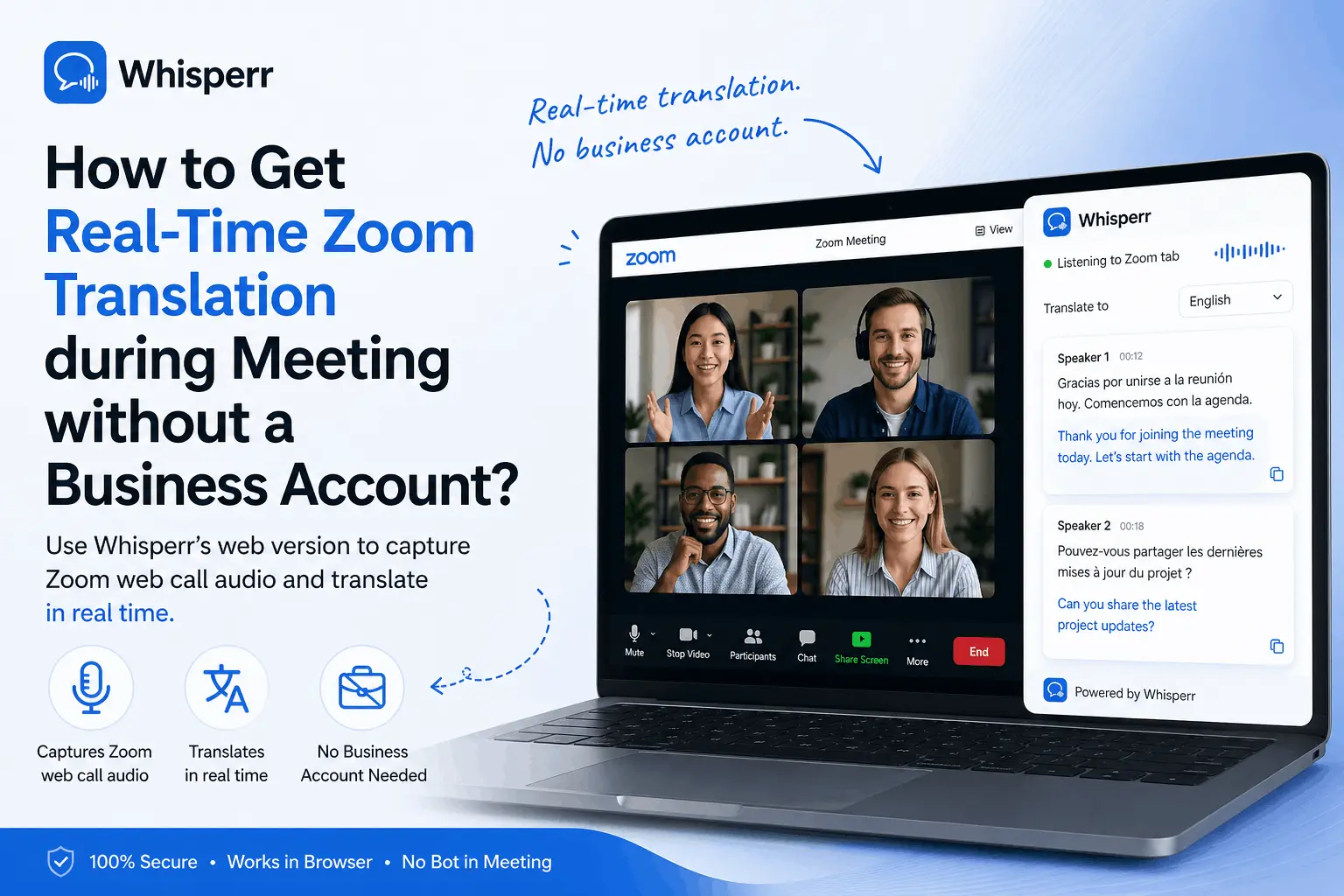
Zoom translation needs a Business plan + host setup, caps at 5 hrs/mo, and supports only 9 languages. Whisperr in Chrome: unlimited, 100+ langs, fast.