
.png)
How to Translate Voice in Real Time on a Windows PC (No Install, Just a Browser)

You're on a Windows PC and you need to understand audio in another language right now. It might be a customer call in Spanish, a Japanese YouTube tutorial, a German webinar your team forgot to organize an interpreter for, or the person sitting across the desk from you whose English is shaky. You don't want to install an app — your IT team locked down the EXE allowlist, or you just don't want the bloat. You don't want to set up an API key or compile Whisper.cpp. You want to open a browser tab and have it work.
That's exactly what a browser-based live translator does, and on Windows it's the cleanest setup of any platform: Chromium browsers (Chrome, Edge, Brave) all support tab audio capture out of the box, which is the trick that makes most of the use cases below possible.
This guide walks through the full setup on Windows 10 or 11 using Chrome, covers the two scenarios you'll actually run into, and explains why this beats Windows' built-in Live Captions, desktop translator apps, and the "just use Google Translate on your phone" workaround.
Two scenarios for "translate voice on Windows PC"
When people search this, they mean one of two things. The setup differs only in one click — but knowing which scenario you're in makes the rest of the guide click into place.
Scenario A: Translate audio playing on your PC | Scenario B: Translate someone speaking near you | |
|---|---|---|
Typical use case | Zoom / Teams / Meet / Webex call, YouTube video, Twitch stream, foreign-language webinar, podcast, recorded lecture | In-person meeting, interview, coffee chat, sales call on speakerphone, classroom |
Audio source | A browser tab on your PC | Your laptop's built-in mic or a USB / Bluetooth mic |
What you click in Whisperr | Screen Capture → Chrome Tab | Microphone Audio |
Other person needs anything? | No | No |
A single browser-based tool handles both. You can even switch mid-session.
What you need before you start
- Windows 10 or Windows 11 (no version lock-in — this is not a Copilot+ PC feature)
- Chrome, Edge, or Brave (any Chromium-based browser)
- A Whisperr account — free tier works for getting started
- Nothing else — no driver, no installer, no admin rights, no virtual audio cable, no IT ticket
If you're on a locked-down corporate laptop, this is specifically the situation browser-based translation was built for. Edge ships with every modern Windows install and is whitelisted by default at almost every company.
Step by step: Live voice translation on Windows
1. Sign up at app.whisperr.co
Open Chrome and go to app.whisperr.co. Sign up — takes under a minute. You'll land in the app with the recording bar at the top: a timer, a source-language dropdown, an arrow, a target-language dropdown, a Broadcast checkbox, and a microphone button on the right.

2. Pick your source and target languages
Click the language dropdowns. The left one is the source (what you're going to hear), the right one is the target (what you want it translated into).
Whisperr supports 100+ language pairs, including the long tail you usually can't find anywhere else — Vietnamese ↔ English, Indonesian ↔ English, Hindi ↔ English, Polish ↔ English, Korean ↔ English, Arabic ↔ English, plus all the major European and East Asian pairs.
3. Click 'New Recording' → choose your audio source
Click New Recording. You'll see two options for what to capture:
- Microphone Audio — uses whatever Windows currently has set as the default input device. Pick this for Scenario B (in-person conversations).
- Screen Capture — captures audio from a browser tab. Pick this for Scenario A (anything playing on your PC).
- Broadcast - broadcasts what your device hears through a sharable URL.

4a. Scenario A — Pick the tab to translate
If you chose Screen Capture, Chrome will pop up the standard Windows screen-share dialog with three tabs at the top: Chrome Tab, Window, Entire Screen.
Pick Chrome Tab, then select the specific tab playing the audio you want to translate — your Zoom call in the browser, your YouTube video, your Teams meeting, your webinar, the Spanish news livestream, whatever it is.

4b. Scenario B — Just start talking
If you chose Microphone Audio, Windows will prompt for mic permission the first time — click Allow. The other person can speak normally; the laptop mic does the work.
If you're using a USB or Bluetooth mic, set it as the default in Settings → System → Sound → Input before starting the recording. Whisperr uses whatever Windows hands it.
5. Read the live captions
Live transcription in the source language and live translation in the target language appear side by side, timestamped, line by line. Latency is sub-second.

That's the whole flow. Keep the Whisperr tab open in the background while you watch the video, take the call, or talk with the person in front of you.
Why browser-based beats the alternatives on Windows
A few reasons this approach holds up against installing a desktop app, running Whisper.cpp locally, or relying on Windows' built-in Live Captions:
Works on any Windows machine — including locked-down corporate ones
No installer, no admin rights, no Group Policy fight. If you can open a Chromium browser, you can run live translation. For anyone whose IT department keeps the EXE allowlist locked down, this is the only option that actually works without escalation.
Tab audio capture is source-agnostic
One mechanism covers Zoom, Teams, Google Meet, Webex, YouTube, Twitch, recorded webinars, and any other audio source playing in a browser tab. You don't need a separate integration per platform — the browser hands off the audio stream and Whisperr translates it.
Two-way: your audio OR their audio, switchable in one click
Switch between mic capture and tab capture mid-session. Useful for hybrid scenarios — colleague in the room speaking Mandarin, customer on the Zoom call speaking Spanish, both happening on the same Windows laptop, both translatable through the same tab.
100+ language pairs, including the ones Windows skips
Windows 11's built-in Live Captions only translates a limited set of pairs and the best language coverage requires Copilot+ PC hardware. On a regular Windows 10 or Windows 11 machine, or for less common pairs (Indonesian → English, Vietnamese → English, Russian → German, Polish → English, etc.), a browser-based service is the only path.
Nothing stored on your PC
Audio is processed in real time. Nothing lingers on disk unless you explicitly save the bilingual transcript inside Whisperr. Good for confidential calls, customer conversations, or anything you'd rather not have a desktop app indexing locally.
Free for one-off use, paid only when you need more
There's a free tier that covers most casual cases. You only pay if you need longer sessions, transcript history, or to broadcast captions to other people on the call.
Does Windows have a built-in real-time voice translator?
Sort of, but not really. Live Captions in Windows 11 (22H2 and later) can transcribe and translate spoken audio into captions, but with significant limits:
- It requires Windows 11 22H2 or newer — not available on Windows 10 at all.
- The best language coverage and lowest latency need Copilot+ PC hardware.
- Translation is mostly one-directional (source language → English) on standard machines.
- Coverage of Asian languages is thin compared to dedicated services.
For two-way translation, broader language support, or anything on Windows 10, you need a third-party browser-based tool.
Can I translate Zoom, Microsoft Teams, or Google Meet calls on Windows?
Yes. Join the call in your browser rather than the desktop app, then capture that browser tab's audio with Whisperr.
The setup is identical to Scenario A above. For Microsoft Teams specifically, we wrote a dedicated end-to-end guide covering the broadcaster-and-viewers flow if you want everyone on the call to read translated captions, not just you.
Can I translate audio from a desktop app like the installed Zoom client or Spotify?
Tab audio capture only works for browser tabs. If your audio source is a desktop app — the installed Zoom or Teams client, Spotify, VLC, a game — the cleanest workaround on Windows is to switch to the browser version of that service. Zoom, Teams, Meet, Webex, YouTube, Twitch, and most major streaming sites all run perfectly in the browser.
For desktop-only services with no web version, you'd need to route system audio through a virtual audio cable, but 95% of the time, just opening the call or video in Chrome is faster.
Will it work on a Windows laptop with restricted permissions?
Yes. As long as Chrome or Edge is allowed (Edge is preinstalled and whitelisted on every modern Windows machine), you're fine. No installer to whitelist, no driver to sign, no admin elevation prompt.
Try it on your next foreign-language audio
The flow, top to bottom:
- You: Open Chrome on your Windows PC → go to
app.whisperr.co→ sign up → New Recording → pick languages → choose Microphone Audio (in-person) or Screen Capture → Chrome Tab with "Share tab audio" ticked (anything in a tab). - Read the captions.
No driver. No install. No IT ticket. Works on Windows 10, Windows 11, and any laptop that runs a Chromium browser.
Start a recording — app.whisperr.co
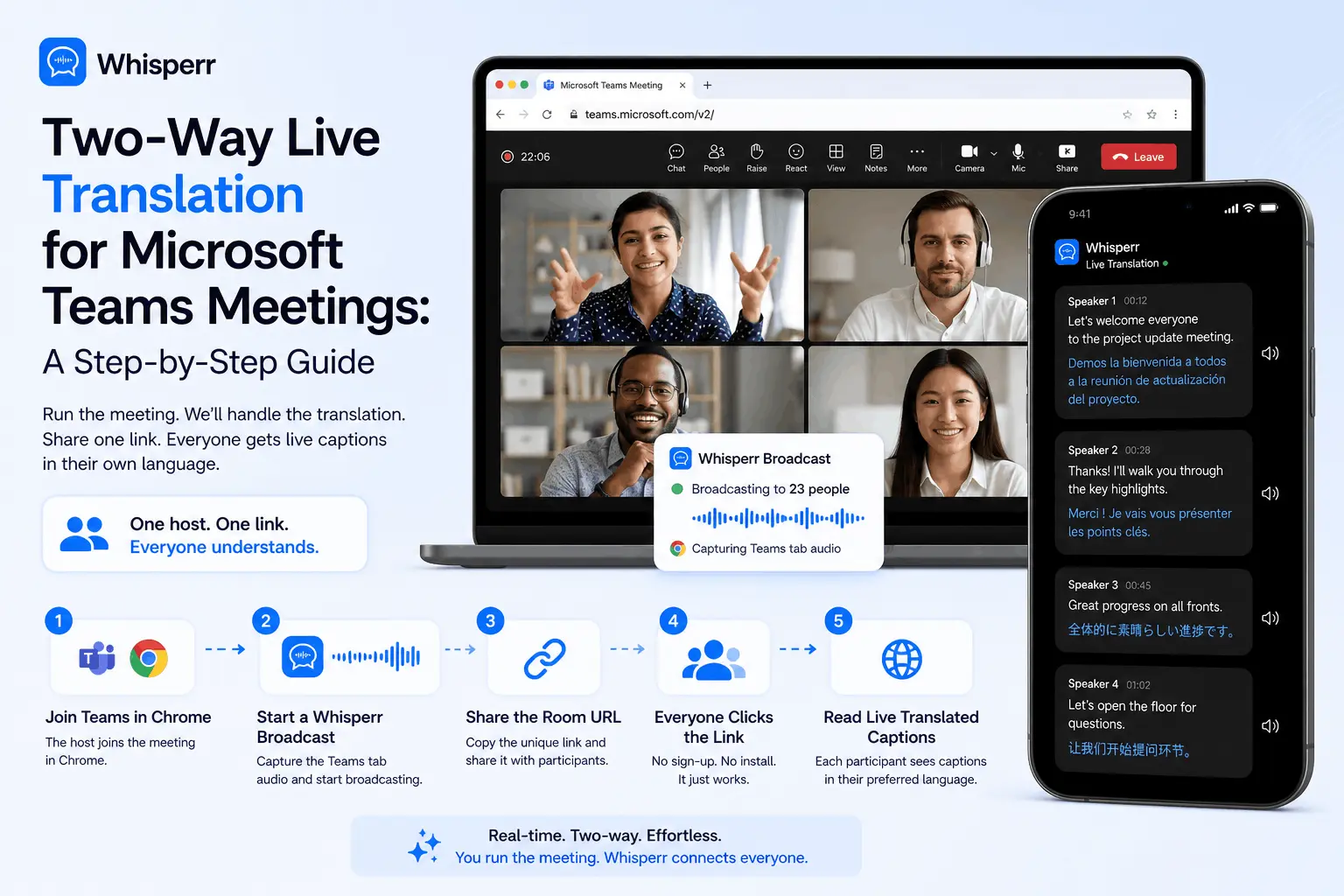
Set up real-time translation in any Microsoft Teams meeting in under 5 minutes. One person runs Whisperr — everyone else just clicks a link. No per-seat licenses. Free for viewers.