
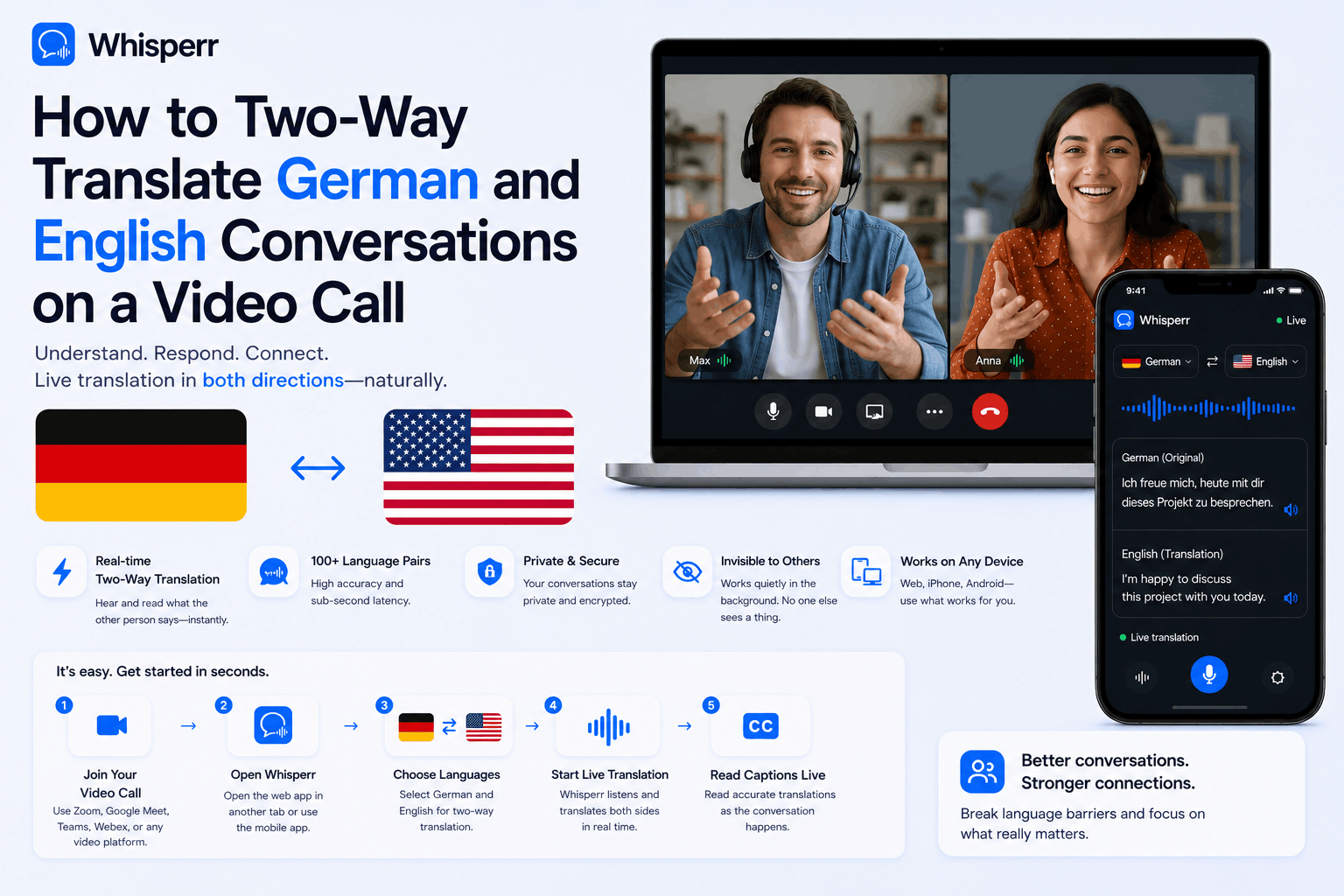
How to Two-Way Translate German and English Conversations on a Video Call

You're on a Zoom, Microsoft Teams, Google Meet, or Webex call with German speakers, and the conversation keeps slipping just out of reach. Maybe it's a sales call with a Berlin team, an interview with a Munich-based hiring manager, a family video chat, or a webinar your colleague forgot was in Deutsch. You want to follow along in English, reply in English, and have the other side keep speaking German naturally — no awkward "können Sie das wiederholen, bitte?" every two minutes.
That's what a realtime voice translator gives you on a video call: live captions in both directions, so an English speaker and a German speaker can each read the conversation in their own language as it happens. This guide covers the two reliable setups for doing exactly that, and explains which one to pick.
Two scenarios at a glance
| Scenario 1: Browser tab capture | Scenario 2: Speaker pickup |
|---|---|---|
Audio source | Meeting tab audio (digital, lossless) | Your laptop or phone microphone |
Best for | Highest accuracy, cleanest captions | Desktop-app-only meetings, second-screen reading |
Whisperr device | Laptop or desktop, in any modern browser | iPhone, Android, or laptop |
Setup time | ~60 seconds | ~30 seconds |
What you join the call on | Browser version of Zoom / Teams / Meet / Webex | Anything — desktop app, browser, even a second device |
Recommended? | Yes, when possible | Fallback when tab capture isn't an option |
Both setups support 100+ language pairs, run on a single Whisperr subscription, and don't require the people on the other end of the call to install or change anything.
Scenario 1: Capture the meeting tab in a browser (recommended)
This is the cleanest path. When you join Zoom, Microsoft Teams, Google Meet, or Webex through their browser version instead of the installed desktop app, your browser gets the raw meeting audio as a digital stream. Whisperr captures that stream directly — no microphone, no speakers, no ambient room noise in the way. The result is the most accurate english to german translation voice setup you can get on a laptop.
It works in any modern browser that supports tab audio sharing — Chrome, Edge, Brave, Opera, Arc, recent Firefox. Use whatever you already have open.
1. Join the video call in a browser tab
When you click the meeting link, your meeting platform will usually offer you a choice: open the desktop app, or continue in the browser. Pick continue in the browser.
- Zoom: "Join from your browser" (small link at the bottom of the launch page)
- Microsoft Teams: "Continue on this browser"
- Google Meet: browser is the default
- Webex: "Join from your browser"

Sign into the meeting normally — camera, mic, the usual. Nothing changes on the call for the other participants.
2. Open the Whisperr web app in a second tab
In a new tab, open the Whisperr web app and sign in (or sign up)

Then you will reach the landing page.

3. Pick German and English
In the recording bar, set the two language dropdowns to German and English. The order doesn't matter — Whisperr's language translator handles both directions of the conversation automatically. Whoever speaks German gets transcribed as German and translated to English; whoever speaks English gets transcribed as English and translated to German. This is what "two-way translation" actually means in practice. You can change this behavior by clicking on the two way arrow and make it one-directional.

4. Start a new recording and capture the meeting tab
Click New Recording, then choose Screen Capture. Your browser will open its share-screen dialog. Pick the Tab option, select the tab where the meeting is running, and — this is the part most people miss — make sure "Share tab audio" is ticked before clicking Share.
If you forget to tick "Share tab audio," Whisperr will see the tab but hear silence. The toggle is usually a checkbox at the bottom of the share dialog.

5. Read live captions as the call goes on
Once sharing is active, captions start appearing in the Whisperr tab within a second or two of each speaker. German speech shows up with English underneath it; English speech shows up with German underneath. You can resize the window, dock it to one side of the screen, or pop it onto a second monitor — whichever keeps it readable while you stay focused on the meeting.

When the call ends, click Stop. The bilingual transcript is saved to your account; you can copy it, export it, or delete it.
6. (Optional) Broadcast captions to everyone on the call
If other people on the meeting also need translated captions — say, your Berlin counterparts want to read along in German while you speak English — tick the Broadcast checkbox before you start recording. Whisperr generates a public room URL. Paste it into the meeting chat. Anyone on the call clicks the link, picks the language they want to read in, and gets live captions in their browser. No signup, no install, nothing to download on their end.

One person runs Whisperr; everyone reads.
Scenario 2: Let your phone or laptop listen through the speakers
Sometimes the browser route isn't available. Your IT team requires the Zoom desktop client. The call is already running and you don't want to drop and rejoin. You're using a second device for translation so you can keep the main laptop screen clean. Or you just prefer reading captions on your phone, off to the side, while the meeting happens on your main monitor.
For all of those, point a microphone at the speakers and let Whisperr listen. Accuracy is slightly lower than tab capture — you're going through one analog-ish round-trip — but with reasonable speaker volume and a quiet room, it's still a solid live voice translator.
1. Install the Whisperr app (iPhone, Android, or web)
Pick whichever device you'd rather glance at during the meeting:
- iPhone: grab the Whisperr iPhone app from the App Store
- Android: grab the Whisperr Android app from the Play Store
- Second laptop or the same laptop: open the Whisperr web app in a browser
Sign in.
2. Pick German and English
Tap (or click) the language dropdowns in the recording bar and set them to German and English. Same as Scenario 1: order doesn't matter, two-way translation is automatic, and the speech translator handles both directions without any further configuration. This is what makes Whisperr work as an accurate German translator for fast back-and-forth — you set the pair once and stop thinking about it.

3. Set up your audio
Run the video call on your main device as you normally would — desktop app or browser, doesn't matter for this scenario. Make sure the meeting audio is playing through your laptop's speakers (not headphones in your ears, since the translating device needs to hear it).
Place the translating device — your iPhone, Android phone, or second laptop — within about a meter of the speakers. Flat on the table, screen up, works better than holding it. Bottom-facing mics on phones pick up speaker audio surprisingly well from that distance.
Two things that meaningfully affect accuracy here:
- Speaker volume. Loud enough to clearly hear, but not so loud it distorts. Test with one sentence first.
- Room noise. Quiet room = near-perfect captions. A café or open office will lose some quiet syllables, especially for fast German speakers running consonant clusters together.
4. Start recording

- On iPhone / Android: tap the mic icon, choose In-App Microphone, allow microphone permission the first time. Recording starts.
- On web: click New Recording → Microphone Audio.
5. Read live captions as the meeting plays
Captions appear in real time, in both directions. When the German speaker talks, you see the German on top and the English translation underneath. When you reply in English, the same thing happens in reverse — useful if you have a German colleague glancing at your phone too, or if you broadcast the room URL.

6. (Optional) Use floating subtitles on iPhone or Android
If you'd rather not keep switching apps, the iPhone app and Android app both support floating subtitles — a small caption window that hovers over whatever else you're doing on the phone. Enable it from Settings inside the app. Then you can have the meeting on your laptop, your phone face-up next to it, and a thin caption strip floating wherever you've placed it.
7. (Optional) Broadcast for the other side
Same as Scenario 1: toggle Broadcast on before you start recording, share the room URL in the meeting chat, and your German-speaking colleagues can read along in German while you read in English. Free for them, no install.

Which scenario should you actually use?
A few decision rules that hold up in practice:
- You can join the call in a browser: use Scenario 1. The audio quality difference shows up in long, fast, or technical German — exactly when you can't afford a missed phrase.
- You're forced onto a desktop client (locked-down IT, native-only meeting tool): use Scenario 2. Speakers + phone mic is the universal fallback.
- You want to glance at translations on a second device, not your main screen: use Scenario 2 with your phone, even if Scenario 1 is technically available.
- The other side also needs translation: either scenario works with Broadcast. Scenario 1 + Broadcast is the most polished.
Common questions
Does Whisperr really translate both directions without me changing anything? Yes. Pick German and English once. When German is spoken, it transcribes German and translates to English. When English is spoken, it transcribes English and translates to German. Two-way is the default, not a separate mode.
How accurate is the german to English translation? For business German, conversational German, and most technical vocabulary, accuracy is high — easily good enough for sales calls, interviews, and team meetings. Heavy regional dialects (Bairisch, Schwäbisch, Swiss German) reduce accuracy somewhat; standard Hochdeutsch performs best. Background noise hurts more than speaker accent in most cases.
Will the people on the call know I'm using a translator? Not unless you tell them. Whisperr runs entirely on your side — there's no plugin on their end, no screen-share they can see, no notification in the meeting. From their perspective, you're just a participant who happens to be looking at a second window or a phone.
My meeting is in the desktop Zoom or Teams app, not the browser. Can Scenario 1 still work? Not directly — tab audio capture only sees browser tabs. The clean fix is to switch to the browser version of the meeting (almost always supported), then run Scenario 1. If that's truly impossible, Scenario 2 with speakers + phone is the right move.
Does it work in any browser, or only Chrome? Any modern browser that supports tab audio sharing. Chrome, Edge, Brave, Opera, Arc, and recent versions of Firefox all work for Scenario 1. The "Share tab audio" toggle lives in slightly different spots in different browsers, but the option is there.
Will it work for very fast back-and-forth conversation? Yes. Captions stream in real time — you'll see them appear sentence by sentence, with a delay of a second or two per chunk. Fast bilingual conversation works fine; the lag is short enough that nobody on the call has to slow down for you.
Is the meeting audio stored anywhere? Audio is processed in real time and isn't permanently kept on Whisperr's servers. The bilingual transcript saved to your account is yours to keep, export, or delete at any time. Participants on the call don't have any data retained on their side at all.
Try it on your next German call
Whether you need an accurate German translator for a one-off Zoom interview or a recurring weekly call with a Berlin team, the setup is the same: pick the scenario that fits your meeting tool, set German and English once, and start the recording. The first call is the only one where you'll think about translation at all — after that, it's just a window open on the side of your screen.
Start a session in the Whisperr web app, grab the iPhone app, or install the Android app.
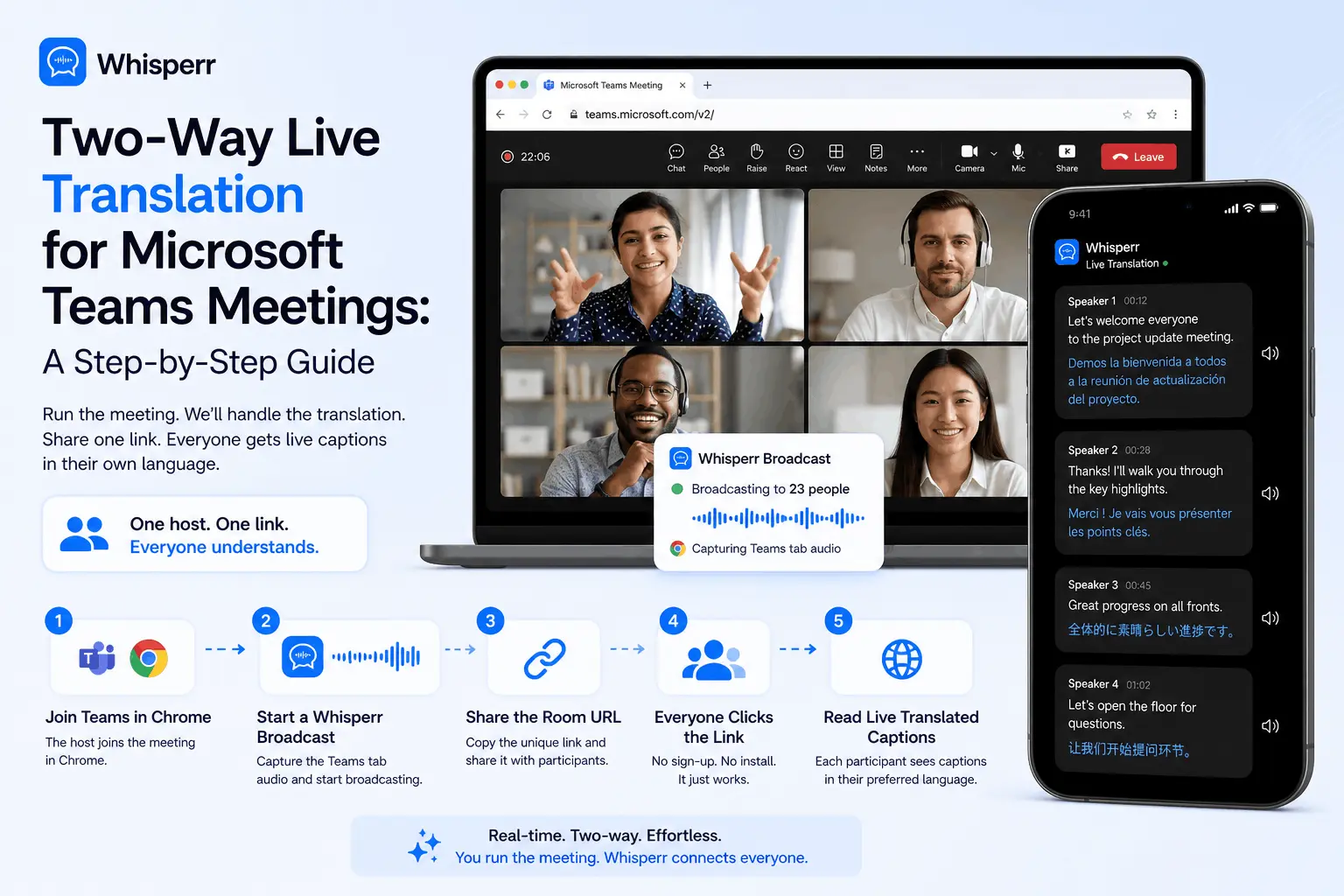
Set up real-time translation in any Microsoft Teams meeting in under 5 minutes. One person runs Whisperr — everyone else just clicks a link. No per-seat licenses. Free for viewers.
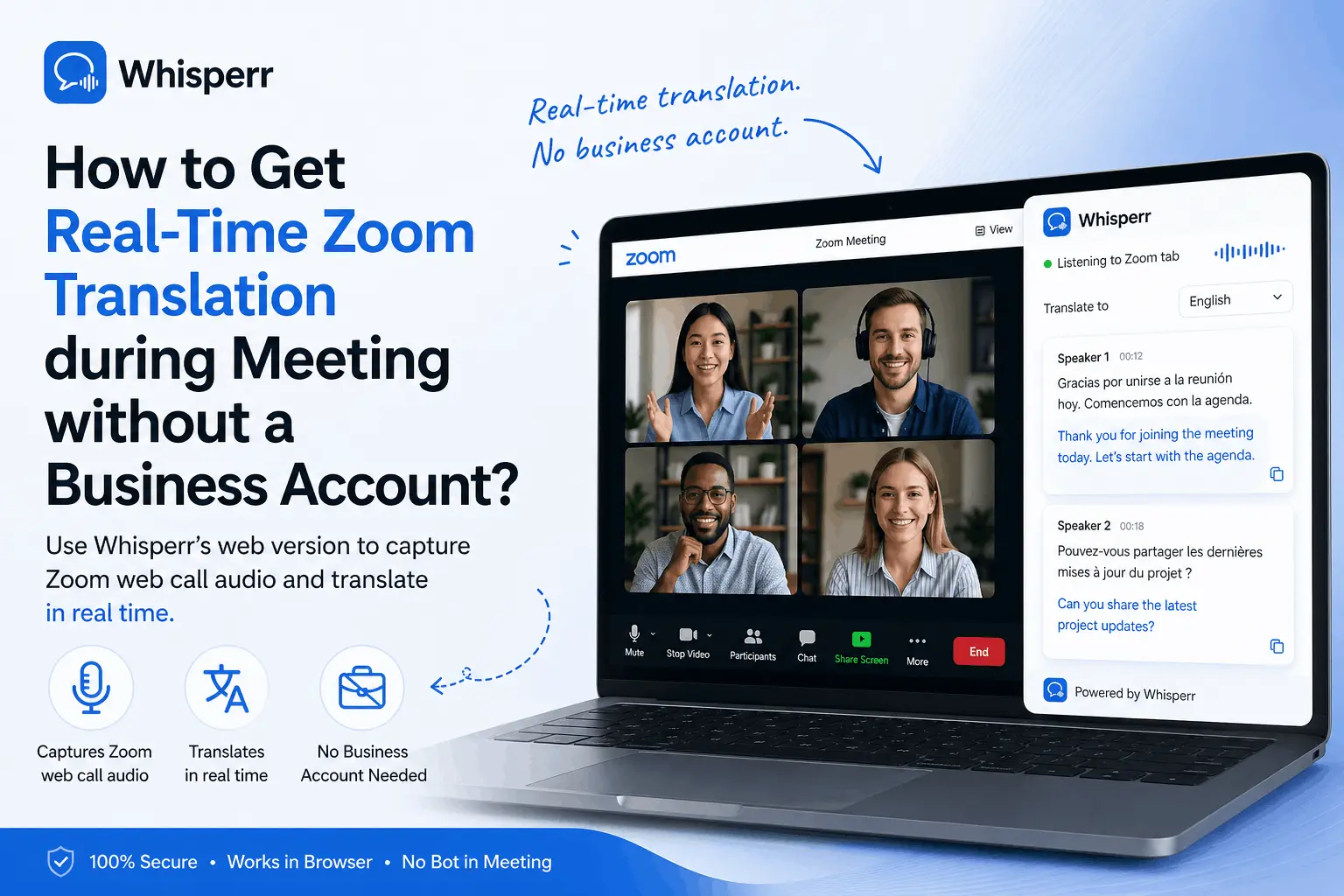
Zoom translation needs a Business plan + host setup, caps at 5 hrs/mo, and supports only 9 languages. Whisperr in Chrome: unlimited, 100+ langs, fast.