
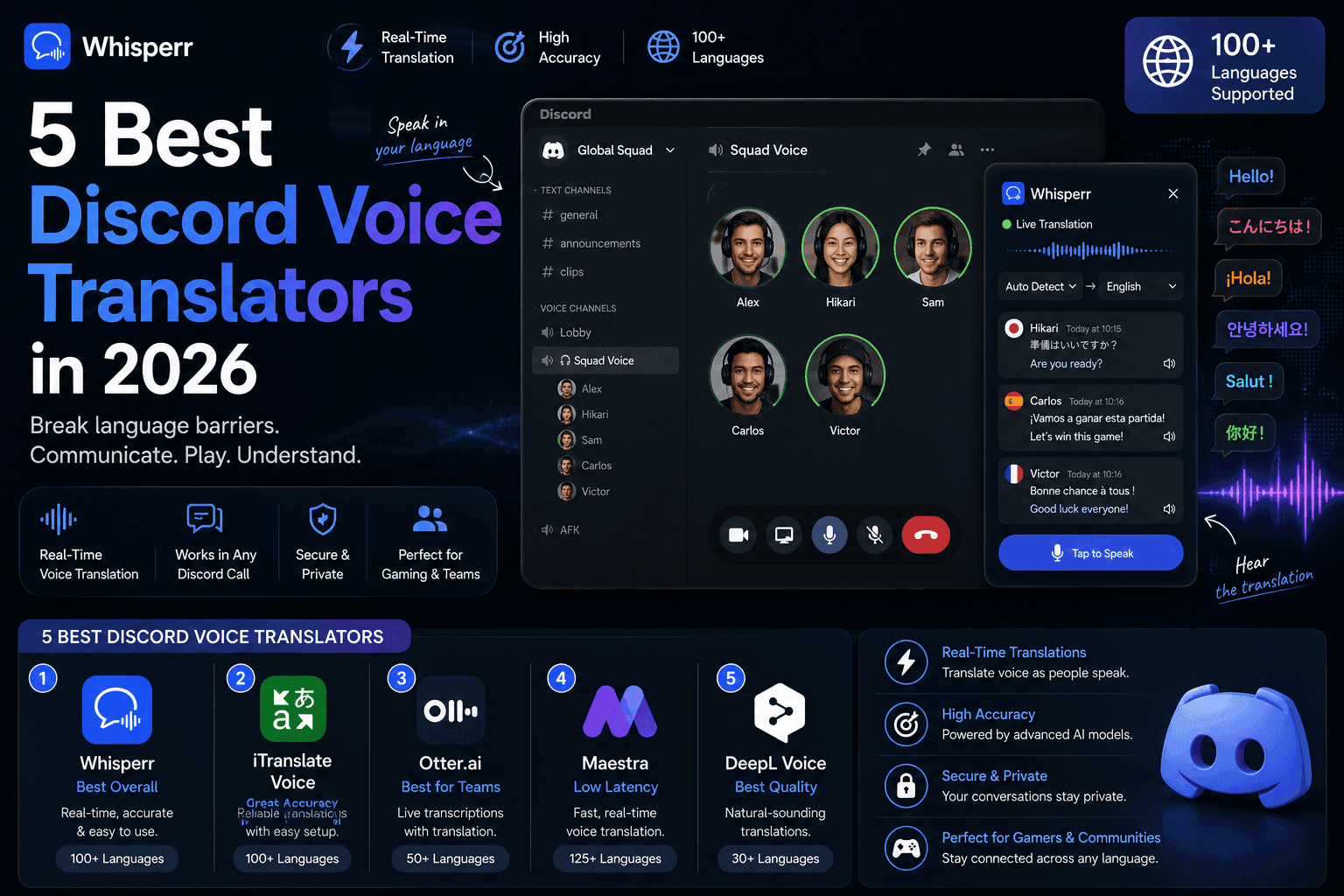
5 Best Discord Voice Translators in 2026 (Real Voice Translation, Not Just Text Bots)

Search for "Discord translator" and you will hit a wall of articles about translator bots. Here is the trap: almost every one of those bots translates text channels. They read messages and post translated messages. If what you typed into Google was about a voice call, a game night with players who speak another language, a community VC, a stage event, then those bots do exactly nothing for you. They cannot hear the voice channel at all.
The current top-ranking article for these searches does exactly this. It reviews five text-channel bots, admits none of them touch voice, and then pivots to its own product. We would rather answer the voice question first, properly, and then cover text bots for the people who genuinely need them.
One disclosure before the list: Whisperr is our product, so judge our ranking accordingly. We have linked every competitor's own site and pricing page so you can check each claim yourself, and every latency or language number below is attributed to the vendor that published it.
Text bots vs voice translators: know which one you need
This one distinction sorts out 90 percent of the confusion in this SERP, so let's make it explicit.
Text-channel translator bots (iTranslator, RitaBot, Translator Bot, MohCitrus, Discord Translator) live inside your server and work on written messages. Someone types in Spanish, the bot posts the English version, either automatically or when a member reacts with a flag emoji. They are genuinely useful for international communities that talk in text. They have no access to voice channel audio, and none of them claim otherwise.
Voice translators deal with the actual audio of a call. There are only two technical ways to do that on Discord:
- A bot joins the voice channel, listens to the audio stream, and outputs translations (as text in a channel, or as synthesized speech back into the call). Live Translator and EzDubs work this way.
- Software on your own device captures the audio before or after Discord touches it, and translates what you hear locally. Whisperr and Utell work this way, from opposite ends: Whisperr captures what comes out of Discord so you can understand others, Utell sits between your microphone and Discord so others can understand you.
If your need is "I want to read what people are saying in the VC," you want option 2 on the listening side. If your need is "I want everyone in the channel to get translations," you need option 1, and that is where the next problem starts.
The bot permission problem nobody in these articles mentions
Every Discord bot, text or voice, has to be invited to the server before it can do anything. Inviting a bot requires the Manage Server permission. On your own server, fine, you are the admin. But think about where you actually hit language barriers on Discord: someone else's gaming community, a public server with 40,000 members, a study group a friend runs, a stream community. You are a regular member there. You cannot add a bot, and asking a stranger admin to install a translation bot so you personally can follow the VC is a big ask that usually goes nowhere.
This is the same trap as meeting translation, where most tools assume you are the host with control over the call. Most people are participants. On Discord, most people are members, not admins. So for every option below we answer one recurring question first: does this need anything from the server, or does it run entirely on your side?
The 5 best ways to translate Discord voice calls in 2026, ranked
1. Whisperr, translate any voice channel without touching the server
What it is: Whisperr is a realtime voice translator that captures audio on your device and streams live translated captions as people speak. The recommended route is the Mac or Windows desktop app, which captures your computer's system audio, so you keep using the Discord desktop client exactly as usual with Whisperr's subtitle window snapped beside it, and it works with headphones on. If you cannot install apps, open Discord in your browser instead and the web app captures that tab; on mobile, Floating Subtitles overlays the Discord app. Nothing joins the Discord call, nothing is installed on the server, and no admin ever knows or needs to approve it.
Standout strengths:
- Works on any server, including ones where you are a regular member with zero permissions. You are translating your own audio output, which no server owner can gate.
- 100+ languages, two-way by default. You pick your two languages, for example English and Japanese, and Whisperr translates whichever one it hears. No source and target to configure.
- Whisperr's spec sheet puts latency around 0.2 seconds, so captions keep pace with fast gaming banter instead of trailing a sentence behind.
- Covers Discord on every surface: capture the tab when Discord runs in your browser, capture desktop audio with the Mac or Windows app when you use the Discord desktop client, and use Floating Subtitles on iPhone or Android to overlay translated captions on top of the Discord mobile app during a call.
- Auto-speak can read the live voice translation into your earbuds, so you can keep your eyes on the game instead of the captions.
- Around 200k users and a 4.8 rating on the App Store. Honest note: our G2 listing is new and has no reviews yet.

Limitations:
- The translation is for you. Other people in the channel do not see your captions unless you use Broadcast mode to share a caption link with them.
- It translates what you hear. If you want the other side to hear your words in their language spoken aloud into the channel, that is voice-cloning territory, see EzDubs below.
- Needs an internet connection, like every tool on this list.
Pricing (as of July 2026): free tier to test with. Pro is $9.99 per week or $84.99 per year with a free trial, and Pro is unlimited, no translation-minute meter, on any device. Teams & Enterprise is $29 per user per month for multiple simultaneous connections and consolidated billing.
Best for: anyone who wants to understand a Discord voice channel right now, on any server, without asking permission from anyone.
For the full walkthrough, we keep a step-by-step guide to translating Discord voice both ways and a companion guide for realtime voice translation of longer Discord sessions.
2. Live Translator, a dedicated Discord voice bot
What it is: Live Translator (livetranslator.xyz) is one of the very few bots built specifically for Discord voice channels. Its own description is simple: it "translates everything you say into a different language." You invite it to the server, then control it with slash commands: /join brings it into the voice channel, /start sets up translation for you, /leave dismisses it.
Standout strengths:
- Actually a voice translator, which makes it close to unique among Discord bots.
- Free, as of July 2026 the site lists no pricing at all.
- Per-user configuration, each member can set their own language with /start.
Limitations:
- It must be added to the server, the invite link requests a specific Discord permission set, so you need Manage Server rights or an admin willing to install it. On someone else's server, that is the wall described above.
- The site publishes no language count and no latency figure, so you are testing blind on both.
- Support runs through GitHub issues, which suggests a small project rather than a company. Factor that in for anything you rely on weekly.
Pricing (as of July 2026): free, per its site.
Best for: admins of their own servers who want a free, in-channel voice translation bot and can live with sparse documentation.
3. EzDubs, voice translation that keeps the speaker's voice
What it is: EzDubs is a Y Combinator-backed speech translation company whose party trick is voice preservation: the translated speech comes out sounding like the original speaker, cloned on the fly with no enrollment, emotions included, per the company's own materials. It integrates with Discord as a bot alongside WhatsApp and Telegram.
Standout strengths:
- The only option here where the other side can hear your words in their language, in your voice. For two-way spoken conversation across a language gap, that is a fundamentally different experience from reading captions.
- Language support per its listings includes English, Spanish, French, German, Portuguese, Japanese, Hindi, Arabic, Turkish, Ukrainian, Russian, and several Indian languages such as Tamil, Telugu, Kannada, and Malayalam.
Limitations:
- It is a bot, so again: someone with Manage Server permission has to add it. Not an option on servers you do not control.
- Transparency is thin. When we checked in July 2026, the EzDubs website was intermittently unreachable and we could not verify current pricing or a free tier, so treat any number you find in third-party directories as unconfirmed and check their site directly before committing.
- Voice cloning adds processing, and EzDubs publishes no latency figure for the Discord integration.
Pricing: not publicly verifiable as of July 2026, confirm on ezdubs.ai.
Best for: communities on their own server that want members to actually hear each other across languages, not just read captions.
4. Utell, a translated microphone for your outgoing voice
What it is: Utell (utell.ai/discord) is a desktop app for Mac and Windows that installs a virtual microphone and speaker. In Discord's audio settings you select "Utell Microphone" as input, and Utell converts your accent or translates your speech in real time before it ever reaches the channel. Per its site, it "transforms Discord chats, converting accents instantly and translating speech in real time."
Standout strengths:
- No bot and no server permission needed, like Whisperr, it runs entirely on your machine, so it works on any server.
- Solves the outbound side: its live translation turns "any language to standard English instantly," per its site, so an international player can speak their language and the channel hears English.
- Accent conversion keeps your voice recognizable while smoothing pronunciation, and it bundles noise and echo cancellation.
Limitations:
- The published live translation is one-directional into English, per its site. It does not help you understand what others say, so it is a complement to a listening-side tool, not a replacement.
- Desktop only, no mobile story for Discord calls on your phone.
- No latency figure published as of July 2026.
Pricing (per utell.ai/pricing, as of July 2026): Free plan with 15 minutes of accent conversion per day and 10 minutes of live translator. Starter is $16 per user per month with 120 live translator minutes per month, Pro is $30 with 300 minutes, extra minutes are $0.10 each. That works out to roughly $8 per translated hour on Starter and about $6 on Pro.
Best for: non-native English speakers who want the channel to hear clean English when they talk.
5. Chrome Live Caption with translation, the free workaround
What it is: if you run Discord in the browser, Chrome's built-in Live Caption can caption the tab's audio, and recent Chrome versions can translate those captions into a limited set of languages. It is not a Discord feature and not a dedicated translator, but it is free and already on your machine.
Standout strengths:
- Completely free, nothing to install, nothing added to any server.
- Fine for occasionally checking what is being said in a language you half-follow.
Limitations:
- Caption recognition and translation each cover only a short list of languages, far from the 100+ range of a dedicated realtime voice translator, and quality drops fast with crosstalk and game audio.
- Captions arrive in chunks after each utterance rather than streaming word-for-word live the way a continuous realtime voice translator does, so in a fast conversation you are always a beat behind. That caveat applies to any free caption-based workaround, useful in a pinch, not something to run a bilingual game night on.
- Browser only. It cannot see the Discord desktop app or mobile app.
Pricing: free, built into Chrome.
Best for: a zero-cost quick check when you occasionally lurk in a foreign-language VC from your browser.
Discord voice translation compared: the spec table
Every number below is the vendor's own published claim, dated July 2026, with gaps marked honestly rather than papered over with checkmarks.
| Needs server permission? | Voice or text | Languages (vendor-stated) | Latency (vendor-stated) | Free tier | Paid price (July 2026) |
|---|---|---|---|---|---|---|
Whisperr | No, captures your own audio | Voice, captions + Auto-speak | 100+, two-way by default | ~0.2s per spec sheet | Yes | Pro $9.99/wk or $84.99/yr, unlimited minutes |
Live Translator | Yes, bot invite | Voice | Not published | Not published | Fully free | Free, per its site |
EzDubs | Yes, bot invite | Voice, cloned speech out | 15+ per its listings | Not published | Unverified | Not publicly verifiable, site unreachable when checked |
Utell | No, virtual microphone | Voice, outbound to English | "Dozens of accents," translation to English | Not published | 10 min live translation | Starter $16/mo (120 min), Pro $30/mo (300 min) |
Chrome Live Caption | No | Voice, captions only | Limited caption + translation set | Not published, per-utterance | Fully free | Free |
On cost per translated hour where the pricing makes it computable: Utell Starter is about $8 per hour and Pro about $6 per hour at $0.10 per extra minute. Whisperr Pro has no minute meter, so a weekly pass is $9.99 flat whether you translate one hour or thirty, which is the difference between rationing a game night and just leaving the live audio translate running.
The best Discord text-channel translator bots (the other half of the question)
If your community's language barrier lives in text channels, a text bot is the honest recommendation, and some of these are genuinely good. None of them translate voice, all of them require Manage Server permission to add, and all pricing below is as of July 2026 per each bot's own site or listing.
Bot | Price | Languages | How it works |
|---|---|---|---|
iTranslator | Free tier; Premium from €9.99/mo per itranslator.app | 109+ per its site | Flag-emoji reactions and role-based auto-translate |
Discord Translator | ~$10 one-time for premium | 100+ | Command and reaction translation |
Translator Bot | Free | 200+ per its App Directory listing | Channel-specific auto-translation |
MohCitrus | Free | 30+ | Prefix commands like !es, zero configuration |
RitaBot | Pricing not published | Not published | Automatic channel-to-channel translation |
Real recommendations, not a strawman:
- Most servers should start with iTranslator. The flag-emoji reaction flow is the best UX in the category, members translate only what they need, which keeps channels readable. The free tier is generous, and Premium at €9.99 per month per its site removes quota limits. Its site also advertises sub-0.2 second text translations, though that figure is for text, which is a much easier problem than live speech.
- Rare language pairs: Translator Bot. With 200+ languages listed in the Discord App Directory, it covers pairs the others miss, for free.
- Tiny servers that want zero setup: MohCitrus. Prefix commands like !en and !es with no configuration at all. The trade-off is that every translation is a manual command, nothing is automatic.
- Mirrored bilingual channels: RitaBot. It auto-translates between linked channels, which suits a community running parallel English and Spanish channels. Unpublished pricing means you have to ask before you can budget.
The pattern to notice: the top-ranking article about "Discord translators" reviews exactly these five text bots, then concedes none of them handle voice. That concession is the entire reason this article ranks the voice options first.
When Whisperr is not the right choice
An honest tool list needs an honest exit ramp, so here is when we would not pick our own product:
- You want everyone in the server to see translations in-channel. Whisperr translates for you (or for people you share a Broadcast caption link with). If the goal is that every message in #general appears in two languages for all members permanently, that is a text bot's job, install iTranslator or RitaBot.
- You want the other side to hear your translated voice. Whisperr gives them captions via Broadcast, not synthesized speech in the channel. If spoken output in the speaker's own voice is the point, that is EzDubs' territory, on a server where an admin can add it.
- You only need outbound English. If your single problem is being understood in English-speaking servers, Utell's translated microphone attacks exactly that and nothing else.
- Fully offline use. Whisperr needs a connection. No tool on this list translates a Discord call offline, because Discord itself needs a connection, but if your language pair sits outside Whisperr's 100+ list, check the list before subscribing.
How to translate a Discord voice call with the desktop app (Windows or Mac)
Either setup takes about two minutes. This desktop route is the recommended one if you can install software: you keep using the Discord desktop client as usual, and it works with headphones on. The full versions of every flow live in our guide to translating voice on Discord both ways and on the live translate page.
Step 1: Install the Whisperr desktop app
Grab the app for Windows (Windows 10 and later) or Mac (Apple Silicon), install it, and launch Whisperr. The free tier works for testing this whole flow.
Step 2: Pick your two languages
Set the language you are hearing under Speaking and the one to Translate to, say English and Korean. There is no source or target, Whisperr handles the voice translation in both directions by default.
Step 3: Switch the audio source to System audio
Flip the source toggle from Microphone to System audio. On Windows this captures your PC's playback with no extra setup; on a Mac, allow audio access when macOS asks.
Step 4: Hit record and join the voice channel as usual
Click the record button, join the VC in the regular Discord desktop client, and snap the Whisperr window beside it. Live captions stream as people talk, and Auto-speak can read the live voice translate feed into your earbuds while you keep playing. One tip: system-audio capture hears everything your computer plays, so mute game audio and music where you can for the cleanest transcription.
How to translate a Discord voice call with the web app (no install)
For machines where you cannot install anything: run Discord in the browser and capture the tab instead. Nobody in the channel needs to do anything on either route.
Step 1: Open Discord in your browser and join the voice channel
Use discord.com in any modern browser instead of the desktop app for this method. Join the VC as you normally would. Nobody in the channel needs to do anything.
Step 2: Open the Whisperr web app in another tab
Open the web app and sign in. The free tier works for testing this whole flow.
Step 3: Pick your two languages and capture the Discord tab
Choose your two languages, say English and Korean. There is no source or target, Whisperr handles the voice translation in both directions by default. Start a new session, choose screen or tab capture, and select the Discord tab with audio sharing enabled.

Step 4: Read the captions, or turn on Auto-speak
Live translated captions now stream as people talk in the channel. Enable Auto-speak translations if you would rather hear the live voice translate feed in your earbuds while you keep playing.

On mobile, install the iPhone or Android app and turn on Floating Subtitles, translated captions overlay directly on top of the Discord app during the call.

Frequently Asked Questions
Is there a Discord bot that translates voice?
Yes, but only a couple. Live Translator (livetranslator.xyz) is a free dedicated voice-channel bot, and EzDubs offers a Discord integration that speaks translations in a clone of the speaker's voice. Both must be invited to the server by someone with Manage Server permission, which rules them out on servers you do not control. The well-known translator bots (iTranslator, RitaBot, Translator Bot, MohCitrus) are text-channel only.
How do I translate a Discord voice call in real time?
The permission-free way: open Discord in your browser, open the Whisperr web app in a second tab, pick your two languages, and capture the Discord tab. Translated captions stream live with a vendor-stated latency around 0.2 seconds, and Auto-speak can read them into your earbuds. If you use the Discord desktop app instead, capture desktop audio with Whisperr's Mac or Windows app.
Do Discord translator bots work in voice channels?
The popular ones do not. iTranslator, RitaBot, Translator Bot, MohCitrus, and Discord Translator all operate on written messages in text channels and have no access to voice audio. If an article recommends them for a voice call, it is answering a different question than the one you asked.
What is the best free Discord translator?
For text channels, iTranslator's free tier is the strongest all-rounder, with Translator Bot's free 200+ languages best for rare pairs. For voice, Whisperr's free tier lets you run real capture sessions before paying, and Live Translator is a free voice bot if you can add it to the server. Chrome's Live Caption translation is a free last resort, with the caveat that it captions utterance by utterance in a limited language set rather than streaming word-for-word live like a continuous realtime voice translator.
Can I translate a Discord call without adding a bot?
Yes, and for most people this is the only realistic option, since adding a bot requires Manage Server permission. Whisperr captures the call audio on your own device, browser tab, desktop audio, or phone screen, so it works on any server with no invite, no admin, and nothing visible to other members. Utell does the same on the outbound side with a virtual microphone.
Does Discord have built-in translation?
Not for voice. As of July 2026, Discord ships no native voice translation for voice channels, stages, or streams. Discord has experimented with translating text messages in some clients, but there is no built-in way to translate what people are saying aloud, which is why third-party voice translation tools exist.
How do I translate Discord on mobile?
Use Whisperr's Floating Subtitles on iPhone or Android. Join the Discord call in the mobile app, start Floating Subtitles in Whisperr, and translated captions overlay on top of Discord while the call plays. Bots are no help here unless a server admin has installed one, and Chrome's caption workaround does not apply to the mobile app.
Can Discord translate a live stream or stage channel?
Discord itself cannot. But because streams and stage channels are just audio coming out of your device, the capture approach handles them the same way as a normal call: capture the tab or desktop audio with Whisperr and read the live translated captions, or use Floating Subtitles on mobile. Bot-based translators are a poor fit for stages, where speaker permissions are even more locked down than in a normal VC.
The bottom line
The phrase "Discord translator" hides two different products, and most articles ranking for it only cover the one that cannot help with a call. If your problem is text channels, add iTranslator or Translator Bot and you are done. If your problem is voice, the deciding question is whether you control the server. Admins can experiment with Live Translator for free or EzDubs for voice-cloned speech. Everyone else, which is most of us on most servers, needs a translator that runs on their own device, and that is exactly what Whisperr's capture approach is for: any server, no permissions, 100+ languages two-way, captions in about 0.2 seconds per the spec sheet, from a free tier you can test on tonight's call. Try the web app, the iPhone app, or the Android app, and see the difference between a bot that reads your messages and a realtime voice translator that keeps up with the conversation.